PowerPoint Slide Size Guide: Dimensions, Ratios, and Best Practices
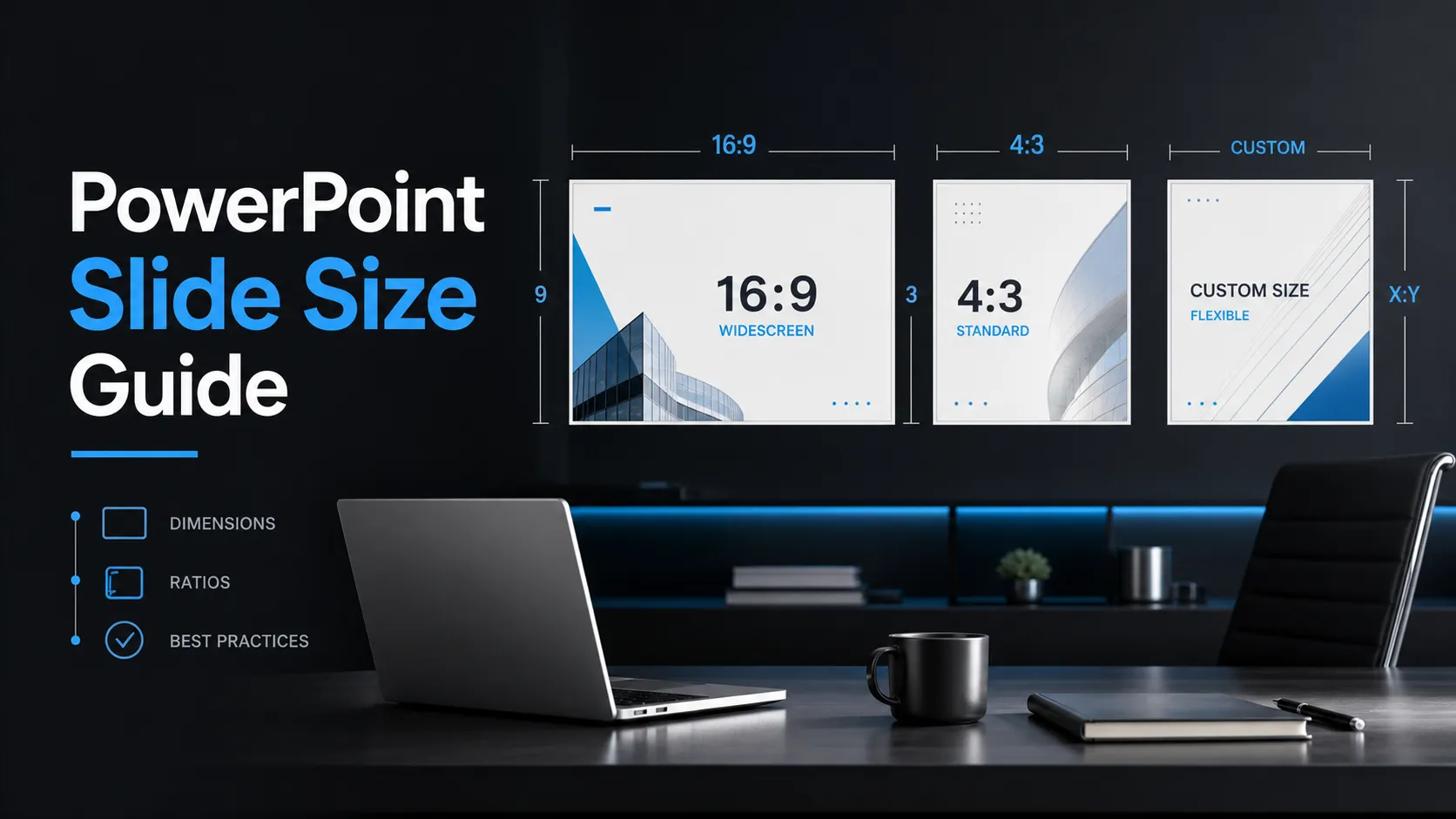
Choosing the right PowerPoint slide size is one of the first decisions you should make before designing a presentation. Slide size affects how your content fills a screen, how readable your text feels, how charts and images scale, and how professional the final deck looks in meetings, webinars, conferences, or exported files.
Many presenters only think about PPT slide size after something looks wrong: black bars on a projector, stretched graphics, cropped text, or slides that feel too dense on a laptop screen. The better approach is to decide the format early, then design around it.
What PowerPoint Slide Size Means
PowerPoint slide size refers to the canvas size of a slide inside the presentation file. It is usually expressed in inches or centimeters, such as 13.333 x 7.5 inches for widescreen.
The most important concept is aspect ratio: the relationship between width and height. A 16:9 slide is wide, while a 4:3 slide is more square. If you searched for “size slide,” the practical question is usually how to choose the right slide size before building the deck.
Microsoft’s official guide to changing PowerPoint slide size is the best reference for where the setting lives inside PowerPoint.
Standard PowerPoint Slide Sizes
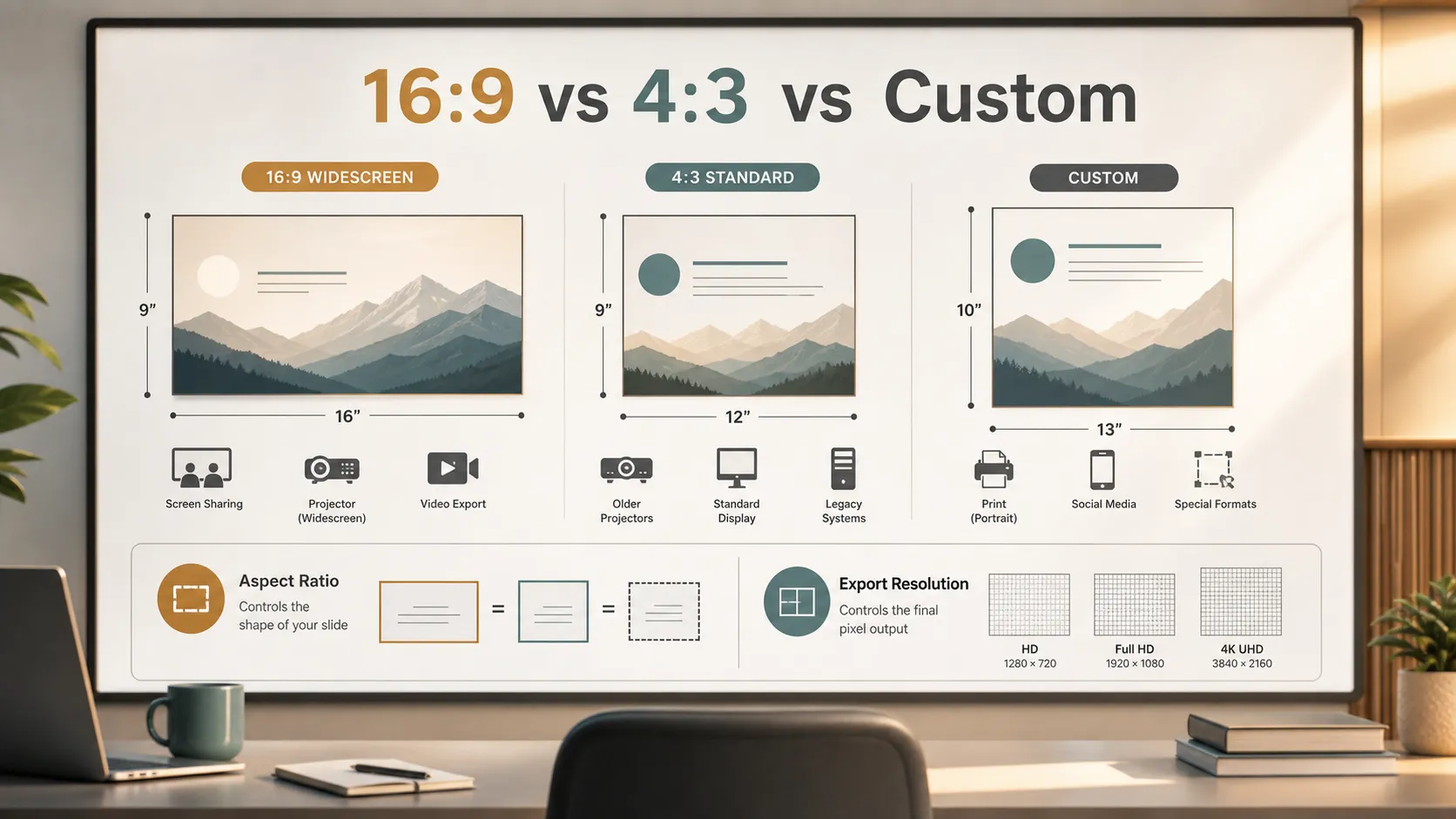
The two most common PowerPoint slide sizes are 16:9 widescreen and 4:3 standard. For most modern presentations, 16:9 is the safer default because it fits laptops, monitors, TVs, meeting room displays, and virtual presentations.
| Slide size | Common dimensions | Best for |
|---|---|---|
| 16:9 widescreen | 13.333 x 7.5 in | Business decks, webinars, pitch decks, conferences, screen sharing |
| 4:3 standard | 10 x 7.5 in | Older projectors, legacy templates, some classroom or venue setups |
| Custom size | Varies | Posters, reports, signage, printed handouts, social media assets |
The exact inches matter less than the ratio for most screen-based presentations. A 16:9 slide can scale to HD or 4K displays because the shape stays the same.
16:9 vs 4:3: Which Slide Size Should You Use?
For most modern decks, use 16:9. It gives you more horizontal space and works well for side-by-side comparisons, dashboards, timelines, large images, and screen sharing.
Use 4:3 only when the presentation environment requires it. This may happen with older projectors, legacy corporate templates, or specific venue setups.
A simple rule:
- Use 16:9 for most business, education, webinar, and conference presentations.
- Use 4:3 only when the equipment or template requires it.
- Use a custom slide size when the deck is not mainly meant for a normal screen.
The best decision starts with where the deck will be seen, not with personal preference.
PowerPoint Dimensions for Screens, Projectors, and Exports
PowerPoint dimensions interact with the display environment. A 16:9 deck maps well to common HD and 4K screens because those displays share the same aspect ratio. This reduces the chance of black bars, awkward scaling, or wasted screen space.
Projectors are more variable. Modern projectors often support widescreen, but older models may favor 4:3. If you are presenting at an event, confirm the screen format before the deck is finalized.
Exports add another layer. When you export slides as images, videos, or PDFs, the final pixel dimensions depend on export settings. The slide size defines the canvas; the export settings define the final image or file output.
When to Use a Custom PowerPoint Slide Size
Custom slide dimensions make sense when your output is not a standard presentation screen.
Common examples include:
- event signage;
- posters;
- one-page reports;
- printed leave-behinds;
- proposal pages;
- digital signage;
- social media graphics;
- non-standard display screens.
Set the custom size before designing. Changing slide size after a deck is built can shift layouts, distort images, move text boxes, and create alignment problems.
If your team needs both a live presentation and a printed version, it may be better to create two layouts instead of forcing one file to serve every format.
Best Practices for Designing Around Slide Size
Slide size is not just a technical setting. It shapes design decisions throughout the deck.
Keep safe margins around the slide so important text and visuals do not feel cramped. Use readable font sizes, especially if the deck will be projected in a large room or viewed through screen sharing. A slide that looks fine on your monitor may feel too small from the back of a conference room.
Wider slides can support more complex visuals, but that does not mean every slide should be filled. Use the extra space to improve visual hierarchy, not to add more clutter.
For inclusive design, Microsoft’s guide to accessible PowerPoint presentations and W3C’s accessible presentation guidance are useful references when preparing slides for different audiences.
How to Change PowerPoint Slide Size
You can change PowerPoint slide size before you start designing, or adjust it later if needed. The safest workflow is to set the size first.
- Open the presentation.
- Go to the Design tab.
- Select Slide Size.
- Choose Standard 4:3, Widescreen 16:9, or Custom Slide Size.
- Review every slide after changing the format.
- Fix shifted text, cropped images, and crowded layouts.
If PowerPoint asks whether to maximize content or ensure fit, check the result carefully. “Ensure fit” may keep content visible but make it smaller. “Maximize” may enlarge content but create cropping.
How Pi Helps Teams Create Professional Presentations in the Right Format
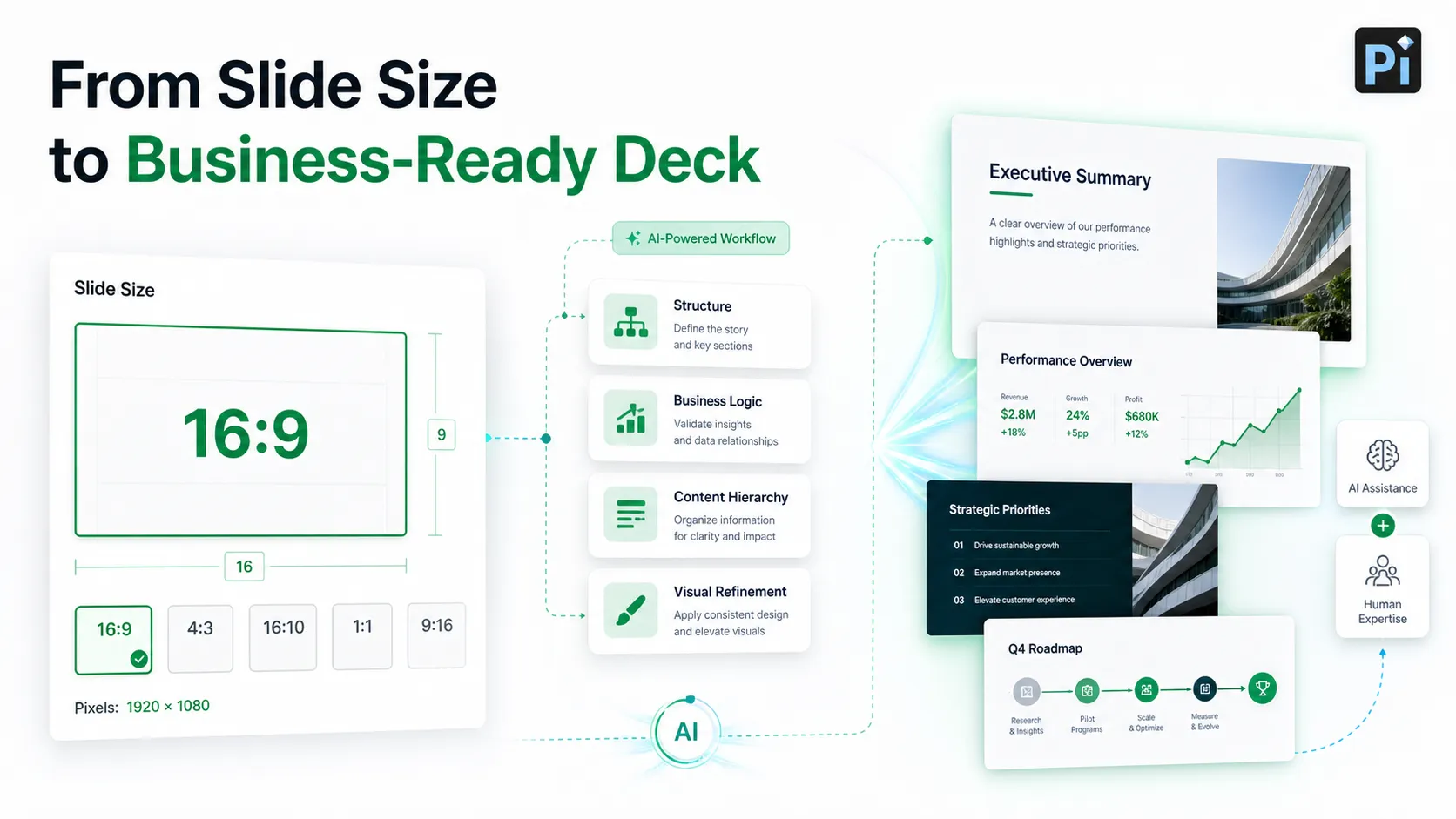
Pi presentation maker can help teams create professional presentations once the right PowerPoint slide size is clear. Slide size gives the deck its canvas, but structure, logic, and visual quality determine whether the presentation actually works.
Pi helps turn a rough idea, document, or prompt into a business-ready deck with a cleaner flow. For pitch decks, sales decks, consulting reports, executive updates, and market research presentations, the slide format is only one part of the problem. The message also needs to be organized.
Pi is useful when you want a 16:9 deck that feels intentionally designed rather than stretched into a default format. It can help shape slide titles, organize the storyline, and create layouts that use the available space more effectively.
The goal is not just to choose the right slide size. The goal is to build a deck where the format, content, and visual hierarchy work together.
Quick Checklist Before You Build the Deck
Before you start designing, check these points:
- Where will the presentation be shown?
- Does the screen or venue require 16:9 or 4:3?
- Will the deck be exported as PDF, image, or video?
- Will it also be printed?
- Are charts and images high enough quality?
- Is the text readable from the expected viewing distance?
- Do you need a custom size for signage, reports, or social content?
Answering these questions early can prevent layout problems later.
The Verdict
For most modern presentations, the best PowerPoint slide size is 16:9 widescreen. It fits current screens, works well for virtual meetings, and gives enough space for clean layouts.
Use 4:3 only when older equipment, legacy templates, or a specific presentation environment requires it. Use a custom slide size when the deck is meant for a special output, such as print, signage, or social media.
A good slide size does not guarantee a strong presentation, but it gives the deck the right foundation. Once the format is set, tools like Pi can help turn that canvas into a polished, structured, and professional presentation.
Frequently Asked Questions (FAQ)
Q: What is the default PowerPoint slide size?
A: In modern versions of PowerPoint, the default slide size is usually 16:9 widescreen, commonly 13.333 x 7.5 inches. Older versions often used 4:3 standard, typically 10 x 7.5 inches.
Q: What is the best PowerPoint slide size for presentations?
A: For most modern presentations, 16:9 is the best default because it works well with laptops, monitors, TVs, projectors, and virtual meetings. However, 4:3 or custom dimensions may be better when the venue, print format, or display environment requires them.
Q: What are the pixel dimensions of a PowerPoint slide?
A: PowerPoint slide size is usually defined in inches or centimeters, not pixels. Pixel dimensions matter when exporting slides as images or videos. A 16:9 slide may export as 1920 x 1080, 3840 x 2160, or another resolution depending on export settings.
Q: Is it safe to change PowerPoint slide size after designing a deck?
A: It is possible, but not ideal. Changing slide size after design can shift layouts, crop images, distort graphics, and reduce readability. It is better to choose the correct PPT slide size before building the full presentation.


