background for the presentation

Choosing the right background for the presentation is harder than it looks. A slide can feel too plain without a background, but too busy with one. The best presentation backgrounds do not simply decorate the deck. They make the content easier to read, help the audience understand the message faster, and give the presentation a more polished, credible look.
This matters whether you are building a pitch deck, sales deck, consulting report, executive presentation, class project, product launch deck, or brand proposal. A strong background creates visual consistency. A weak one competes with the text, weakens charts, and makes the deck feel less professional.
The practical rule is simple: the right background is the one that makes the message clearer.
What Makes a Good Presentation Background?
A good presentation background supports the main idea on each slide. It should create enough visual interest to make the deck feel designed, but not so much that it distracts from titles, body text, charts, screenshots, or calls to action.
Strong presentation backgrounds usually have three qualities. First, they provide contrast so text is easy to read. Second, they create consistency across the deck so the presentation feels unified. Third, they match the tone of the audience and situation.
For example, an investor pitch deck may need a clean, premium background that makes financial data and market opportunity slides feel credible. A product launch deck may use more expressive gradients or branded visuals to build energy. A consulting report may rely on restrained light backgrounds with clear chart space. The best choice depends on the job the slide needs to perform.
Key Rules Before Choosing a Presentation Background
Before choosing a professional presentation background, focus on communication. A visually impressive slide can still fail if the audience struggles to read it.
Use these rules before selecting any PPT background design:
- Prioritize contrast before style. Dark text on a light background or light text on a dark background usually works best.
- Keep text areas clean. Avoid placing paragraphs, chart labels, or key numbers over detailed images or busy textures.
- Limit decorative detail. Patterns, gradients, and shapes should frame the content, not fight for attention.
- Match the audience. A board meeting, startup demo day, university seminar, and creative portfolio all require different visual tones.
- Use brand colors intentionally. Brand colors should guide the palette, but they do not need to dominate every slide.
- Design for repeated use. A background should work across title slides, data slides, section dividers, and closing slides.
A useful test is to view the slide at a smaller size. If the text, chart, or main message becomes unclear, the background is probably doing too much.

Best Presentation Background Ideas by Style
There is no single best background for every deck. The strongest slide background ideas depend on content density, audience expectations, and brand personality.
Minimalist backgrounds are ideal when clarity matters most. They often use white, off-white, pale gray, or deep navy with subtle accents. This style works well for executive updates, consulting reports, academic presentations, and data-heavy decks because it gives charts and text room to breathe.
Corporate backgrounds are more structured. They may include brand colors, faint geometric shapes, header bands, footer areas, or subtle gradients. A corporate style works well for sales decks, internal reports, financial reviews, and partner presentations where trust and consistency matter.
Creative backgrounds are useful for product launches, marketing proposals, design portfolios, and innovation workshops. They may use expressive color, abstract shapes, or bold section dividers. The tradeoff is that creative backgrounds require more control. If every slide becomes visually loud, the audience may remember the style more than the message.
Geometric backgrounds create order and motion through lines, grids, polygons, or modular shapes. They can make technology, SaaS, B2B, and strategy decks feel modern. The key is to keep geometry in the background layer, away from essential text and chart areas.
Gradient backgrounds can feel contemporary and premium, especially in technology, AI, and product presentations. Soft gradients work well for cover slides, transition slides, and key message slides. For dense content, use gradients subtly or place content inside high-contrast cards.
Dark backgrounds create drama and focus. They are effective for keynote-style talks, product demos, investor narratives, and presentations with strong visuals. However, dark backgrounds can make dense text and complex tables harder to read if spacing and contrast are not carefully managed.
Light backgrounds are versatile and highly readable. They are often the safest choice for business presentations, reports, and decks that may be printed or shared as PDFs. A light background can still look premium when supported by strong typography, refined spacing, and consistent accent colors.
Image-based backgrounds can be powerful when the image supports the message. A market expansion slide might use a muted city image. A sustainability proposal might use a natural texture. The risk is readability. Use overlays, blur, cropping, or dedicated text panels so the image does not interfere with the message.
Branded backgrounds use logos, colors, typography, and visual motifs from a company’s identity system. They are useful for customer-facing decks and internal communication. The goal is not to place a large logo everywhere. The goal is to make the deck feel unmistakably aligned with the brand.
Professional Presentation Backgrounds for Business Decks
Business decks need backgrounds that communicate confidence. In high-stakes settings, the background should make the deck feel premium, but it should not look decorative for its own sake.
For executive presentations, use backgrounds that support fast scanning. Senior audiences often look for the main point, the evidence, and the decision required. Clean backgrounds, clear title areas, and strong chart contrast help them move through the information quickly.
For sales decks, backgrounds should support persuasion. A consistent background system can separate problem slides, solution slides, proof slides, pricing slides, and next steps. This gives the deck rhythm and helps the audience understand the sales narrative.
For pitch decks, backgrounds should build confidence in the company. Investors want to see market clarity, business logic, traction, differentiation, and financial potential. A polished background can help create trust, but it cannot replace a clear story. The visual system should make each argument sharper.
For consulting reports, backgrounds should be restrained and structured. Consulting-style decks often include frameworks, charts, recommendations, and analysis. The best backgrounds provide whitespace, alignment, and hierarchy so the insight stands out.
For internal reports, practicality matters. A background should be easy to reuse across monthly updates, KPI reviews, roadmap meetings, and operational dashboards. Consistency is more important than visual novelty.
PowerPoint and Google Slides Background Tips
Whether you use PowerPoint, Google Slides, or another PPT design workflow, consistency matters more than individual slide decoration. Many decks look inconsistent because each slide is adjusted manually. One slide uses a gradient, another uses a stock photo, another uses a plain white background, and the overall deck begins to feel fragmented.
In PowerPoint, Slide Master can help apply backgrounds consistently across title slides, content slides, divider slides, and closing slides. In Google Slides, theme layouts can serve a similar purpose. The goal is to define a small set of repeatable background types rather than redesigning every slide from scratch.
A practical background system might include a cover background, a standard content background, a data slide background, a section divider background, and a final call-to-action background. This keeps the deck flexible while preventing design drift.
When using google slides backgrounds, make sure they remain readable on different screens and during video calls. When creating a ppt background design, check how the slides look in presentation mode, PDF export, and shared review formats. A background that looks elegant on your monitor may become too dark, too faint, or too detailed when projected.
Try AI Presentation Generator for Free ↗
Common Background Design Mistakes to Avoid
The most common mistake is choosing a background before understanding the slide’s purpose. If the slide needs to explain a complex chart, the background should be quiet. If the slide introduces a major section, it can be more expressive.
Low contrast is another major issue. Pale gray text on a white background, bright text on a complex photo, or blue text on a dark gradient can all reduce readability. Even if the slide looks stylish, the audience may struggle to follow it.
Overused stock imagery can also weaken a presentation. Generic handshake photos, random city skylines, and abstract business images can make a deck feel less specific. If an image-based background does not directly support the message, a cleaner visual system is usually stronger.
Inconsistent color use creates another problem. If every slide uses a different palette, the deck feels improvised. Choose a limited set of colors and repeat them with intention.
Finally, avoid backgrounds that distract from charts. Data slides need clear axes, labels, legends, and key numbers. A textured or highly saturated background can make data visualization harder to interpret.
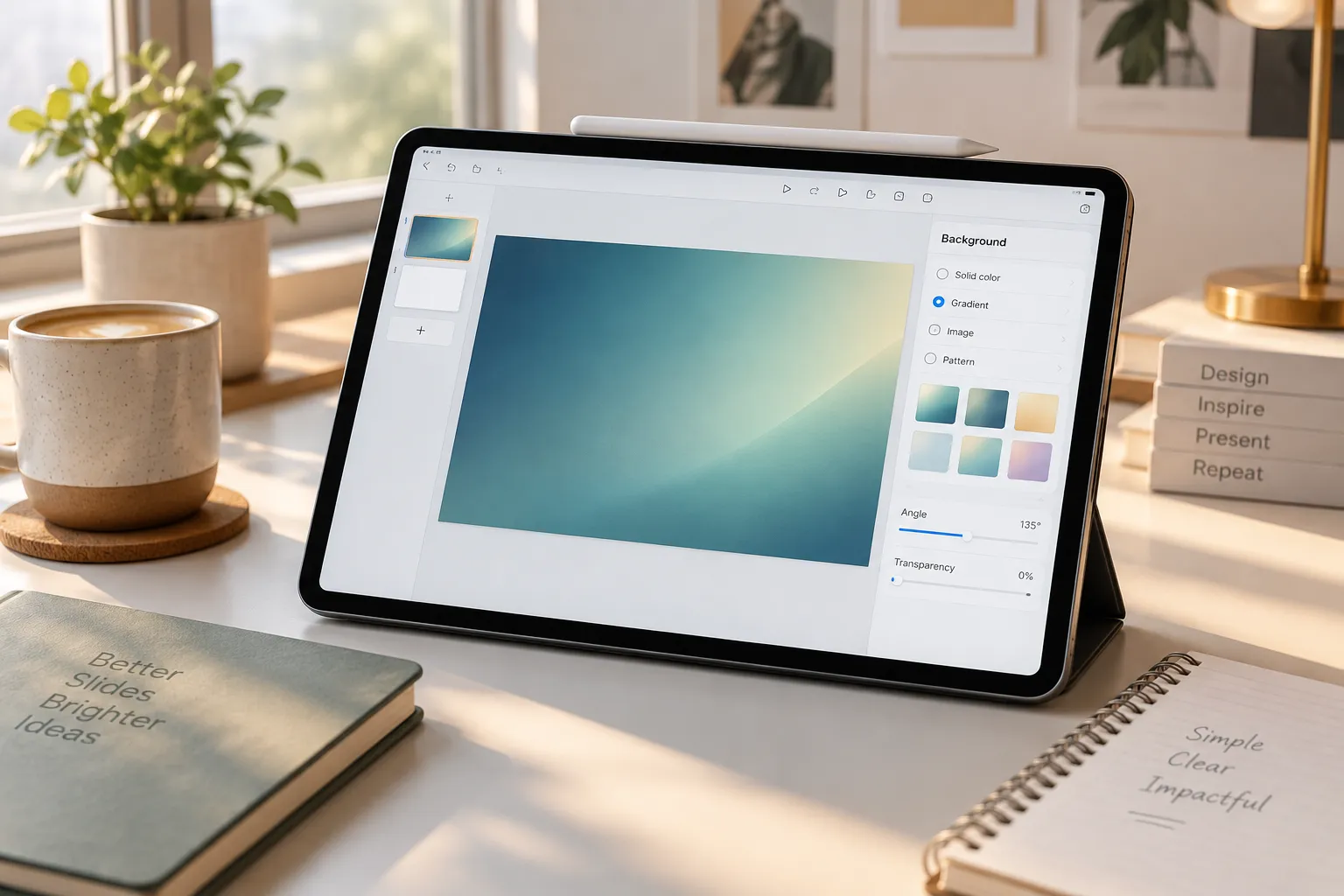
How Pi Helps Create Business-Ready Presentation Backgrounds
Pi, short for Presentation Intelligence, is an AI presentation maker designed for professional business presentations. Instead of treating the background as a separate decorative choice, Pi helps create backgrounds as part of a complete presentation system: structure, narrative, business logic, and visual design working together.
This is especially useful for teams creating pitch decks, sales decks, consulting reports, executive presentations, brand proposals, market research decks, and product launch decks. In these contexts, a background is not just visual polish. It supports credibility, hierarchy, and decision-making.
1. Business Logic Comes Before Slide Styling
Pi helps start with the purpose of the deck, not just the look of the slides. A background for an investor pitch should support traction, market opportunity, and financial clarity. A background for a sales deck should support the buyer journey. A background for an executive update should help leaders identify risks, decisions, and next steps quickly.
By connecting design choices to business intent, Pi helps prevent the common mistake of choosing a beautiful background that does not fit the message.
2. Multi-Agent AI Supports Structure and Visual Quality
Pi uses Multi-Agent AI to help shape both the content and the presentation flow. That means the deck can be developed with attention to structure, narrative, and business-grade aesthetics at the same time.
Instead of manually searching for presentation backgrounds and then forcing content into them, teams can move toward a more integrated workflow. The background, layout, visual hierarchy, and message are created to work together.
3. Premium Visual Systems Reduce Manual Design Drift
Many teams lose consistency when multiple people edit the same PowerPoint or Google Slides file. Fonts shift, colors change, and backgrounds become inconsistent.
Pi helps teams create a more coherent visual direction from the beginning. Backgrounds can feel premium and modern while still supporting readable layouts, clear sections, and business-ready slide structure.
Design Professional Decks with Pi ↗
Quick Comparison: Manual Background Design vs AI-Assisted Presentation Workflow
| Presentation Need | Manual Background Design | Pi AI-Assisted Workflow |
|---|---|---|
| Starting point | Search for visual styles | Define message and deck purpose |
| Consistency | Requires manual control | Built into the deck structure |
| Business logic | Added separately | Developed with the presentation |
| Visual quality | Depends on design skill | Guided by premium presentation patterns |
| Best fit | Simple or one-off decks | Professional, high-stakes business decks |
This does not mean manual design is wrong. For a short class presentation or a simple internal update, manually selecting a background may be enough. The challenge begins when the deck must persuade, report, sell, raise funding, or guide decisions. In those cases, the background should be part of a broader presentation strategy.
The Practical Verdict: Choose the Background That Makes the Message Clearer
The best background for the presentation is not always the most colorful, minimal, modern, or dramatic. It is the background that helps the audience understand the message with less effort.
If your slide contains dense data, choose a clean and quiet background. If your slide introduces a major idea, a stronger visual treatment may help. If your presentation represents a company, use brand elements consistently but not excessively. If the deck will be shared across teams, use repeatable background layouts rather than one-off designs.
For professional business presentations, treat background design as part of the full communication system. Pi can help create or refine presentation backgrounds within a complete AI-powered workflow, combining business-ready structure, premium visual quality, and clear slide logic so the deck feels polished from beginning to end.
Start Building Your Presentation with Pi ↗
Frequently Asked Questions (FAQ)
What is the best background for the presentation?
The best background for the presentation is one that improves clarity. In most cases, that means strong contrast, clean text areas, consistent colors, and a style that matches the audience. Minimalist, corporate, gradient, dark, light, and branded backgrounds can all work when they support the message instead of distracting from it.
What makes a professional presentation background look credible?
A professional presentation background usually looks clean, intentional, and consistent. It avoids busy textures behind text, uses a controlled color palette, supports readable typography, and gives charts or visuals enough space. For business decks, the background should feel polished without overpowering the content.
Can I use the same backgrounds in PowerPoint and Google Slides?
Yes, many backgrounds can work in both PowerPoint and Google Slides. The key is to use consistent layouts, test readability in presentation mode, and avoid manually changing every slide. Master layouts in PowerPoint and theme layouts in Google Slides can help keep backgrounds consistent across the deck.
Can AI help create better presentation backgrounds?
Yes. AI can help create presentation backgrounds more efficiently, especially when the background is developed together with the deck’s structure and message. Pi supports this broader workflow by helping teams create business-ready presentations with clear logic, consistent visual direction, and premium slide design.


