How to Put a Video in Google Slides: Ultimate Step-by-Step Guide
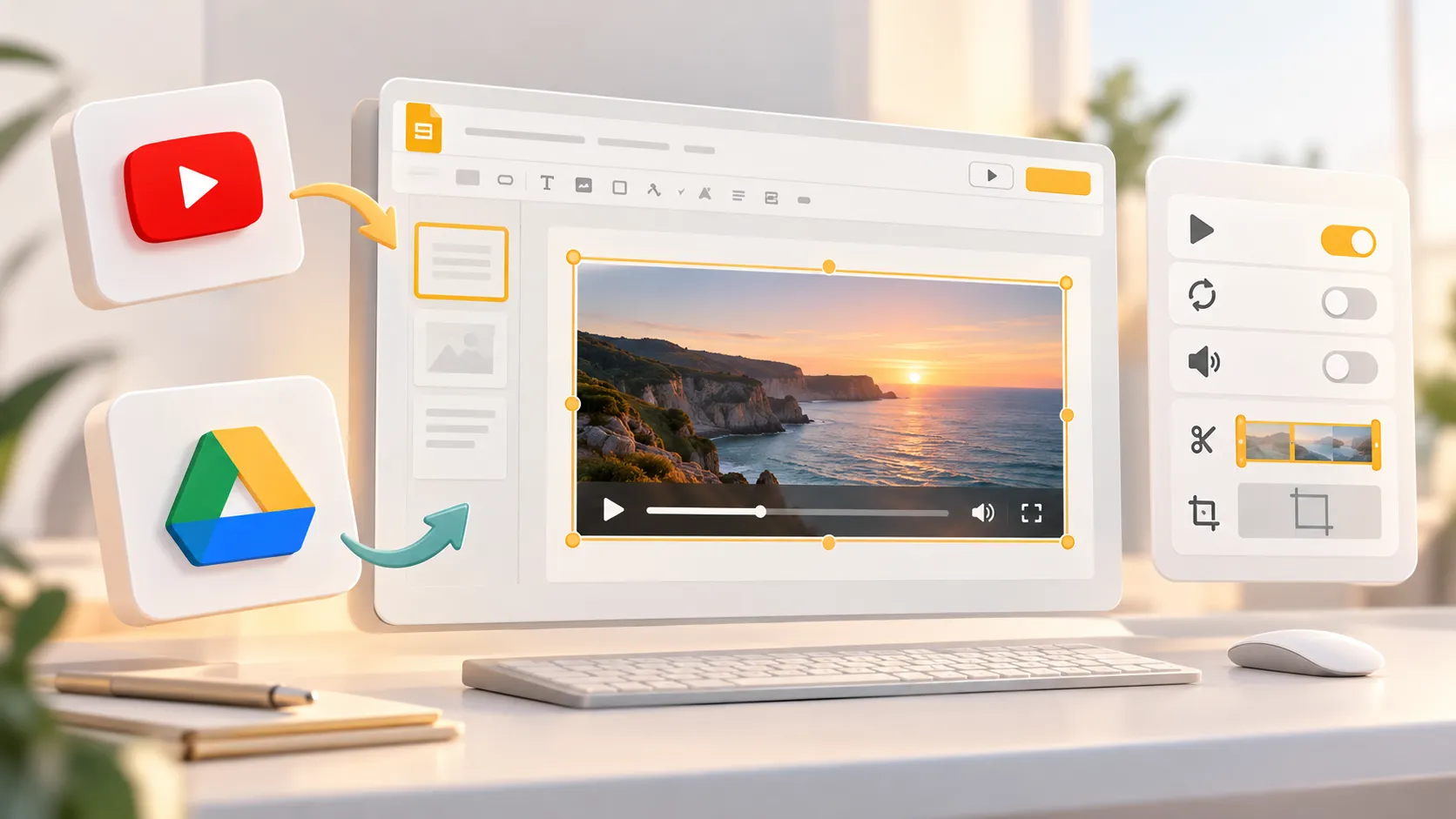
Adding video can make a lesson, product demo, team update, or sales presentation more engaging. The good news is that learning how to put a video in Google Slides is simple once you choose the right source and configure playback before presenting.
Google Slides supports two main video sources: YouTube and Google Drive. You can search YouTube from within Slides, paste a specific YouTube URL, or insert a video file that you uploaded to Google Drive. After adding it, you can control timing, sound, autoplay, looping, size, and cropping.
How to Add a Video to Google Slides
Before you insert video into Google Slides, decide where the video is hosted. This affects how you add it and whether your audience can play it successfully.
| Video Source | Best For | Insert Method | Key Consideration |
|---|---|---|---|
| YouTube | Public clips, tutorials, interviews, demos | Insert > Video > YouTube or By URL | Requires a working link and internet access |
| Google Drive | Original recordings and internal files | Insert > Video > Google Drive | Sharing permissions must allow viewers to access it |
Use YouTube when you want to embed video in Google Slides from an existing public video. Use Google Drive when the file is your own recording, an internal training video, or media that is not hosted on YouTube.
How to Insert a YouTube Video in Google Slides
To add a YouTube video, open the target slide and select Insert > Video. A dialog box will appear with options to search YouTube or paste a direct URL.
Search for a YouTube Video in Google Slides
The built-in search option is useful when you know the topic or title but do not have the exact link.
1. Open your Google Slides presentation and click the slide where the video should appear. 2. Choose Insert from the top menu, then select Video. 3. Select the YouTube search tab. 4. Enter a keyword, video title, channel name, or topic. 5. Review the search results carefully and select the correct video. 6. Click Select to place the video on your slide.
After insertion, drag the video to reposition it. You can also use the corner handles to resize it while maintaining its proportions.
Before presenting, confirm that the selected video is the correct version. Search results can include similarly named clips, shortened edits, or videos from different channels.
Paste a YouTube Video URL
If you already have the exact YouTube link, pasting the URL is usually faster and more reliable.
1. Copy the full YouTube video URL from your browser. 2. In Google Slides, select Insert > Video. 3. Open the By URL tab. 4. Paste the YouTube link into the field. 5. Click Select.
This method is especially helpful when you need a specific video, such as a company announcement, a customer testimonial, or a clip with an approved timestamp.
How to Upload a Video from Google Drive to Google Slides
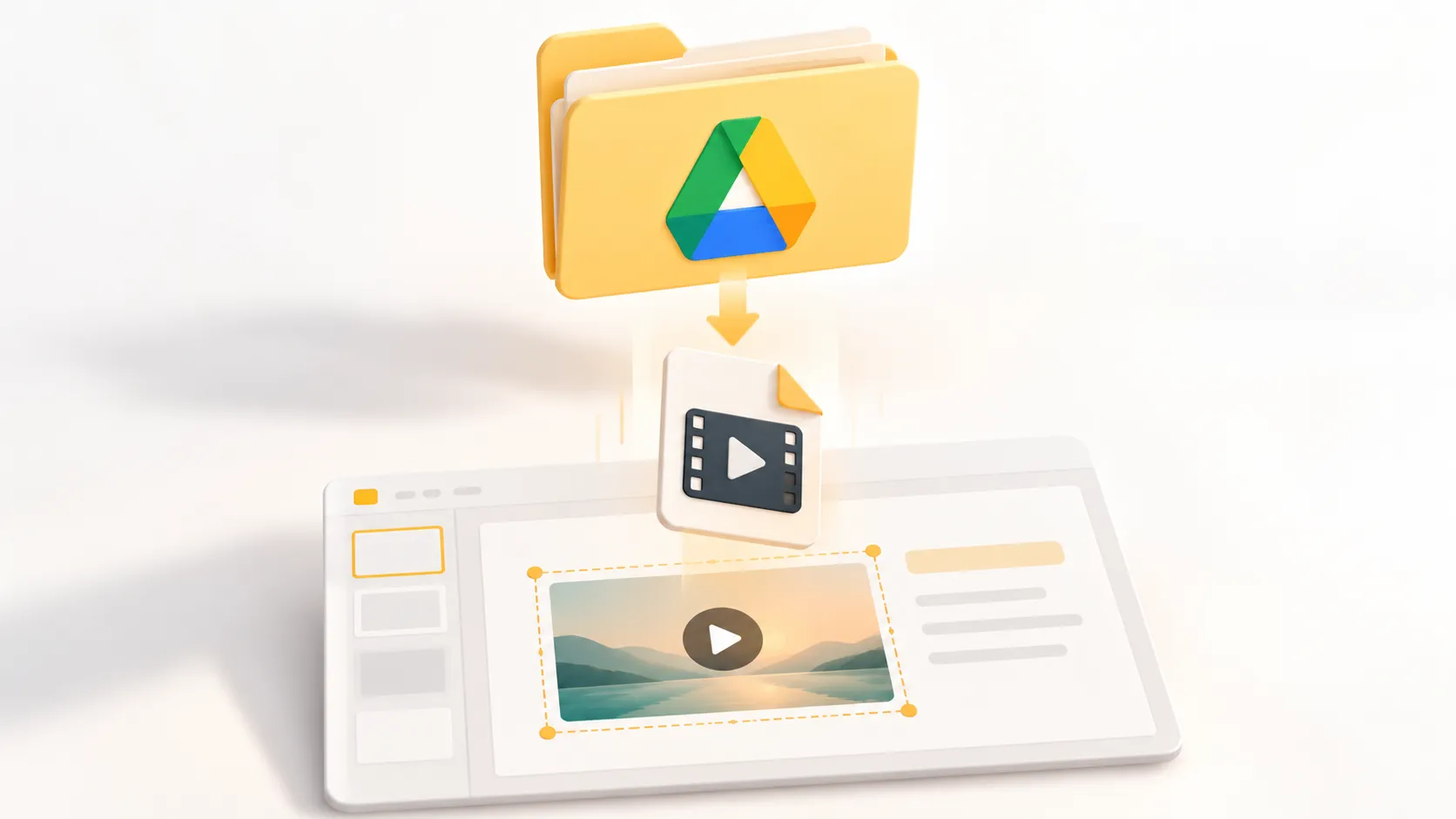
Google Slides does not let you directly insert a local video file from your computer. First, upload the video to Google Drive, then add it from there.
1. Open Google Drive and click New > File upload. 2. Choose the video file from your computer and wait for the upload to finish. 3. Check the file’s sharing settings in Google Drive. 4. Open the Google Slides presentation and choose the target slide. 5. Select Insert > Video. 6. Open the Google Drive tab. 7. Find the uploaded video, select it, and click Select.
For shared presentations, permissions matter. If collaborators or viewers cannot access the Drive video, they may see an unavailable-video message during the presentation. Make sure the file is shared with the right people or accessible to everyone who needs to view the deck, based on your organization’s security requirements.
Google Drive is often the better choice for internal recordings, proprietary demos, and video content that should remain within your team’s workspace. Avoid using copyrighted video unless you have permission to include it.
How to Adjust Google Slides Video Playback Options
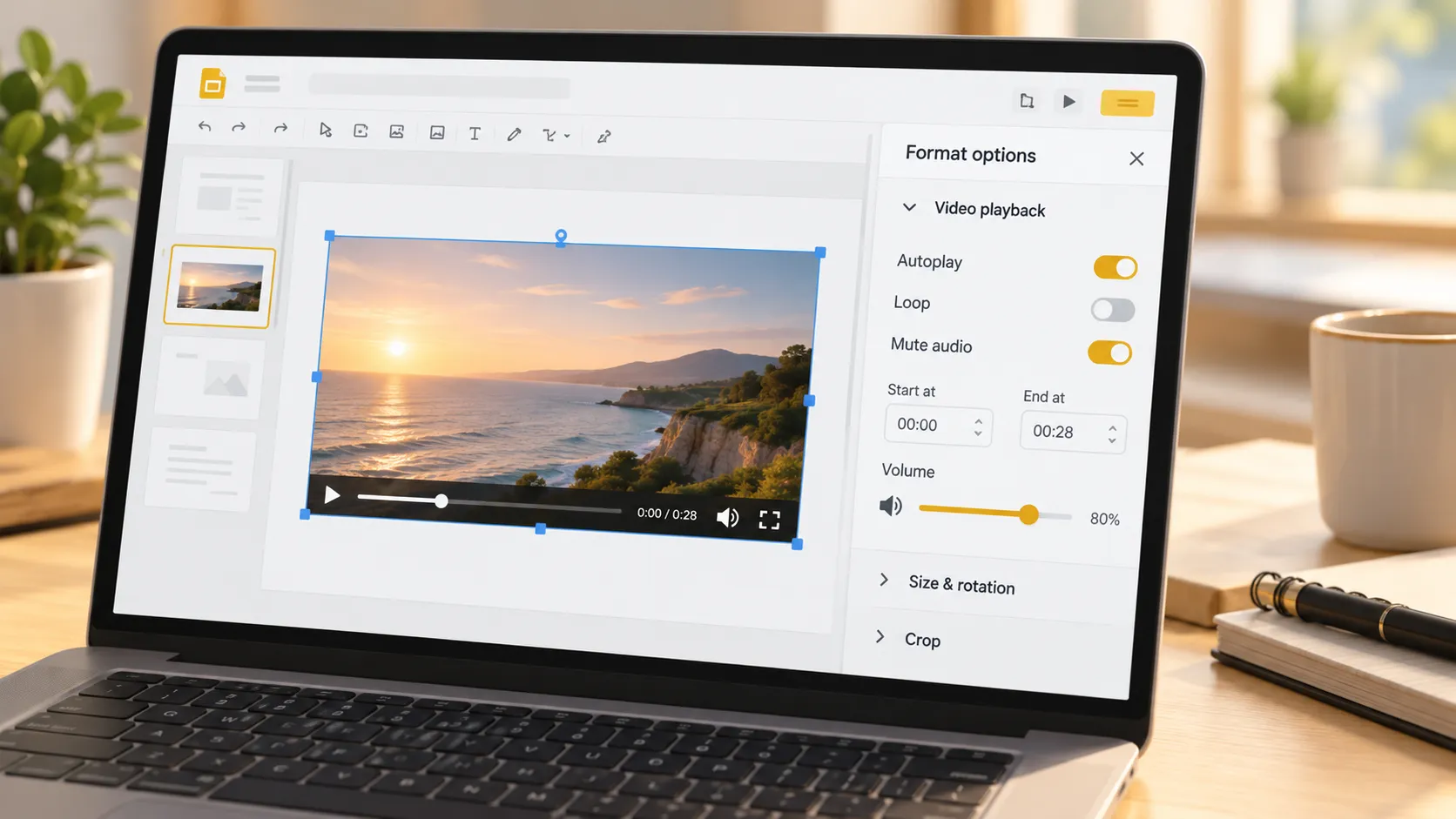
After you add video to Google Slides, select the video and open Format options. This panel lets you control many Google Slides video playback options before you present.
Testing these settings during rehearsal is important. A video that starts too late, plays with unexpected sound, or fails to loop can interrupt an otherwise polished presentation.
Set Start and End Times
Long videos can distract from your message. If you only need a short segment, use the playback controls to focus on the relevant moment.
1. Click the video on the slide. 2. Choose Format options. 3. Expand Video playback. 4. Enter the desired Start at and End at times when available.
For example, in a training deck, you might show only a 30-second demonstration instead of an entire 10-minute tutorial. This keeps the presentation focused and helps you stay on schedule. Start and end time controls may vary depending on the video source and your current Google Slides version.
Choose Autoplay, Click-to-Play, or Loop Playback
Within Format options > Video playback, choose how the video should begin.
- Play on click gives the presenter full control and works well for live meetings.
- Play automatically starts the video as soon as the slide appears, which can suit timed presentations or short introductions.
- Loop repeats the video until you move to another slide, making it useful for event displays, waiting screens, or product showcases.
Use autoplay carefully. It can create a smooth experience, but it may begin before you finish introducing the clip. For most live presentations, click-to-play is the safer option.
Mute, Resize, and Crop the Video
You can also improve how the video fits the slide design.
To remove sound, select the video, open Format options, and enable Mute audio when the setting is available. Muting is useful when a clip acts as background motion or when you plan to explain the visuals yourself.
To resize the video, drag a corner handle rather than a side handle. This helps prevent distortion. To crop it, select the video and use the crop tool in the toolbar. Remove unnecessary edges, black bars, or distracting background elements while keeping the important action visible.
Keep the video aligned with your slide’s grid, title, and supporting text. A well-positioned video should reinforce the message, not make the slide feel crowded.
Tips for Using Video Effectively in Google Slides
A successful video slide is about more than technical insertion. Use these checks before a live presentation:
- Keep clips short and directly relevant to the point you are making.
- Add a clear title or sentence that explains why the audience is watching.
- Test the video’s permissions using the account or device you will use to present.
- Rehearse the start time, sound level, playback mode, and slide transition.
- Confirm that your presentation location has reliable internet access.
- Prepare a backup, such as a screenshot, transcript, or short verbal explanation, in case playback fails.
Build a More Polished Presentation Workflow
Google Slides is practical for collaborative editing and media-rich presentations. Once the video is in place, the larger challenge is ensuring that every slide supports a clear business narrative.
Pi, short for Presentation Intelligence, is an AI presentation maker designed for professionals building pitch decks, executive updates, sales presentations, consulting reports, and other high-stakes business materials.
1. Business Logic Comes Before Slide Styling
Pi uses Multi-Agent AI to help shape raw ideas into a structured storyline. Instead of treating each slide as an isolated design task, it supports a clearer progression from context and evidence to recommendation and action.
2. Premium Visual Quality Supports the Message
For teams that need more than a simple video slide, Pi helps create business-ready layouts with polished visual consistency. This can be useful when video, charts, insights, and strategic recommendations need to work together in one credible presentation.
Frequently Asked Questions (FAQ)
Can you insert any video into Google Slides?
Google Slides supports YouTube videos and videos stored in Google Drive. You cannot directly insert an arbitrary local video file from your computer; upload it to Google Drive first, then add it through Insert > Video > Google Drive.
Do videos in Google Slides work offline?
Video playback is not reliably available offline. YouTube videos require internet access, while Google Drive videos can also depend on connectivity, account access, and sharing permissions. Always test the presentation in the environment where you will present.
Why does my Google Slides video say it is unavailable?
The video may be unavailable because the YouTube link was removed or restricted, the Google Drive file has limited sharing permissions, or the presenting account does not have access. Check the source link, file permissions, and internet connection.
How do I make a video start automatically in Google Slides?
Select the video, open Format options, expand Video playback, and choose Play automatically or Autoplay when presenting, depending on the available label. Run the slideshow once to confirm that the video begins at the intended moment.


