can you add moving gifs to a google slide
Yes, you can add moving GIFs to a Google Slide. Google Slides supports animated GIFs, and you can insert them from your computer, Google Drive, the built-in GIFs and stickers option, or an image URL.
A GIF can help show a quick process, product interaction, reaction, or visual example without adding a full video. The key is to use motion with purpose. A GIF should support the slide’s message, not distract from it.
Can you add moving GIFs to a Google Slide and make them play?
Yes. If you are asking "can you add moving GIFs to a Google Slide?", the answer is yes. Google Slides can display animated GIFs when the file is truly animated and inserted correctly.
The animation may appear still while you are editing, but it usually plays when you view the deck in slideshow mode. A moving GIF is an image file with a short loop of motion. GIF on Wikipedia ↗ and MDN’s GIF glossary ↗ both explain how GIF files can support animation.
Google’s help page confirms that users can add photos, videos, audio, GIFs, and stickers in Google Slides. You can review the official Google Docs Editors Help guide ↗ for supported insertion options.
Animated GIFs vs static images in Google Slides
If you are asking "can you add moving GIFs to a Google Slide?", the main difference is that an animated GIF can show motion while a static image cannot.
| Feature | Animated GIFs in Google Slides | Static images in Google Slides |
|---|---|---|
| Main question | Can you add moving GIFs to a Google Slide? Yes, with an animated GIF file | Static images do not move |
| Motion | Plays a short loop | No motion |
| Best for | Quick demos, reactions, simple processes | Screenshots, charts, diagrams, photos |
| File behavior | May increase deck size | Usually lighter |
| Audience attention | More noticeable | Less distracting |
| Export to PDF | Usually appears as a still image | Displays normally |
For formal business presentations, choose carefully. A subtle product GIF may help a sales deck, while a humorous reaction GIF may not fit an executive update.
How to add a moving GIF to Google Slides
Follow these steps to insert a GIF into Google Slides and check that it works correctly.
1. Open your Google Slides presentation
Open Google Slides and choose the presentation where you want to add the GIF. Click the specific slide where the animated image should appear.
If the slide is already crowded, simplify the layout before adding motion.
2. Choose how to insert the GIF
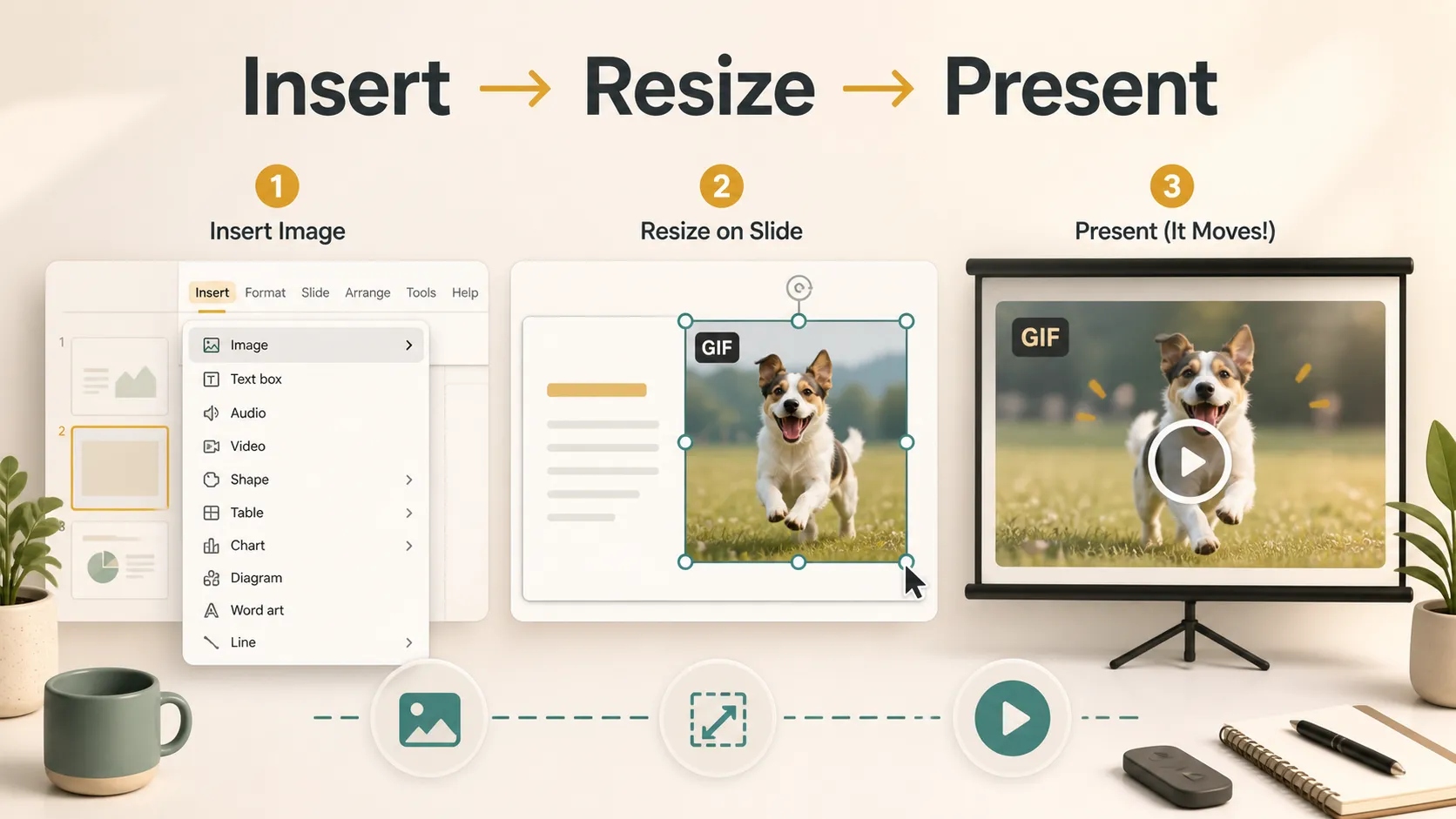
Click Insert in the top menu, then choose Image. From there, select the option that matches where your GIF is stored:
- GIFs and stickers
- Upload from computer
- Drive
- Photos
- By URL
Google’s Workspace Updates blog explains that the GIFs and stickers option in Google Slides ↗ lets users search and insert GIFs directly from the Insert menu.
3. Insert the GIF
Select the GIF and add it to your slide. If it appears as a still frame in edit mode, do not assume it is broken. Animated GIFs often need slideshow mode to show their movement clearly.
4. Resize and position the GIF
Click the GIF and drag the corner handles to resize it. Use the corner handles so you do not stretch the image.
Place the GIF near the content it supports. If it demonstrates a workflow step, keep it close to the related text.
5. Test the slide in presentation mode
Click Slideshow to test playback. Google’s Workspace guide to present slides in Google Slides ↗ is useful when checking how the deck behaves in presenter mode.
This confirms that the GIF moves, loads quickly, and does not distract from the main point.
How to add GIFs from your computer
If you already have a GIF saved on your device, upload it directly.
Open your slide, click Insert, choose Image, then select Upload from computer. Find the GIF file, select it, and insert it.
This method is useful when you created your own GIF, downloaded a royalty-free GIF, or saved a short screen recording as a GIF. Watch the file size, because large GIFs can slow down a deck.
How to add GIFs from Google Drive
Adding a Google Slides GIF from Drive works well if you store presentation assets in Google Drive.
First, upload the GIF file to Google Drive. Then open your presentation, go to Insert, choose Image, select Drive, find the GIF, and insert it.
This method is helpful for teachers, teams, and businesses that organize files in shared folders. If you work with a team, make sure the file permissions allow collaborators to access the GIF. Google’s help page on how to share files from Google Drive ↗ explains how to manage access.
How to make a GIF move in Google Slides
You do not need to add a separate animation effect to make a GIF move in Google Slides. If the file is a real animated GIF, it should play automatically when you present the slide.
To check it:
1. Insert the GIF through Insert > Image. 2. Use Upload from computer, Drive, GIFs and stickers, or By URL. 3. Click Slideshow. 4. Wait a moment for the GIF to load. 5. If it still does not move, test the GIF file outside Google Slides to confirm that it is animated.
If the GIF only looks still while editing, that does not always mean it is broken. Many GIFs show motion only during presentation mode.
Why is my GIF not moving in Google Slides?
If your GIF is not moving, do not assume Google Slides is broken. A few common issues can cause the problem.
Check these first:
- The file may not actually be animated.
- The GIF may only play in slideshow mode.
- The URL may point to a webpage instead of the GIF file.
- The file may be too large or slow to load.
- The GIF may have been inserted in a way that converted it to a still image.
- Exporting to PDF will usually remove the animation.
If you export Google Slides as a PDF, the GIF will usually appear as a static image because PDF does not preserve GIF animation in the same way a slideshow does.
Best practices for using animated GIFs in presentations
The best presentation tips for GIFs are simple: keep them short, relevant, and easy to understand.
Use GIFs when they help:
- Show a product interaction
- Demonstrate a quick process
- Explain a repeated action
- Add visual clarity to a training slide
- Replace a longer video when only a short loop is needed
Avoid GIFs when they are only decorative. Too much motion can make a slide feel less professional, especially in business, executive, or data-heavy presentations.
Accessibility matters too. Avoid flashing motion, overly fast loops, or animations that may be uncomfortable for some viewers. W3C’s guidance on flashes and animation thresholds ↗ is a useful reference for motion safety.
A note before adding more media
Adding a GIF is only one part of making a clear presentation. If your deck already has a strong structure, use the steps above to place a GIF where motion helps the message.
If you are still working from notes, source material, or a rough outline, Pi ↗ can help you organize the material into a presentation draft before you decide where a GIF actually belongs.
This is especially useful for product demos, training slides, sales decks, classroom presentations, and business walkthroughs. Once the slide flow is clear, it becomes easier to decide whether a GIF, screenshot, video, or static image is the best choice.

The Verdict
So, can you add moving GIFs to a Google Slide? Yes. Google Slides supports animated GIFs, and you can add them from your computer, Google Drive, built-in GIF options, or a direct URL.
The most reliable approach is to use a real animated GIF file, insert it through Insert > Image, resize it carefully, and test it in slideshow mode.
Used well, GIFs can make Google Slides presentations clearer and more engaging. Used poorly, they can distract from the message. Treat GIFs as communication tools, not decoration, and they will work much better in your next presentation.
Frequently Asked Questions
Can you add moving GIFs to a Google Slide?
Yes. Google Slides supports animated GIFs, and they can play as moving images during a presentation when inserted correctly.
How do I add GIFs to Google Slides from my computer?
Open your slide, click Insert, choose Image, select Upload from computer, and choose the GIF file you want to add.
Can I add a GIF to Google Slides from Google Drive?
Yes. Upload the GIF to Google Drive, then go to Insert > Image > Drive in Google Slides and select the GIF file.
How do I make a GIF move in Google Slides?
You usually only need to insert a real animated GIF and test it in slideshow mode. If it looks still while editing, present the slide before assuming the GIF is broken.


