does worship tools work with google slides
Yes, WorshipTools works with Google Slides. More specifically, WorshipTools Presenter supports importing Google Slides, which is useful for announcement slides, sermon slides, pre-service loops, post-service slides, event reminders, and ministry update decks.
The important thing is to understand what "works with" means in practice. The normal workflow is to import the Google Slides file into Presenter, place it in the service plan, test the slides, and make sure updates are handled before Sunday.
What WorshipTools says about Google Slides
WorshipTools' official documentation says that Presenter supports importing Google Slides, especially for announcement and sermon slides. The same documentation explains that when the slideset is updated in Google Slides, changes can be synced back into Presenter.
That is helpful because different people often prepare different parts of a service. Google Slides can be the editing space, while WorshipTools can be the presentation control space.
How the Google Slides import workflow usually works
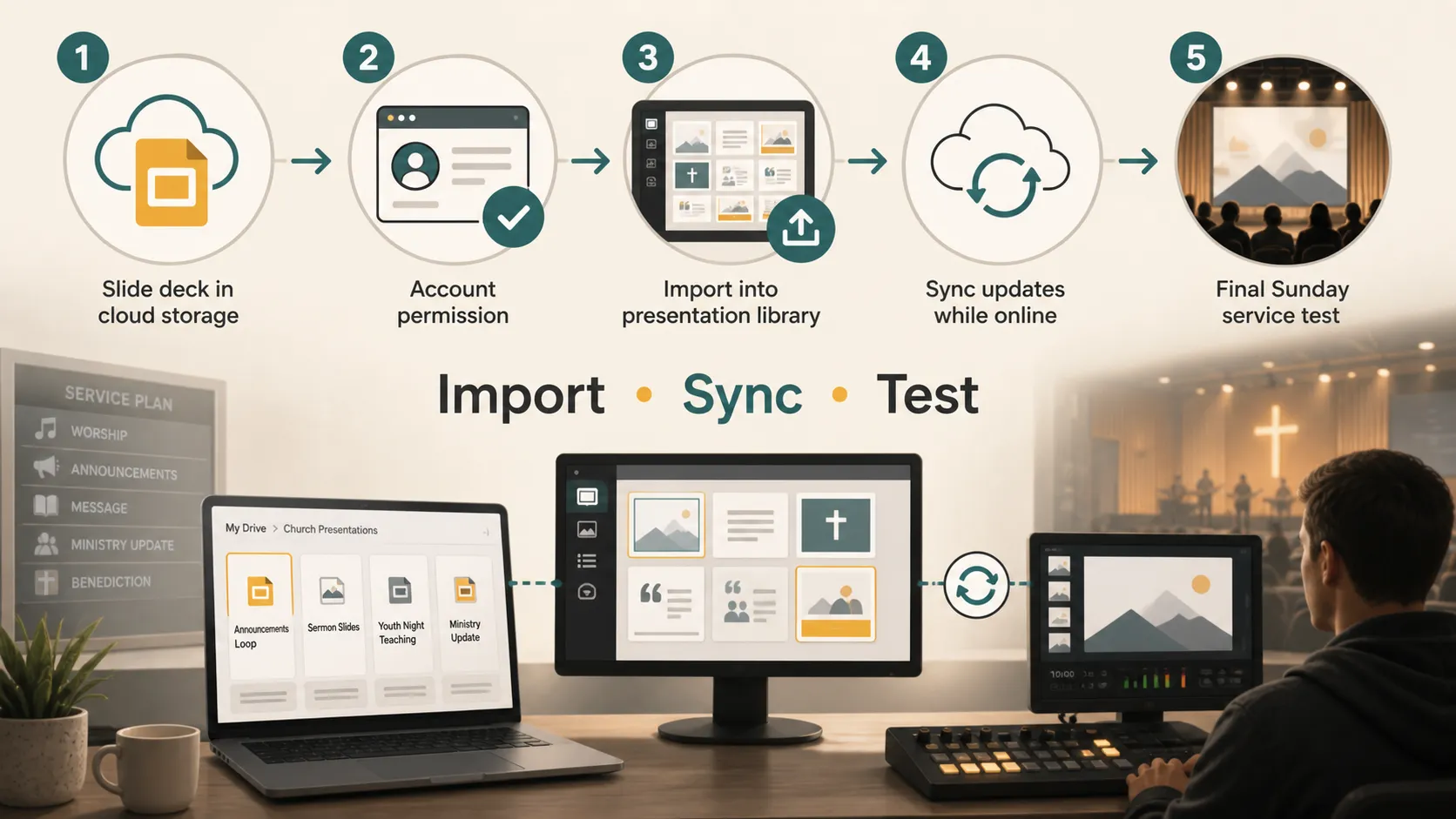
The general process is straightforward. In Presenter, open the Slides area, click Add Slides, and choose Import Google Slides. Then log in to a Google account, grant permission, and choose a presentation from Google Drive.
After the connection is approved, select the Google Slides file you want to use. Presenter imports it into the Slides library, where it can be added to a service item.
This workflow is especially useful when your church already has a shared Google Drive folder for sermon slides, announcement graphics, and ministry updates.
Best church use cases
Google Slides import is most useful when the deck is prepared outside the main worship software. Common examples include sermon slides, announcement loops, youth group slides, special service presentations, teaching slides, event reminders, and volunteer-created decks.
For sermon slides, pastors can edit from any browser. For announcement loops, ministry leaders can prepare slides with event dates, sign-up links, reminders, and images.
Workflow comparison
| Workflow | Best for | Pros | Watch out for |
|---|---|---|---|
| Google Slides import | Sermon slides, announcements, volunteer-created decks | Easy collaboration before service | Needs setup, permissions, and testing |
| PowerPoint or Keynote import | Existing slide files from another tool | Good for churches already using desktop slide software | Formatting may need review |
| Create slides directly in WorshipTools | Lyrics, scripture, simple teaching slides | Keeps everything inside Presenter | Less convenient for outside collaborators |
| Media slides | Images, backgrounds, motion graphics, announcement assets | Reliable for visual content | Not ideal for editable text-heavy decks |
The best choice depends on who creates the slides and how often they change. If several people prepare content during the week, Google Slides can make collaboration simpler.
What to check before Sunday
Do not wait until service starts to test a Google Slides import. Open the service plan early and confirm slide order, image quality, text size, colors, and timing.
If the slides are part of an announcement loop, test auto-advance behavior. WorshipTools' Google Slides documentation notes that Google Slides can be used for auto-advancing slides.
It is also smart to confirm which Google account is connected. If the wrong account is used, the file may not appear in the picker.
Internet and offline limitations
Google Slides support depends on connection and sync behavior. WorshipTools' offline mode documentation explains that some features normally require the internet, including syncing Google Slides.
The safest approach is to import and test slides while you have internet access. If your church often loses connection, have a backup plan, such as exported images, a PDF, or a local copy of the slides.
Newer Presenter behavior to know about
In one support thread about importing PowerPoint, Keynote, and Google Slides, a WorshipTools team response explained that Presenter 2026's import-as-images approach was intended to improve stability because external Google changes could affect direct integrations.
That approach can be useful for reliability. Once slides are imported as images, there is less risk of something changing unexpectedly through a live link.
The tradeoff is that imported slides may behave more like flattened visuals. Animations, editable layers, transitions, or interactive elements may not work the same way they do inside Google Slides.
Troubleshooting common problems
If Google Slides does not import correctly, start with account access. Make sure you are logged in to the Google account that owns or can access the file.
If the Google Drive picker does not appear, check your browser and pop-up settings. Pop-up blockers or browser prompts can get in the way.
If the file does not appear, confirm that it is a Google Slides file and visible in Google Drive. If slides do not update after edits, try syncing again.
If animations, layers, or transitions do not behave as expected, remember that imported slides may be flattened depending on the Presenter version and import method.
A note before building new slides
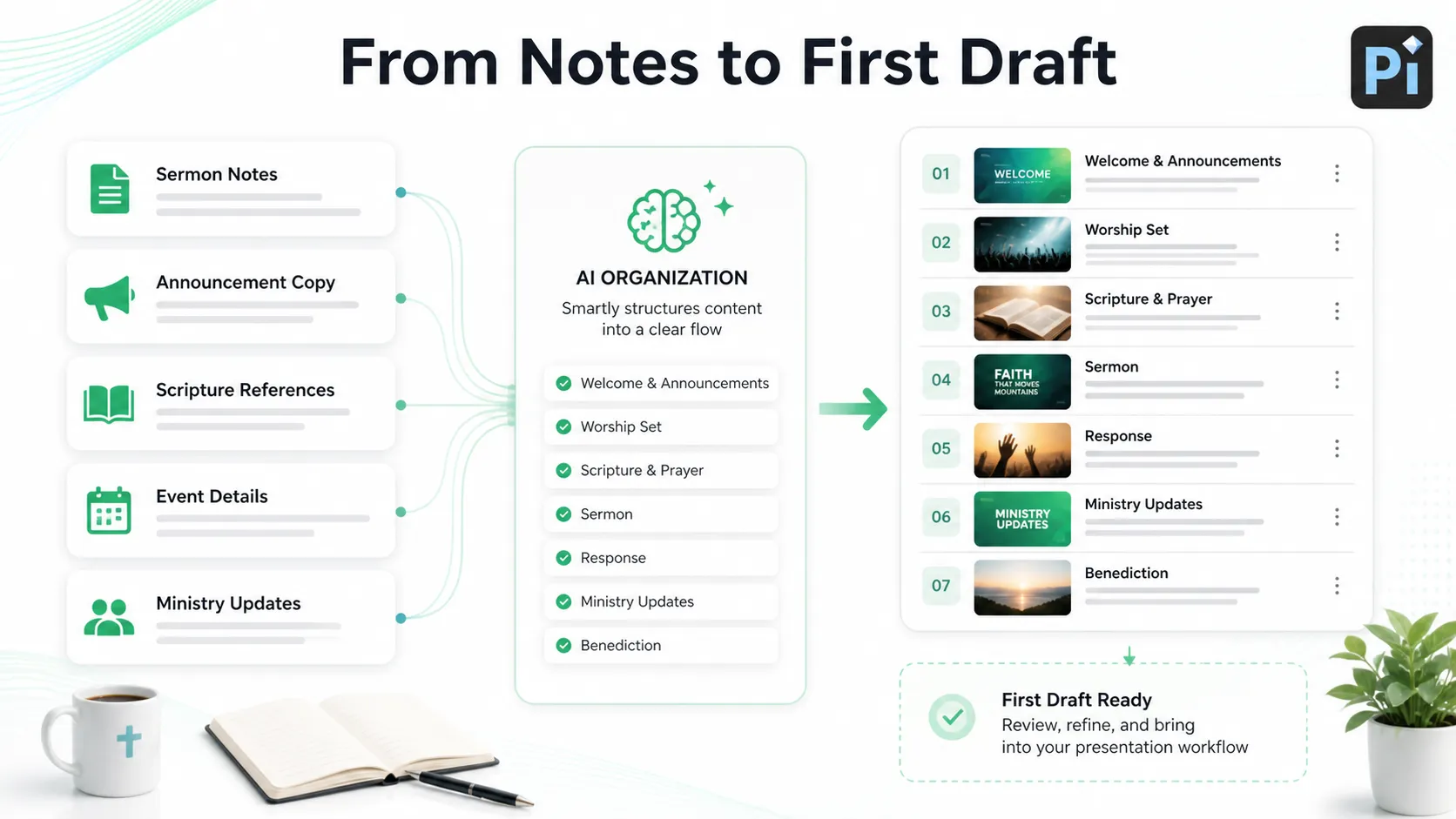
If your church already has a Google Slides deck, the main task is importing, syncing, and testing it in WorshipTools Presenter. But if you are starting with sermon notes, announcement copy, scripture references, event details, or ministry updates, tools like Pi can help organize that material into a first draft before your team brings it into the worship workflow.
That keeps the process practical: prepare the message first, design the slides second, and test the service flow early.
The Verdict
WorshipTools does work with Google Slides through Presenter import. It is a useful workflow for churches that create sermon slides, announcements, and ministry decks in Google Slides but run services through WorshipTools.
The best experience comes from preparing early. Import the deck, confirm account permissions, sync while online, and test the slides on the service computer. If you rely on animations or layered Google Slides designs, preview carefully because newer import behavior may flatten some elements.
For most church teams, Google Slides plus WorshipTools is practical: Google Slides helps people collaborate during the week, and WorshipTools Presenter helps the media team run slides during the service.
Frequently Asked Questions (FAQ)
Q: Does WorshipTools work with Google Slides?
A: Yes. WorshipTools Presenter supports importing Google Slides, which can be useful for sermon slides, announcement slides, and service presentation content.
Q: Can WorshipTools sync changes from Google Slides?
A: WorshipTools' Google Slides documentation says changes to the slideset can be synced back into Presenter, but you should test this before service and make sure Presenter has internet access.
Q: Do Google Slides animations work in WorshipTools?
A: It depends on the Presenter version and import behavior. Newer import methods may flatten slides into images, which can improve stability but may affect animations, layers, or transitions.
Q: What should I do if my Google Slides file does not appear in Presenter?
A: Check that you are using the correct Google account, that the file is accessible in Google Drive, that pop-ups are not blocked, and that Presenter is connected to the internet.


