paano magdagdag ng mga tala ng tagapagsalita sa Google Slides
Tinutulungan ng mga numero ng slide sa PowerPoint ang iyong audience na maunawaan kung nasaan sila sa isang presentasyon. Pinapadali rin nitong talakayin ang isang partikular na slide sa panahon ng pulong, klase, pagsusuri, o pitch. Ipinapaliwanag ng gabay na ito kung paano magdagdag ng mga pangunahing numero ng slide, kung paano gumawa ng format na "3 ng 20," kung paano ayusin ang mga karaniwang problema sa pagnunumero, at kung bakit maaaring mas mahusay ang mga visual na tagapagpahiwatig ng progreso kaysa sa mga simpleng numero sa mahahabang deck.
Mabilis na Sagot
Para magdagdag ng mga numero ng slide sa PowerPoint, buksan ang iyong presentasyon, pumunta sa Insert, piliin ang Slide Number o Header & Footer, lagyan ng check ang Slide number, at i-click ang Apply to All. Kung ayaw mo ng numero sa title slide, lagyan ng check ang Don't show on title slide bago ilapat.
Saklaw ng opisyal na gabay ng Microsoft para sa pagdaragdag ng mga numero ng slide, numero ng pahina, o petsa at oras ang pangunahing setting.
Paraan 1: Magdagdag ng Pangunahing Mga Numero ng Slide
1. Buksan ang iyong presentasyon sa PowerPoint.
2. I-click ang tab na Insert.
3. Piliin ang Slide Number o Header & Footer.
4. Lagyan ng check ang Slide number.
5. Piliin ang Don't show on title slide kung kinakailangan.
6. I-click ang Apply to All.
Awtomatikong magdaragdag ang PowerPoint ng mga numero ng slide sa buong deck. Kung ililipat, magdadagdag, o magtatanggal ka ng mga slide sa ibang pagkakataon, awtomatikong mag-a-update ang mga numero. Mas ligtas ito kaysa sa manu-manong pag-type ng mga numero dahil maaaring mabilis na maging mali ang manu-manong pagnunumero.
Paraan 2: Magdagdag ng "Slide 3 Ng 20"
Ang ilang presentasyon ay nangangailangan ng mas kumpletong format, gaya ng "3 ng 20" o "Slide 3 / 20." Ipinapakita nito sa audience ang kasalukuyang slide at ang kabuuang haba ng presentasyon.
Awtomatikong makakagawa ang PowerPoint ng numero ng kasalukuyang slide, ngunit karaniwang kailangang manu-manong idagdag ang kabuuang bilang ng mga slide. Ipinapaliwanag ng gabay ng Microsoft tungkol sa pagpapakita ng numero ng slide at kabuuang bilang ng mga slide ang limitasyong ito.
Isang karaniwang paraan ay:
1. Pumunta sa View.
2. Piliin ang Slide Master.
3. Piliin ang pangunahing slide master.
4. Maglagay ng text box kung saan dapat lumitaw ang numero.
5. Ipasok ang placeholder ng numero ng slide.
6. I-type ang kabuuang numero pagkatapos nito, gaya ng <#> ng 20.
7. Isara ang view na Slide Master.
Kung magdadagdag o mag-aalis ka ng mga slide sa ibang pagkakataon, manu-manong i-update ang kabuuang numero.
Paraan 3: I-edit ang Mga Numero ng Slide sa Slide Master
Kinokontrol ng Slide Master ang mga inuulit na elemento ng disenyo sa buong deck. Kung gusto mong gamitin ng bawat numero ng slide ang parehong posisyon, font, kulay, at laki, i-edit ito sa Slide Master sa halip na isa-isang ayusin ang bawat slide.
Kapaki-pakinabang ito para sa mga branded na template, training deck, consulting report, at mahahabang presentasyong may maraming seksyon. Nakakatulong din ito kapag hindi lumalabas nang tama ang mga numero ng slide. Maaaring nakatago ang numero sa likod ng ibang object, nakalagay sa labas ng slide area, o naka-format sa kulay na humahalo sa background.
Mga Opsyon at Pag-aayos sa Numero ng Slide
| Pangangailangan | Pinakamahusay na paraan | Bakit ito nakakatulong |
|---|---|---|
| Magdagdag ng mga pangunahing numero | Insert > Slide Number | Pinakamabilis na paraan upang lagyan ng numero ang deck |
| Itago ang numero sa title slide | Don't show on title slide | Pinananatiling malinis ang cover slide |
| Ipakita ang "3 ng 20" | Slide Master | Lumilikha ng pare-parehong format |
| Ayusin ang nawawalang mga numero | Suriin ang mga layout at master slide | Nahanap ang mga nakatago o maling pagkakalagay na numero |
| Pagandahin ang pag-navigate sa mahabang deck | Gumamit ng mga visual na tagapagpahiwatig ng progreso | Ipinapakita ang istruktura higit pa sa mga numero |
Mga Karaniwang Problema sa Numero ng Slide
Kung hindi lumalabas ang mga numero ng slide, suriin muna ang mga setting ng Header & Footer. Kung ilang slide lamang ang nagpapakita ng mga numero, maaaring gumagamit ang deck ng magkakaibang layout o master slide. Kung mahirap basahin ang numero, baguhin ang kulay, laki, o posisyon.
Isa pang karaniwang isyu ang pagnunumero ng title slide. Mas malinis tingnan ang maraming pormal na deck kapag walang numero ang title slide. Maaaring magpakita ng mga numero sa bawat slide ang mga internal na deck upang mabilis silang matukoy ng mga reviewer.
Bakit Mas Mahusay ang Visual na Pag-navigate Kaysa sa Mga Simpleng Numero
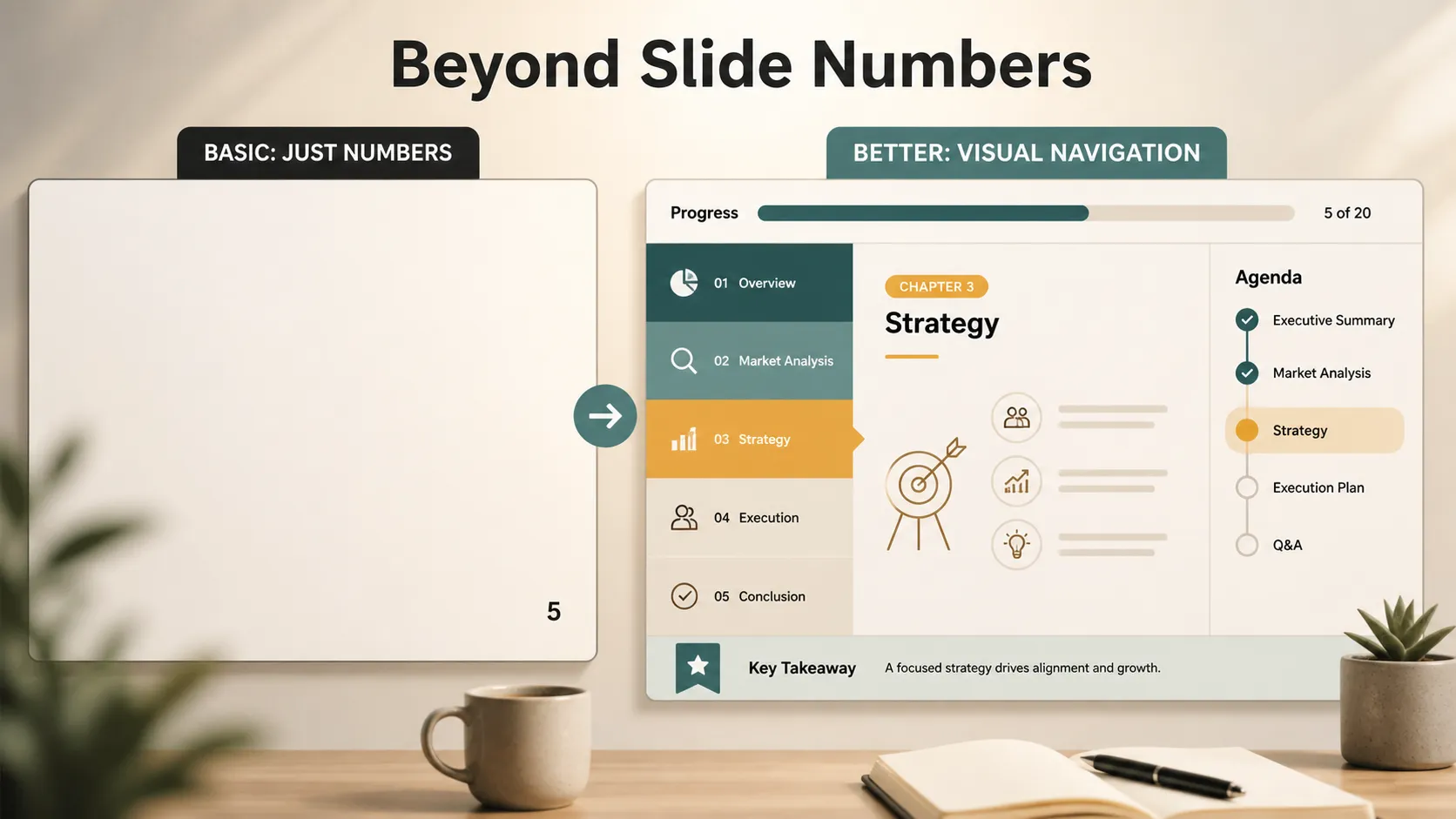
Kapaki-pakinabang ang mga numero ng slide, ngunit hindi nito palaging ipinapaliwanag ang istruktura ng isang deck. Sa isang maikling presentasyon, maaaring sapat na ang "Slide 5." Sa isang mahabang strategy deck, hindi sinasabi ng "Slide 24" sa audience kung nasa seksyon pa rin sila ng problema, lumilipat na sa solusyon, o malapit na sa konklusyon.
Iyon ang dahilan kung bakit madalas gumagamit ang mas mahusay na mga presentasyon ng visual na pag-navigate. Sa halip na umasa lamang sa maliliit na numero sa sulok, maaaring magpakita ang deck ng progreso sa pamamagitan ng mga kulay ng seksyon, progress bar, highlight ng agenda, chapter divider, at icon.
Halimbawa, maaaring gumamit ang isang business deck ng asul para sa konteksto ng merkado, berde para sa estratehiya, lila para sa pagpaplano ng produkto, at kahel para sa mga resulta sa pananalapi. Maaaring ipakita ng progress bar kung gaano na kalayo ang narating ng presentasyon. Maaaring markahan ng mga icon ang mga inuulit na uri ng nilalaman, gaya ng mga sukatan, panganib, ideya, o susunod na hakbang. Kapaki-pakinabang ang gabay ng Microsoft sa mga tema ng PowerPoint dahil ginagawang mas madaling pamahalaan ng pare-parehong mga tema ang mga sistemang ito.
Kailan Dapat Maging Isang Visual na Sistema ang Mga Numero ng Slide
Pinakamainam ang mga simpleng numero ng slide para sa payak na pag-navigate. Mas mahusay ang mga visual na sistema ng progreso kapag may mga seksyon, kabanata, o malinaw na daloy ng kuwento ang presentasyon. Tinutulungan nilang maunawaan ng audience hindi lamang ang numero ng slide, kundi pati ang papel ng slide na iyon sa buong presentasyon.
Gumamit ng visual na pag-navigate kapag mahaba ang iyong deck, para sa mga executive, maraming datos, o nakabatay sa mga desisyon. Maaaring magpakita ng pag-usad ang progress bar. Maaaring magpakita ng pagbabago ng paksa ang mga kulay ng seksyon. Maaaring i-reset ng mga chapter divider ang atensyon. Maaaring gawing mas madaling makilala ng mga icon ang mga inuulit na uri ng slide.
Kung Saan Makakatulong ang Pi

Kung pangunahing pagnunumero lamang ang kailangan mo, sapat na ang PowerPoint. Ngunit kung gusto mong maging pare-pareho ang mga numero ng slide, progress bar, kulay ng seksyon, icon, at layout ng kabanata, maaaring tumagal ang manu-manong disenyo.
Dito natural na maaaring magamit ang Pi. Malayang makakagawa ang Pi ng mga tema ng presentasyon, makakapag-customize ng mga estilo at kulay, makakagamit ng mga handang component, makakapaglapat ng awtomatikong layout, makakapagbigay ng library ng icon, at makakatawag ng AI image generation kapag nangangailangan ang isang slide ng mga sumusuportang visual.
Gamitin ang PowerPoint kapag kailangan mong magdagdag ng mga simpleng numero ng slide sa umiiral nang deck. Gamitin ang Pi kapag gusto mong lumikha ng mas visual na sistema ng presentasyon sa paligid ng mga numero, kabilang ang mga kulay ng kabanata, tagapagpahiwatig ng progreso, icon, nakaayos na layout, at pulidong disenyo ng slide.
Ang Hatol
Simple ang pagdaragdag ng mga numero ng slide sa PowerPoint: gamitin ang Insert > Slide Number o Header & Footer, paganahin ang Slide number, at ilapat ito sa lahat ng slide. Para sa format na "3 ng 20," gamitin ang Slide Master at manu-manong idagdag ang kabuuang numero.
Ngunit pundasyon lamang ang mga numero ng slide. Para sa mahahaba o mas pulidong presentasyon, kadalasang mas mahusay ang visual na pag-navigate. Tinutulungan ng mga kulay ng seksyon, progress bar, icon, highlight ng agenda, at chapter divider ang audience na maunawaan kung nasaan sila sa kuwento, hindi lamang kung aling slide ang tinitingnan nila.
Mga Madalas Itanong (FAQ)
Paano ako magdadagdag ng mga numero ng slide sa PowerPoint?
Pumunta sa Insert, piliin ang Slide Number o Header & Footer, lagyan ng check ang Slide number, at i-click ang Apply to All.
Maaari ko bang alisin ang numero ng slide sa title slide?
Oo. Sa mga setting ng numero ng slide, piliin ang Don't show on title slide bago ilapat ang pagbabago.
Bakit hindi lumalabas ang mga numero ng slide ko?
Maaaring naka-disable ang mga ito, nakatago sa likod ng ibang object, nakalagay sa ibang master layout, o naka-format sa kulay na humahalo sa background.
Makakatulong ba ang Pi sa pag-navigate sa slide?
Oo. Makakatulong ang Pi sa paggawa ng mga tema, kulay, component, awtomatikong layout, icon, imaheng ginawa ng AI, seksyon ng kabanata, at visual na tagapagpahiwatig ng progreso.


