Free PowerPoint Themes: Best Templates & Design Tips
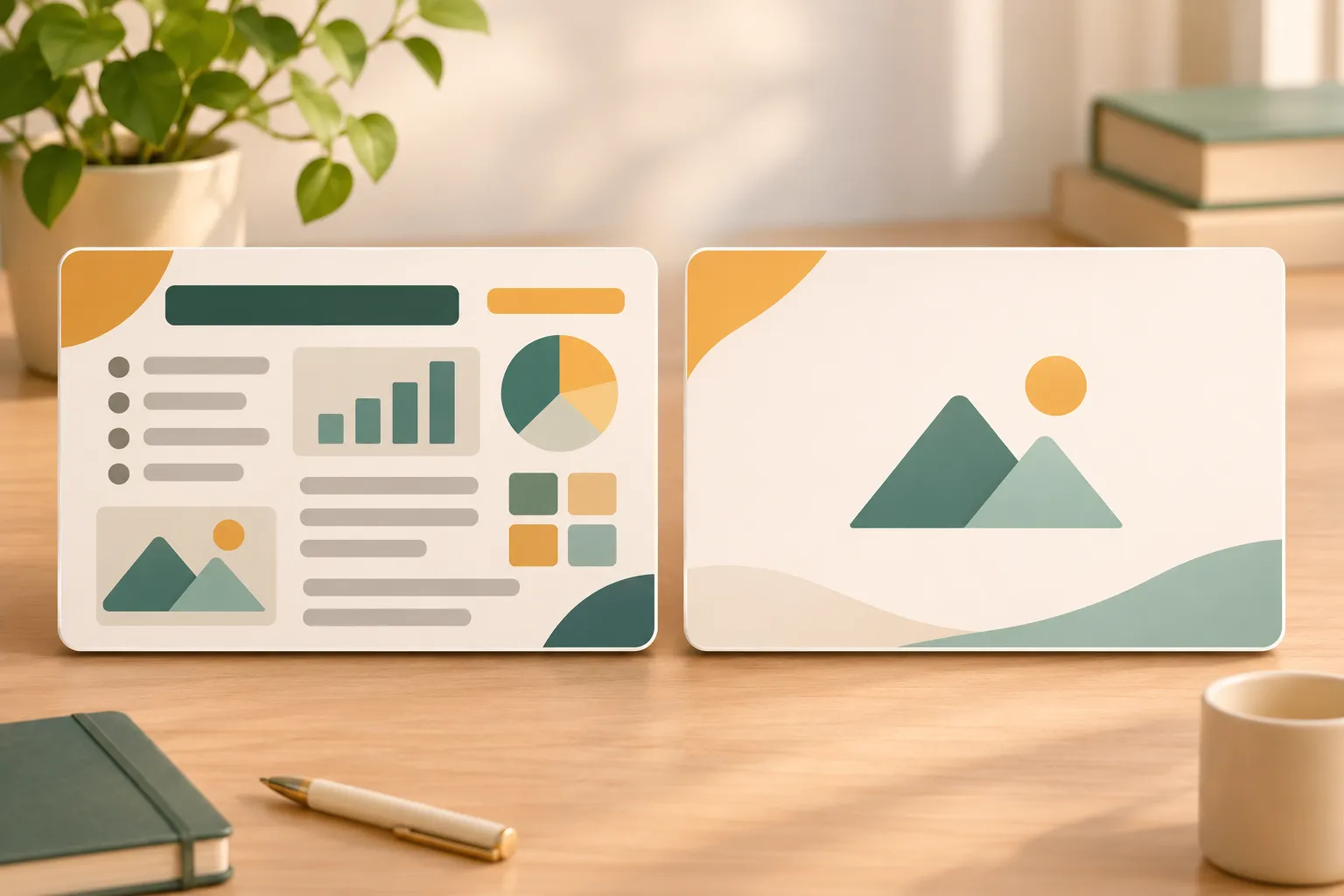
The best free PowerPoint themes match the slides you need to make. For a business pitch, choose a theme with a readable comparison slide. For a report, look for room for charts and takeaway headlines. For a class, pick a template with activity and recap slides. For a minimalist or editorial deck, prioritize strong typography and layouts that work with or without images.
A polished cover can make almost any theme look good. The better test is whether your busiest slide fits without smaller text, cramped charts, or a row of boxes you have to move by hand. If a theme handles that slide well, it’s more likely to save you time across the deck.
Best Free PowerPoint Themes by Use Case
Start with the slides you expect to repeat. A quarterly report might use the same chart layout six times, while a lesson might alternate between examples and activities. Use the table to narrow your search before downloading a file.
| Theme Category | Best Use | Layouts to Look For | Common Limitation |
|---|---|---|---|
| Business pitch | Investor pitches and proposals | Comparison, traction, closing ask | Narrow columns crowd longer labels |
| Data-driven report | KPI reviews and research findings | Chart with takeaway, KPI summary, appendix | Decorative elements compete with data |
| Education | Lessons, workshops, and student projects | Worked example, activity, recap | Small instructions are hard to project |
| Minimalist or editorial | Portfolios, case studies, and talks | Image-led story, text-only slide, section divider | Image-heavy layouts leave little room for evidence |
Business pitch: Test a two-column comparison with your real labels. A slide that contrasts a manual process with a proposed workflow should align equivalent steps so the audience can compare them at a glance. Check the closing layout too: it should leave space for a specific request, such as approving a pilot, rather than only a large “Thank you.”
Data-driven report: Start with a chart you already use. A useful layout fits the trend, a headline such as “Renewals increased after onboarding changes,” and a small but legible source note. If sample KPI cards don’t have room for the period, units, or comparison baseline, use fewer cards rather than squeezing those details in.
Education: Look for free PPT templates with a worked example and a separate practice slide. In a workshop, an activity layout should leave room for the task, the time limit, and what participants should produce. Preview it from the back of the room if you can. Instructions that look clear on your laptop may be hard to read on a projector.
Minimalist or editorial: Look beyond the full-bleed photo in the preview. For a portfolio case study, try a slide with a screenshot and caption, then a text-only slide that explains a design decision. The best modern PowerPoint themes keep both slides visually consistent without requiring an image on every page.
How to Choose a Theme That Fits Your Content
A PowerPoint theme supplies coordinated design settings such as colors, fonts, and effects. A template can include a theme along with prebuilt layouts, sample slides, and placeholder content. If your deck already has a clear structure, a theme may be enough. If you want a ready-made sequence of slides to adapt, look for free presentation templates instead.
Before committing, replace the sample content with the hardest slide in your deck: a chart with long labels, a side-by-side comparison, or a lesson with several instructions. Judge the result in Slide Show view, not just on the editing canvas.
- Typography hierarchy: Can someone distinguish the headline, body text, and source note without relying on color? Test your longest realistic headline, not the two-word title in the preview.
- Color contrast: Check labels, captions, and text over photos. For charts, use direct labels or another visual cue so meaning doesn’t depend on color alone.
- Spacing: Look for consistent margins and enough room between elements. If the real slide needs smaller text just to fit, try a different layout before changing the font size.
- Layout variety: Check for the layouts you’ll actually reuse. A cover, a section divider, and several decorative variants won’t help much if you need clear chart and comparison slides.
For most widescreen presentations, 16:9 is a sensible default. Confirm the format with the event organizer, instructor, or client first: a venue may require 4:3, or a publishing workflow may specify custom dimensions. Check the file type and usage terms before you download, especially if the preview includes photography, icons, or fonts you intend to keep.

How to Apply and Customize a Theme in PowerPoint
1. Start with the right file
To apply a theme to an existing presentation in desktop PowerPoint, save a copy first. Open the Design tab, expand the Themes gallery, and select a built-in theme. If you downloaded a `.thmx` file, look for Browse for Themes in the expanded gallery and select the file.
If you downloaded a `.potx` template, use it to create a new presentation, then save the working deck as a `.pptx`. If the download is already a `.pptx` with sample slides, save a separate copy before replacing the content. PowerPoint for the web offers built-in themes, but for importing a local theme file or editing the slide master, use the desktop app.
2. Set the slide size and assign layouts
In desktop PowerPoint, go to Design > Slide Size and select Widescreen (16:9) or the required format. Set this before adjusting individual slides. Changing dimensions later can reposition objects, alter crops, or leave content too close to the edges.
Use Home > Layout to choose the layout that matches each slide’s purpose. If placeholders shift after a theme change, reapply the appropriate layout and try Home > Reset on a copy of the slide. Reset restores placeholder formatting and positions from the layout; it won’t reposition objects you added separately, and it can undo intentional placeholder adjustments.
3. Update theme fonts and colors before editing individual slides
In desktop PowerPoint, look under Design > Variants for theme colors and fonts. Menu labels and available controls can vary by version. Set these choices first so slides that use theme formatting can update together. To change recurring layout elements, such as title placement or footer position, use View > Slide Master rather than adjusting every slide.
Text and shapes formatted manually may not inherit the new settings. If a font is unavailable on another device, a substitute can change line breaks or push text outside its box. Choose fonts available on the delivery device, or check whether your PowerPoint version and font license allow embedding. Either way, test the saved file where it will be presented.
4. Fix pasted formatting and review the finished deck
When importing slides from another deck, choose Use Destination Theme if you want them to adopt the new deck’s design settings. Choose Keep Source Formatting only when the original look needs to stay. Destination formatting won’t necessarily override every manual style, so check imported charts, text boxes, and shapes for stray colors or fonts.
Finish in Slide Show view. Check the longest titles, densest charts, and slides imported from other files. Look for cut-off labels, awkward line breaks, and inconsistent margins. If someone else will present the deck, ask them to open it in the PowerPoint version and on the device they’ll use.

When a Theme Is Enough—and When to Start with an Outline
1. Use a theme when the slide order is already clear
If you know what each slide needs to say, a theme is usually the shorter route. For a recurring KPI review, for example, you may already have an agreed sequence: headline results, drivers, risks, and next steps. Choose layouts that fit those slides and spend your editing time on the evidence, not a new design for each page.
2. Start with the story when the argument is still taking shape
If you’re unsure whether to lead with the problem, the evidence, or the recommendation, a different theme won’t settle it. Write down the decision you want the audience to make, then draft one takeaway per slide. Read those takeaways in order. If they don’t make a coherent case on their own, revise the sequence before polishing the slides.
Pi is an AI presentation maker for that earlier stage. Its Multi-Agent AI helps turn a brief into a business-ready structure and polished slides. For a pitch or executive report, start with the audience, the decision, and the evidence you already have. If the story is still taking shape, [explore Pi’s AI presentation maker](/) to draft a slide sequence you can review before refining the design.
Frequently Asked Questions (FAQ)
Can I use free PowerPoint themes for commercial presentations?
Only if the license permits your intended use. Check whether commercial use is allowed, whether attribution is required, and whether you can share the editable deck with a client. Fonts, photos, and icons may have separate terms. A free download does not automatically grant permission to redistribute the template or its assets.
Will a free PowerPoint template work in every version of PowerPoint?
Not necessarily. A `.pptx` may open in desktop PowerPoint and PowerPoint for the web, but fonts, effects, and editing controls can differ. Check whether you’re downloading a `.thmx` theme, a `.potx` template, or a `.pptx` deck, and test the finished presentation in the version you’ll use to deliver it.
Can AI help me create a deck from a free PowerPoint theme?
Yes. You can use AI to draft an outline, suggest slide headlines, and identify where a chart or comparison would support the story. Then move the reviewed content into suitable PowerPoint layouts. Check facts and figures yourself, and confirm the tool’s file support if applying a specific theme directly is important to your workflow.