how to add music to google slides
Adding music to Google Slides can make a presentation feel more polished, especially when you are building an event slideshow, a classroom project, a portfolio, or a visual story that benefits from sound. Google Slides does not let you upload music directly from your computer into a slide in one click. Instead, the audio file needs to be stored in Google Drive first, then inserted into the presentation.
This guide explains how to add music to Google Slides, adjust playback settings, and fix common audio issues.
Can you add music to Google Slides?
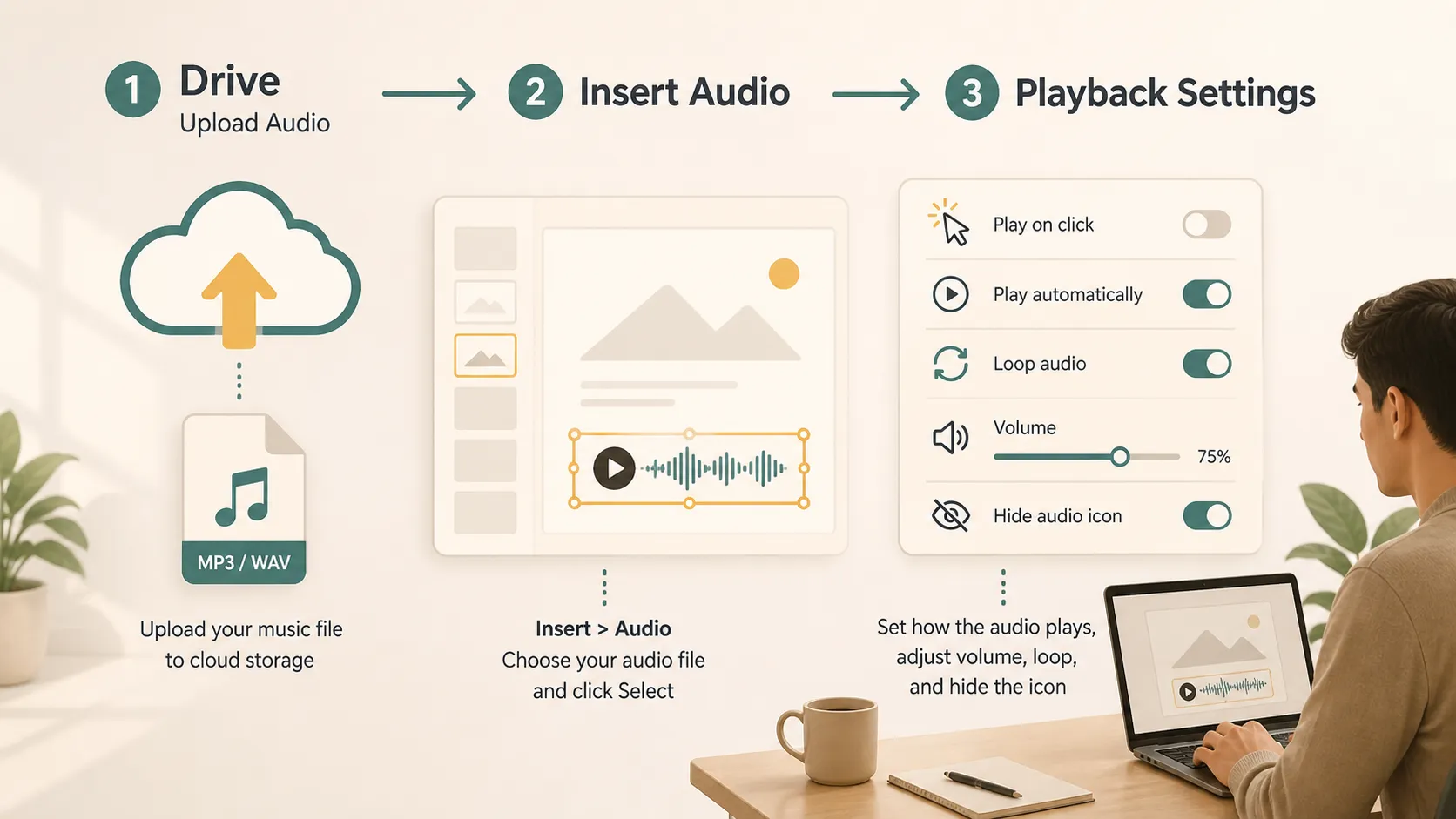
Yes. Google Slides lets you add audio files from Google Drive. According to the official Google Docs Editors Help guide, you can add .mp3 and .wav files stored in Drive to a presentation. Google also announced the feature in its Google Workspace Updates blog, noting that users can insert audio from Drive and adjust playback options.
In practice, prepare the music file first, upload it to Drive, and insert it into the slide where the music should begin. After that, choose whether it starts on click, starts automatically, loops, or stays hidden.
Music vs narration vs sound effects vs video audio
Different audio types serve different purposes in a presentation. Before adding music, decide what kind of sound the slide really needs.
| Audio type | Best for | Typical length | Main risk |
|---|---|---|---|
| Music | Event slideshows, portfolios, mood-setting, personal projects | Short clip or full track | Can distract if too loud |
| Narration | Lessons, tutorials, recorded presentations | One voice track per slide or section | Needs clear recording quality |
| Sound effects | Quick emphasis or interaction | Very short | Can feel unprofessional if overused |
| Video audio | Product demos, interviews, clips, walkthroughs | Depends on the video | May compete with spoken presentation |
Music works best when it supports the tone of the deck. If the presentation already includes a live speaker, keep music quiet or use it only at the beginning and end.
Step 1: Prepare your music file
Before opening Google Slides, make sure your audio file is ready. Google Slides works with .mp3 and .wav files stored in Google Drive. If your music is in another format, convert it first.
Check the length of the track. A short clip may work for an intro slide, while a longer track may suit a photo slideshow or event loop. If you only need part of a song, trim the file before uploading it.
Pay attention to usage rights as well. If the presentation will be public, commercial, or shared online, use music you own, licensed music, or royalty-free music from a reliable source.
Step 2: Upload the music to Google Drive
Because Google Slides inserts audio from Drive, upload the file there first. Open Google Drive, click New, choose File upload, and select the music file from your computer. After the upload finishes, rename the file clearly so it is easy to find later.
A simple name like "intro-music.mp3" or "portfolio-background.wav" is better than a random download name. If your deck has multiple audio files, add slide numbers to the file names.
Before moving to Google Slides, play the file from Drive once to confirm it is not silent, corrupted, or the wrong track.
Step 3: Insert the music into Google Slides
Open your Google Slides presentation and select the slide where the music should begin. Click Insert in the top menu, then choose Audio. A window will open showing audio files from your Google Drive. Select the file you want and click Select.
Google Slides will place an audio icon on the slide. You can move it, resize it, or hide it depending on how you want the slide to look.
If you do not see your file, check that it was uploaded to Drive and is in a supported format.
Step 4: Adjust playback settings
After inserting the audio, click the audio icon and open Format options. This is where you control how the music behaves during the presentation.
The most common playback choices are Play on click and Play automatically. Play on click gives the presenter control. Play automatically starts the music when the slide appears.
You can also adjust the volume. If someone will be speaking over the slide, keep the music low. If the music is the main part of a photo slideshow, it can be louder.
Looping is useful when you want the track to repeat until the slide changes or the presentation ends. If the track is only meant to play once, leave looping off.
You can also hide the audio icon while presenting. Only hide it when the audio is set up correctly and tested.
When should you add music to Google Slides?
Music can work well in presentations where atmosphere matters. It is common in classroom projects, graduation slideshows, wedding or event decks, photography portfolios, personal stories, product mood boards, and informal team presentations.
Music can also help when a presentation is meant to run by itself, such as a trade show screen, school exhibition loop, or lobby slideshow.
But music is not always the right choice. Avoid it in formal financial reviews, legal presentations, sensitive topics, board reports, or meetings where people need to focus on spoken discussion.
Why is my music not playing in Google Slides?
If your music does not play, start with the basics.
- confirm that the file is .mp3 or .wav and that it is stored in Google Drive. If the file is still on your computer, Google Slides cannot insert it through the Audio option.
- check file permissions. If you share the presentation with other people, they also need permission to access the audio file. If viewers can see the slides but cannot hear the music, permissions are often the reason.
- test the deck in slideshow mode. Audio behavior can feel different while editing than it does while presenting. If you set the file to play automatically, make sure browser settings are not blocking playback.
- remember that exported files may not keep interactive audio. If you export a Google Slides presentation as a PDF, the music will not play because PDF is a static format.
Best practices for adding music
Use music sparingly. One well-chosen track can improve the mood of a presentation, but music on every slide can quickly become tiring.
Keep the volume appropriate. Background music should sit behind the message, not compete with it. If the audience has to choose between listening to the speaker and listening to the music, the slide is doing too much.
Match the music to the topic. A calm instrumental track may work for a portfolio, while a serious business update may not need music at all.
Always test before presenting. Open the deck on the device you will use, check the audio, and confirm that the file permissions work for viewers or collaborators.
A note before adding final media
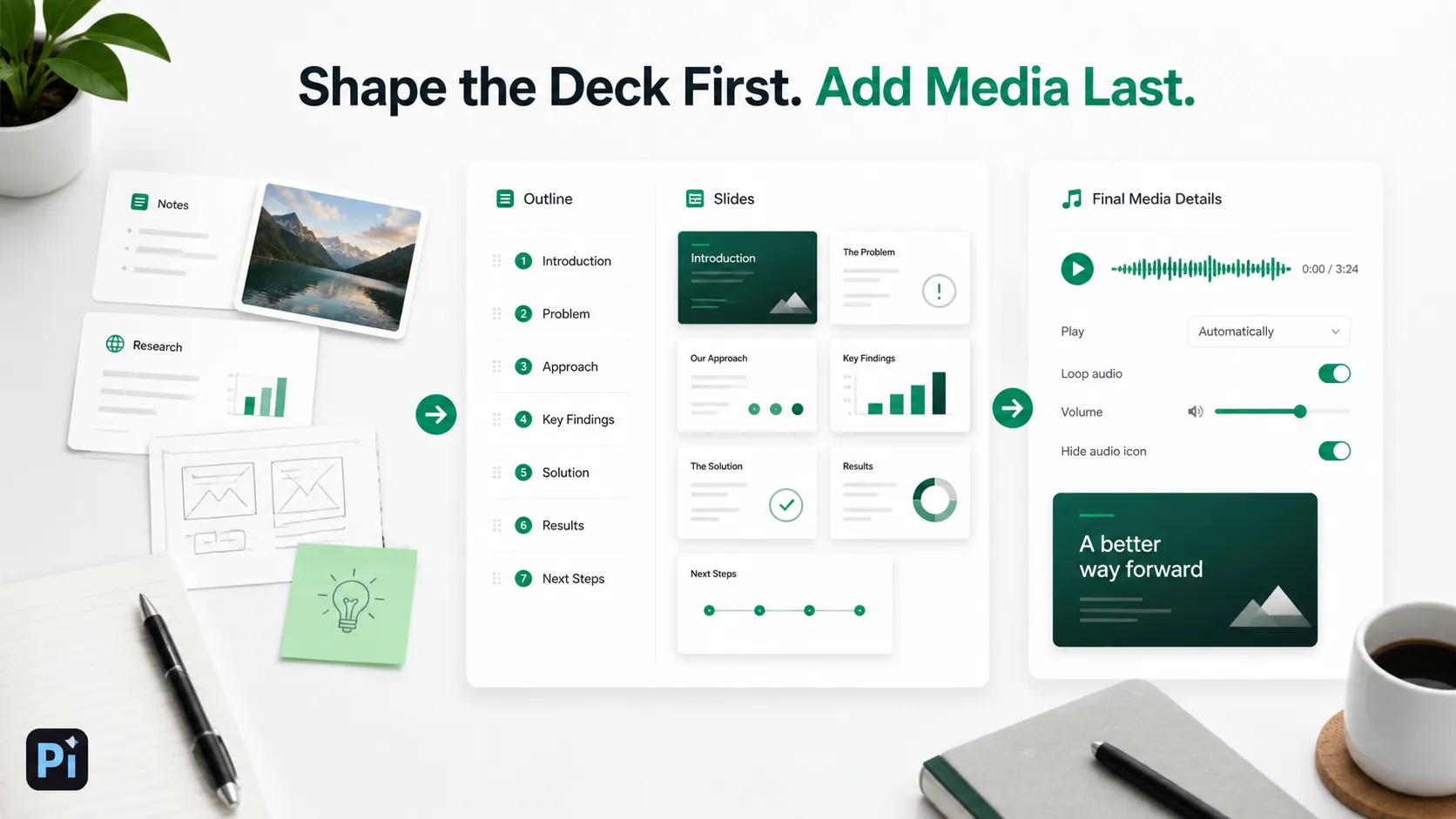
Music is usually one of the last details you add to a deck. The structure, message, and slide order should come first. If you are still working from notes, source material, images, or a rough outline, tools like Pi can help organize that material into a first version before you add music and final media in Google Slides.
This keeps the process simple: build the message first, then use music only where it improves the experience.
The Verdict
Learning how to add music to Google Slides is mostly about understanding the Drive workflow. Upload the .mp3 or .wav file to Google Drive, insert it through Insert > Audio, then adjust playback settings in Format options.
Music can make a presentation more engaging when it fits the purpose. It works well for slideshows, portfolios, event decks, and self-running presentations. It is less useful in formal or information-heavy settings where sound may distract from the message.
The safest approach is to keep audio intentional, check permissions, and test the deck before sharing or presenting.
Frequently Asked Questions (FAQ)
Q: Can I add music directly from my computer to Google Slides?
A: Not directly. Upload the music file to Google Drive first, then insert it into Google Slides through Insert > Audio.
Q: What audio formats work in Google Slides?
A: Google’s help page says you can add .mp3 and .wav files stored in Drive to a presentation.
Q: Can music play automatically in Google Slides?
A: Yes. After inserting the audio, open Format options and choose automatic playback if you want the music to start when the slide appears.
Q: Why can't other people hear the music in my Google Slides presentation?
A: The audio file may not have the right sharing permissions. Make sure viewers or collaborators can access both the presentation and the audio file in Google Drive.


