how to add speaker notes in google slides
Speaker notes in Google Slides are private notes that sit below each slide. Your audience does not see them during a normal slideshow, but you can use them to remember what to say, how to transition, or which detail matters most. This guide explains how to add speaker notes, show them while presenting, print them, and write notes that help instead of turning into a second script.

Quick Answer
To add speaker notes in Google Slides, open your presentation, select a slide, then click the speaker notes area at the bottom of the editor. It usually says Click to add speaker notes. Type your notes there, and they will stay attached to that slide.
If you cannot see the notes area, look for the small notes panel at the bottom of the slide workspace or check the View menu.
When it is time to present, use Presenter view so you can see your notes while the audience sees only the slides. Google explains this in its Workspace Learning Center guide for viewing a presentation with speaker notes.
Method 1: Add Speaker Notes From The Bottom Panel
1. Open your presentation in Google Slides.
2. Click the slide where you want to add notes.
3. Look below the slide canvas.
4. Click the area that says Click to add speaker notes.
5. Type your notes for that slide.
6. Move to the next slide and repeat.
Each slide has its own notes area, so notes on slide 3 will not appear under slide 4.
This is useful for short prompts such as:
- Mention customer example.
- Pause after this number.
- Ask the audience a question.
- Explain chart source.
- Transition to pricing.
Speaker notes do not need to be polished paragraphs. Short reminders are easier to glance at while presenting.
Method 2: Show Speaker Notes If The Panel Is Hidden
Sometimes the speaker notes area is not visible because the workspace is compressed or the panel has been dragged too low.
Try these fixes:
1. Move your cursor near the bottom edge of the slide workspace.
2. Look for the notes area or a divider line.
3. Drag the divider upward if the notes panel is collapsed.
4. Open the View menu and check whether speaker notes can be shown.
5. Zoom out if the slide canvas takes up too much room.
Method 3: Use Speaker Notes While Presenting
Adding notes is only half the job. You also need to know how to see them while presenting.
To present with notes:
1. Open your Google Slides presentation.
2. In the top-right corner, click the down arrow next to Slideshow.
3. Choose Presenter view.
4. In the presenter window, open Speaker notes.
5. Use the presenter controls to move through the deck.
Your audience sees the slideshow. You see a separate presenter view with your current slide, next slide, timer, and speaker notes. This helps you stay organized without putting every word on the slide.
Google's official guide on sharing and presenting Slides includes the Presenter view path and the speaker notes option.
How To Print Speaker Notes
Speaker notes can also be printed or saved as a PDF. This helps when you want a paper speaking guide, a rehearsal copy, or an offline backup.
To print slides with notes:
1. Open your presentation.
2. Click File.
3. Choose Print settings and preview.
4. In the toolbar, choose 1 slide with notes.
5. Click Print.
Google's official help article on printing a presentation includes this option for printing with speaker notes.
What To Put In Speaker Notes
Good speaker notes are not just a copy of the slide. The notes should tell you what to say around the slide.
Useful speaker notes might include:
- The opening sentence for a complex slide.
- A short story or example.
- A data source or caveat.
- A reminder to pause.
- A question for the audience.
- A transition to the next slide.
- A pronunciation note.
Try to keep each note short enough to scan. If you need a script, break it into short lines.
Speaker Notes Vs Slide Text
| Item | Seen by audience | Best use |
|---|---|---|
| Slide title | Yes | Main point of the slide |
| Bullet points | Yes | Key ideas the audience should remember |
| Speaker notes | No | What you want to say while presenting |
| Comments | Usually no during presenting | Feedback, edits, collaboration |
| Presenter view | Only presenter sees it | Notes, timer, slide controls |
Slide text should be simple and audience-facing. Speaker notes can be rougher, more specific, and more personal.
Common Problems With Speaker Notes
| Problem | Likely cause | Fix |
|---|---|---|
| Notes area is missing | Panel is collapsed | Drag the bottom divider upward or check View |
| Audience can see notes | Wrong screen or window is shared | Share only the slideshow window, not presenter notes |
| Notes are too small | Presenter view or browser zoom | Adjust zoom or resize the presenter window |
| Notes do not match the slide | Notes were added to the wrong slide | Check slide selection before editing |
| Printed notes look crowded | Too much text | Shorten notes or use a rehearsal script separately |
The biggest risk is sharing the wrong screen. If you are presenting online, test screen sharing before the meeting starts.
When Your Notes Should Become A Presentation
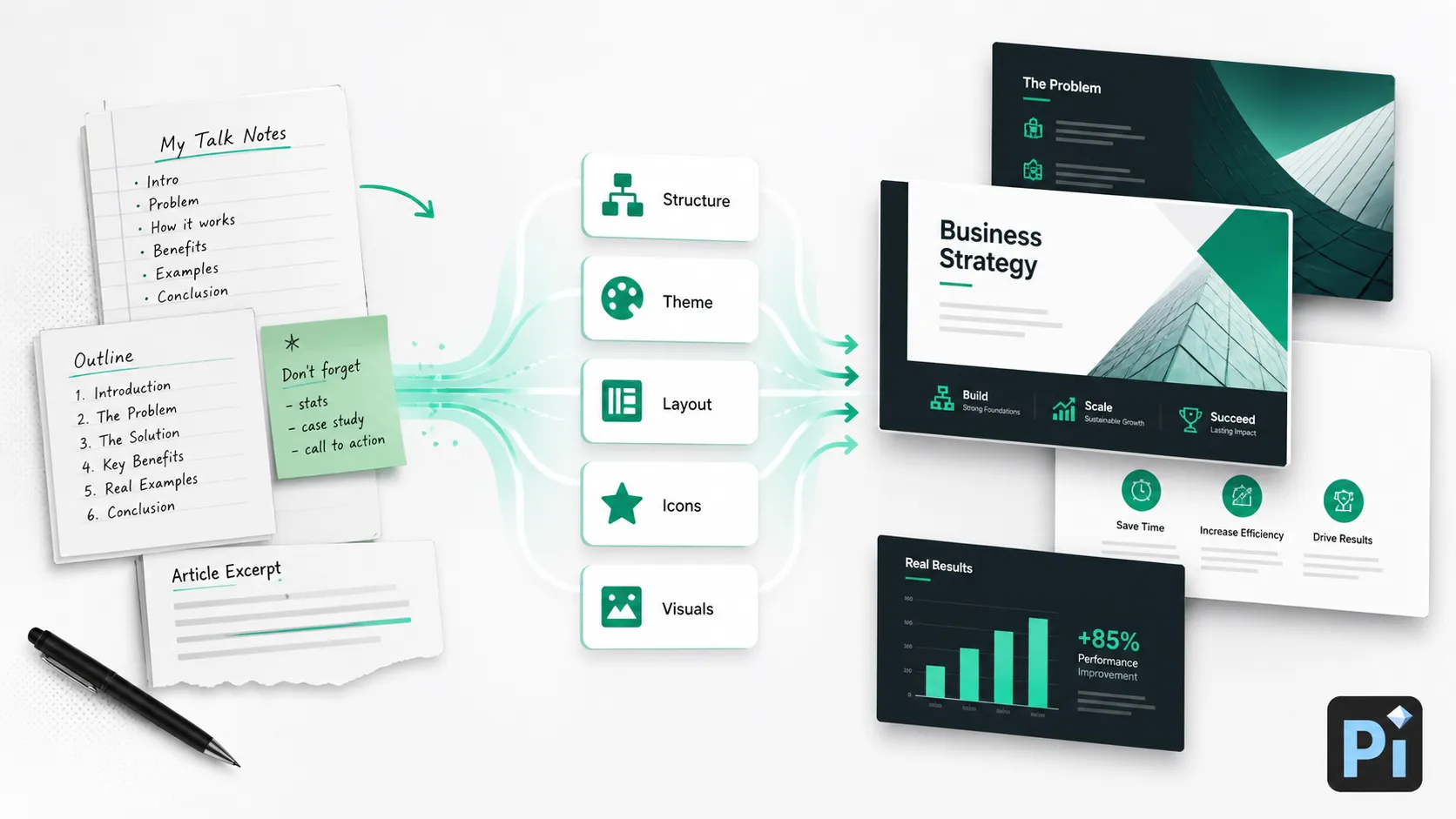
Speaker notes are great when you already have a finished deck. But sometimes you are starting with notes, an outline, a document, or a rough collection of talking points. In that case, you may need to shape the whole presentation before writing final speaker notes.
That is where Pi can fit naturally. You can take raw notes, an article, a report, or a loose outline and turn it into a structured presentation. Pi can freely generate themes, customize the style and colors, reuse ready-made components, and handle much of the layout work so the deck has a clear visual direction from the start.
It can also help when your notes need more visual support. Pi includes an icon library, can arrange content into cleaner slide structures, and can call AI-generated images during the visual creation process. Some ideas can become diagrams, icons, section slides, or image-led slides instead.
Use Google Slides when you need to add notes to an existing deck. Use Pi when the notes themselves are still the raw material and you want to turn them into a finished presentation.
The Verdict
Adding speaker notes in Google Slides is simple: click a slide, use the speaker notes area under the canvas, and type your reminders. For presenting, use Presenter view. For rehearsal or offline backup, print the deck with 1 slide with notes.
The best speaker notes are short, practical, and tied to the slide in front of you.
Frequently Asked Questions (FAQ)
Q: How do I add speaker notes in Google Slides?
A: Select a slide, click the notes area below the slide, and type your speaker notes. The notes stay attached to that slide.
Q: Why can't I see speaker notes in Google Slides?
A: The notes panel may be collapsed or hidden. Look near the bottom of the editor, drag the divider upward, or check the View menu.
Q: Can I print Google Slides with speaker notes?
A: Yes. Go to File > Print settings and preview, then choose 1 slide with notes before printing.
Q: Can Pi help create slides from speaker notes?
A: Yes. Pi can turn notes, outlines, or article content into a structured presentation with custom themes, colors, components, icons, automatic layout, and AI-generated visuals.


