How to Add Speaker Notes in PowerPoint
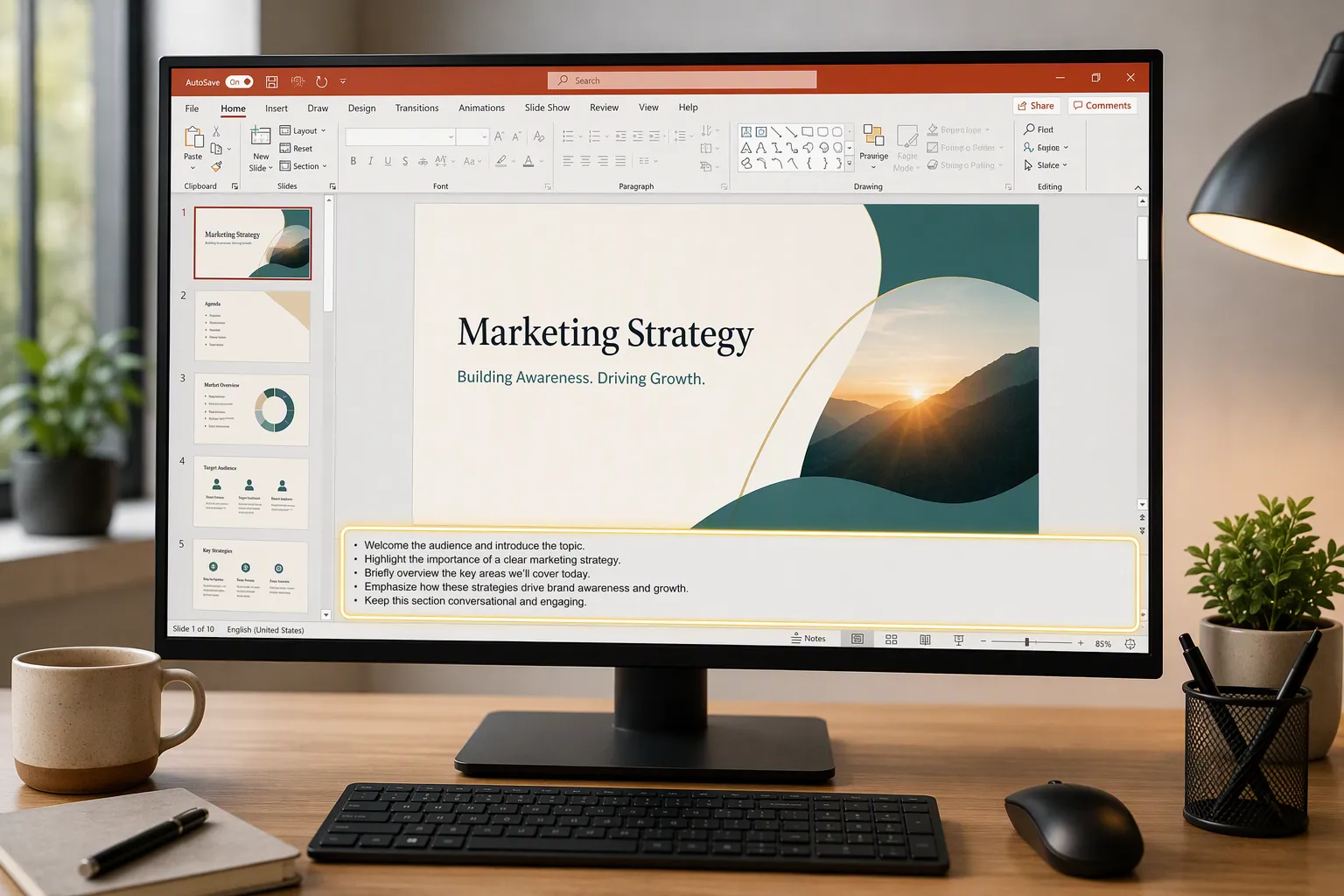
Speaker notes are private presentation notes attached to individual PowerPoint slides. They help you remember what to say, when to pause, which examples to mention, and what details to explain without crowding your slides with too much text.
If you are searching for how to add speaker notes in PowerPoint, the basic process is simple: open a slide, show the Notes pane if it is hidden, click the notes area below the slide, type your notes, and save the presentation. During delivery, you can view those notes in Presenter View while the audience sees only the slide show, as long as your display or screen-sharing setup is correct.
This guide explains how to add notes to PowerPoint slides on desktop, how to edit them, how to use Presenter View, how to print notes, what changes on Mac, and how to avoid common speaker notes problems.
What Are Speaker Notes in PowerPoint?
PowerPoint speaker notes are text notes stored beneath each slide. They are often called PowerPoint presentation notes, presenter notes, or simply notes. Each slide can have its own notes, so you can prepare talking points that match the exact slide you are presenting.
Speaker notes are useful because they separate what the audience sees from what the presenter needs. Your slide can stay clean and visual, while your notes can include reminders, transitions, definitions, data explanations, or examples.
For example, a slide might show a chart with three key numbers. Your speaker notes could remind you to explain where the numbers came from, why the trend matters, and what question to ask the audience before moving on.
Speaker notes are not automatically displayed to the audience in the normal slide show view. However, they can become visible if you share the wrong screen, duplicate displays incorrectly, or send a PowerPoint file that still contains notes. That is why it is important to understand how speaker notes work during presenting and sharing.
Quick Answer: How to Add Speaker Notes in PowerPoint
To add speaker notes in PowerPoint, open your presentation, select the slide you want to annotate, click the Notes button if the Notes pane is hidden, then type your notes in the area below the slide. Save the file when you are done.
Here is the quick workflow:
1. Open your PowerPoint presentation. 2. Select a slide in the left slide thumbnail panel. 3. Look below the slide for the Notes pane. 4. If you do not see it, click Notes in the status bar at the bottom of the PowerPoint window. 5. Click inside the notes area. 6. Type your presenter notes. 7. Repeat for other slides. 8. Save the presentation.
This is the core answer to how to add notes to PowerPoint slides. The rest of the article explains the details, including editing, formatting, viewing notes while presenting, printing Notes Pages, and solving common issues.
How to Add Speaker Notes in PowerPoint on Desktop
On the desktop version of PowerPoint for Windows, speaker notes are added in the normal editing view. You do not need a special add-in or advanced setting.
1. Open Your Presentation
Start by opening the PowerPoint file where you want to add notes. You can use an existing deck or create a new presentation.
If you are building a new deck, it is often easier to add rough speaker notes as you create each slide. This helps you connect the message of each slide to what you plan to say out loud.
2. Select the Slide You Want to Add Notes To
In the slide thumbnail panel on the left, click the slide that needs notes. The selected slide will appear in the main editing area.
Speaker notes are slide-specific. Notes added to slide 3 will not appear on slide 4 unless you copy them manually.
3. Find the Notes Pane
Look below the slide canvas. You may see a text area that says something like “Click to add notes.” This is the Notes pane.
If the Notes pane is not visible, look at the bottom status bar of the PowerPoint window and click Notes. This button toggles the Notes pane on and off.
If you can see only a very small notes area, move your pointer to the line between the slide and the notes area, then drag upward to expand the pane.
4. Type Your Speaker Notes
Click inside the Notes pane and type the text you want to see while presenting. You can write full sentences, short cues, key statistics, reminders, or transition lines.
For example:
“Pause here and ask the audience what they think caused the increase. Then explain that the main driver was higher renewal revenue, not new customer acquisition.”
Keep your notes practical. They should help you present confidently, not distract you from the audience.
5. Save the Presentation
After adding notes, save the PowerPoint file. Notes are stored inside the presentation file, so they will still be there when you reopen it later.
If you share the PowerPoint file with someone else, remember that the notes may travel with the file unless you remove them or export a version that does not include notes.
Need a better starting point for your presentation? Create a professional presentation with Pi and focus on refining your speaker notes and delivery.

How to Edit and Format Speaker Notes
Editing speaker notes works much like editing normal text. Click inside the Notes pane, place your cursor where you want to make a change, and revise the text.
You can add line breaks, remove outdated details, rewrite talking points, or paste notes from another document. If you copied notes from a script, consider shortening them before the final presentation. Long paragraphs can be hard to scan while speaking.
PowerPoint also supports basic formatting in notes, although available options may vary by version and view. You can usually use simple formatting such as bold, italics, bullets, and spacing. The goal is not to design beautiful notes. The goal is to make them easy to read at a glance.
A good speaker note format might include a short opening cue, one or two key points, and a transition reminder. For example:
“Open with customer pain point. Mention 42% support ticket reduction. Transition: ‘Now let’s look at how this changes the rollout plan.’”
Avoid turning every note into a full script unless you are preparing for a formal speech, legal presentation, or recorded narration. For most business presentations, short cues are easier to use than long blocks of text.
How to View Speaker Notes While Presenting
To use speaker notes in PowerPoint during a live presentation, use Presenter View. Presenter View is designed to show the presenter a private control screen with the current slide, next slide, speaker notes, timer, and navigation tools. The audience should see only the slide show.
1. Turn On Presenter View
On Windows, go to the Slide Show tab and make sure Use Presenter View is selected. Then start the slide show from the beginning or from the current slide.
If you are connected to a second monitor, projector, or meeting room display, PowerPoint can show Presenter View on your screen and the slide show on the audience screen.
2. Check Which Screen Shows Notes
Before presenting, verify the display setup. This is especially important in conference rooms and online meetings.
If the audience sees your Presenter View, they may see your speaker notes. If that happens, switch the display settings, swap Presenter View and Slide Show, or change what you are sharing in your meeting app.
The safe rule is simple: confirm what the audience sees before you begin.
3. Use Notes While Speaking
In Presenter View, your notes usually appear beside or below the slide preview, depending on screen size and PowerPoint version. You can glance at them while speaking, but try not to read continuously from the screen.
Presenter View works best when your notes are concise. If your notes are too long, you may lose eye contact, sound scripted, or struggle to find the right line during delivery.
How to Print PowerPoint Slides With Speaker Notes
Printing speaker notes can be useful for rehearsals, handouts for co-presenters, training sessions, or backup copies in case the presentation setup fails.
To print slides with notes, use the Notes Pages print layout. In PowerPoint, open the print settings, choose the layout option, and select Notes Pages. This prints each slide with its speaker notes, usually one slide per page.
The exact steps may vary slightly by version, but the general workflow is:
1. Open the presentation. 2. Go to File. 3. Select Print. 4. Open the print layout menu. 5. Choose Notes Pages. 6. Review the preview. 7. Print or save as PDF.
Always check the print preview before printing. Long notes may flow onto additional space or appear smaller than expected. If the notes are difficult to read, shorten them, adjust formatting, or export a PDF version and review it before sharing.
If you do not want others to see your notes, do not print or export Notes Pages for them. Use standard full-page slides, handouts, or a PDF without notes instead.
How to Add Speaker Notes in PowerPoint on Mac
Adding speaker notes in PowerPoint on Mac is very similar to Windows. The main difference is that some buttons and menus may appear in slightly different places depending on your PowerPoint version and screen size.
To add speaker notes on Mac:
1. Open your PowerPoint presentation. 2. Select the slide that needs notes. 3. Look below the slide for the notes area. 4. If the Notes pane is hidden, click Notes in the status bar or use the relevant view option to show notes. 5. Click in the notes area and type your presenter notes. 6. Save the file.
PowerPoint for Mac also supports Presenter View. When presenting with a second display, use the Slide Show options to start the presentation and confirm that your notes appear on your Mac while the audience sees only the slide show.
As with Windows, the most important step is testing the display setup before the actual presentation. Mac display mirroring, external monitors, and online meeting screen sharing can change what the audience sees. If your screen is mirrored, the audience may see the same view you see, so check carefully.
Common Speaker Notes Problems and Solutions
Speaker notes are simple, but a few common issues can cause confusion. Most problems come from hidden panes, display settings, printing choices, or file sharing.
| Problem | Likely Cause | Practical Solution |
|---|---|---|
| Notes pane is missing | Notes view is hidden or collapsed | Click Notes in the status bar and drag the pane upward |
| Notes do not appear while presenting | Presenter View is off or not using a second display | Enable Use Presenter View and check display settings |
| Audience can see notes | Wrong screen is being shared or displayed | Share only the slide show window or swap display views |
| Notes print incorrectly | Wrong print layout selected | Choose Notes Pages and review print preview |
| Shared file includes private notes | Notes remain inside the PPTX file | Remove notes or export a clean version before sharing |
If your notes are not appearing in Presenter View, first confirm that notes exist on the selected slide. Then check that Presenter View is enabled and that PowerPoint recognizes the second display.
If your audience can see your notes during a video call, stop sharing and choose the correct window or screen. In many meeting setups, sharing the full desktop can expose more than intended. Sharing only the slide show window is often safer, but always verify with a quick test.
If you are sending a final deck to clients, executives, or external partners, review whether the speaker notes should remain in the file. Speaker notes can include internal reminders, unrehearsed language, or sensitive context. Remove them if they are not meant to be shared.

Tips for Writing Effective Presentation Notes
Good notes are not the same as a full script. They are prompts that help you deliver the message clearly while staying connected to the audience.
Use short cues instead of long paragraphs. A few words like “customer example,” “pause for question,” or “explain Q3 spike” can be more useful than a dense block of text.
Write notes that support delivery, not just content. Include reminders about pacing, emphasis, transitions, and audience interaction. For example, you might add “slow down here” before a complex chart or “ask CFO to comment” during an executive review.
Mark important transitions. Many presentations feel weak not because individual slides are poor, but because the speaker jumps between ideas without guiding the audience. A simple transition note can make the story feel more coherent.
Use notes for data explanations. If a slide includes a KPI, market size, ROI estimate, or chart, your notes can remind you of the source, context, or business implication.
Rehearse with your notes before presenting. Notes that look helpful during editing may feel too long or too vague when spoken aloud. A quick rehearsal will show you what to cut, clarify, or rearrange.
Spend less time building slides from scratch. Turn your ideas, outlines, or documents into a professional presentation with Pi.
Create Better Presentations with AI
When AI-Powered Presentation Creation Can Help
Speaker notes are most effective when the slide deck itself has a clear structure. If the deck is disorganized, notes can help you remember what to say, but they cannot fully solve weak flow, unclear messaging, or inconsistent slide logic.
Pi, short for Presentation Intelligence, is an AI presentation maker and AI PPT generator for professional business presentations. It can help teams turn rough ideas, outlines, research, or business content into a more structured deck before they refine presenter notes in PowerPoint.
1. Business Logic Comes Before Slide Styling
For high-stakes decks such as pitch decks, sales decks, consulting reports, executive presentations, and product launch decks, the main challenge is often structure. Pi is designed to help shape content into a business-ready flow, so the deck has a clearer storyline before the presenter adds slide-by-slide notes.
2. Professional Structure Supports Better Notes
When each slide has a clear purpose, speaker notes become easier to write. Instead of using notes to compensate for unclear slides, you can use them to add examples, transitions, and delivery reminders.
3. Premium Visual Quality Reduces Slide Overload
Many beginners put too much text on slides because they are afraid of forgetting what to say. A cleaner visual deck, supported by private presenter notes, usually creates a better audience experience. Pi can support premium business-grade aesthetics while PowerPoint remains useful for final editing, presenting, and speaker notes.
Ready to build your next presentation? Turn your ideas into a structured, professional presentation with Pi.
Frequently Asked Questions (FAQ)
Can the audience see my speaker notes in PowerPoint?
Usually, the audience does not see your speaker notes when you present correctly with Presenter View. They should see only the slide show, while you see the presenter screen with notes. However, notes can become visible if you share the wrong screen, mirror your display, or show Presenter View to the audience by mistake. Always test your setup before presenting.
How do I view speaker notes while presenting?
Use Presenter View. In PowerPoint, go to the Slide Show options and enable Use Presenter View. When you present with a second display, PowerPoint can show your notes, current slide, next slide, and timer on your screen while the audience sees the slide show.
Can I print speaker notes in PowerPoint?
Yes. Open the print settings and choose the Notes Pages layout. This prints each slide with its speaker notes. Review the print preview first, especially if your notes are long or heavily formatted.
Are speaker notes included when I share a PowerPoint file?
Yes, speaker notes can be included inside the PowerPoint file. If you send the PPTX to someone else, they may be able to view the notes. If the notes are private, remove them or export a clean version before sharing.


