how to change powerpoint template
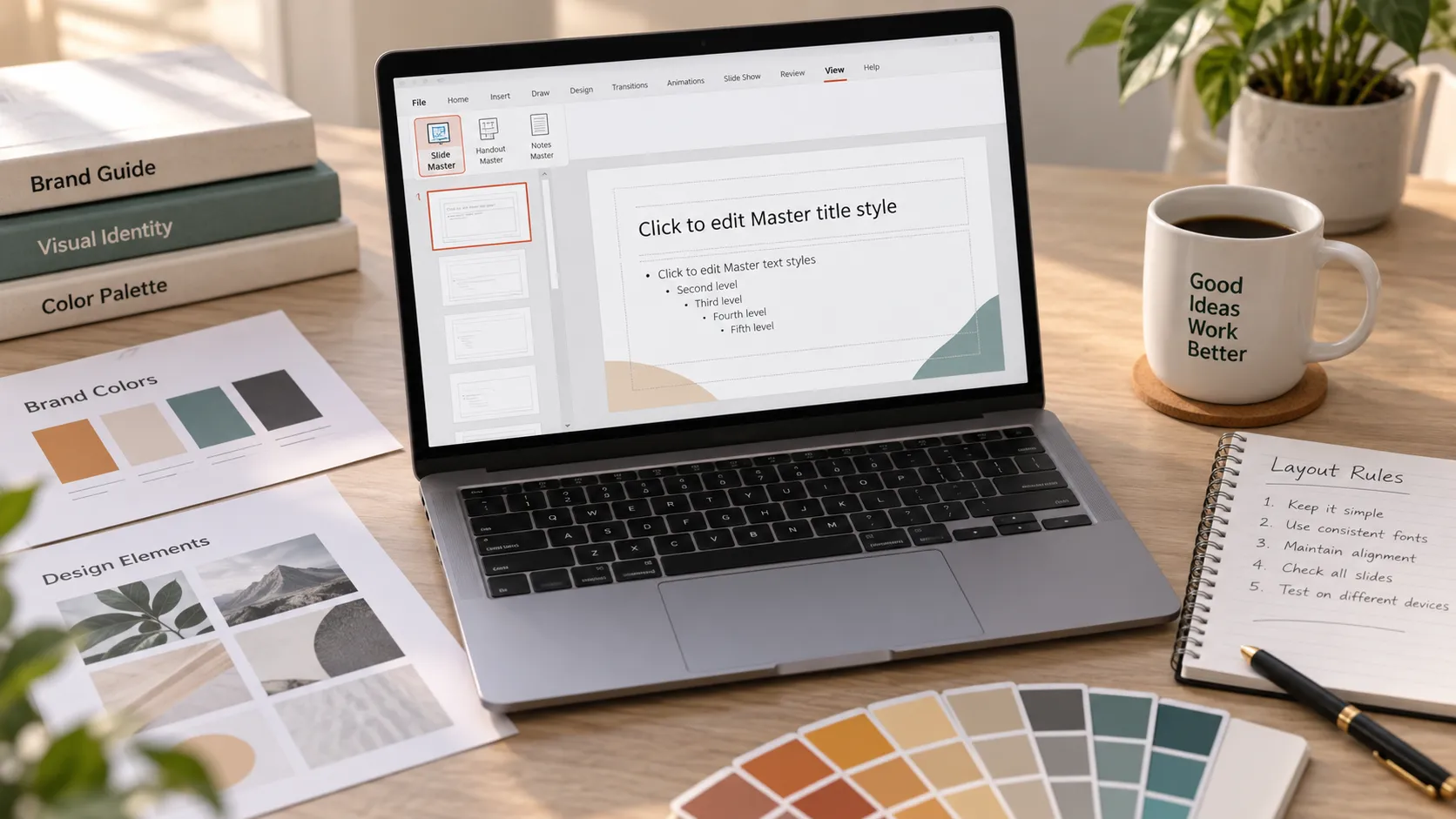
Learning how to change powerpoint template settings safely can save hours of redesign work, especially when you already have a finished deck and need to update it with a cleaner, newer, or branded look. The challenge is that changing a PowerPoint template is rarely just a visual swap. Fonts may change, layouts may shift, charts may look different, and manually formatted slides may not follow the new design rules.
The safest approach is to duplicate your file, understand whether you are changing a theme, applying a template, or editing Slide Master, and then audit the deck slide by slide. This guide walks through the practical workflow for business users, students, and teams that need a polished PPT without losing content.
Before You Change the PowerPoint Template
Before you change ppt template settings, make a copy of your presentation. This gives you a fallback version if the new design causes formatting issues. Save the duplicate with a clear name, such as `Project Deck_New Template Draft`.
It also helps to gather the assets you need before applying a new look: logo files, brand colors, preferred fonts, approved icons, chart styles, and any required footer or confidentiality text. If you are updating a school presentation, this might simply mean choosing a readable theme and making sure all images and charts still work.
PowerPoint uses three related but different design concepts:
| Design Element | What It Controls | Best Use |
|---|---|---|
| Theme | Colors, fonts, effects, and background styles | Quickly refresh the look of a deck |
| Template | A reusable PPTX or POTX file with layouts and sample design rules | Apply a branded or prebuilt structure |
| Slide Master | The master design layer controlling layouts, placeholders, logos, and defaults | Fix consistency across many slides |
Skip the manual setup — Try Pi’s AI Slide Builder for Free ↗
Understanding this difference matters. A theme changes the visual styling. A template often includes both styling and layout examples. Slide Master controls the underlying structure that tells slides where titles, text, images, logos, and footers should appear.
How to Change a PowerPoint Template Using Themes
If you want the simplest way to apply new PPT theme styling, start with the Design tab. This is best when your current presentation already has acceptable layouts and you mainly want to update colors, fonts, and general style.
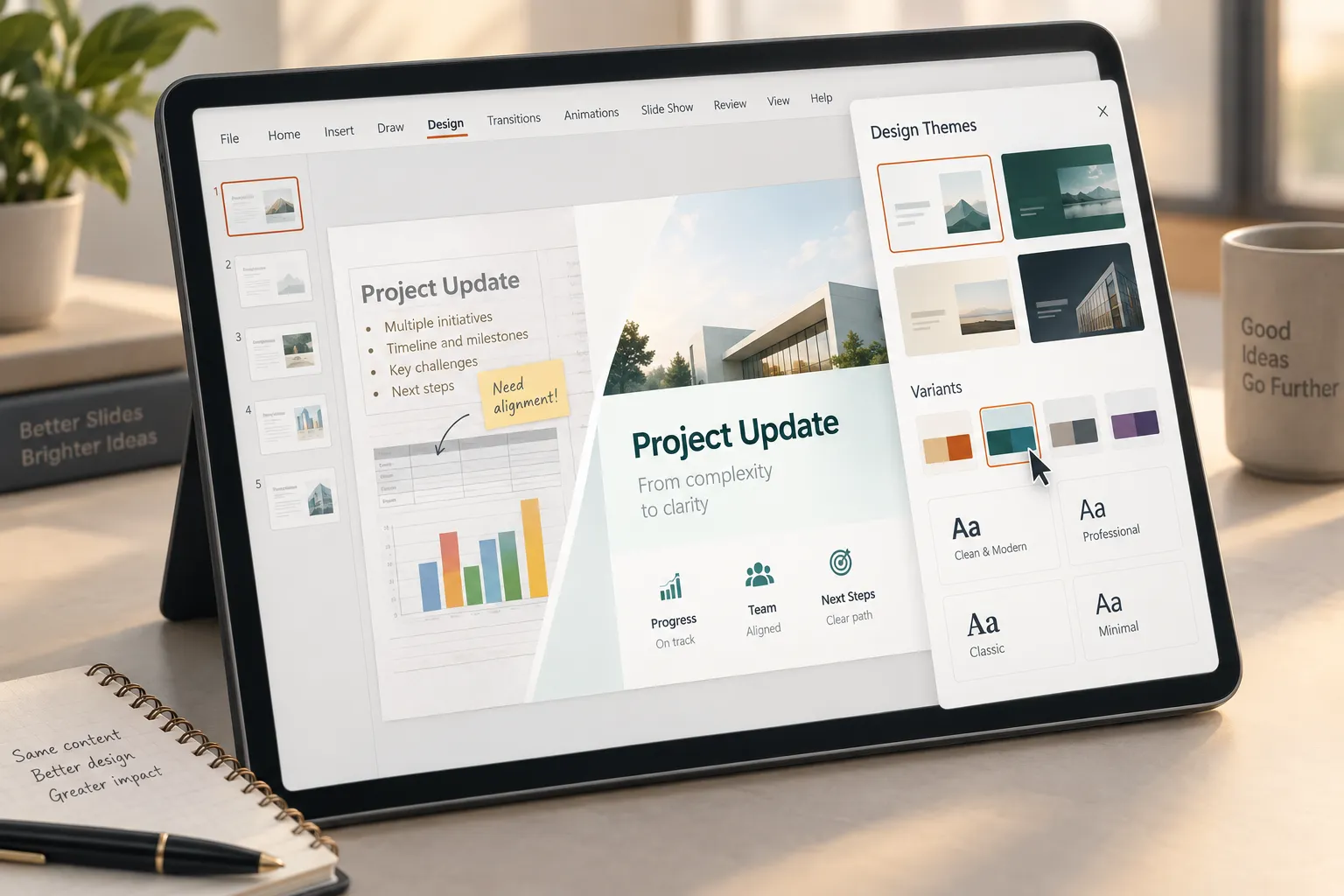
Open your copied PowerPoint file. Go to the Design tab and review the available themes. Hover over a theme to preview how it affects the current slide. When you find one that fits, select it. PowerPoint will apply the theme across the presentation.
Next, check the Variants area, usually near the theme gallery. Variants let you adjust color combinations, font pairings, background styles, and effects. Choose the option that best matches your presentation tone. A sales deck may need strong contrast and modern colors. A university presentation may need something simpler and highly readable.
After applying the theme, move through the deck in Slide Sorter view. This helps you spot slides that look inconsistent, too crowded, or visually broken. A theme change is fast, but it does not guarantee that every slide will remain perfectly formatted.
How to Apply a New Template to an Existing PowerPoint Presentation
Applying a full template to an existing presentation is more involved than changing a theme. This is common when a company updates its brand deck, a consultant needs to use a client template, or a student wants to move existing content into a more professional layout.
One practical method is to open both files: your existing presentation and the new template or branded deck. In the new template file, create or identify the layouts you want to use. Then copy slides from the old presentation into the new template deck. When PowerPoint asks about formatting, choose whether to use the destination theme or keep source formatting. In most template-change workflows, using the destination theme is the better starting point.
Another method is to use Reuse Slides. Open the presentation that should receive the new style, then use the Reuse Slides option to bring in content from another deck. Depending on your PowerPoint version, you may see an option to preserve source formatting. If you want the new template to control the design, avoid preserving the old formatting unless you have a specific reason.
Once the content is inside the new template, assign the correct layouts to slides. A title slide should use the title layout, agenda slides should use agenda layouts, and content slides should use the appropriate text, image, chart, or comparison layouts. This step is where many decks become cleaner because content is no longer floating manually on the slide.
How to Edit Slide Master in PowerPoint
To edit Slide Master PowerPoint settings, go to View and select Slide Master. This opens the master design environment. At the top, you will usually see the main master slide. Beneath it are layout slides, such as title, section header, title and content, two-column, comparison, and blank layouts.
Start with the main master if you need to change design rules across the whole deck. You can adjust theme fonts, theme colors, background styling, logo placement, footer areas, and default text formatting. Keep these rules simple. A Slide Master should create consistency, not add unnecessary decoration.
Then review the individual layouts. Check whether title placeholders are aligned, content placeholders are sized correctly, page numbers appear where needed, and logos do not interfere with charts or images. If your deck contains many data slides, make sure there is enough space for charts and tables.
When finished, click Close Master View. Return to normal editing mode and apply the updated layouts to your slides. If a slide still looks wrong, use the Layout menu to select the correct layout, or use Reset Slide to reconnect it to the master rules.
What Usually Breaks When You Change a PPT Template
Even when you follow the right process, changing a template can create issues. This does not mean PowerPoint is unreliable; it means presentation files often contain manual formatting, copied objects, custom fonts, and slide-specific adjustments that do not automatically adapt.
Common problems include:
- Text boxes overflowing because the new font is larger or has different spacing
- Font substitution when the new template uses fonts not installed on your computer
- Objects shifting because the new layout uses different placeholder positions
- Charts changing color because they adopt the new theme palette
- Missing layouts when old slides do not match the new template structure
- Inconsistent formatting caused by manual overrides on individual slides
The more manually formatted the original presentation is, the more cleanup you should expect after switching templates.
Troubleshooting Template and Layout Problems
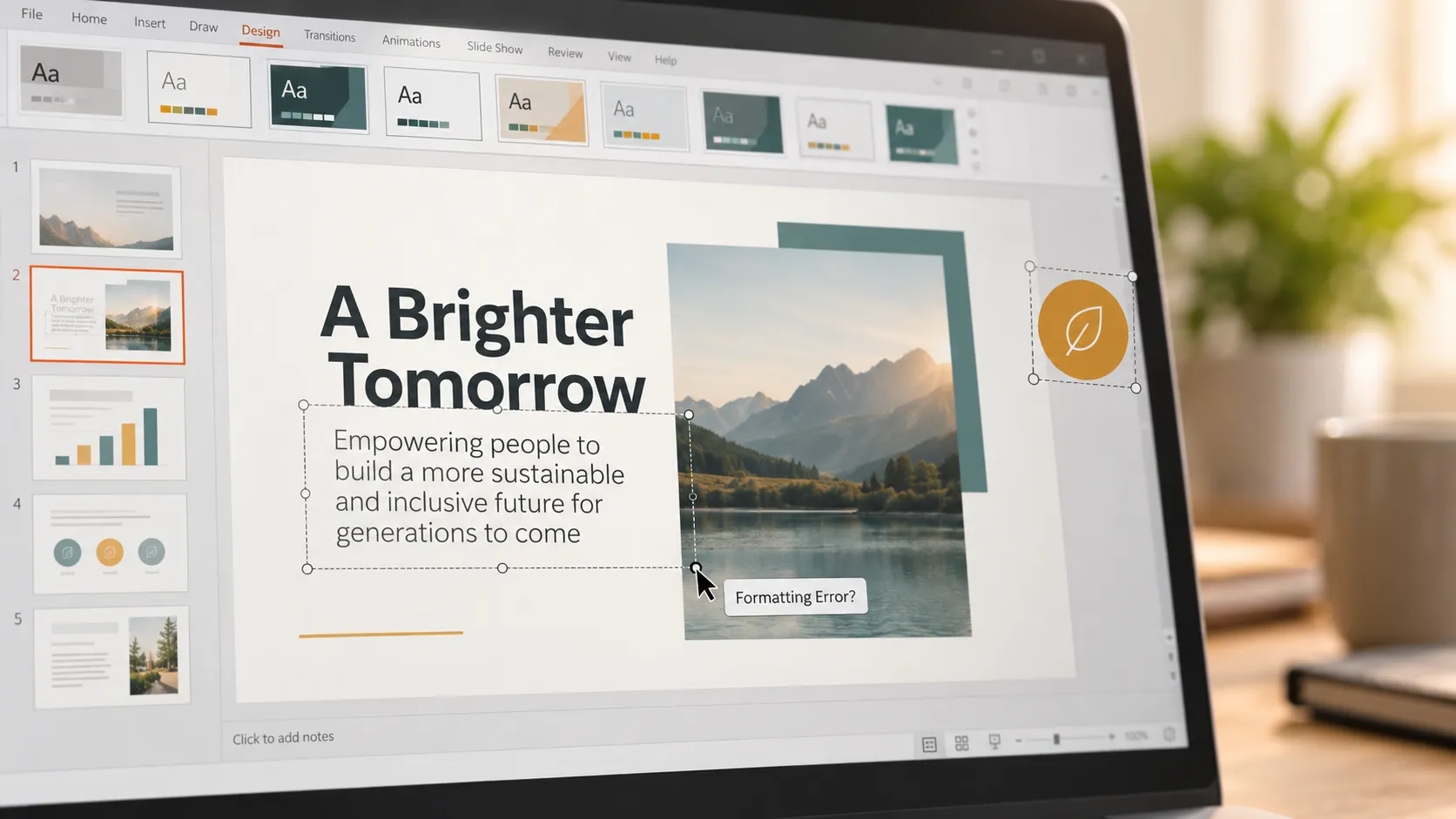
If formatting breaks after you change ppt template settings, start with the least destructive fixes. Select the affected slide and choose Reset Slide. This often reconnects titles, body text, and placeholders to the current Slide Master. If the slide uses the wrong structure, choose Layout and apply the closest matching layout.
For font mismatches, use PowerPoint’s font replacement option where available, or manually update theme fonts in Slide Master. If a template uses a custom brand font, make sure it is installed on your device or replace it with a widely available alternative.
For layout shifts, check whether content is inside placeholders or placed as independent objects. Placeholder-based content adapts better when templates change. Floating text boxes, pasted images, and manually drawn shapes often require repositioning.
For chart issues, inspect theme colors and chart styles. A chart may technically update correctly but lose contrast against the new background. Reapply chart colors, simplify labels, and verify that key data remains easy to read.
If one slide is badly broken, rebuilding it may be faster than repairing it. Create a new slide using the correct layout, copy the core content over, and reformat it within the template rules.
Tired of fixing broken layouts? Switch to Pi AI ↗
PowerPoint Template Workflow vs AI Presentation Workflow
PowerPoint is useful when you need direct control over every layout, placeholder, and design rule. It is especially strong for teams with established templates and users who know how to work with Slide Master. The tradeoff is that template changes can become manual and detail-sensitive.
Pi, short for Presentation Intelligence, offers a different workflow for professional business presentations. Instead of starting only with slide styling, Pi helps structure the deck around the communication goal, audience, and business logic. This can be useful for pitch decks, sales decks, consulting reports, executive presentations, brand proposals, and product launch decks.
1. Business Logic Comes Before Slide Styling
In a manual PowerPoint workflow, users often start by choosing a template and then fitting content into it. Pi is built to help shape the presentation structure first, so the deck has a clearer narrative before visual design is applied.
2. Premium Design Supports the Message
A good template improves consistency, but it does not automatically make a deck persuasive. Pi focuses on business-ready structure and premium visual quality, helping teams move from raw notes or rough outlines toward slides that feel more complete and presentation-ready.
3. Teams Spend Less Time Rebuilding Layouts
When teams repeatedly adjust templates, fix formatting, and rebuild inconsistent slides, the process can slow down high-stakes work. Pi can be a useful option when the goal is not only to change the design but to produce a more polished business presentation faster.
The Practical Verdict: Change the Template, Then Audit the Deck
The best answer to how to change powerpoint template is not simply “choose a new theme.” The safer workflow is to duplicate the file, apply the theme or template carefully, inspect Slide Master, reset layouts where needed, and review every slide for readability.
PowerPoint gives you detailed control, but that control requires attention. A new template can make a deck look more modern, but the final quality depends on layout discipline, font consistency, chart clarity, and slide-by-slide review. Treat the template change as the beginning of the redesign process, not the end.
Build Your Next Business Presentation in Seconds with Pi → ↗
Frequently Asked Questions (FAQ)
How do I change a PowerPoint template without losing content?
Duplicate your presentation first, then apply the new theme or move your slides into the new template. Use destination formatting if you want the new template to control the design. Afterward, review each slide, reset layouts, and fix any text overflow or shifted objects.
Can I apply a new PPT theme to only some slides?
Yes. Select the slides you want to change, go to the Design tab, right-click the theme, and choose the option to apply it to selected slides. This is useful for section-specific styling, but use it carefully because too many mixed themes can make a deck look inconsistent.
How do I edit Slide Master in PowerPoint?
Go to View, then select Slide Master. From there, you can edit master fonts, colors, backgrounds, placeholders, logos, and layouts. When finished, close Master View and apply or reset layouts on your slides so they follow the updated master design.
Why does my formatting break when I change a PowerPoint template?
Formatting usually breaks because the old slides contain manual text boxes, custom fonts, pasted objects, or layouts that do not match the new template. Use Reset Slide, reapply layouts, replace missing fonts, and rebuild heavily broken slides when repair takes too long.


