how to change slide size in powerpoint
Knowing how to change slide size in PowerPoint is useful when your presentation needs to fit a screen, projector, printable report, poster, handout, social graphic, or digital display. Most decks use widescreen 16:9 by default, but that is not always the right format. This guide explains how to change slide size, choose the right ratio, fix resizing problems, and use Pi when you need flexible sizing and automatic re-layout.
Quick Answer
To change slide size in PowerPoint, open your deck, go to Design, select Slide Size, then choose Standard (4:3), Widescreen (16:9), or Custom Slide Size. If you choose a custom size, enter the width and height, select the orientation, and click OK.
Microsoft's official guide to changing the size of PowerPoint slides covers the main steps for desktop and web versions.
Method 1: Change To Standard Or Widescreen
The fastest option is switching between PowerPoint's built-in standard and widescreen formats.
1. Open your PowerPoint presentation.
2. Click the Design tab.
3. Select Slide Size near the right side of the toolbar.
4. Choose Standard (4:3) or Widescreen (16:9).
5. If PowerPoint asks how to scale your content, choose Maximize or Ensure Fit.
Widescreen 16:9 is usually best for modern monitors, conference rooms, webinars, and online presentations. Standard 4:3 can still be useful for older projectors or legacy templates.
Method 2: Use Custom Slide Size
If you need a specific format, use Custom Slide Size.
1. Go to Design.
2. Click Slide Size.
3. Select Custom Slide Size.
4. Open the Slides sized for menu.
5. Choose a preset, or type your own width and height.
6. Choose landscape or portrait orientation.
7. Click OK.
Custom slide size is helpful when you are designing more than a normal slideshow. For example, you may need an A4 deck for PDF export, a vertical poster, a wide booth screen, or a square layout for social sharing.
Method 3: Change Slide Orientation
Slide size and slide orientation are closely related. If you want a vertical presentation, poster, or handout, you may need portrait orientation instead of landscape orientation.
Go to Design > Slide Size > Custom Slide Size, then choose portrait or landscape under Orientation. PowerPoint applies slide size and orientation to the whole presentation. You cannot make one slide widescreen and another slide A4 inside the same deck, so plan the format before polishing layouts.
What Maximize And Ensure Fit Mean
When you change slide size, PowerPoint may ask whether you want to Maximize or Ensure Fit. This choice matters because resizing changes the space available for text, images, charts, and shapes.
| Option | What it does | Best when |
|---|---|---|
| Maximize | Makes content larger to fill the new slide | You are moving to a larger slide size |
| Ensure Fit | Shrinks content so it stays visible | You are moving to a smaller slide size |
| Custom resizing | Lets you adjust objects manually afterward | The deck has complex layouts |
| Rebuild key slides | Redesigns important slides after resizing | The presentation must look polished |
If you are unsure, choose Ensure Fit. It is usually safer because it keeps content on the slide. Maximize can make objects larger, but it may push text, images, or charts outside the visible slide area.
Common Slide Size Problems
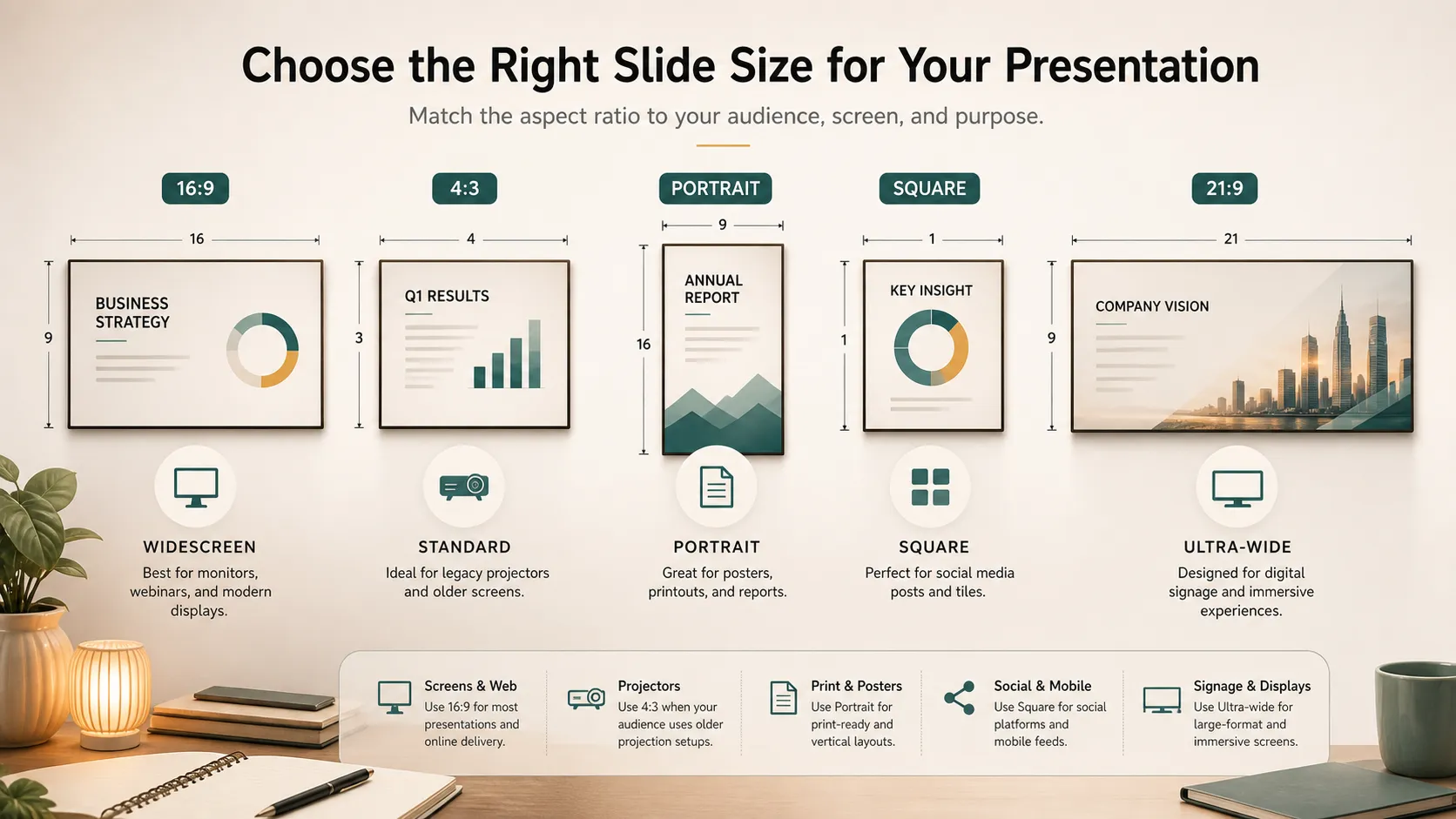
Changing slide size can affect an existing deck. Text boxes may shift, images may crop strangely, charts may feel too small, and footers may move to awkward positions. This is especially common when changing from 4:3 to 16:9, from landscape to portrait, or from a screen format to a print format.
If the deck looks messy after resizing, start with the most important slides: title, section dividers, data-heavy slides, and final call-to-action. The Slide Master can help when repeated elements need adjustment.
Which PowerPoint Slide Size Should You Use?
| Use case | Recommended size | Why |
|---|---|---|
| Modern screen presentation | Widescreen 16:9 | Fits most monitors and projectors |
| Older projector | Standard 4:3 | Matches legacy display setups |
| Printable report | A4 or letter | Works better for PDF and paper |
| Event poster | Portrait custom size | Supports vertical layouts |
| Social media graphic | Square or custom | Fits platform-specific formats |
| Digital signage | Custom screen ratio | Matches the display exactly |
The most important rule is to choose the slide size early. It is easier to design for the correct size from the beginning than to resize a finished deck later.
Better Than Resizing: Design For The Format
Changing slide size is a technical step. Designing for the format is the creative step. A widescreen presentation should not simply be a stretched 4:3 deck, and a portrait deck should not look like a landscape deck squeezed into a tall page.
Widescreen decks work well for timelines, comparison tables, dashboards, and side-by-side layouts. Portrait decks work better for reports, posters, one-page summaries, and mobile-style reading. Microsoft's guidance on PowerPoint themes is useful because themes help keep colors, fonts, and effects consistent after layout changes.
Where Pi Can Help
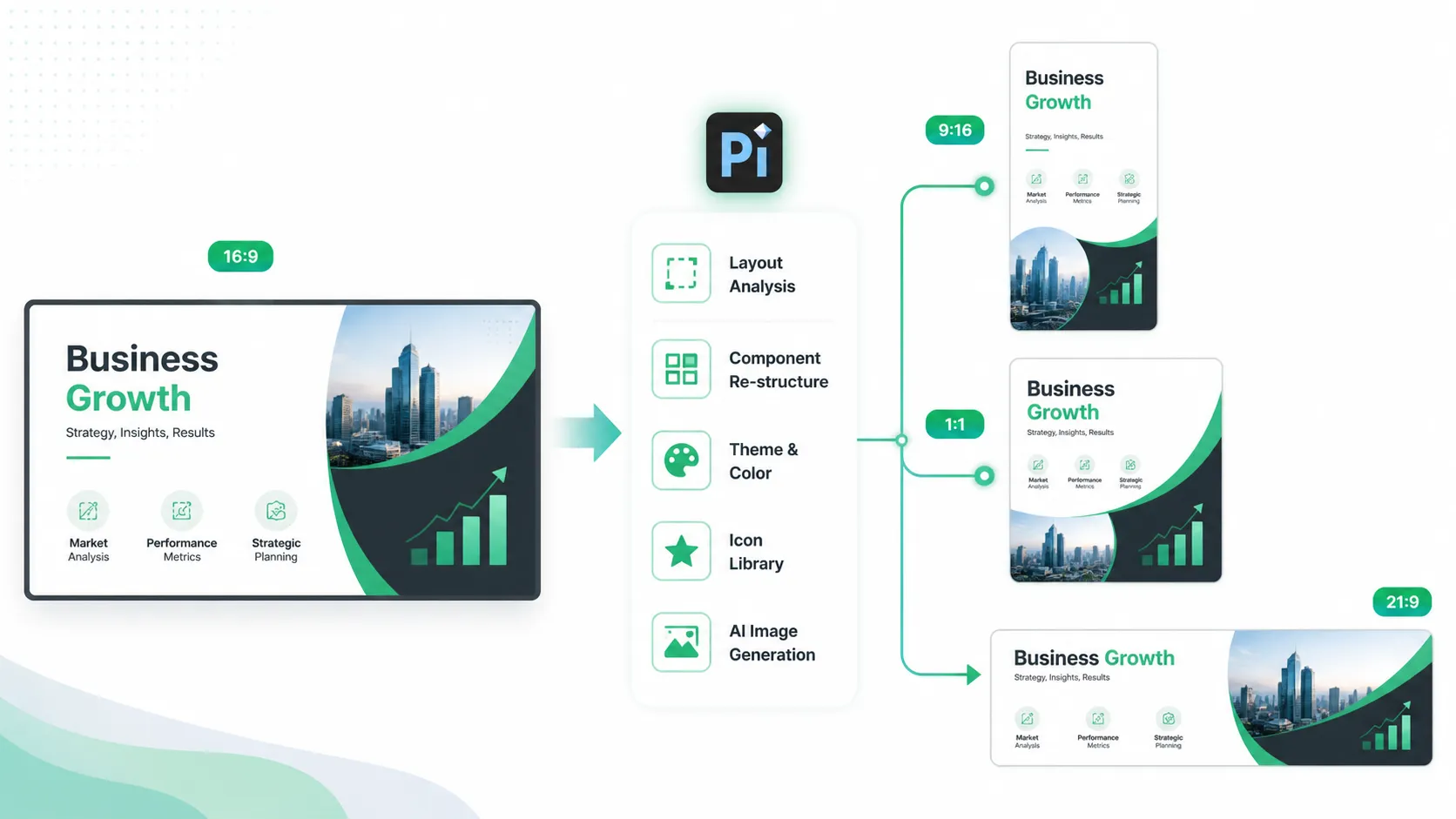
PowerPoint gives you the controls to change slide size, but redesigning the deck after resizing can take time. You may need to rebuild layouts, reposition charts, adjust images, fix text boxes, choose new colors, and make sure the presentation still feels consistent.
That is where Pi can fit naturally. Pi supports custom presentation sizes, so users are not limited to a single default ratio. You can create slides for widescreen presentations, square visuals, vertical layouts, report-style pages, or other custom formats depending on where the content will be used.
Pi is also useful when you already have a deck in one ratio, such as 16:9, but need to turn it into another format. Instead of simply stretching or squeezing the slides, Pi can help re-layout the content for the new ratio. Titles, images, charts, icons, and text blocks can be reorganized so the slide still looks designed, not distorted.
Beyond size changes, Pi can freely generate presentation themes, customize styles and colors, use ready-made components, apply automatic layout, provide an icon library, and call AI image generation when a slide needs supporting visuals. This makes it useful for teams that need multiple versions of the same content, such as a widescreen meeting deck, a printable report, and a vertical summary for sharing.
Use PowerPoint when you need to change the technical size of an existing deck. Use Pi when you want flexible dimensions, automatic re-layout, and a more visual presentation system built around the final format.
The Verdict
Changing slide size in PowerPoint is straightforward: go to Design > Slide Size, choose Standard, Widescreen, or Custom Slide Size, then decide whether to Maximize or Ensure Fit your content. For most modern presentations, widescreen 16:9 is the best default. For print, posters, older projectors, or special displays, custom sizing may be better.
The real challenge is making the content look intentional after the size changes. Pi can help when you need custom dimensions, automatic re-layout, and a polished visual system for each format.
Frequently Asked Questions (FAQ)
Q: What is the default PowerPoint slide size?
A: Most new PowerPoint presentations use widescreen 16:9 by default.
Q: Can I make only one slide a different size?
A: No. PowerPoint applies the same slide size to all slides in a presentation.
Q: Should I choose Maximize or Ensure Fit?
A: Choose Ensure Fit if you want to keep all content visible. Choose Maximize if you want content to fill more space and you are ready to fix overflow.
Q: Can Pi reformat a 16:9 deck into another size?
A: Yes. Pi can help re-layout a deck from 16:9 into other ratios or custom sizes, so the content is reorganized for the new format instead of simply stretched.


