how to convert powerpoint to google slides
Introduction
PowerPoint files are still common in daily work, school projects, client sharing, and team collaboration. But when a group works in Google Workspace, you may need to convert a PPT or PPTX file into Google Slides so everyone can edit, comment, and present from the cloud. The best method depends on your situation: the file may be complex, simple, local, shared, or part of a batch. This guide covers four practical ways to convert PowerPoint to Google Slides so you can choose the right one for your file.
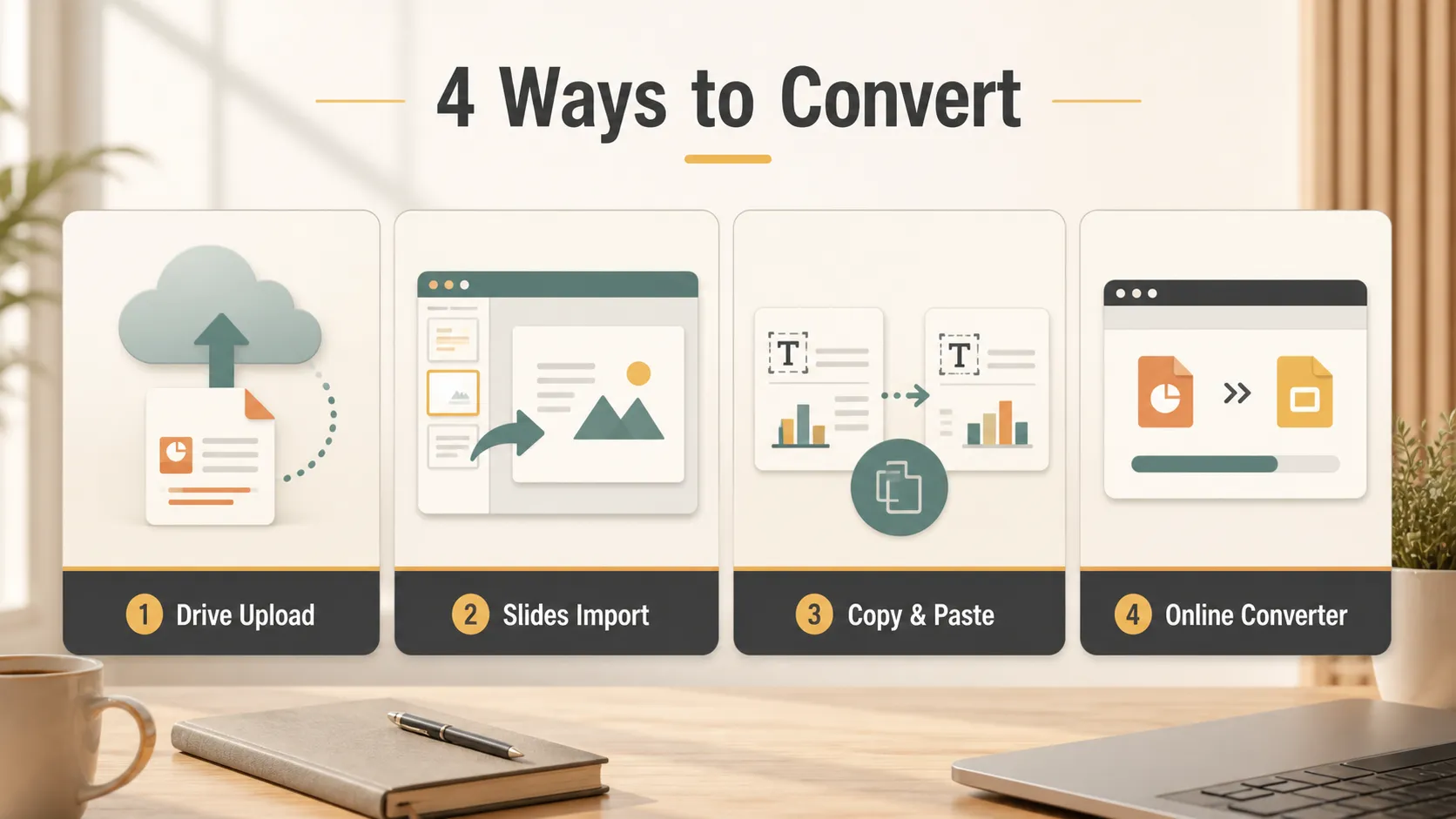
| Method | Best for | Speed | Formatting reliability |
|---|---|---|---|
| Upload to Google Drive | Normal PPT or PPTX files with images, charts, and basic formatting | Medium | High |
| Import through Google Slides | Users already working inside Google Slides | Fast | Medium to high |
| Copy and paste | Simple text-heavy slides or quick drafts | Very fast | Low to medium |
| Online converters | Users without Google login access or batch conversion needs | Medium | Medium |
Method 1 - Upload the PowerPoint file to Google Drive
This is the safest method for ordinary PPT or PPTX files, especially presentations that include charts, images, and basic formatting.Google's own Drive help explains that users can upload files by going to Drive, clicking New, and choosing File upload. That makes Google Drive the most reliable starting point when you want to preserve the file before converting it.
Steps:
- Open Google Drive.
- Click New in the top-left corner.
- Choose File upload.
- Find the PowerPoint file on your computer and upload it.
- After upload, double-click the file to open it.
- Click File in the top menu.
- Choose Save as Google Slides.
This creates a Google Slides version while keeping the original PowerPoint file in Drive. It is a good choice when you want a clean conversion and a backup of the original file.
Method 2 - Import through Google Slides directly
This method is faster when you are already working inside Google Slides and want to bring a PowerPoint file into the current workflow.
Steps:
- Open Google Slides.
- Create a blank presentation.
- Click File.
- Choose Open.
- Go to the Upload tab and drag the PowerPoint file into the window.
This is convenient when you do not want to start from Google Drive first. It is also useful when you are already building a deck and need to bring in slides from an older PowerPoint file. After importing, review the slide order, fonts, spacing, images, and charts before sharing the deck.
Method 3 - Copy and paste slides or content
This is the fastest option for small files with plain text, simple lists, or minimal formatting.
Steps:
- Open the PowerPoint file.
- Press Ctrl+A on Windows or Command+A on Mac to select the content.
- Copy the selected content.
- Paste it into Google Slides and adjust the layout manually.
Note: this method may lose complex layouts, advanced animations, master styles, and some chart formatting. It works best when speed matters more than perfect formatting. If your original file depends on custom fonts, branded templates, layered objects, or detailed charts, use Method 1 instead.
Method 4 - Use third-party online conversion tools
This method is useful for users who do not want to log in to a Google account, or for people who need batch conversion outside the Google Drive workflow.
Recommended tools:
Steps:
- Choose the source format and target format.
- Upload the PowerPoint file.
- Download the converted file and upload it to Google Slides.
Online converters can be convenient, but they are not always the best choice for confidential or sensitive presentations. If the file contains private business data, student information, client strategy, financial reports, or unreleased product details, use a trusted workspace account and check your company's file-sharing policy first.
Common issues after converting
- Complex animations may be lost, especially advanced transitions, motion paths, triggers, or interactive effects from PowerPoint.
- Embedded special fonts may be replaced, so it is safer to use common fonts before conversion or check all fonts after converting.
- Charts may have compatibility issues, especially linked Excel charts, dynamic charts, or complex data visualizations that depend on PowerPoint-specific formatting.
Advanced Tip
If the four methods above solve your format conversion problem, you can stop there. They are designed for cases where someone already sent you a PPT or PPTX file and you simply need to open, edit, or share it in Google Slides.
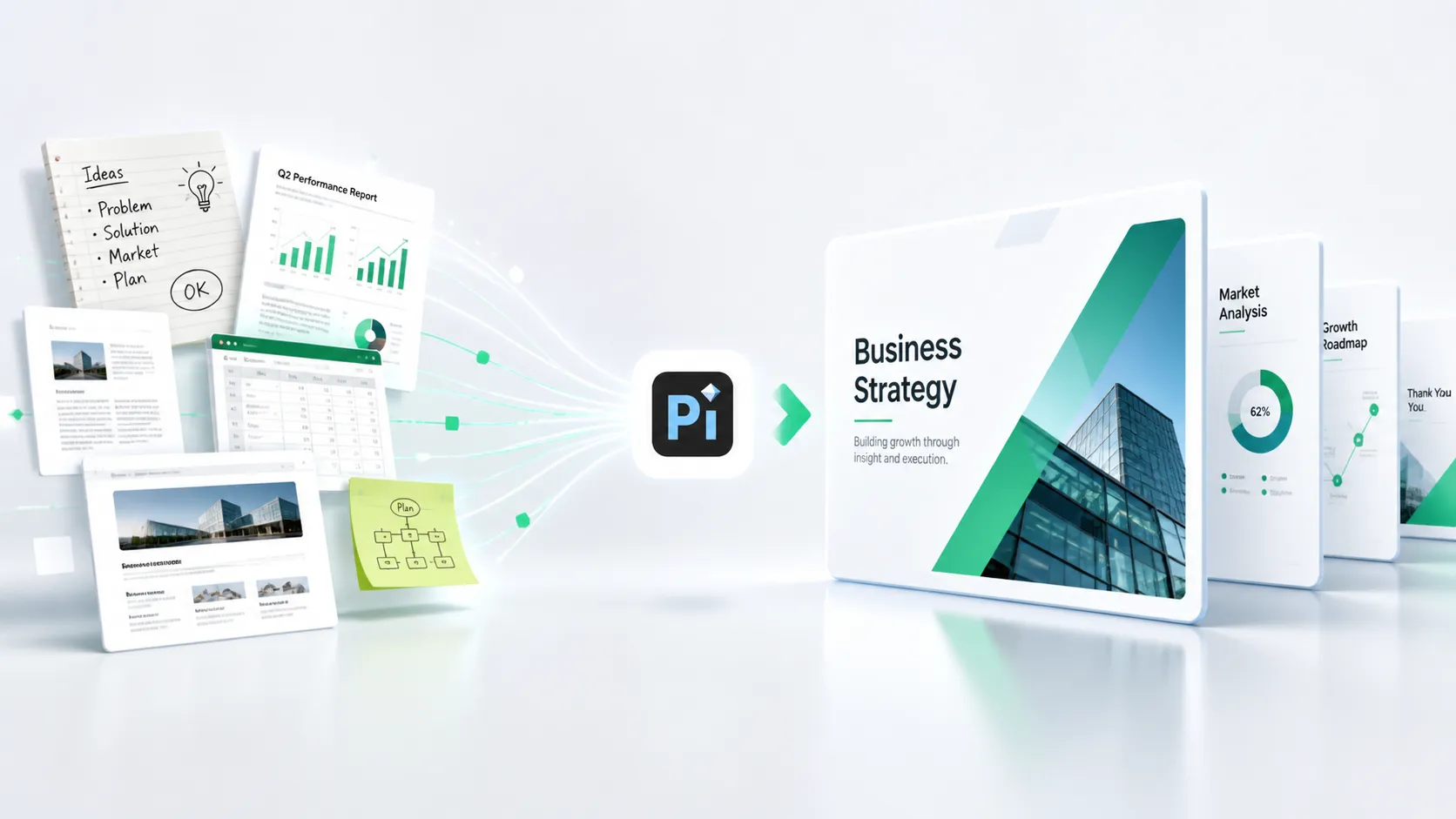
But sometimes the real problem is not file conversion. You may have scattered text, a report, a webpage, meeting notes, or a rough idea, and you need to turn those materials from zero into a polished slide deck.
Pure file conversion tools cannot solve that kind of problem. They can change a file format, but they cannot build the story, organize the points, or design a modern presentation from raw material. In that situation, an AI presentation tool like Pi is a better fit. Pi can turn ideas and text into a structured, modern-looking presentation, reducing the manual layout and drag-and-drop work that usually slows people down.
The simple comparison is this:
- Someone sent you a PPT -> use Methods 1-4 to convert the format.
- You have ideas or text and want to make a presentation -> use Pi to create it.
The Verdict
The best way to convert PowerPoint to Google Slides depends on your file and your goal. For most users, uploading the file to Google Drive is the safest and most reliable method. If you are already inside Google Slides, direct import is faster. Copy and paste works for very simple files, while online converters can help when you need a quick external option.
No matter which method you choose, always review the converted deck before sharing or presenting. Check fonts, images, charts, slide order, and animations so the final Google Slides version still communicates the message clearly.
Frequently Asked Questions (FAQ)
Q:Can I convert PowerPoint to Google Slides for free?
A:Yes. You can upload a PowerPoint file to Google Drive and save it as Google Slides with a Google account. The basic conversion process does not require paid software.
Q:Will my PowerPoint formatting stay the same in Google Slides?
A:Basic formatting usually transfers well, but some fonts, animations, charts, and advanced layouts may change. Always review the converted file before using it in a meeting or presentation.
Q: What is the best method for converting a PPTX file?
A:For most PPTX files, uploading the file to Google Drive and saving it as Google Slides is the most reliable method. It is especially helpful when the deck includes images, charts, and standard layouts.
Q:Can I convert multiple PowerPoint files at once?
A:Google Drive is best for individual files, while third-party tools may offer batch conversion. For sensitive business or school files, check privacy policies before uploading documents to an online converter.


