how to create a powerpoint template
Learning how to create a powerpoint template is one of the fastest ways to make future presentations more consistent, easier to edit, and less dependent on manual formatting. Instead of adjusting fonts, colors, logos, and layouts slide by slide, you build a reusable design system once and apply it across every new deck.
A strong PowerPoint template is not just a decorated presentation. It defines the rules for typography, brand colors, slide layouts, image placement, chart areas, section breaks, and closing slides. When built correctly, it helps teams create polished PPT decks faster while reducing design mistakes.
This guide walks through the practical workflow: plan the template, use Slide Master in PowerPoint, create reusable layouts, test them with real content, and save the file correctly as a POTX file.
What Is a PowerPoint Template?
A PowerPoint template is a reusable file that stores the design structure for future presentations. It can include theme fonts, color palettes, background styles, placeholder frames, default layouts, logo placement, and sample slide patterns.
The key difference is file purpose. A normal PPTX file is an editable presentation. You open it, edit slides, and save changes to that deck. A POTX file is a PowerPoint Template file. It is designed to create new presentations based on the same structure without overwriting the original template.
In everyday language, people often say “PowerPoint template” when they mean either a designed PPTX file or a true POTX template. For professional use, especially across a team, saving the final template as a POTX file is the cleaner option.
Why Custom PowerPoint Templates Matter
A custom PPT template matters because presentations often represent the brand before anyone reads the details. If every team member uses different fonts, colors, title styles, and chart formats, the company can look inconsistent even when the content is strong.
A well-built template improves several things at once:
- Brand consistency: Logos, colors, typefaces, and spacing follow the same rules.
- Speed: Teams spend less time formatting and more time refining the message.
- Collaboration: Multiple people can build slides without making the deck look mismatched.
- Quality control: Default layouts reduce common errors such as cramped text, poor contrast, and misaligned visuals.
The goal is not to limit creativity. The goal is to create a reliable system so every presentation starts from a professional foundation.
Before You Start: Gather Your Brand and Layout Rules
Before opening Slide Master PowerPoint settings, define the rules your template should follow. This planning step prevents the template from becoming a random collection of attractive slides.
Start with your brand assets: logo files, approved colors, typefaces, icon style, photography direction, and any existing design guidelines. Then consider how your team actually presents. A sales team may need case study slides and pricing layouts. A consulting team may need executive summaries, issue trees, data charts, and recommendation pages. A startup may need pitch deck sections such as problem, solution, market, traction, business model, and ask.
You should also define the most common slide types before designing. A useful template usually includes a title slide, agenda slide, section divider, standard content slide, two-column layout, image-led layout, chart slide, quote or insight slide, team slide, and closing slide.
How to Create a PowerPoint Template Using Slide Master
The most important tool for building a reusable template is Slide Master. Slide Master controls the design rules behind your slides, so you do not need to format every slide manually.
| PowerPoint Template Task | What Slide Master Controls | Why It Matters |
|---|---|---|
| Set default typography | Theme fonts, title styles, body text | Keeps text consistent across slides |
| Apply brand colors | Theme palette, accents, backgrounds | Prevents random color choices |
| Build reusable layouts | Placeholders, grids, logo areas | Speeds up slide creation |
| Standardize visual structure | Margins, alignment, spacing | Makes decks look more professional |
| Prepare for reuse | Master layouts and default styles | Supports future presentations |
1. Open Slide Master
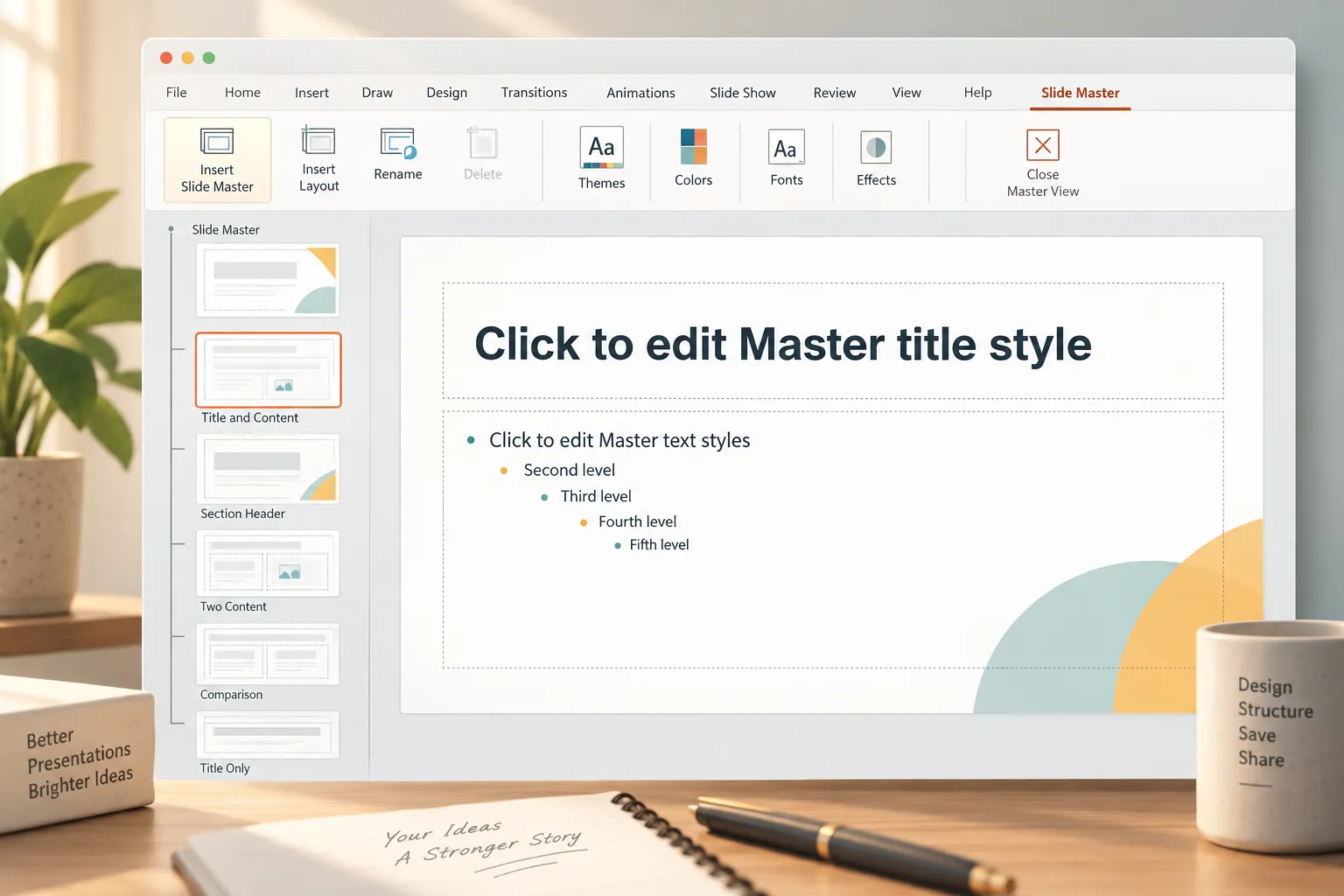
To open Slide Master, go to View and select Slide Master. PowerPoint will show the master slide at the top and related layout slides beneath it.
The top master slide controls broad design settings that affect the entire template. The layouts beneath it control specific slide types, such as title slides, section dividers, and content slides.
This is where many template mistakes happen. If you design only normal slides, users may copy and paste them manually, but the structure will be fragile. If you build layouts in Slide Master, users can create new slides from the correct layout and preserve the design system.
2. Set Theme Fonts and Typography Hierarchy
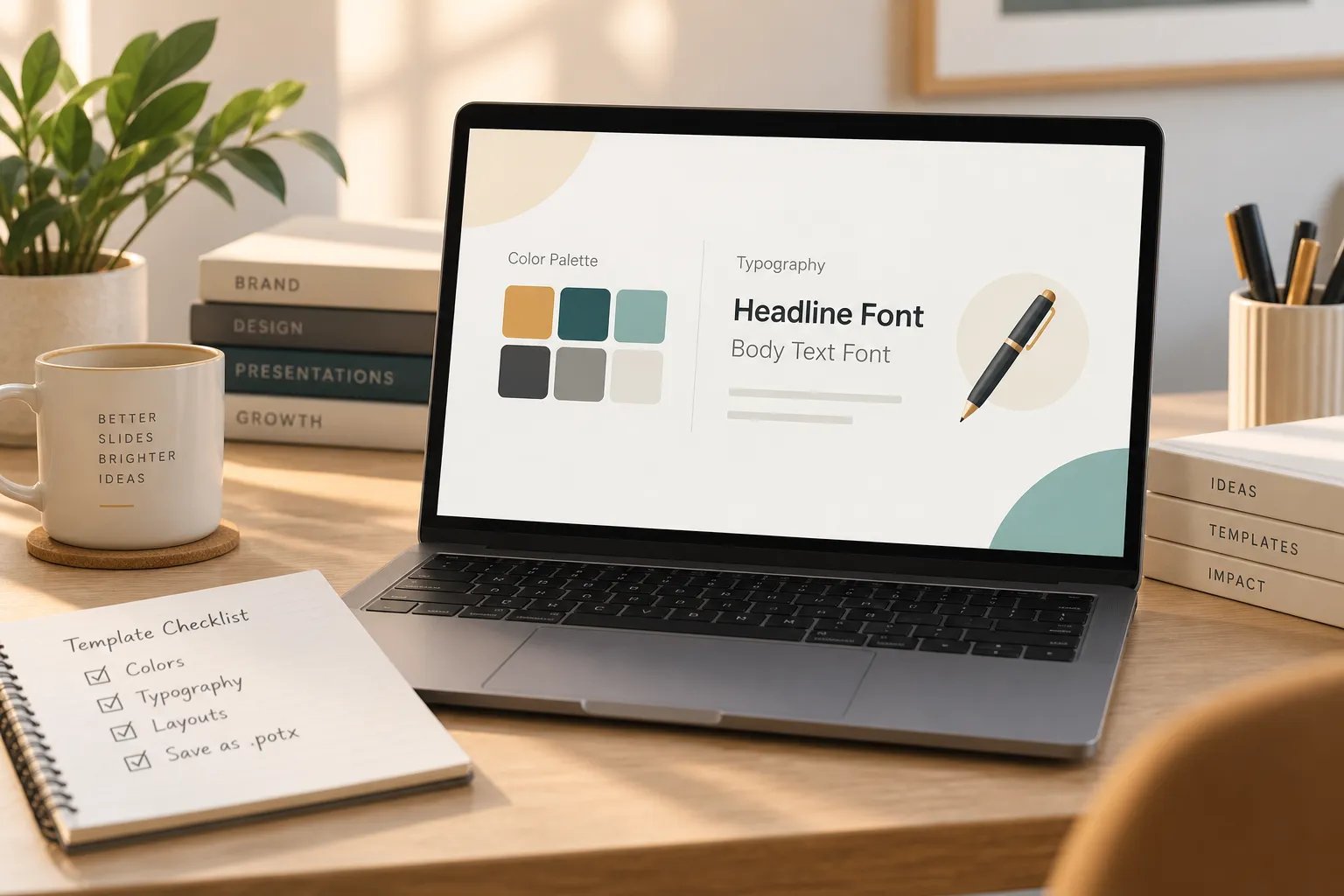
Next, define the typography. Choose theme fonts that match your brand and work well on screen. Avoid using too many fonts. Most professional templates need one font family or a simple pair: one for headings and one for body text.
Think in terms of hierarchy. Your template should clearly distinguish title text, section titles, subtitles, body copy, captions, labels, and footnotes. The size, weight, and spacing should tell the audience what to read first.
Do not rely on manual formatting. Set default text styles in the master and layouts. This makes it easier for future users to add content without accidentally changing the visual language of the deck.
3. Add Brand Colors and Background Styles
A custom PowerPoint template should include a controlled color palette. Use your primary brand color, secondary colors, neutral colors, and a limited set of accent colors. If the palette is too broad, people will use colors inconsistently.
In PowerPoint, set theme colors so shapes, charts, and text styles can follow the same palette. This is especially useful when people insert charts or SmartArt, because the default colors will be closer to the brand system.
Be careful with backgrounds. A dark background can look premium, but it needs strong contrast. A light background is often easier for text-heavy business decks. You may include both, but each should have clear rules for text color, chart style, and image treatment.
4. Create Default Layouts and Placeholder Frames
Now build the reusable layouts. Each layout should solve a real presentation need. Avoid creating too many decorative variations that no one will use.
A title slide might include a large presentation title, subtitle, date, and logo placement. A section divider might use a short heading and strong visual treatment. A content slide might include a title, body placeholder, and optional image or chart area. A chart slide should leave enough room for the chart, labels, source notes, and a clear takeaway.
Use placeholder frames instead of static sample objects wherever possible. Placeholders guide users to insert text, images, charts, and tables while preserving alignment. They also make the template easier for non-designers to use.
Pay attention to margins and grids. Consistent alignment is one of the easiest ways to make a deck feel professional. Titles should begin in predictable positions. Body areas should align from slide to slide. Images should have defined boundaries instead of floating randomly.
5. Test the Template With Real Content
Before saving the file as a template, test it with realistic content. Add long titles, short titles, bullet-heavy slides, charts, screenshots, team bios, and image-based pages. A layout that looks beautiful with sample text may fail when real business content is added.
Check whether text overflows, images crop awkwardly, chart labels remain readable, and colors maintain enough contrast. Also test whether someone else can use the template without explanation. If every slide requires manual adjustment, the template is not finished.
Testing is where a design presentation template becomes practical. The best template is not the one with the most impressive sample slides. It is the one that helps people create clear slides repeatedly. Turn real content into a polished first draft with Pi ↗
How to Save a PowerPoint Template as a POTX File
Once your Slide Master, layouts, colors, and typography are ready, save the file correctly.
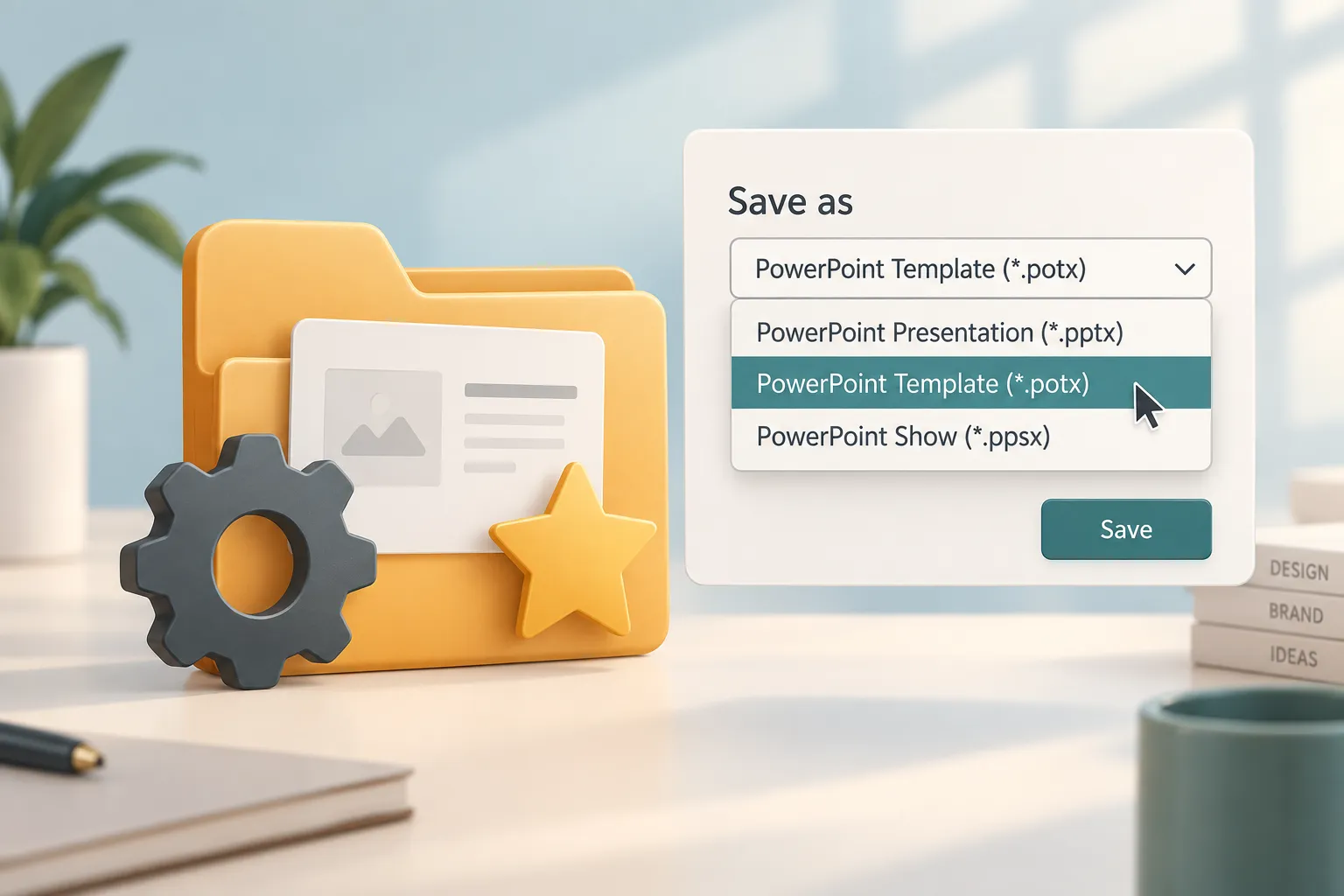
Use Save As, then choose **PowerPoint Template (*.potx)** from the file type options. PowerPoint may automatically open the default templates folder. Saving there makes the template easier to find when creating a new presentation. You can also save a copy in a shared team folder if your organization manages templates centrally.
This step matters because a PPTX file and a POTX file are not the same. A PPTX file is a working presentation. A POTX file is intended to generate new presentations from a protected starting point. If you want teammates to reuse the design without overwriting the original, save PowerPoint template files as POTX.
After saving, test the template by creating a new presentation from it. Confirm that layouts appear correctly, theme colors work, fonts load properly, and placeholders behave as expected.
PowerPoint Template Design Best Practices
Good template design is about restraint. A template should guide users, not trap them inside overly complex layouts.
Start with contrast. Text should be easy to read on every background. Avoid placing small text over busy images unless you use overlays or defined text panels. For executive and client-facing decks, readability is more important than visual drama.
Use a grid system. Align titles, body text, charts, and images consistently. Even simple slides look more polished when spacing is intentional.
Build a clear typography hierarchy. Slide titles should be immediately recognizable. Body copy should not compete with headings. Captions, source notes, and labels should be smaller but still readable.
Keep layouts clean. If every slide includes too many shapes, decorative lines, gradients, and icons, the template becomes difficult to use. The strongest templates often look simple because the complexity is hidden in the structure.
Also design for editing. A template may look perfect in the hands of a designer, but most templates are used by busy teams. Make sure placeholders are obvious, sample text is easy to replace, and layouts can handle different content lengths.
PowerPoint Template vs AI Presentation Workflow
PowerPoint templates are ideal when you need a long-term brand system. They help teams maintain consistency across recurring decks, internal updates, sales materials, reports, and client presentations.
However, templates do not solve every presentation problem. They do not automatically decide the storyline, organize business logic, simplify dense content, or turn rough notes into a persuasive deck. That is where modern AI-powered presentation workflows can help.
An AI presentation maker can speed up early-stage creation by helping structure the narrative, generate slide outlines, suggest layouts, and shape a more coherent flow. The template still matters, but AI can reduce the blank-page problem before the deck reaches final formatting.
Where Pi Fits for Modern Presentation Creation
Pi, short for Presentation Intelligence, is built for professional teams that need more than attractive slides. It helps create business-ready presentation structure, premium visual direction, and polished decks for high-stakes use cases such as pitch decks, sales decks, consulting reports, executive presentations, brand proposals, and product launch decks.
1. Business Logic Comes Before Slide Styling
A custom PPT template controls how slides look. Pi helps with what the presentation should say and how the argument should unfold. That is useful when the challenge is not only formatting, but also turning raw ideas into a clear business narrative.
For teams building investor decks, strategic reports, or client proposals, this structure can save time before the content enters PowerPoint for final brand-specific adjustments.
2. Premium Visual Quality Supports Professional Decks
Pi can also help teams move toward a more polished visual direction faster. Instead of starting from a blank slide or overusing generic layouts, teams can develop a professional presentation foundation and then refine or export for PowerPoint workflows where needed.
This makes Pi complementary to Slide Master. PowerPoint remains important for template control, file compatibility, and final editing. Pi is helpful when teams want faster ideation, stronger structure, and business-grade aesthetics before the template is finalized or applied. Create a business-ready presentation with Pi ↗
The Verdict: Build the Template Around Consistency, Not Decoration
The best way to make PowerPoint template files is to think like a system designer. Start with brand rules, define common slide types, build layouts in Slide Master, test them with real content, and save the final file as a POTX template.
A strong template should make future decks easier, not harder. It should reduce formatting decisions, support brand consistency, and give every user a clear structure for creating new slides.
If your main need is long-term brand control, Slide Master is the right foundation. If your challenge also includes shaping the story, organizing business logic, and producing a high-quality deck faster, an AI-powered workflow like Pi can support the process before final refinement in PowerPoint.
Frequently Asked Questions (FAQ)
How do I create a PowerPoint template from an existing presentation?
Open the existing presentation, clean up the design, then move repeated elements such as fonts, colors, logos, backgrounds, and layouts into Slide Master. After testing the layouts with real content, use Save As and choose PowerPoint Template (*.potx). This turns the deck into a reusable template for future presentations.
What is Slide Master in PowerPoint?
Slide Master is the PowerPoint feature that controls global design settings and reusable layouts. It lets you define typography, colors, placeholders, logo placement, backgrounds, and slide structures in one central place instead of formatting each slide manually.
What is the difference between a PPTX file and a POTX file?
A PPTX file is a normal editable PowerPoint presentation. A POTX file is a PowerPoint Template file used to create new presentations from the same design system. If you want to save PowerPoint template settings for repeated use, POTX is the better format.
Can AI help me design a custom PPT template?
Yes. AI tools can help generate structure, suggest layouts, organize content, and speed up early presentation creation. For example, Pi can help teams create business-ready decks with professional structure and premium visual quality, while PowerPoint Slide Master remains useful for final template control and POTX setup.