how to delete theme colors in google slides
If you are trying to delete theme colors in Google Slides, the short answer is: Google Slides does not work like a simple “delete theme colors” tool. Theme colors are part of the presentation theme, so you usually edit, replace, reset, or import a cleaner theme instead of deleting individual color slots.
That distinction matters. A theme color is not the same as a random color used on one shape. If an unwanted color keeps coming back, it is probably built into the theme, a slide layout, or a manually formatted object.
Quick Answer
You usually cannot delete theme colors in Google Slides the way you delete an object. Instead, open Slide > Edit theme > Colors, then replace the unwanted theme color with a better one.
If the unwanted color appears only on one object, change that object directly. If the whole deck feels inconsistent, import a cleaner theme or move the content into a new presentation.
What theme colors are in Google Slides
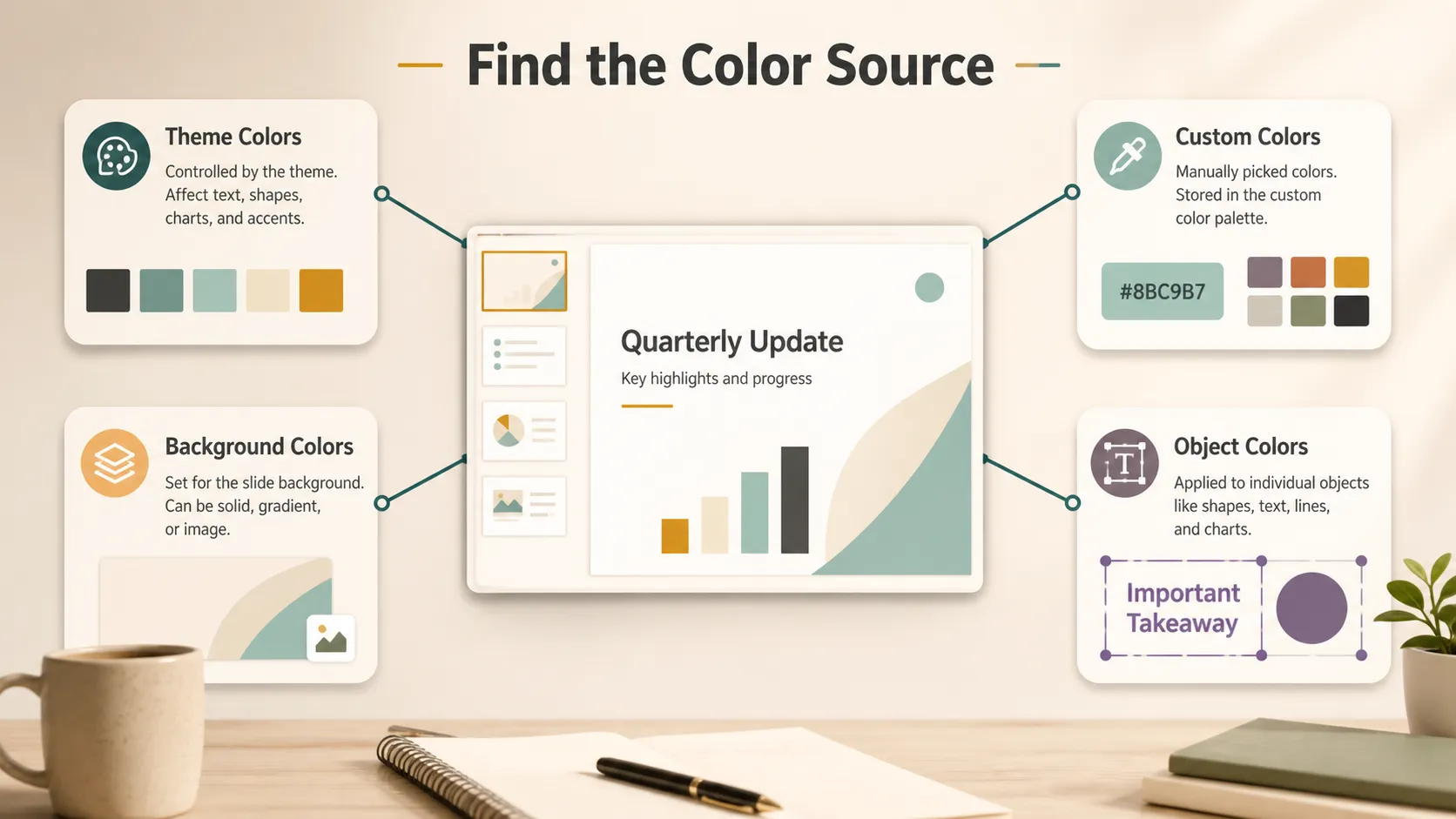
Theme colors are part of the visual system of a Google Slides presentation. They can affect slide layouts, title styles, body text, backgrounds, shapes, and default color choices.
Google’s official guide to changing themes in Google Slides explains that a theme includes colors, fonts, backgrounds, and layouts. The same guide also explains how to edit theme colors from the theme editor.
Before fixing colors, separate the main types:
- Theme colors: colors connected to the presentation theme.
- Custom colors: manually added colors in the color picker.
- Background colors: colors behind slide content.
- Object colors: colors applied to text, shapes, lines, charts, or icons.
Once you know which type you are dealing with, the fix is much easier.
Can You Delete Theme Colors in Google Slides?
If you mean removing a theme color slot completely, usually no. The practical answer is to replace the theme color with a better color.
To edit theme colors in Google Slides:
- Open your Google Slides presentation.
- Click Slide.
- Choose Edit theme.
- Open Colors.
- Select the theme color you want to change.
- Replace it with a default color or a custom color.
- Review several slides to see what changed.
Google Workspace also announced the ability to customize theme colors in Slides, which is useful when you want to update a deck’s visual system instead of changing colors slide by slide.
Which Color Fix Should You Use?
Not every color problem needs the same solution. Use this table to choose the right fix.
| Color issue | Best fix | When to use it |
|---|---|---|
| Delete theme colors in Google Slides | Replace the theme color | Repeated brand colors or old accent colors |
| One shape has the wrong color | Change the object color | One-off boxes, icons, lines, or labels |
| Background color looks wrong | Change the background | Slide background cleanup |
| Custom colors are cluttered | Stop using them or move to a clean deck | Old palettes or messy shared files |
| Whole deck feels inconsistent | Import a cleaner theme | Mixed templates, copied slides, old brand styles |
Start small. If one object is wrong, change the object. If many slides share the same wrong color, edit the theme. If everything feels inconsistent, use a cleaner theme or new deck.
How to Remove Unwanted Colors From Visible Slides
If a color appears only on a few objects, you do not need to edit the whole theme. Select the object, then change the fill color, text color, border color, or line color from the toolbar.
This is the right approach for:
- one-off shapes;
- labels;
- icons;
- screenshots;
- chart elements;
- manually formatted text;
- copied objects from another deck.
If one orange box appears on one slide, change that object directly. But if the same color keeps appearing when you add a new slide, check the theme editor. The color may be applied to a placeholder, background shape, title style, or layout object.
How to Clean Up Custom Color Clutter
Custom colors are different from theme colors. Google Slides may not provide a simple reliable delete button for every saved custom color in the palette.
The practical workaround is to stop using unwanted colors, replace them on the slides, and move important content into a cleaner presentation if needed. Google’s guide to text and object colors is useful because it explains how to change text, object, and background colors, including custom color values.
If your team uses brand colors, agree on a small set of hex codes. Share them in a brand guide, style note, or team template so collaborators do not keep adding random variations.
When to Import a Clean Theme
Sometimes the fastest fix is not editing colors one by one. If a deck has old brand colors, copied slides, mixed templates, and random custom colors, it may be cleaner to apply or import a new theme.
In Google Slides, use Slide > Change theme to apply a different theme. You can also import a theme from another presentation if your team already has a clean brand deck.
Use this option when:
- the deck has too many inconsistent colors;
- layouts come from several old templates;
- brand colors have changed;
- copied slides keep bringing unwanted styles;
- editing colors one by one would take too long.
Importing a theme can change layouts and spacing, so review important slides afterward.
Troubleshooting Common Theme Color Problems
If a theme color keeps reappearing, check the theme layouts. The color may be attached to a title placeholder, background shape, or master layout element.
If custom colors still appear in the palette, remember that Google Slides may not let you remove every saved custom color directly. Replace unused colors and consider copying cleaned slides into a new presentation.
If object colors do not update after changing the theme, those objects were probably manually formatted. Select them and change the color directly.
If an imported theme changes layouts, review the most important slides first. Check text boxes, image crops, chart sizes, and alignment.
Design Tips for Cleaner Theme Colors
Good theme colors are not just about branding. They also affect readability.
Keep your palette small. A useful presentation theme usually needs a few core colors: text, background, accent, highlight, and maybe one supporting color. Too many colors make slides harder to scan.
Use color for meaning. If blue means “current state” and green means “future state,” keep that pattern consistent. Do not use the same color to mean several unrelated things.
Check contrast. W3C’s guidance on color contrast is useful because text needs enough contrast against the background. Nielsen Norman Group’s guide to visual hierarchy is also helpful when deciding which color should draw attention first.
When the whole deck needs a cleaner theme
There is a point where color cleanup becomes deck cleanup. If you inherited old slides, screenshots, mixed templates, and inconsistent colors, fixing theme colors alone may not be enough.
In that situation, Pi can be useful before you do the final edits in Google Slides. Instead of only replacing colors inside a deck that already feels inconsistent, you can use Pi to turn notes, screenshots, or old slide content into a cleaner first draft with a more coherent visual direction.
This is especially helpful when the issue is not one bad color, but the overall theme. Pi includes many ready-to-use presentation themes, so you can start from a style that already looks organized instead of rebuilding every slide manually. For example, a business update, class report, sales deck, workshop outline, and product proposal should not all use the same visual tone. Starting from a suitable theme gives the deck a clearer direction before you spend time polishing details.
Pi is also useful when you need something more specific than a default template. You can customize the theme to fit a brand, class project, report style, campaign direction, or internal meeting style. That matters because many messy Google Slides files become messy in the first place when people choose colors slide by slide without deciding on a theme. With Pi, the theme can be part of the drafting process, not a repair job at the end.

That does not replace Google Slides editing. It gives you a cleaner starting point when the existing deck is too tangled to repair quickly. You can still finish theme colors, layouts, backgrounds, and object-level formatting in Google Slides.
The Verdict
You usually cannot delete theme colors in Google Slides the way you delete a file or remove an object. Theme colors belong to the presentation theme, so the real fix is to edit, replace, reset, or import a cleaner theme.
For a small color issue, change the object directly. For repeated colors, edit the theme. For a messy deck, import a clean theme or copy the useful content into a new presentation.
Frequently Asked Questions (FAQ)
Can I delete theme colors in Google Slides?
Not in the simple sense. Theme colors are part of the presentation theme, so you usually replace or edit them instead of deleting them.
How do I edit theme colors in Google Slides?
Open the presentation, click Slide, choose Edit theme, open Colors, select the theme color, and replace it with another color.
Why does an old color keep coming back?
It may be built into a theme layout, background, placeholder, or manually formatted object. Check both the slide and the theme editor.
How do I clean up too many custom colors?
Replace colors that are still used, then consider copying cleaned slides into a new presentation or importing a clean theme.


