how to use a pptx template
A PPTX template is a shortcut for making a presentation look finished before you design every slide by hand. It gives you a ready-made structure: cover pages, title slides, section dividers, image layouts, chart pages, icon blocks, and closing slides. The point is not to keep every sample slide exactly as it came. The point is to reuse the design system, replace the sample content, and keep the deck consistent while you build your own message.
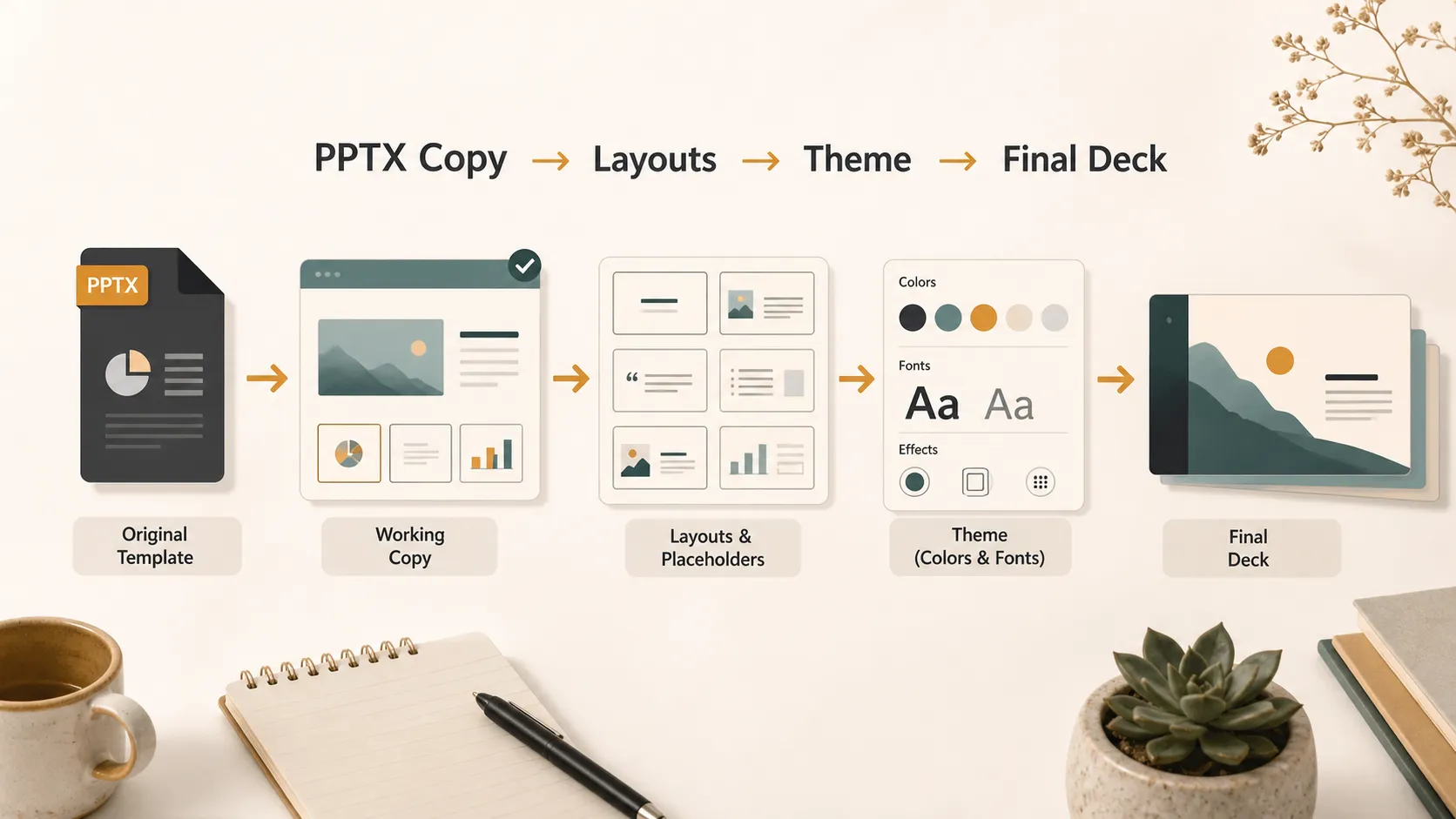
Before using one, it helps to understand the file. People often say "PPT" when they mean any slide deck, but PPT technically comes from Microsoft PowerPoint. It can refer to the app, a presentation, or the older .ppt file format. PPTX is the modern editable PowerPoint presentation format. Microsoft lists .pptx in its guide to PowerPoint file formats.
A PPTX template is usually a designed PowerPoint file that people duplicate and edit. A true PowerPoint template can also be saved as a POTX file for starting new presentations from the same design. Microsoft explains this in its guide to creating and saving a PowerPoint template.
Know What Kind Of File You Have
Start by checking the file extension. This tells you how the file is meant to be used.
| File type | What it usually means | How to use it |
|---|---|---|
| PPT | Older PowerPoint file or casual name for a deck | Open it, update if needed, and save as PPTX |
| PPTX | Modern editable PowerPoint presentation | Duplicate it and edit your own copy |
| POTX | PowerPoint template file | Use it to create a fresh deck from the same design |
Save A Working Copy First
The first practical step is simple: do not edit the original template file. Open the PPTX, then use File > Save As or Save a Copy and give the deck a project-specific name. This protects the clean version, especially if the file came from a team folder, brand library, or marketplace.
For existing decks, Microsoft's guide on how to apply a template to an existing presentation is useful.
Read The Template Before You Replace Content
A good template has a rhythm. Before you type over the sample text, click through the deck and look at what each slide is meant to do. Match your content to the right slide type instead of forcing everything into the first layout you see.
| Slide type | Best use | Avoid |
|---|---|---|
| Cover | Main title, subtitle, presenter, date | Long paragraphs |
| Agenda | Meeting flow or chapter list | Too many sections |
| Section divider | Topic transition | Too much content |
| Chart slide | Metrics or proof | Sample data left in place |
| Image slide | Product shots or screenshots | Stretched images |
| Closing slide | Summary, contact, next step | Multiple competing calls to action |
This small review helps you avoid treating every slide like a blank page.
Replace Text Without Fighting The Layout
When you add your own content, keep the template's hierarchy. Titles should still look like titles. Captions should still look like captions. Labels, numbers, quotes, and body text should stay in their intended roles.
Keep your text close to the length of the original placeholder. If the template has a short headline and you paste in a long sentence, the slide will feel crowded. A slide should give the audience the shape of the idea, while the speaker fills in the detail.
Replace Images, Icons, And Charts With Care
Most templates use placeholders for images and graphics. Use those placeholders instead of deleting everything and dragging new objects onto the slide. Replacing an image inside the existing frame keeps the spacing, crop, and balance closer to the original design.
Icons should stay consistent too. If the template uses thin line icons, do not mix in heavy 3D icons. Charts need the same care: replace the sample data, check the labels, and make sure the chart type still fits your message.
Use Layouts Instead Of Random Duplicates
When you need another slide, choose a layout before duplicating a random page. In PowerPoint, layouts are usually controlled by the slide master. Microsoft's explanation of what a slide master is helps explain why some template elements are editable on a normal slide and others are not.
A simple workflow works best:
1. Click New Slide.
2. Choose the layout that fits your content.
3. Add only the content that belongs in that structure.
4. Duplicate slides only when you intentionally want the same format again.
This keeps the deck easier to update later.
Customize The Design System, Not Every Slide
You can change a PPTX template, but do it carefully. If you need new brand colors, fonts, or backgrounds, update the theme rather than manually changing objects one by one. Microsoft's guide to adding color and design with themes explains how themes control the overall look.
This is where many templates become hard to manage. Someone changes a title color on slide 3, a button color on slide 8, and a background on slide 12. The file still works, but the design system is gone. Keep changes broad and intentional. If you need a new style across several decks, Microsoft's guide to creating your own theme in PowerPoint can help.
When Pi Is Easier Than Editing A PPTX Template Manually
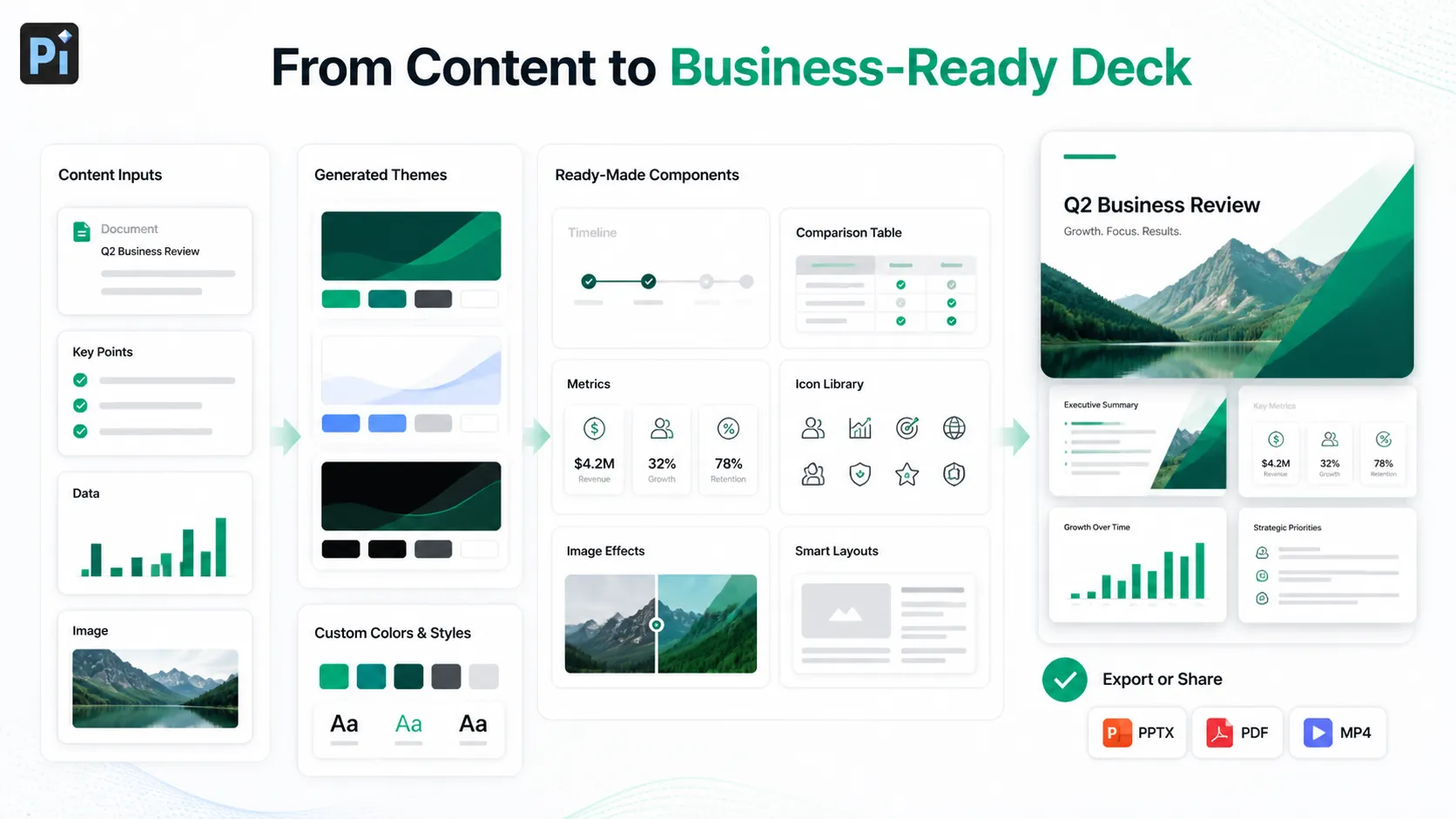
Sometimes a PPTX template is enough. Other times, you need more flexibility than manual editing provides. Pi can help when you want to create or customize a presentation template without spending so much time adjusting layouts by hand.
Generated Themes And Custom Styles
Pi can generate presentation themes based on your topic, audience, and visual direction. You can adjust custom colors and styles so the deck feels aligned with your brand or project, rather than forcing your content into a downloaded template that only partly fits.
Ready-Made Components And Automatic Layout
Instead of manually building every slide section, Pi provides ready-made components for business presentations, such as comparison blocks, timelines, metric sections, process diagrams, and executive summaries. Automatic layout helps keep spacing, hierarchy, and alignment clean as your content changes.
Icons, Image Effects, And AI-Generated Visuals
Pi also includes an icon library, image editing and design effects, and AI-generated visuals for slides that need stronger visual support. This is useful when a template has the right structure but lacks the specific visuals your presentation needs.
After the presentation is ready, you can export it as a PPT file and open it in PowerPoint or other compatible presentation software for final edits, sharing, or delivery.
The Verdict
The best way to use a PPTX template is to treat it as a design system, not a pile of sample slides. Keep the original file safe, work from a copy, understand the layouts, replace content carefully, and customize the theme in a controlled way.
If the PPTX template already fits your message, PowerPoint is enough. If you need more flexibility, Pi can help you build the presentation from your content using editable templates, custom themes, reusable components, icons, image effects, AI visuals, automatic layout, and PPT export.
Frequently Asked Questions (FAQ)
Q: What is a PPTX template?
A: A PPTX template is an editable PowerPoint file designed to be reused. It usually includes layouts, colors, fonts, image spaces, charts, and sample slides that you can replace with your own content. Microsoft also explains how templates work in its guide to creating and saving a PowerPoint template.
Q: Is PPTX the same as PPT?
A: No. PPT is often used casually to mean a PowerPoint presentation, but it can also refer to the older .ppt file format. PPTX is the modern editable PowerPoint format. Microsoft’s PowerPoint file formats guide shows the difference between common PowerPoint formats.
Q: Should I edit the original PPTX template?
A: No. Save a working copy first so the original template stays clean and reusable.
Q: Can Pi export a presentation as a PPT file?
A: Yes. Pi can help you create and customize a deck with templates, themes, components, icons, layouts, image effects, and AI visuals, then export it as a PPT file for use in PowerPoint or other compatible tools.


