pdf to powerpoint converter
A pdf to powerpoint converter is useful when you have a PDF presentation and need an editable PowerPoint file. Maybe a client sent only the PDF version of a deck. Maybe the original PPTX is missing. Maybe you need to change a few labels, reuse slides, or extract content quickly.
The key point is that conversion quality depends on how the PDF was created. A PDF exported from PowerPoint with selectable text may convert well. A scanned report, image-heavy brochure, or complex design file may be much harder to edit.
So the real question is not only how to convert PDF to PowerPoint. It is whether conversion will give you a usable deck, or whether the PDF should be treated as source material for a better presentation.
What a PDF to PowerPoint Converter Actually Does
A PDF to PPT converter tries to recreate a PowerPoint file from a PDF. It reads each page, detects visible text, images, shapes, and layout elements, then places them into editable PowerPoint slides.
That sounds simple, but a PDF is usually a final-format file. Adobe describes PDF ↗ as a format built to preserve document layout across devices and platforms. That is why PDFs are easy to share but harder to edit afterward. Microsoft also lists PPTX as a standard editable PowerPoint format in its guide to supported PowerPoint file formats ↗.
A converter is not restoring the original PowerPoint file. It is reconstructing slides from the visible PDF pages. That means slide masters, animations, grouped objects, editable charts, and theme settings may not come back cleanly.
When PDF to PPT Conversion Works Well
PDF to PowerPoint conversion works best when the PDF was originally exported from PowerPoint or another slide tool. In that case, the pages usually match slide dimensions, the text is selectable, and each page already behaves like a slide.
An online PDF to PowerPoint tool is useful when you only need light edits. You might update a date, fix a typo, change a logo, or reuse a few slides. If the converted file looks close enough and the text is editable, a converter can save a lot of time.
Conversion also helps when the original deck is missing but the PDF version still exists. The goal is not perfection. The goal is to recover an editable PowerPoint from PDF quickly enough to keep working.
Why Converted PowerPoint Files Often Break
PDF conversion becomes less reliable when the source file contains complex design choices. The converter may preserve the look of the page, but not the editability behind it.
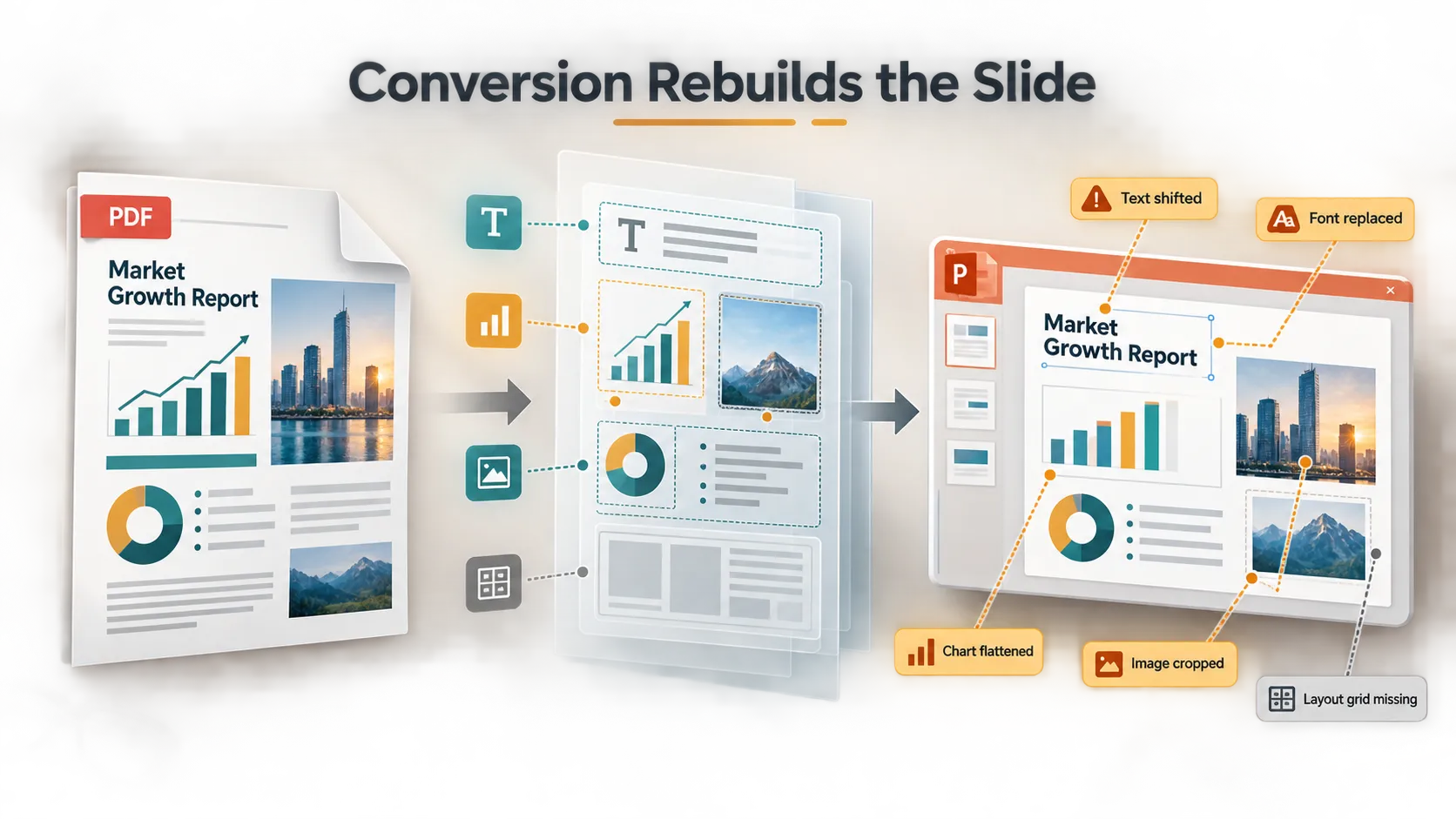
Common issues include:
- Fonts may be missing, replaced, or resized.
- Charts may become flat images.
- Scanned pages may stay as images unless OCR works.
- Images may crop incorrectly or merge with backgrounds.
- Text may split into many small boxes.
- Slide masters and spacing rules may not transfer.
- Complex layouts may shift.
Scanned PDFs are especially difficult because they often contain image data rather than real text. Adobe’s guide to recognizing text in scanned PDFs ↗ explains how OCR can make scanned text searchable and selectable, but OCR still does not guarantee a clean PowerPoint layout.
This is why a converted deck can look fine at first but become frustrating during cleanup.
Popular PDF to PowerPoint Converter Options
Several well-known tools support PDF to PowerPoint conversion. Adobe Acrobat’s PDF to PPT converter ↗ is a common choice for users already working in Adobe’s PDF ecosystem. It is often a strong fit when document fidelity, OCR, and professional PDF handling matter.
Smallpdf PDF to PPT ↗ is popular for quick browser-based conversion. It works well when you want a simple upload-convert-download workflow without installing software. Users should still check file limits, privacy terms, and whether the final PPTX is editable enough.
iLovePDF PDF to PowerPoint ↗ is another widely used web-based option. It is useful for simple conversions and lightweight document tasks. As with any online converter, test one representative file before relying on it for a full project.
The real test is not whether a tool can produce a PPTX file. The real test is whether that file can be edited efficiently.
PDF to PowerPoint Converter Comparison
| Tool | Best Fit | What to Check |
|---|---|---|
| Adobe Acrobat PDF to PowerPoint | Professional PDF workflows | OCR, layout fidelity, subscription needs |
| Smallpdf PDF to PPT | Fast online conversion | File limits, privacy, editability |
| iLovePDF PDF to PowerPoint | Simple browser-based tasks | Formatting, account limits, image handling |
| Pi | Rebuilding a new presentation from source material | Story structure, themes, visuals, PPT export |
When You Should Convert the PDF
Use a PDF presentation converter when the goal is to recover or lightly edit an existing presentation. If the PDF already looks like a slide deck, uses selectable text, and does not need major restructuring, conversion is usually the fastest path.
This is especially true when you need to reuse a client-provided PDF, update a few slides, extract a near-original deck, or make small corrections without starting from scratch.
The best workflow is simple: convert the file, open the PPTX, check several slides carefully, and decide whether cleanup is manageable. If most slides only need small adjustments, direct conversion is the practical choice.
When You Should Rebuild the Presentation Instead
Direct conversion is less useful when the PDF is not really a finished presentation. Many PDFs are reports, whitepapers, research documents, proposals, exported dashboards, or old decks that no longer tell the right story.
In those cases, conversion may create an editable file without creating a better presentation. You may spend hours fixing layout issues while still working with dense or outdated content.
When someone only needs an editable copy of the original PDF, a converter is enough. When the PDF is really source material for a new deck, it is often better to rebuild the story.
How Pi Helps Turn PDF Content Into a Clearer Presentation
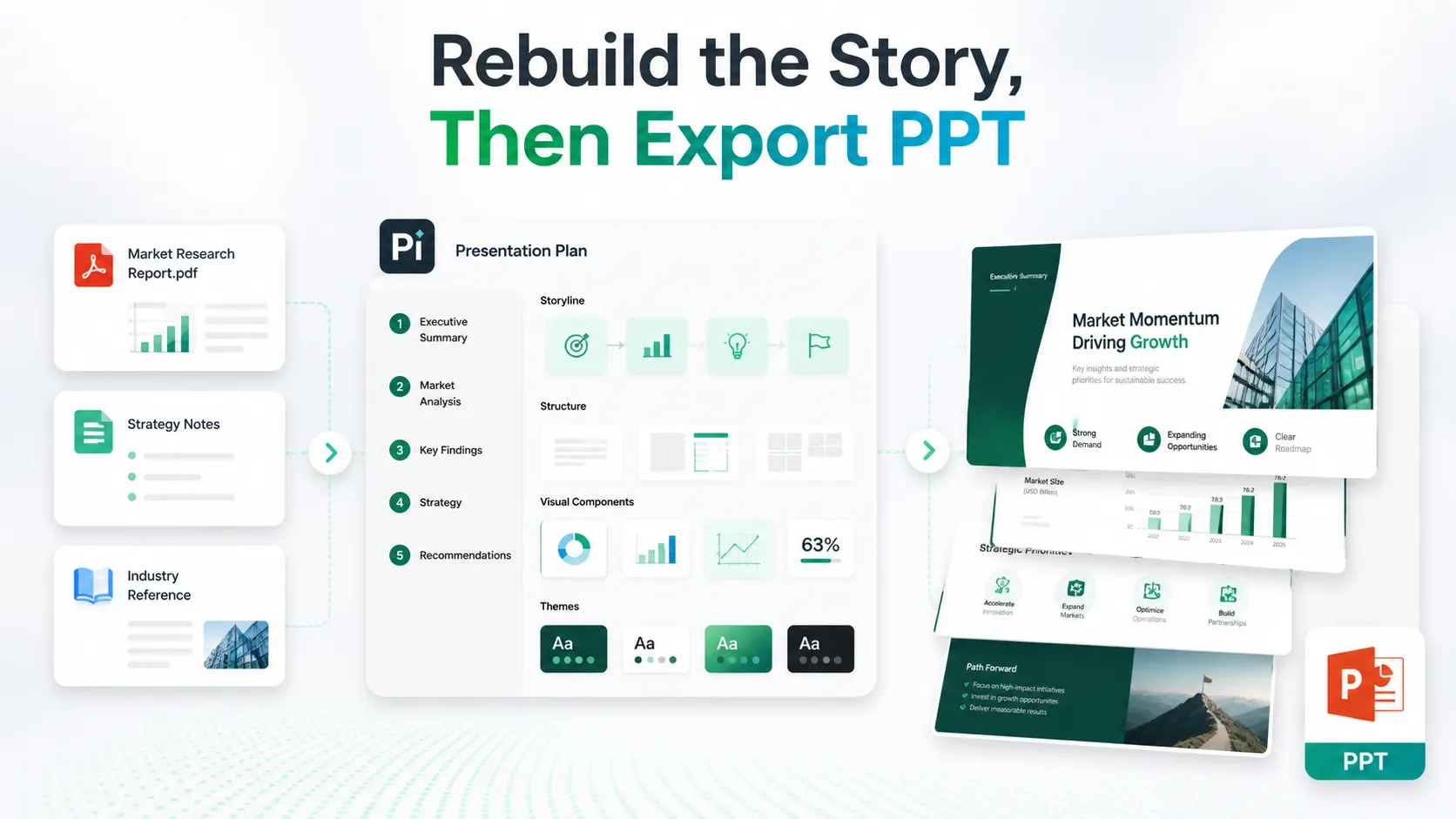
Once you decide the PDF is source material rather than a file to recover, the workflow changes. You are no longer trying to recreate every page. You are trying to turn the useful content into a clearer presentation.
That is where Pi ↗ fits more naturally. Pi can help turn a PDF, report, notes, URL, or reference material into a structured presentation with cleaner flow, themes, components, visuals, and PPT export.
1. Business Logic Comes Before Slide Styling
A strong business presentation is not just a sequence of converted pages. It needs a clear argument. Pi helps organize raw material into a structure that explains the situation, highlights the key insight, supports the message with evidence, and guides the audience toward a decision.
This is useful for pitch decks, sales decks, consulting reports, executive presentations, market research decks, and product launch decks.
2. Source Material Becomes a Presentation Narrative
A PDF report may contain useful content, but reports and slides are different formats. Reports can be dense and linear. Presentations need sharper hierarchy, stronger sectioning, and better pacing.
Pi can help transform long-form material into a slide narrative, so the workflow focuses on what the audience needs to understand instead of converting every page one by one.
3. Themes, Components, and Visuals Improve the Output
Direct PDF conversion often inherits the visual limits of the source file. Pi supports a cleaner design process with themes, reusable components, layouts, icons, image effects, and AI-generated visuals.
That matters when the goal is not simply to recover a file, but to create a deck that feels polished in a business setting.
4. PPT Export Keeps the Workflow Practical
Many teams still need PowerPoint as the final working format. Pi supports PPT export, so the rebuilt presentation can continue into familiar review, editing, and sharing workflows.
This makes it useful when source material begins as a PDF but the final deliverable needs to be a professional PPT.
The Verdict: Convert, Clean Up, or Rebuild
A pdf to powerpoint converter is the right tool when you need an editable copy of an existing PDF-based deck. Adobe Acrobat PDF to PowerPoint, Smallpdf PDF to PPT, and iLovePDF PDF to PowerPoint can all be practical choices depending on your file, privacy needs, account limits, and expected output quality.
However, conversion is not the same as presentation creation. If the PDF came from a clean slide deck and you only need light edits, convert it. If the converted PPTX has broken layouts but the story is still useful, convert and clean up selectively. If the PDF is a report, old deck, research document, or rough source material for a new message, rebuilding is usually smarter.
That is where Pi fits naturally. It helps turn content into a clearer presentation with stronger structure, professional visuals, and exportable PPT output.
Frequently Asked Questions (FAQ)
What is the best PDF to PowerPoint converter?
The best PDF to PowerPoint converter depends on the file and the goal. Adobe Acrobat is strong for professional PDF workflows, while Smallpdf and iLovePDF are convenient for quick online conversion.
Can a scanned PDF become an editable PowerPoint?
Sometimes, but results vary. OCR can identify text, but formatting, spacing, charts, and images may still require cleanup.
Why does formatting change after I convert PDF to PowerPoint?
Formatting changes because a PDF stores final page appearance, not native PowerPoint structure. Fonts, charts, images, slide masters, and spacing rules may not transfer cleanly.
Should I convert a PDF or rebuild the deck?
Convert the PDF if you only need light edits. Rebuild the deck if the PDF is source material for a clearer business presentation. Pi can help structure the content, improve the visual flow, and export a polished PPT.


