Slide Shows Explained: Digital and Web-Based Formats
A slide show is a sequence of visual pages displayed one after another. Each page, usually called a slide, presents a discrete unit of information through text, images, diagrams, charts, video, audio, or other media. Slide shows are used in lectures, business presentations, training materials, product demonstrations, photo stories, public displays, and online communication.
Although slide shows are often associated with presentation software, the format is broader than any single application. A slide show may be created as a desktop presentation file, a photo sequence, a video, a web page, or a browser-based presentation. Desktop tools such as Microsoft PowerPoint ↗, Apple Keynote ↗, and Google Slides ↗ organize presentations around slides, themes, layouts, text, charts, images, and media. Browser-based systems deliver similar sequences through a web browser ↗.
What Is a Slide Show?
At its most basic level, a slide show is an ordered sequence of slides. The audience moves through the content step by step, either manually or automatically. This sequential structure helps divide information into smaller visual units and gives the presentation a clear beginning, development, and ending.
In a photographic slide show, each slide may contain a single image. In an educational or business context, a slide may include a title, supporting text, diagrams, charts, screenshots, embedded media, speaker notes, or links. PowerPoint documentation describes how presentations can include slides, layouts, text, pictures, shapes, charts, and other visual objects ↗. Google’s documentation for Google Slides similarly describes creating and editing slide-based presentations with themes, layouts, images, and other elements.
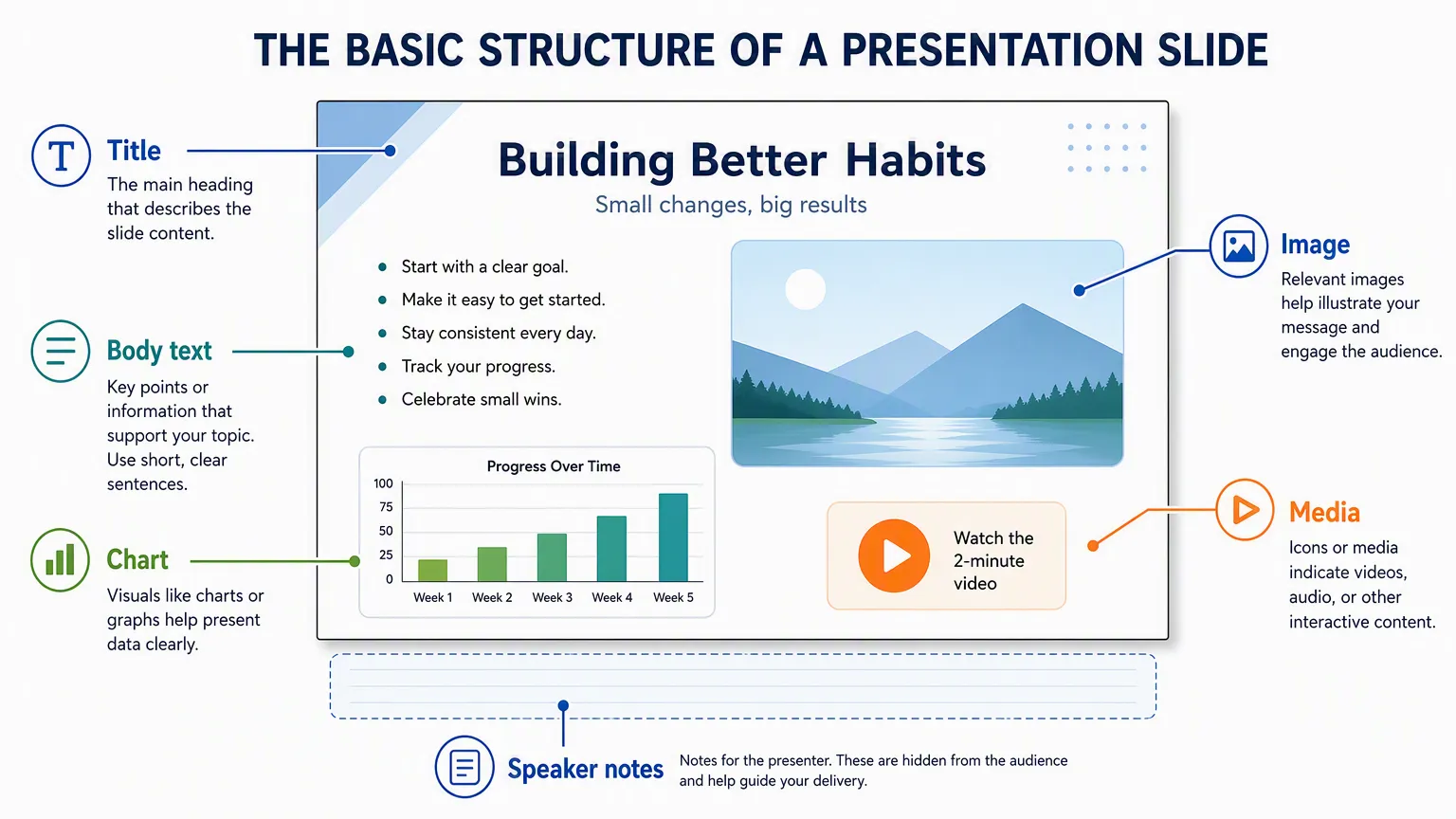
This structure is one reason slide shows remain useful. They allow presenters to control pacing, introduce one point at a time, and combine visual and spoken explanation. A slide show can therefore function as a visual aid, a self-running display, a teaching sequence, or an interactive browser-based document.
Digital Slide Shows
Digital slide shows replaced many earlier physical formats, such as photographic slides and overhead transparencies. Instead of relying on physical projection materials, digital slide shows are created, edited, stored, and displayed through computers, mobile devices, projectors, televisions, or web browsers.
A digital slide show can include more than still images. Common elements include text, images, diagrams, charts, video clips, background audio, narration, captions, transitions, animations, and links. Web documents can include structured text and embedded media through standard HTML elements ↗, including images ↗, audio ↗, video ↗, text tracks ↗, and iframes ↗.
These elements allow a slide show to function as a structured visual explanation rather than a simple image sequence. For example, an educational slide show may use diagrams and captions to explain a concept. A training slide show may combine text, screenshots, and short videos. A product presentation may use images, charts, and motion to guide viewers through features or use cases.
What Is a Web-Based Slide Show?
A web-based slide show is a slide show that can be viewed or presented in a web browser. Instead of requiring a downloaded presentation file, it is commonly accessed through a web link. This makes browser-based slide shows useful when content needs to be shared across devices, embedded on a website, updated after publication, or viewed without installing dedicated presentation software.
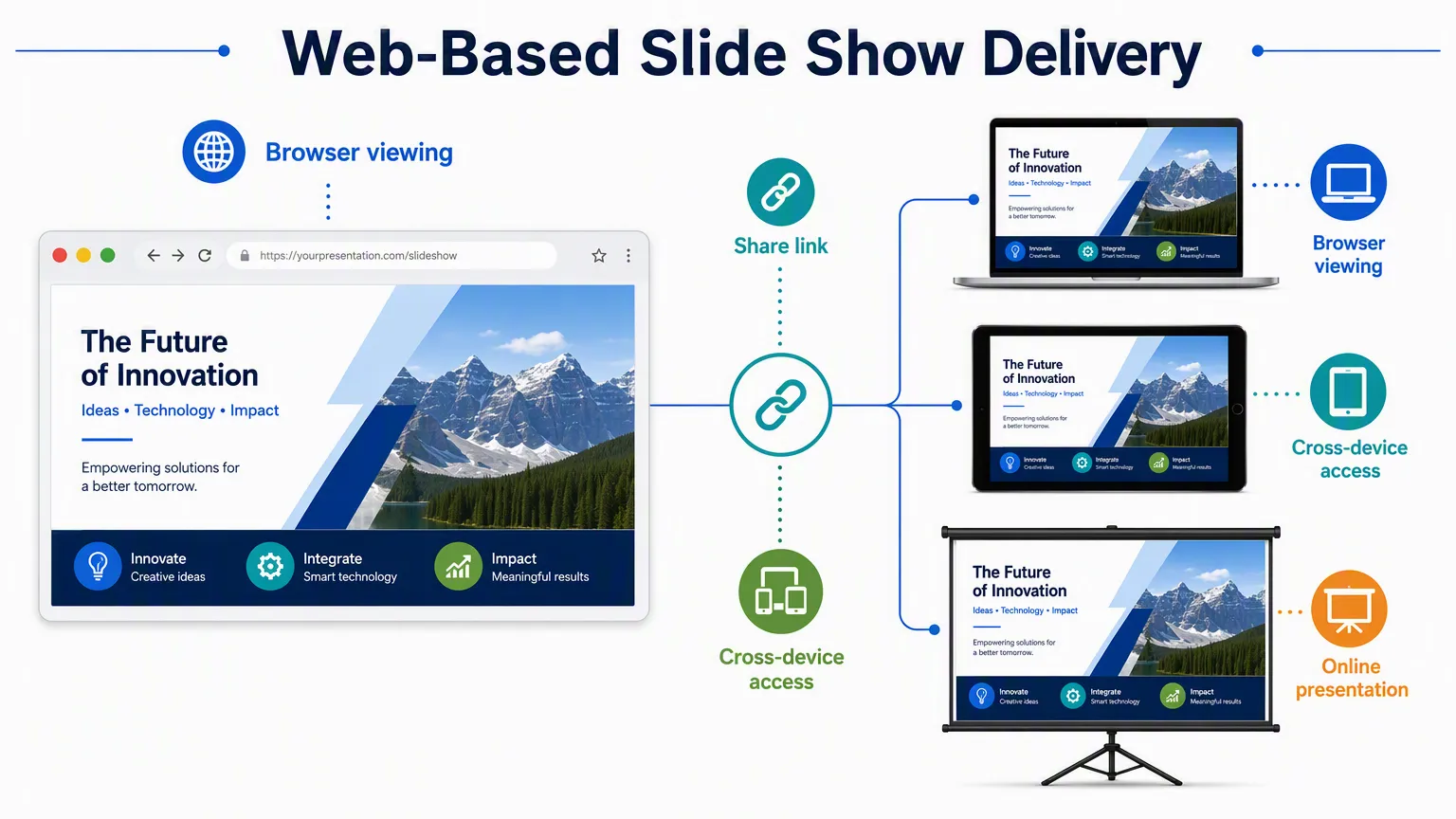
Web-based slide shows can be created in several ways. Some are exported from presentation programs. Some are produced by online presentation tools. Others are authored directly as web pages. The World Wide Web Consortium’s HTML Slidy ↗ is an early example of a browser-based slide show system built with web standards. reveal.js ↗ is a widely used HTML presentation framework, while impress.js ↗ demonstrates how browser presentations can use CSS transforms and transitions.
The defining feature is not the tool used to create the slide show, but the way it is delivered and viewed. A web-based slide show is designed to run through a browser-based environment rather than only inside a desktop presentation application.
How Browser-Based Slide Shows Work
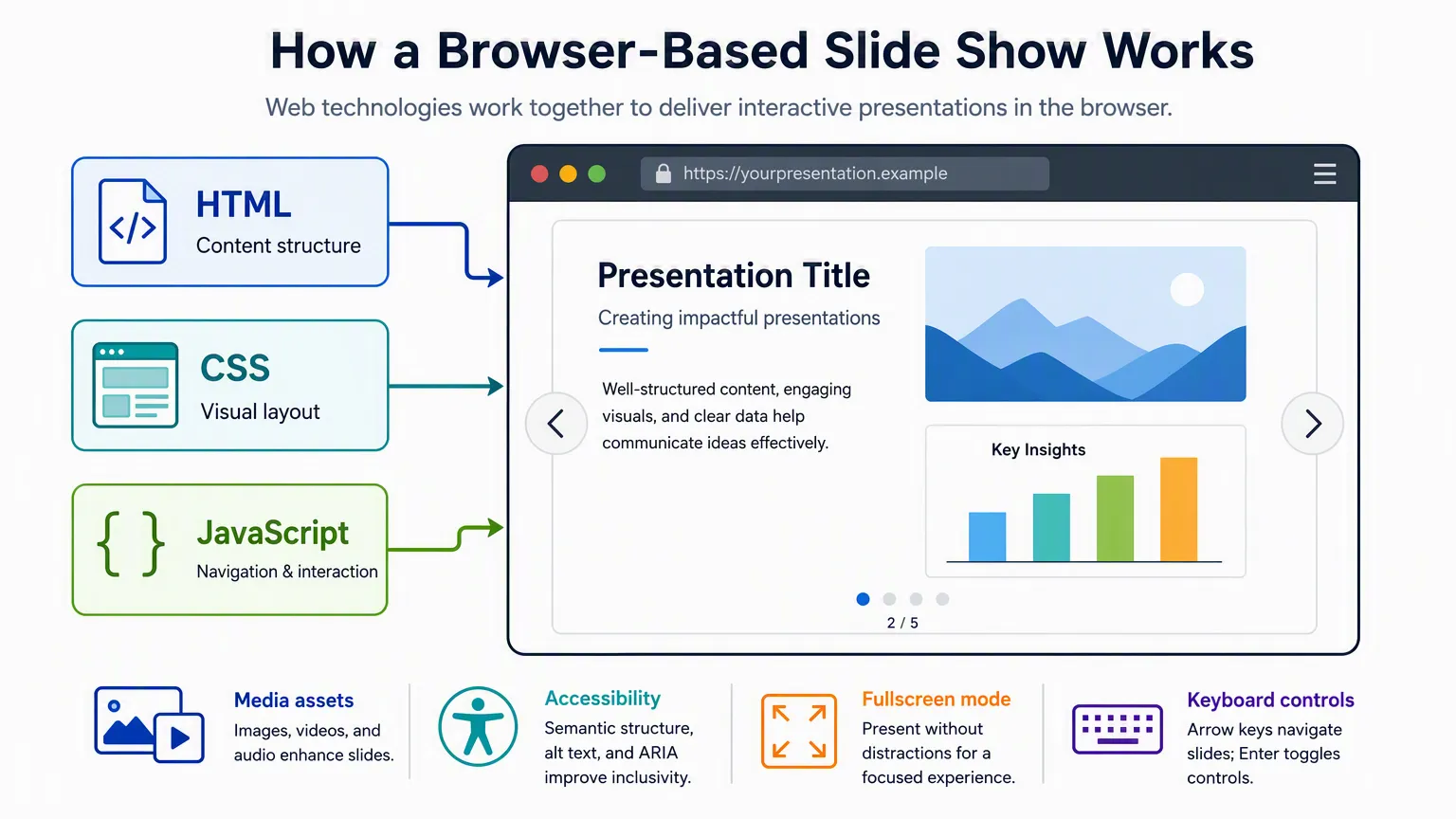
A browser-based slide show is usually structured as a web document or a set of web files. The browser receives the content, applies visual styling, loads media assets, and runs interaction logic for navigation, transitions, timing, and presentation controls.
In practice, web-based slide shows are commonly authored or generated with standard web technologies such as HTML ↗, CSS ↗, and JavaScript ↗. The WHATWG HTML Standard ↗ defines the structure and semantics of HTML documents, while MDN’s guides to CSS layout ↗, responsive design ↗, and JavaScript scripting ↗ explain how layout and behavior are handled in browser environments.
| Layer | Role in a web-based slide show | Common examples | Why it matters |
|---|---|---|---|
| HTML | Defines slide content and document structure | Headings, sections, paragraphs, lists, images, links, embedded media | Gives each slide a readable structure that browsers and assistive technologies can interpret |
| CSS | Controls visual presentation and layout | Typography, colors, spacing, backgrounds, alignment, responsive layouts | Determines how slides appear across screens, projectors, and browser windows |
| JavaScript | Controls behavior and interaction | Navigation, keyboard controls, transitions, animations, timers, progress indicators | Turns a static web document into a presentation experience |
| Media assets | Provide visual, audio, and video material | Images, SVG graphics, audio clips, videos, captions, charts | Expands a slide show beyond text and still images |
| Browser APIs | Support presentation-specific behavior | Full-screen display, keyboard events, responsive rendering | Enables browser-based delivery without a dedicated presentation application |
| Accessibility layer | Helps users perceive and navigate the content | Alt text, semantic headings, captions, contrast, keyboard navigation | Makes the slide show more usable for people with different devices and abilities |
HTML provides the structural layer. In a slide show, HTML can define each slide as a section of content, with headings, paragraphs, lists, links, images, and embedded media. The HTML section element ↗ is one way to divide web content into thematic groups, and W3C’s HTML Slidy demonstrates how slide shows can be represented as structured HTML documents.
CSS provides the visual presentation layer. It controls typography, spacing, color, alignment, backgrounds, page proportions, and responsive behavior. MDN’s guide to CSS styling basics ↗ explains how style rules affect the appearance of web content, while its guide to CSS layout ↗ explains how elements are positioned. In a slide show, these choices determine whether slides remain readable on laptops, tablets, projectors, and large displays.
JavaScript provides the behavioral layer. It can detect keyboard input through KeyboardEvent ↗, manage navigation between slides, trigger transitions, reveal content step by step, show a progress indicator, or switch into presentation mode. Browser features such as the Fullscreen API ↗ and Element.requestFullscreen() ↗ can also be used to present content with the browser interface minimized.
These layers are often hidden from the person viewing the slide show. A user may only see a full-screen presentation with arrows, transitions, and media playback. Underneath that interface, however, the browser is interpreting structured content, style rules, scripts, and media files.
Editable Templates and Online Tools
Many web-based slide show tools use editable templates. A template provides a prebuilt structure, layout, and visual style. Instead of editing HTML, CSS, or JavaScript directly, the author can change slide text, replace images, adjust colors, reorder slides, and modify layouts through a visual interface.
Templates make web-based slide shows easier to create and maintain. They also help preserve visual consistency across a full presentation. Google Slides documentation describes using themes and layouts ↗ to arrange content in a presentation, while Microsoft’s online presentation maker ↗ describes templates, layouts, media, themes, animations, and collaboration as part of browser-accessible presentation creation.
Not every exported web-based slide show is easy to edit. Some generated outputs may be difficult to modify if they are detached from the original editing system. However, browser-based tools that combine templates with visual editing can make slide updates more accessible to non-technical users.
How Web-Based Slide Shows Differ From File-Based Decks
Traditional presentation decks are usually stored as files and opened in compatible software. This model works well for offline editing, local storage, printing, and compatibility with established presentation workflows. Microsoft’s PowerPoint documentation describes creating slides, applying layouts, formatting text, and adding images, shapes, SmartArt, charts, and other objects within a presentation file.
Web-based slide shows are usually shared as links or web pages. This makes them easier to access across devices and operating systems. They can also be embedded into websites, updated online, and viewed without sending large attachments. Google’s guide to sharing files from Google Drive ↗ and its documentation for publishing Google Docs, Sheets, Slides, and Forms ↗ show how browser-based documents and presentations can be distributed through links or embedded views.
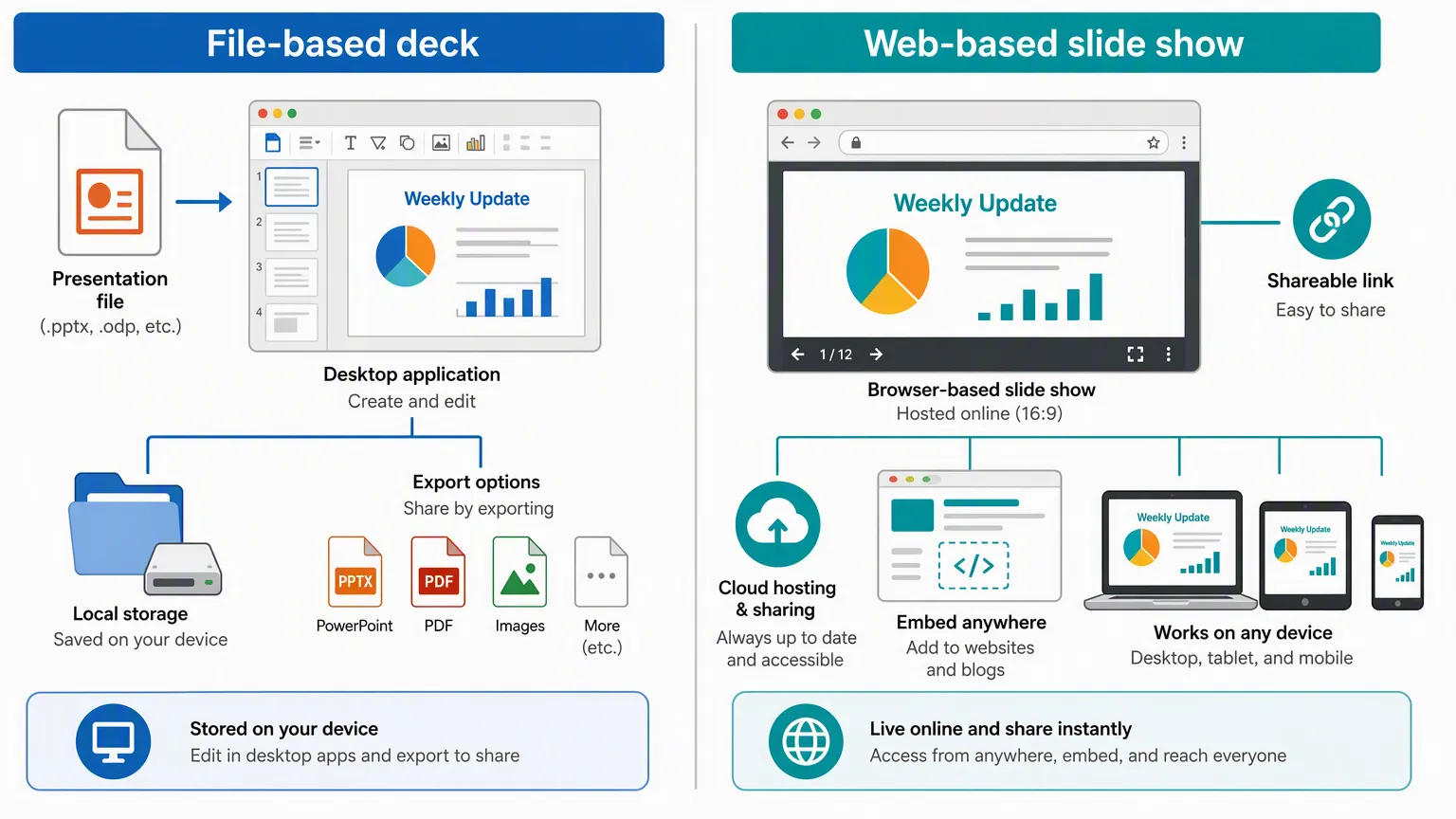
The two formats can overlap. A presentation may begin as a desktop file and later be exported to the web. A browser-based slide show may also be exported to PDF, video, or another static format for archiving, printing, or offline use. Google also documents an HTML view of presentations ↗, which shows how slide content can be made available in a browser-readable format.
Common Uses
Slide shows are used in many contexts, including classroom instruction, online courses, business presentations, product demonstrations, employee training, conference talks, remote meetings, event displays, digital signage, portfolios, and photo stories.
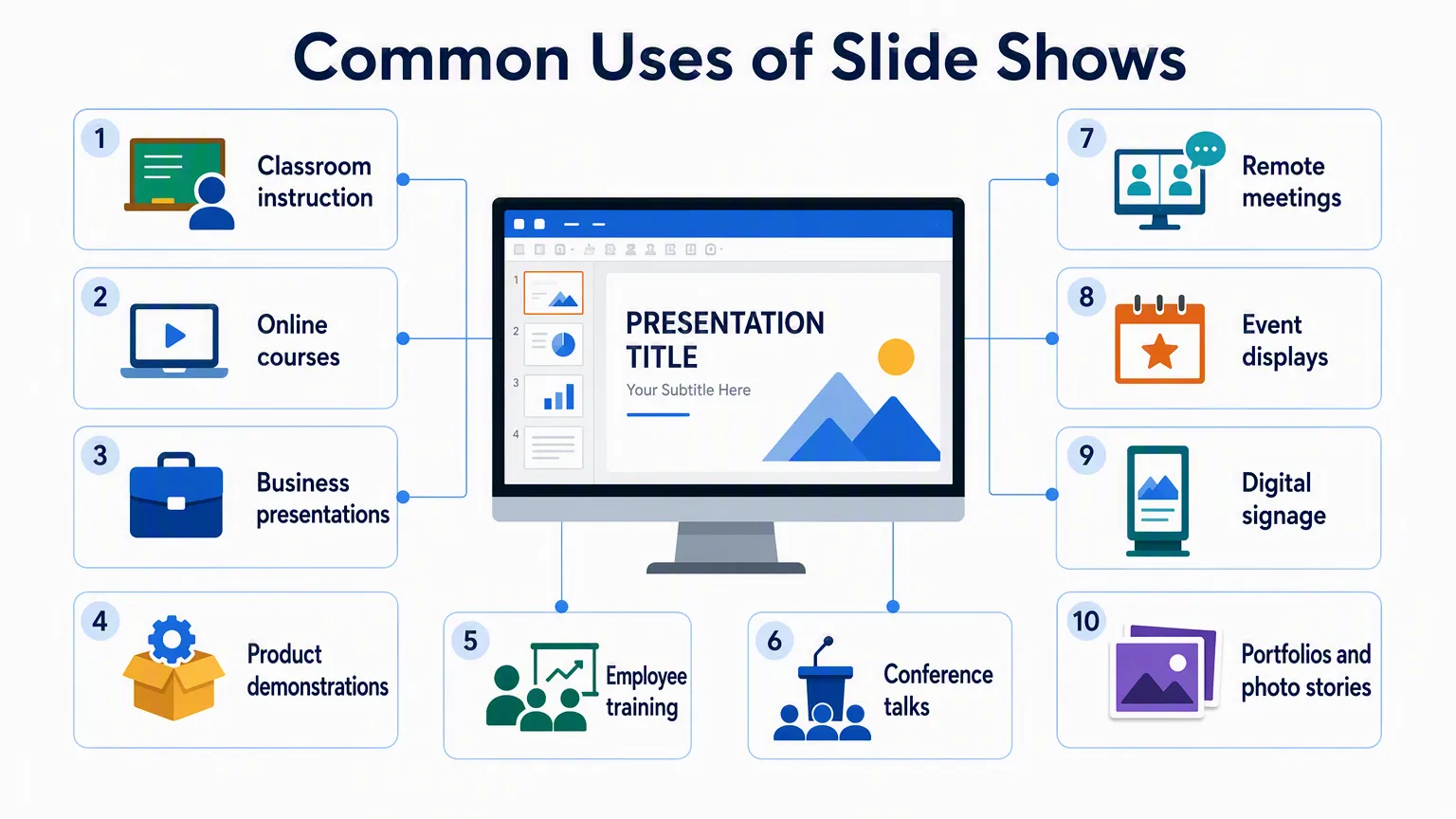
The format is useful when information needs to be presented in a clear sequence. A slide show can guide attention, separate topics, combine visual and verbal explanation, and help an audience follow the development of an idea over time.
Web-based formats are especially useful when a presentation needs to be distributed online. A teacher may share a browser-based lesson with students. A company may publish a product walkthrough on a website. A conference speaker may post slides after a talk. A remote team may use a browser-based presentation so participants can open the same material from different devices.
Accessibility and Design Considerations
A web-based slide show should be designed as both a presentation and a web document. This means authors should consider visual clarity, reading order, keyboard access, media alternatives, and responsive behavior.
The W3C Web Accessibility Initiative ↗ explains accessibility principles for digital content, while the Web Content Accessibility Guidelines ↗ provide criteria for making web content more perceivable, operable, understandable, and robust. For visual slide shows, this includes readable text, sufficient contrast, scalable layouts, and alternatives for non-text content.
The W3C’s guidance on text contrast ↗, non-text contrast ↗, keyboard accessibility ↗, and image text alternatives ↗ is relevant to browser-based presentations. For slide shows that include audio or video, W3C’s guidance on accessible audio and video media ↗ is also relevant.
Presentation-specific accessibility guidance is also useful. Microsoft’s guide to accessible PowerPoint presentations ↗ recommends practices such as adding alternative text to visuals, using meaningful hyperlink text, checking reading order, and including captions or alternative audio tracks for media. Google’s accessibility guidance for documents and presentations ↗ similarly discusses alt text, high contrast, informative link text, headings, captions, and HTML views of presentations.
Practical Limitations
Web-based slide shows also have limitations. They may depend on internet access, browser compatibility, hosting conditions, or the stability of an online service. Some browser-based formats may offer fewer advanced layout, animation, printing, or offline features than full desktop presentation programs.
Performance can also matter. A browser-based slide show with large images, video, audio, or complex animation may load slowly on weaker networks or older devices. MDN’s resources on web performance ↗, image performance ↗, and responsive design ↗ explain why file size, layout adaptation, and rendering behavior matter for browser-delivered content.
Because browser-based slide shows are delivered through the web, authors should also consider long-term access. If a slide show depends on external scripts, hosted media, or a third-party platform, it may be harder to preserve than a self-contained file. For important materials, an additional export format such as PDF or video can be useful for archiving and offline distribution.
The Verdict
Slide shows remain a flexible format for organizing visual information into a sequence. Digital slide shows expanded the format beyond static images, while web-based slide shows made presentations easier to share, view, update, and present through a browser.
A modern slide show may be a file, a video, a web page, or an interactive browser-based presentation. What connects these formats is the same basic principle: information is divided into ordered visual slides so that an audience can follow it step by step.


