What Are Speaker Notes in a Presentation?
Speaker notes are private notes that help a presenter remember what to say during a presentation. They can include talking points, timing cues, transitions, examples, or data explanations.They usually appear below or beside each slide while editing. During delivery, speaker notes are normally visible only to the presenter in presenter view, not to the audience.
This keeps slides clean while giving the speaker enough context to explain the message clearly. Speaker notes are common in PowerPoint, Google Slides, Keynote, webinars, sales decks, classrooms, and recorded presentations.
What are speaker notes?
Speaker notes are presenter-facing notes attached to individual slides. They are different from slide text, comments, subtitles, or handouts. Their purpose is to support the person speaking, not to become part of the visual content the audience reads.
For example, a slide might show a simple chart with one headline: "Enterprise adoption increased 38% year over year." The speaker notes might include the reason behind that growth, the time period covered, a customer example, and a reminder to mention that renewals contributed more than new customer acquisition.
This is especially common in PowerPoint speaker notes, but the concept exists across many presentation tools. Microsoft explains how to add speaker notes to PowerPoint slides, and its guide to Presenter View in PowerPoint shows how presenters can see notes while the audience sees only the slides.
Why speaker notes matter
Speaker notes matter because good presentations require both visual clarity and spoken context. If every explanation appears on the slide, the audience may spend the meeting reading instead of listening. If the slide is too minimal and the presenter has no support, important points may be forgotten or delivered inconsistently.
Presentation speaker notes create a useful division of labor. The slide carries the main message. The presenter adds interpretation, emphasis, and nuance. The notes provide quiet support in the background.
This is valuable in high-stakes settings where precision matters. A presenter may need to explain a financial assumption, transition carefully between sections, acknowledge a stakeholder concern, or stay within a strict time limit. Speaker notes reduce the risk of missing those details while helping the deck remain visually focused.
What to put in speaker notes
Effective speaker notes are practical, selective, and tied to the purpose of each slide. They should not repeat every word on the slide. Instead, they should capture what the presenter needs in order to explain the slide well.
Useful speaker notes may include:
- Key talking points that expand on the slide headline
- A short transition to the next slide
- Data context, methodology, or assumptions
- Timing reminders
- Examples or customer details
- Questions to ask the audience
- Notes about what to skip if time is short
For a sales deck, speaker notes might remind the presenter to mention a prospect's stated pain point. For an executive briefing, they might highlight the decision required on a particular slide. For a market research presentation, they might clarify sample size, methodology, or the meaning of a trend.
The best speaker notes feel like prompts, not paragraphs. They help the presenter stay oriented without forcing a rigid delivery.
Speaker notes example
A simple speaker notes example might look like this:
Slide headline:
"Customer onboarding time dropped by 32%"
Speaker notes:
Mention that the improvement came from the new onboarding checklist and automated reminder emails. Point out that the biggest gain was in the enterprise segment. If there is time, reference the customer success team's feedback from the pilot.
This example works because the slide stays focused on the main result, while the speaker notes provide context the presenter can use during delivery.
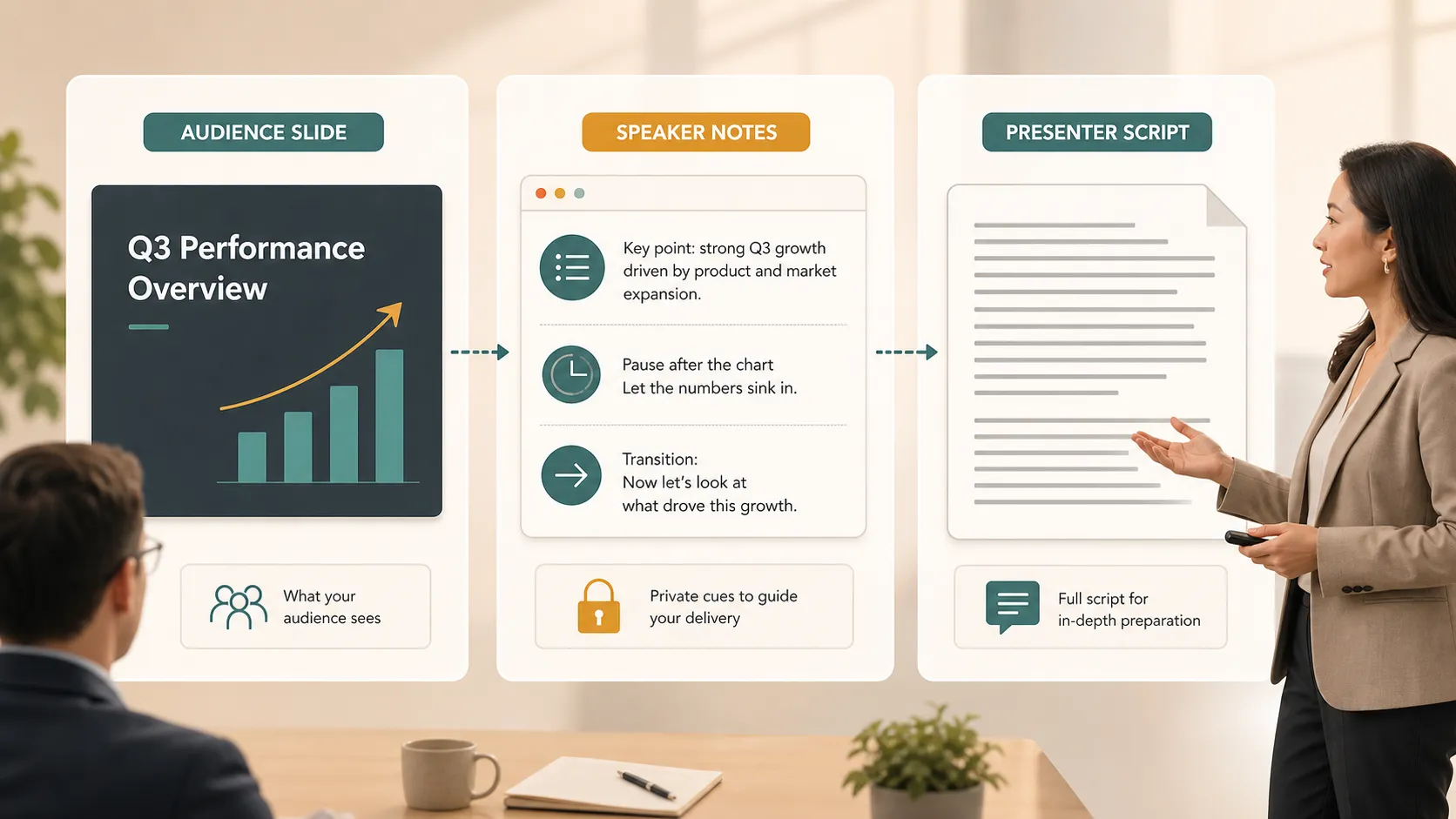
Speaker notes vs slide text vs presenter script
Speaker notes are often confused with other presentation elements. The distinction matters because each one serves a different function.
| Element | Primary audience | Main purpose | Typical length |
|---|---|---|---|
| Slide text | Audience | Communicate the visible message | Short and selective |
| Speaker notes | Presenter | Support delivery and memory | Brief prompts or cues |
| Presenter script | Presenter or production team | Define exact wording | Full sentences or paragraphs |
| Slide comments | Collaborators | Discuss edits or feedback | Variable |
Slide text should be written for fast audience comprehension. Speaker notes should be written for presenter support. A presenter script is more formal and usually used when exact wording matters, such as webinars, recorded videos, or regulated communications. Comments, by contrast, are part of the editing workflow and are not intended for live delivery.
How to use speaker notes in presentation tools
In PowerPoint, speaker notes can be added while editing slides and viewed during delivery through Presenter View. Microsoft also explains how to print PowerPoint notes pages, which is useful when presenters want notes for rehearsal or handouts.
Google Slides also supports speaker notes. Google's Workspace guide explains how to view a presentation with speaker notes through Presenter view. For technical teams, Google also documents how to work with speaker notes in the Google Slides API.
Keynote uses the term presenter notes. Apple's guide to adding and viewing presenter notes in Keynote explains how notes can help presenters recall important points without showing them on the slide.
For accessibility, Microsoft explains how to read or add speaker notes with a screen reader. W3C's guidance for accessible presentations also recommends describing important visual information and speaking clearly so audiences are not forced to rely only on what appears visually.
What speaker notes should not become
Speaker notes are most helpful when they support confidence, not dependency. A common mistake is turning notes into a full script and reading them word for word. This can make delivery sound flat, reduce eye contact, and slow the natural rhythm of the presentation.
Toastmasters recommends using smart, sparse speaking notes instead of relying on a full script. Its guide to using good speaking notes makes the same practical point: notes should prompt the speaker, not replace real delivery.
Speaker notes should also not compensate for a weak slide structure. If the audience cannot understand the main point of a slide without a long hidden explanation, the slide itself may need clearer wording or a stronger headline.
Use speaker notes carefully when they start to become:
- A full essay for every slide
- A duplicate of the visible slide text
- A place to hide unclear logic
- A substitute for rehearsal
- A dense script that makes delivery sound unnatural
The goal is not to remove all detail from the slide and place it in the notes. The goal is to decide what the audience needs to see and what the presenter needs to remember.
How speaker notes help in business presentations
Speaker notes are especially useful in business presentations because business decks often contain more meaning than can fit on the slide. They help presenters add context without making slides crowded.
Common business uses include:
- Pitch decks: explain market timing, traction, or investor context
- Sales decks: mention account-specific pain points or objections
- Consulting reports: clarify assumptions, trade-offs, and recommendations
- Executive presentations: keep the message concise and decision-focused
- Market research decks: explain methodology, segments, or confidence limits
- Product launch decks: align product, sales, marketing, and leadership messaging
In each case, speaker notes improve delivery by helping the presenter manage context, timing, and audience expectations.
How Pi fits into the presentation workflow

Pi is an AI presentation maker and AI PPT generator for professional business presentations. It helps teams create structured, business-ready decks where the storyline, slide flow, and visual quality work together.
Speaker notes then become an additional delivery layer. They help presenters explain the deck with more confidence without adding too much text to the slides.
Pi can support this workflow in three ways:
- Clearer structure: Pi helps organize business logic before slide styling, so speaker notes reinforce the argument instead of repairing it.
- Better visual hierarchy: Pi helps create slides where the audience can see the main message quickly, while notes carry supporting context.
- More consistent delivery: teams can use notes to guide messaging across regions, accounts, or stakeholder groups without forcing every presenter to read the same script.
A practical rule for better speaker notes
A simple rule is this: put the message on the slide, put the reminder in the notes, and rehearse enough that the notes support delivery rather than control it.
Use speaker notes for:
- One or two key talking points
- A transition to the next slide
- A data explanation or example
- A reminder to pause, ask a question, or mention timing
- A backup detail for questions
Avoid using speaker notes as:
- A full script for every slide
- A duplicate of the visible slide text
- A place to hide unclear logic
- A substitute for rehearsal
Rehearsal turns speaker notes into a safety net instead of a crutch. Microsoft's Speaker Coach can also help presenters review pacing, filler words, and whether they are reading too much from the slide.
The verdict
Speaker notes are not a replacement for strong slides or real preparation. They are a delivery tool that helps presenters keep slides simple while still communicating important context.
For professional teams, the best workflow is to build a clear deck first, then use speaker notes to support timing, transitions, and explanation. This combination creates presentations that are easier to follow, easier to present, and better suited to business conversations where both clarity and confidence matter.
Frequently Asked Questions (FAQ)
Q:Can the audience see speaker notes during a presentation?
A:Usually, no. Speaker notes are normally visible only to the presenter in presenter view. However, presenters should check display and screen-sharing settings before presenting, especially in virtual meetings.
Q:Are PowerPoint speaker notes printed with slides?
A:PowerPoint speaker notes can be printed if the presenter selects a notes-page print option. They are not automatically included when printing standard slides or exporting a typical audience-facing PDF.
Q:Should speaker notes be full sentences?
A:They can be, but short prompts usually work better. Full sentences are useful when exact wording matters, while concise cues help presenters sound more natural.
Q:How long should speaker notes be?
A:Speaker notes should be long enough to remind the presenter of the key point but short enough to scan quickly. For many slides, a few focused lines are enough.


