thank you in slides
Thank you in slides is not a problem. The problem is ending with a plain “Thank You” when the audience still needs a reason to remember you, contact you, ask a question, or take the next step.
A final slide is the last thing people see before the room shifts back to conversation. If it only says “Thank You” in large letters, it may feel polite, but it does not do much work. A better ending can still say thank you, but it should also fit the purpose of the presentation.
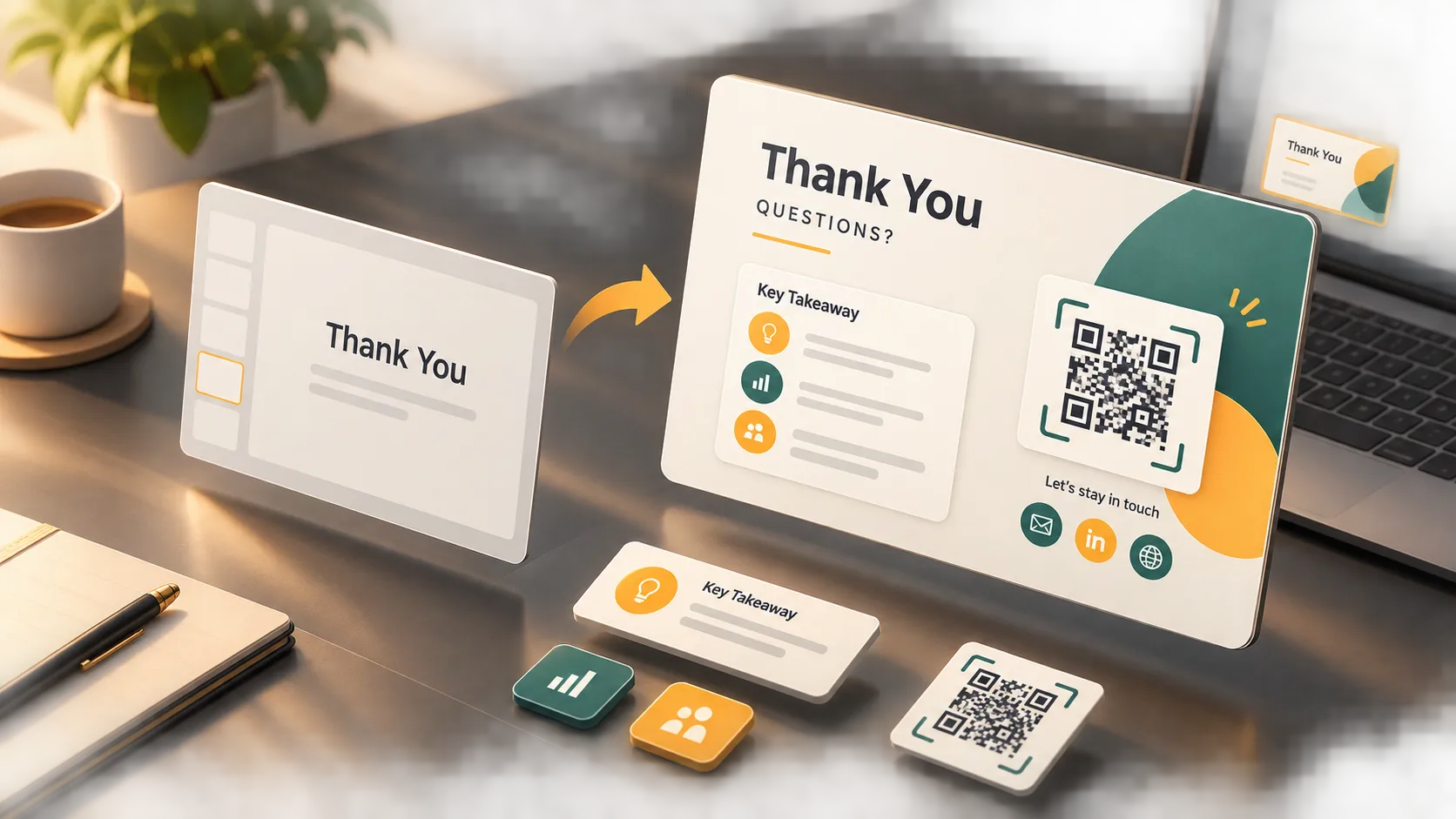
When Thank You in Slides Actually Works
Thank you in slides works best when the presentation needs a clear closing moment. This is common in classroom presentations, webinars, guest talks, training sessions, and formal business meetings.
It is weaker when the presentation is trying to persuade. In a pitch deck, sales deck, or executive proposal, the final slide should usually carry more weight than a simple thank you.
| thank you in slides use case | Is a thank you slide enough? | Better final slide idea |
|---|---|---|
| Class presentation | Usually yes | Thank you + questions |
| Webinar | Yes, if useful | Thank you + QR code or resources |
| Business update | Sometimes | Key takeaway + next step |
| Sales presentation | Usually no | Value recap + call to action |
| Pitch deck | Usually no | The ask + contact details |
| Creative presentation | Yes, if designed well | Animated thank you or visual closing slide |
Toastmasters’ advice on speech endings ↗ makes this point well: openings and endings are moments of high attention. The last slide should not feel like an afterthought.
Better Forms of Thank You in Slides
Thank you in slides does not have to mean one static line of text. It can be simple, polished, playful, visual, or slightly cinematic, depending on the presentation style.
Here are stronger ways to use it:
1. Thank you + Q&A
Use this when the goal is discussion.
Example:
Thank you. Questions?
Best for: classroom presentations, training sessions, short internal talks.
2. Thank you + key takeaway
Use this when you want people to remember one idea.
Example:
Thank you. The main takeaway: clear goals make progress easier to measure.
Best for: educational talks, business presentations, thought leadership.
3. Thank you + next steps
Use this when the audience needs to act.
Example:
Thank you. Next steps: confirm owners, finalize timeline, and begin the pilot next week.
Best for: project updates, client meetings, planning sessions.
4. Thank you + decision request
Use this when you need approval.
Example:
Thank you. Decision needed: approve the Q3 launch budget by Friday.
Best for: executive presentations, budget reviews, strategy meetings.
5. Thank you + resources
Use this when the audience needs materials after the session.
Example:
Thank you for joining. Scan the QR code to access the slides, recording, and resource list.
Best for: webinars, workshops, training, online events.
6. Thank you + appreciation
Use this when the relationship matters as much as the message.
Example:
Thank you for your time and feedback. Your input will help us refine the next version.
Best for: team reviews, partner meetings, client feedback sessions.
7. Thank you + invitation
Use this when you want to continue the conversation.
Example:
Thank you. If this direction feels aligned, let’s discuss the next step.
Best for: sales decks, proposals, consulting presentations.
Creative Thank You Slide Ideas
A thank you slide can also use motion or visual style. The trick is to keep it subtle. The animation should support the ending, not steal attention from it.
Fade-in thank you
Let the thank you message fade in slowly, then reveal “Questions?” or “Next steps” after a click.
Best for: formal presentations, webinars, executive updates.
Microsoft’s guide to animating text or objects ↗ explains how to use entrance, exit, and timing effects in PowerPoint.
Fade-out ending
Use a short closing line that fades out after the speaker finishes.
Example:
Thank you for your time. Let’s keep the conversation going.
Best for: polished live presentations or event decks.
Full-image closing slide
Place a short thank you line over a strong full-slide image. Add a dark or light overlay so the text remains readable.
Best for: brand decks, creative portfolios, event presentations.
QR code reveal
Start with “Thank you,” then reveal the QR code for slides, handouts, or follow-up materials.
Best for: workshops, lectures, webinars, and training.
Final takeaway animation
Show “Thank you” first, then reveal the one sentence you want people to remember.
Example:
Thank you. Better goals create better decisions.
Best for: strategy decks, educational talks, leadership presentations.
Google Slides also supports animations and transitions ↗, so you can create a simple fade, appear, or reveal effect without overdesigning the slide.
Design Tips for a Thank You Slide
The final slide should feel calm and deliberate. It does not need a dramatic background or a complicated layout.
A few practical rules help:
- Make the main message large enough to read.
- Keep the slide to one main idea.
- Use strong contrast.
- Leave enough white space.
- Keep contact details short.
- Make QR codes large enough to scan.
- Avoid placing text over busy images.
Nielsen Norman Group’s guide to visual hierarchy ↗ is useful here. The audience should know where to look first without thinking about it.
Accessibility matters too. W3C’s accessible presentations guidance ↗ recommends readable text, strong contrast, and simple slide structure. That advice is especially important for final slides because people may be reading from a projector, shared screen, or the back of a room.
How to Use Animation Without Making It Look Cheap
Animation can make a thank you slide feel finished, but only when it is restrained.
Safe choices:
- fade;
- appear;
- dissolve;
- slow image transition;
- simple reveal.
Avoid:
- bouncing text;
- spinning icons;
- flashing effects;
- sound effects;
- too many moving elements;
- long animations that delay the ending.
A good rule: if the animation calls more attention to itself than the message, remove it.
For accessibility, avoid flashing or rapid motion. W3C’s guidance on three flashes or below threshold ↗ explains why flashing content can be uncomfortable or unsafe for some viewers.
What to Avoid on a Thank You Slide
The fastest way to make a thank you slide feel unfinished is to make it too empty or too crowded.
Avoid:
- a giant “Thank You” with no next step;
- tiny contact details;
- five social media icons;
- a busy background behind important text;
- a quote that does not connect to the talk;
- a QR code with no explanation;
- a final slide that hides the real ask.
Harvard Writing Center’s advice on conclusions ↗ is written for essays, but the idea fits slides too: a conclusion should do more than repeat. It should leave the audience with a clear sense of why the message matters.
Where Pi Fits
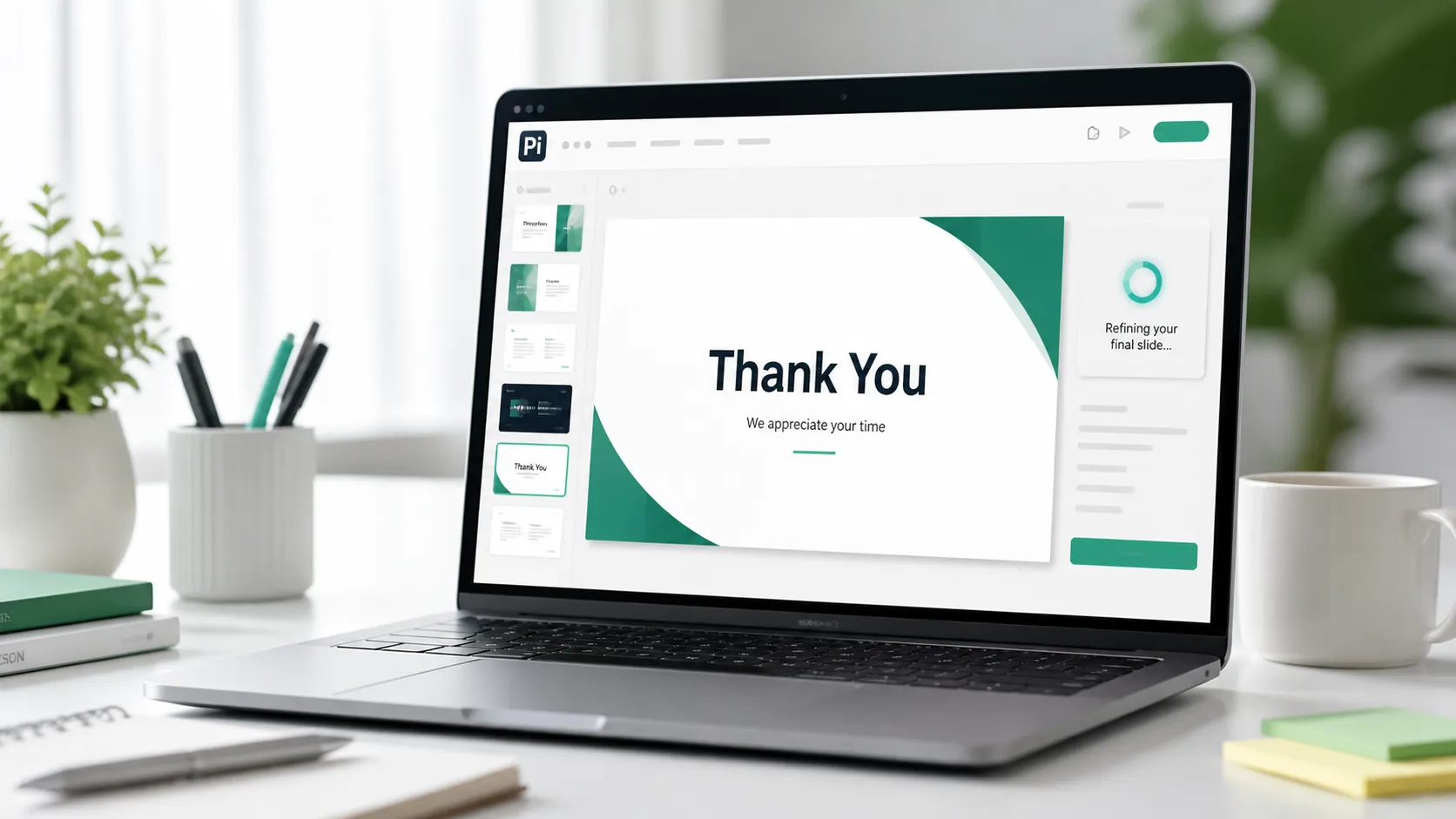
If the rest of your deck is ready but the ending still feels flat, you can turn your closing message into a polished thank you slide with Pi ↗. This works best when you already know the takeaway, contact detail, QR code, or next step, but want the final slide to match the style of the full presentation.
Keep the wording yours. Let the tool help with structure and layout, then adjust the tone so the ending sounds natural.
The Verdict
Thank you in slides is fine when it supports the ending. It becomes weak when it replaces the ending.
For a simple class presentation, “Thank you” and “Questions?” may be enough. For business, sales, pitch, training, or executive presentations, the final slide should usually include a takeaway, a next step, a contact point, a resource, or a decision request.
A good closing slide should feel polite, but it should also be useful.
Frequently Asked Questions
How should I use thank you in slides?
You can use thank you in slides for classroom presentations, webinars, Q&A sessions, formal meetings, and business presentations. For stronger results, pair it with a takeaway, next step, contact detail, QR code, or discussion prompt.
What should a thank you slide include?
A thank you slide can include a short thank you message, your name, contact information, a QR code, a final takeaway, or a next step. Keep it simple enough to read in a few seconds.
Can a thank you slide be animated?
Yes. A thank you slide can use subtle animation such as fade-in, fade-out, appear, or reveal effects. Avoid fast motion, flashing effects, spinning text, or anything that distracts from the closing message.
What can I use instead of a thank you slide?
You can use a key takeaway slide, next steps slide, Q&A slide, contact slide, resource slide, or decision slide. These options usually work better when you want the audience to remember or do something after the presentation.


