Turn Any Design You Love into Your Next PowerPoint Template
Stop asking, “Can this style be turned into a PowerPoint?”
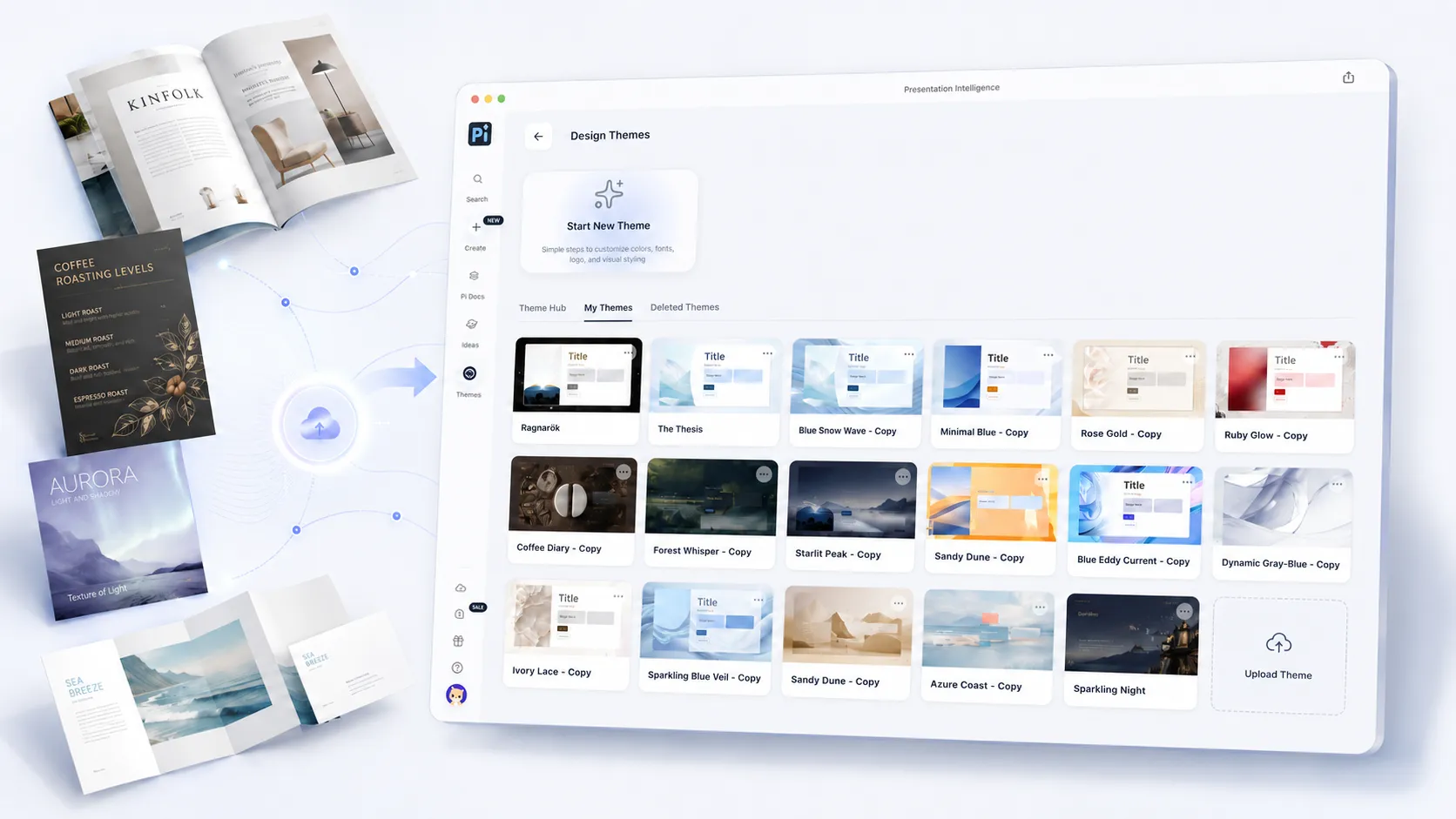
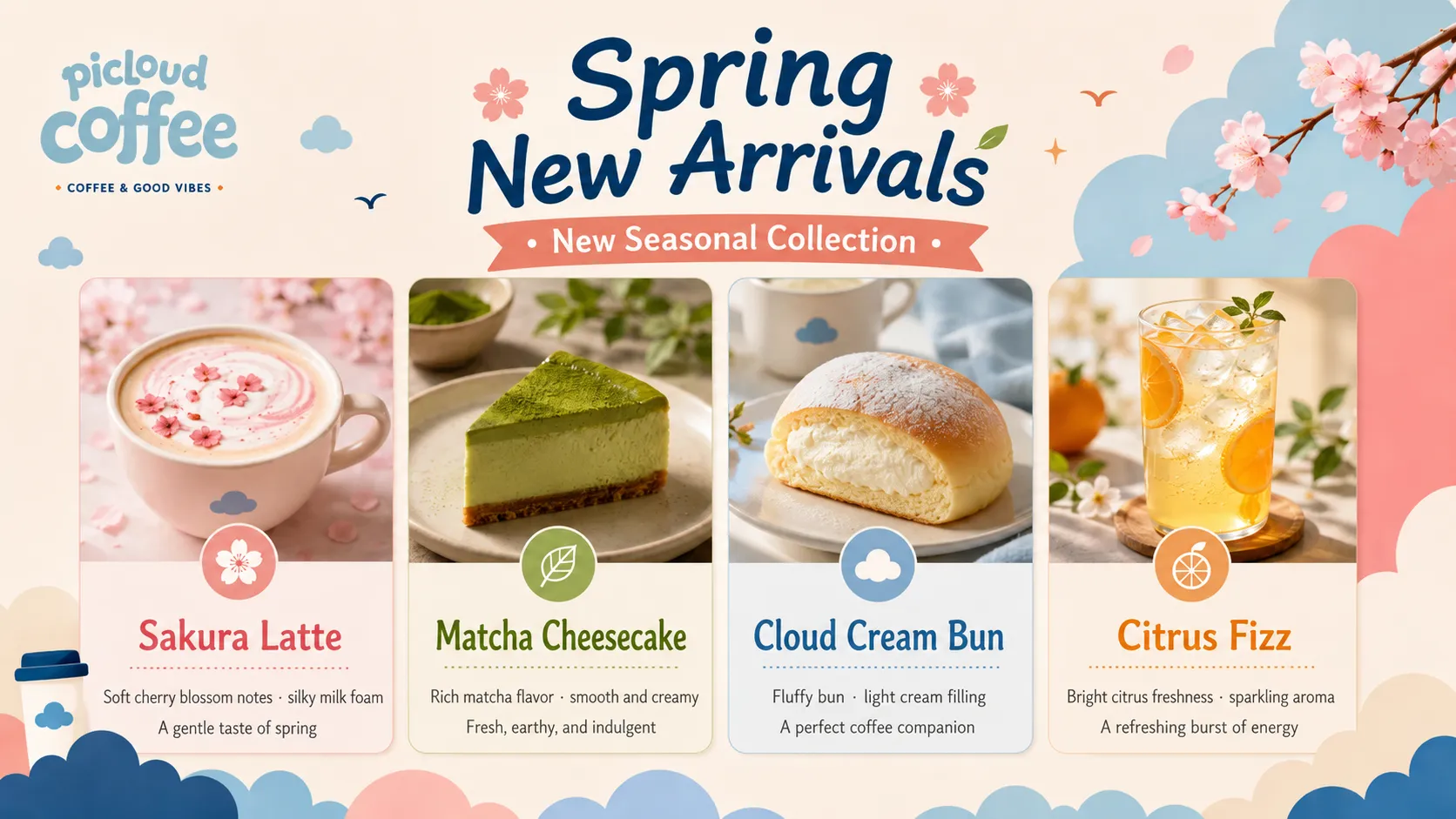
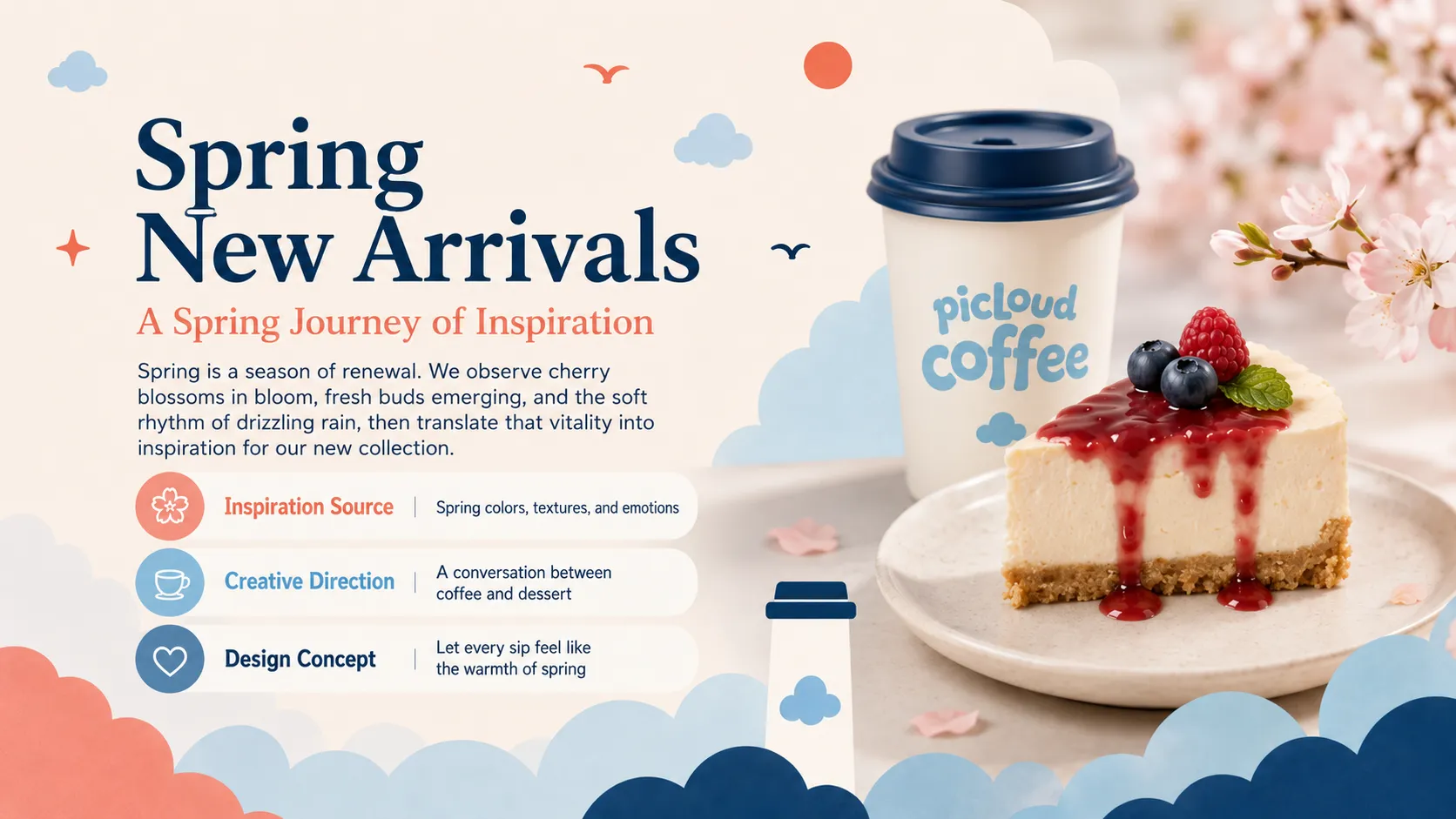
Found a beautifully designed booklet in a café? Take a photo and upload it to Pi.
Pi analyzes its color palette, typography, white space, image proportions, and layout rhythm, then transforms the design you love into a PowerPoint template that can be saved, edited, and reused.
Instead of searching a template library for something that is merely “close enough,” you can bring the style you genuinely like into your next presentation.
What Can Pi Custom Templates Do?
Pi Custom Templates do more than replace a color palette or imitate a single reference page.
By combining your uploaded template screenshots with a style description, Pi understands the broader design direction, including:
• The proportion between headlines and body text
• Page spacing and content density
• How images are positioned, sized, and cropped
• Color relationships and visual contrast
• The brand personality expressed through typography
• The styling of cards, lines, icons, and content modules
• Visual consistency across covers, agendas, content pages, and data slides
Once these visual rules have been identified, a static reference page can be transformed into a reusable presentation theme.
What Makes This Feature Different?
1. You Are No Longer Limited to “Close Enough”
Traditionally, creating a PowerPoint presentation meant choosing the closest available template and then manually adjusting the fonts, colors, images, and layouts.
But “close enough” is rarely the style you actually want.
With Pi Custom Templates, you can begin with your own visual references instead of being restricted by an existing template library.
2. Pi Looks Beyond Color
The character of a design is not determined by a single color or typeface.
What truly shapes the overall result is the relationship between headline scale, white space, image proportions, content hierarchy, and the rhythm between pages.
Pi incorporates all these visual characteristics into the template-generation process.
3. Your Templates Can Be Reused
Every custom template you create can be saved to your theme library.
When creating a new presentation, you can select the same theme again without rebuilding the colors, fonts, layouts, and visual style from scratch.
4. Everything Remains Editable
A custom template is not a one-time image output.
After Pi generates your presentation, you can continue editing the text, replacing images, adjusting the structure, and refining individual slides.
How to Use Pi Custom Templates
The entire process takes just three steps.
You do not need to prepare a complete PowerPoint file before creating a custom template. You can begin with designs you encounter in everyday life.

When you see a menu, magazine, brand catalogue, event poster, or promotional booklet that inspires you, photograph it and upload the image to Pi as a visual reference.
Step 1: Enter Your Requirements
Visit Pi at pi.design.
Click Create, select Creative Presentation, and describe your presentation topic and key content in the input box.
You can also upload reference files and let Pi extract the information automatically and generate an initial outline.
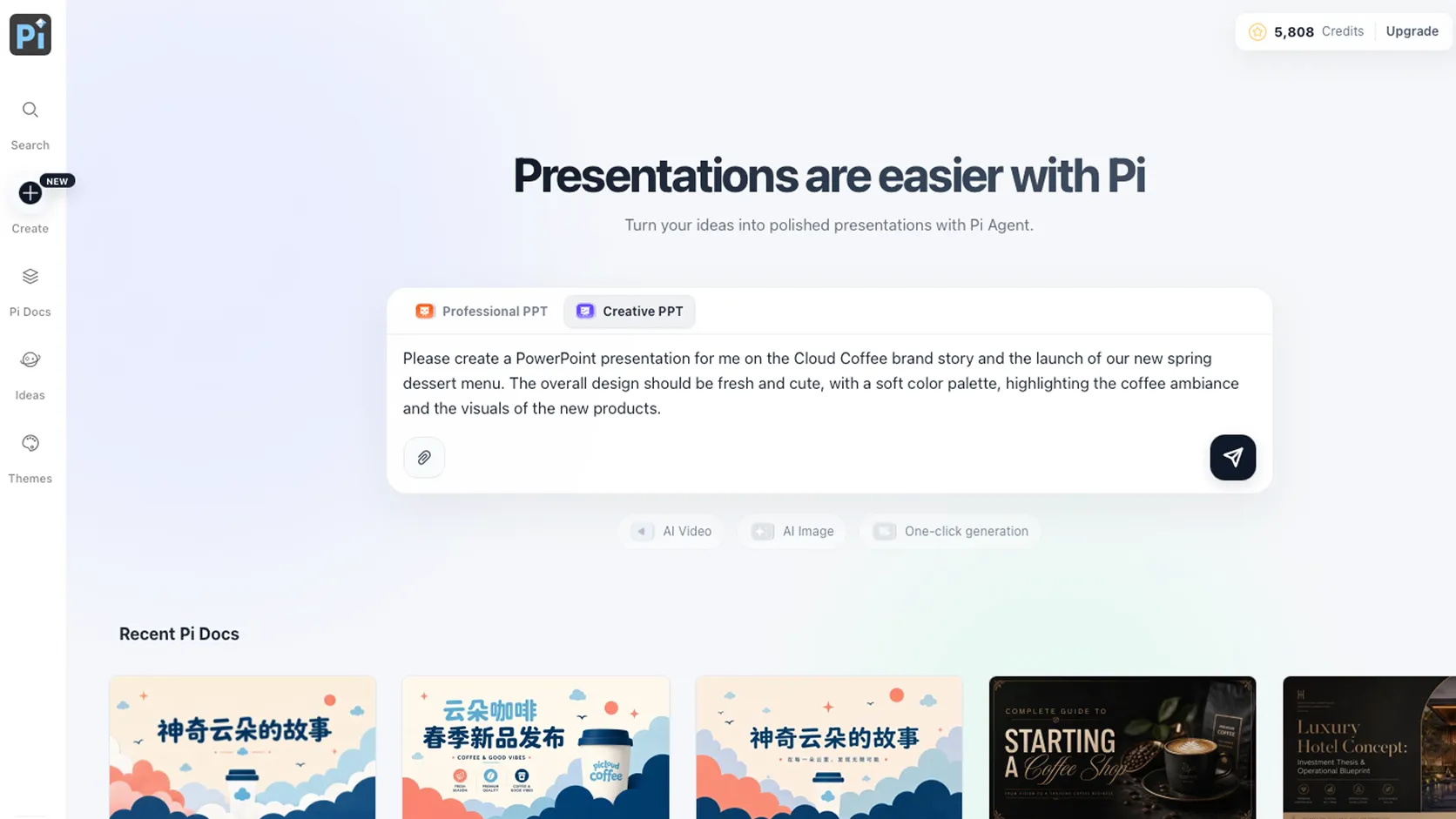
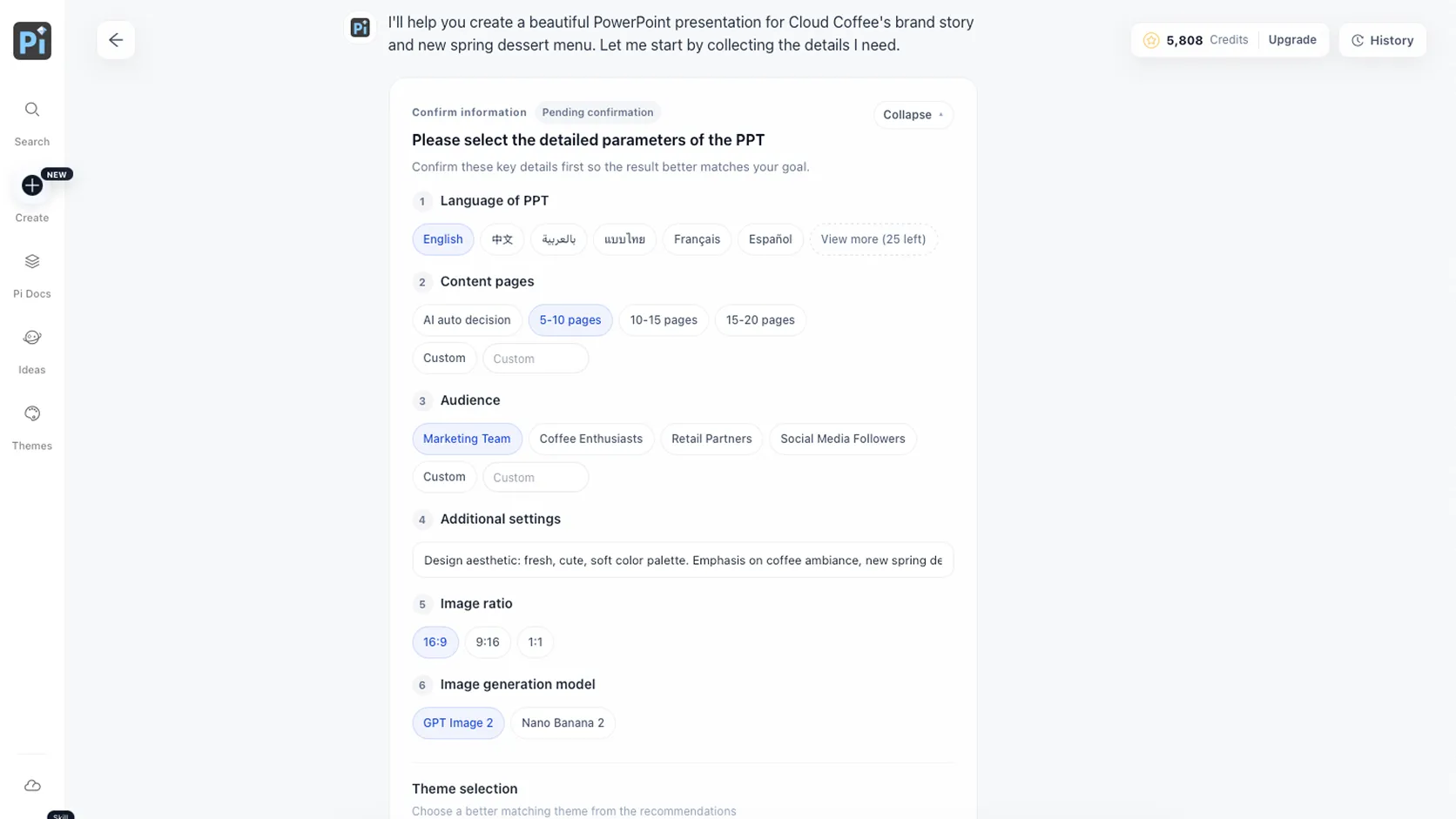
After selecting the language and number of slides, you can continue refining the content through conversation with Pi.
Step 2: Upload Your Theme References
Once the outline is confirmed, choose the option to upload a custom theme.
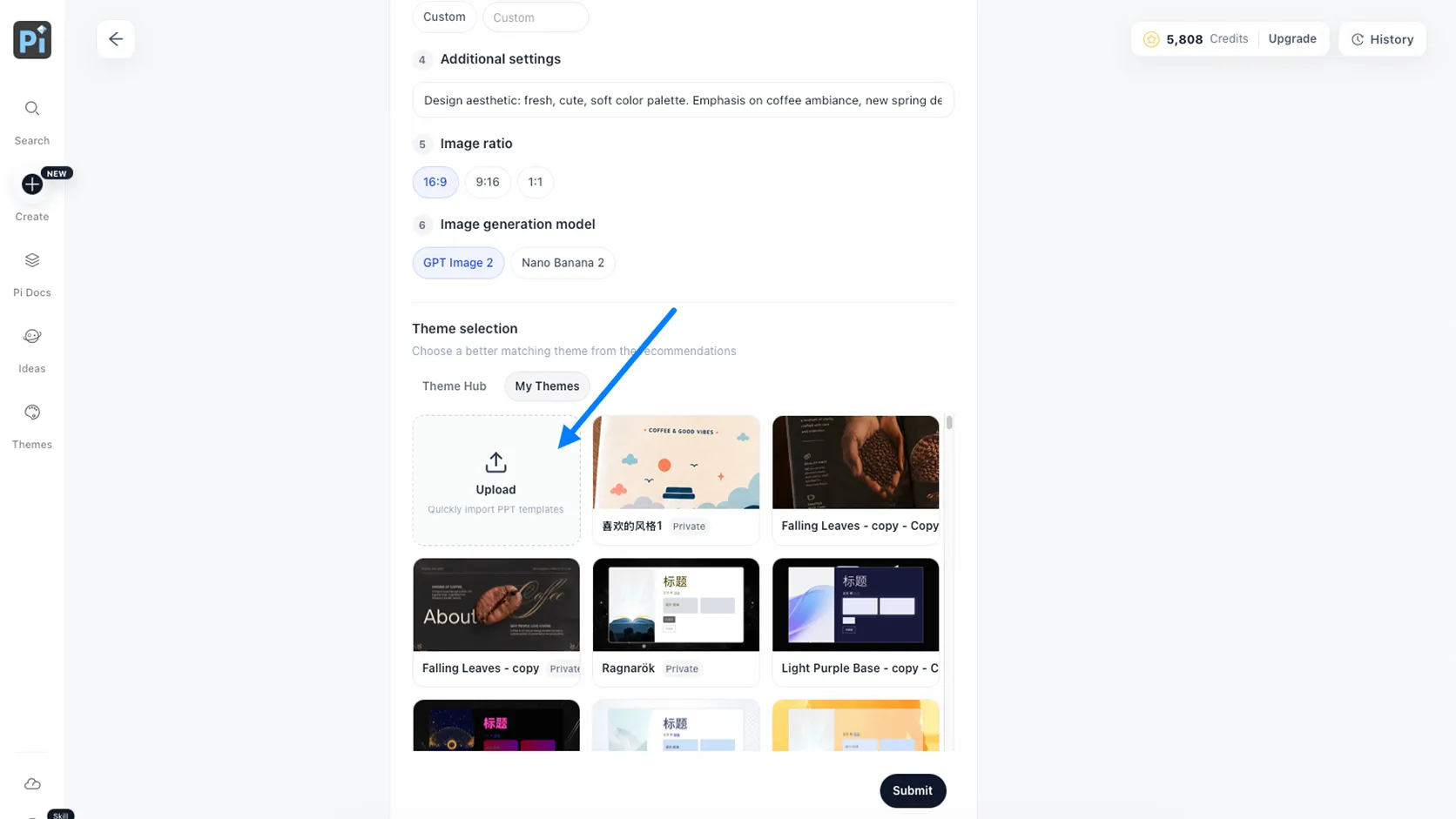
On the theme settings page, click Select Image and upload the visual references you want Pi to follow.
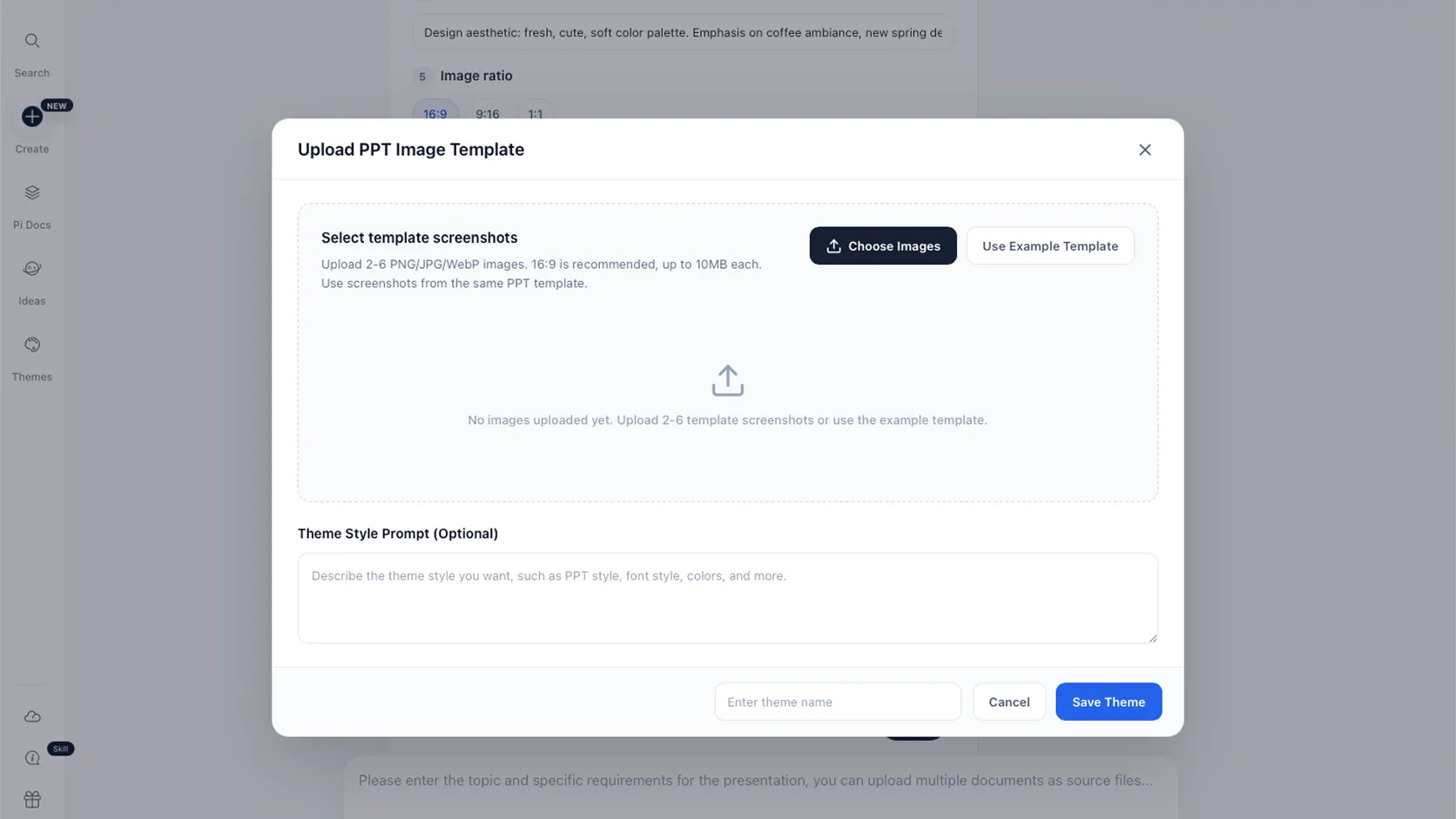
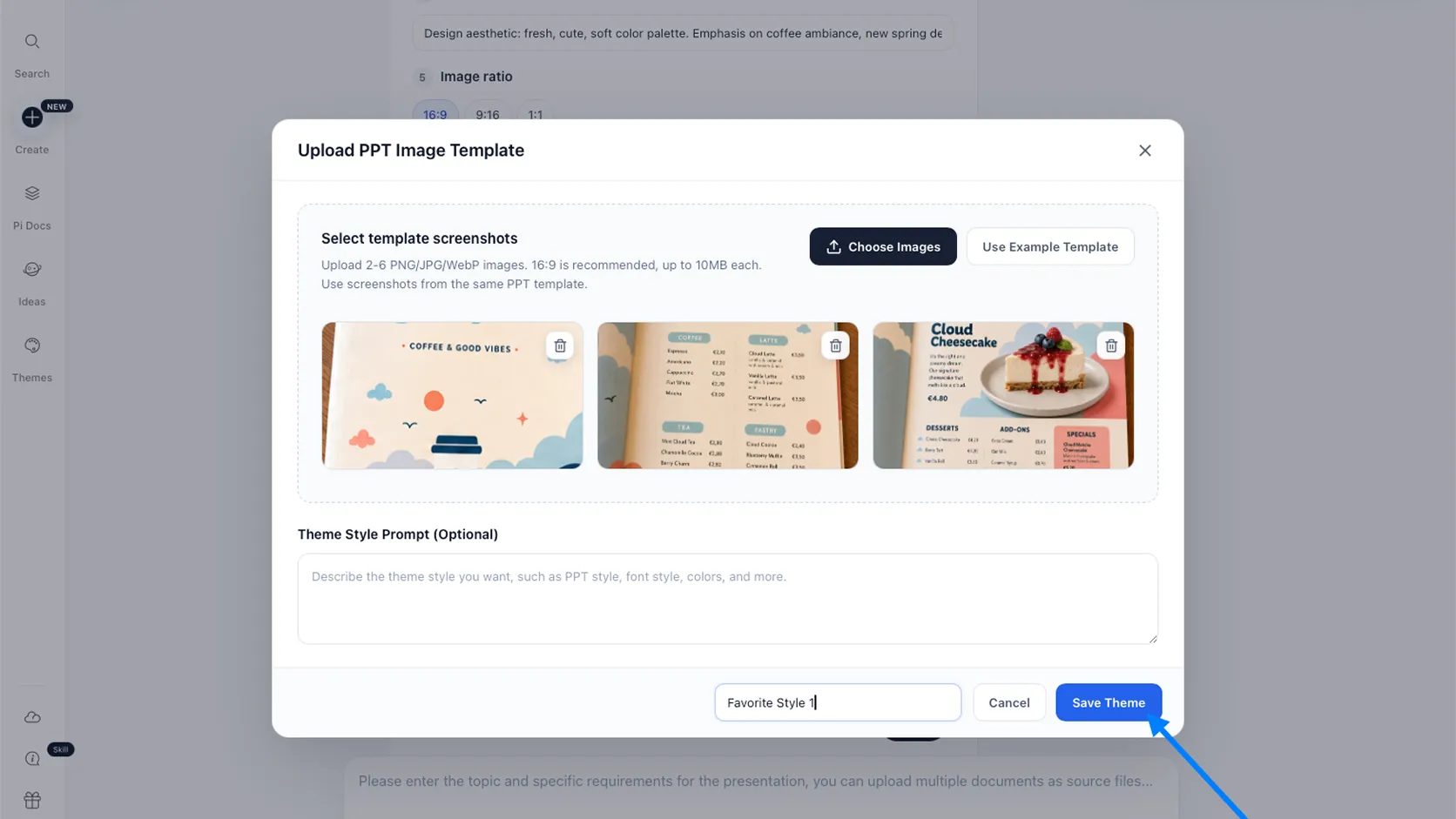
Step 3: Save Your Theme
Enter a name for the new theme and click Save Theme.
Select the saved theme, click Finish Setup, and then confirm by clicking OK.
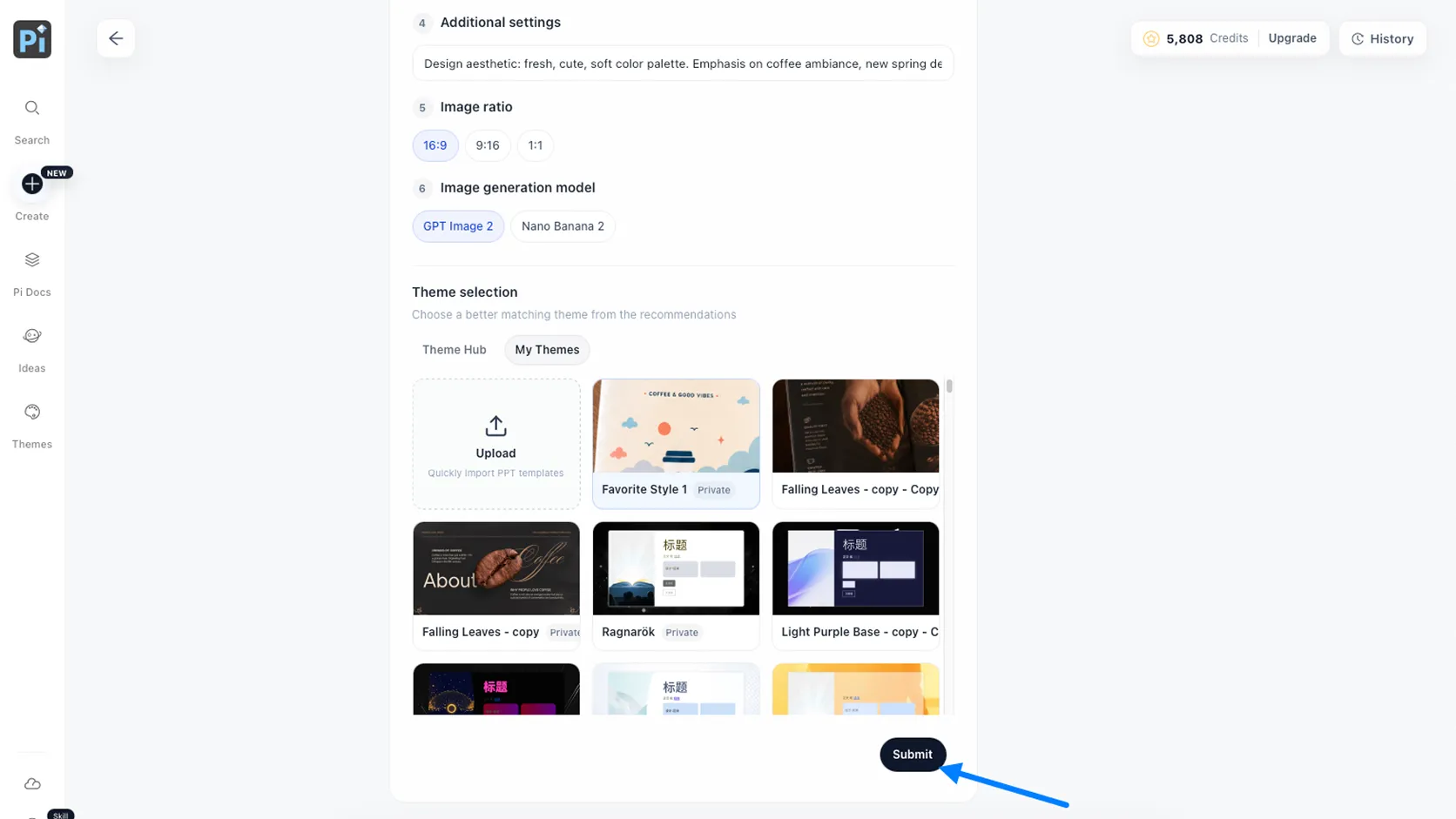
After a short wait, Pi will generate a complete presentation in the same visual style.

When Should You Use Custom Templates?
Brand Teams
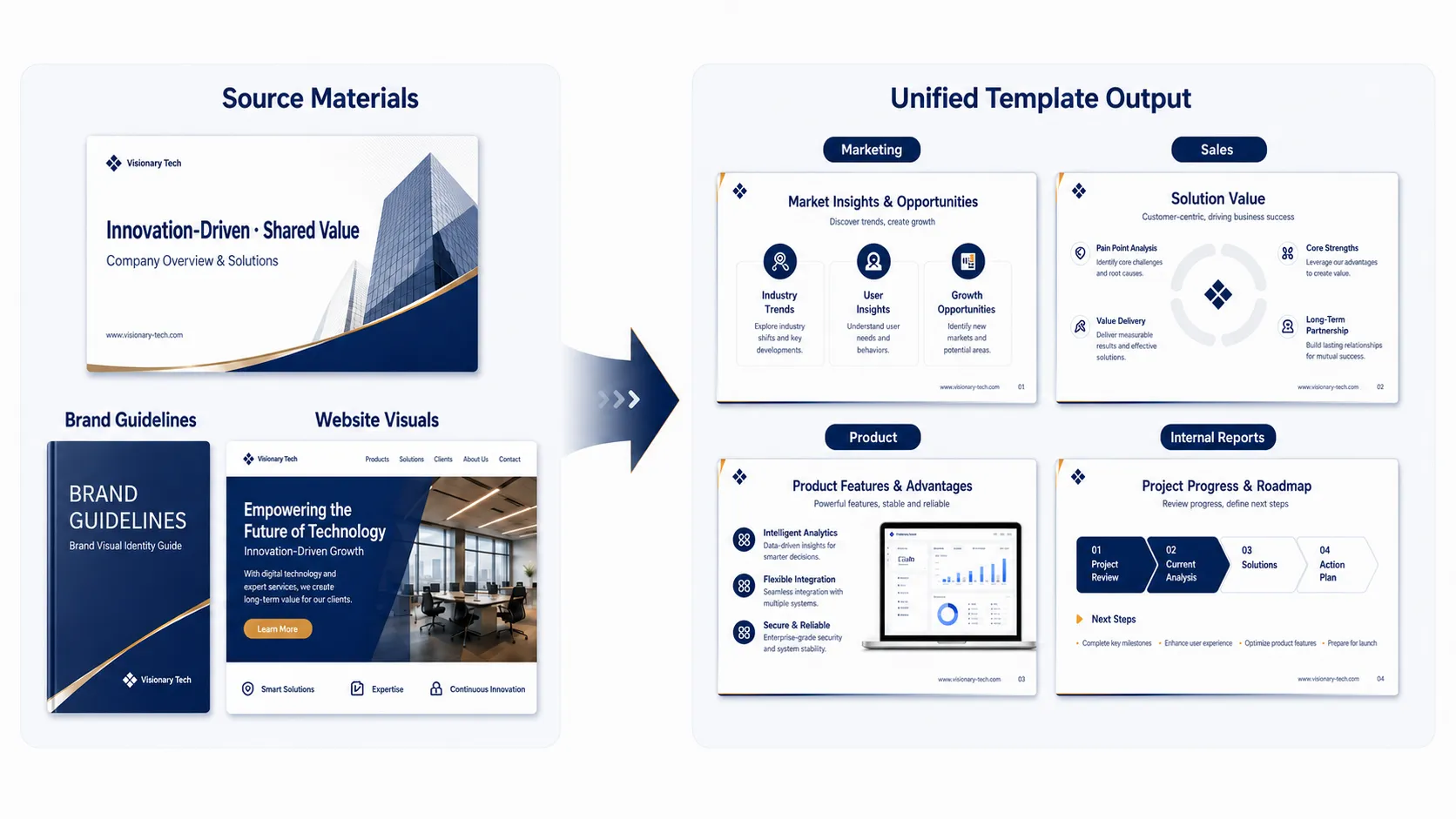
Transform an existing corporate presentation, brand guideline, or website visual system into a unified presentation template for marketing, sales, product updates, and internal communications.
Startups
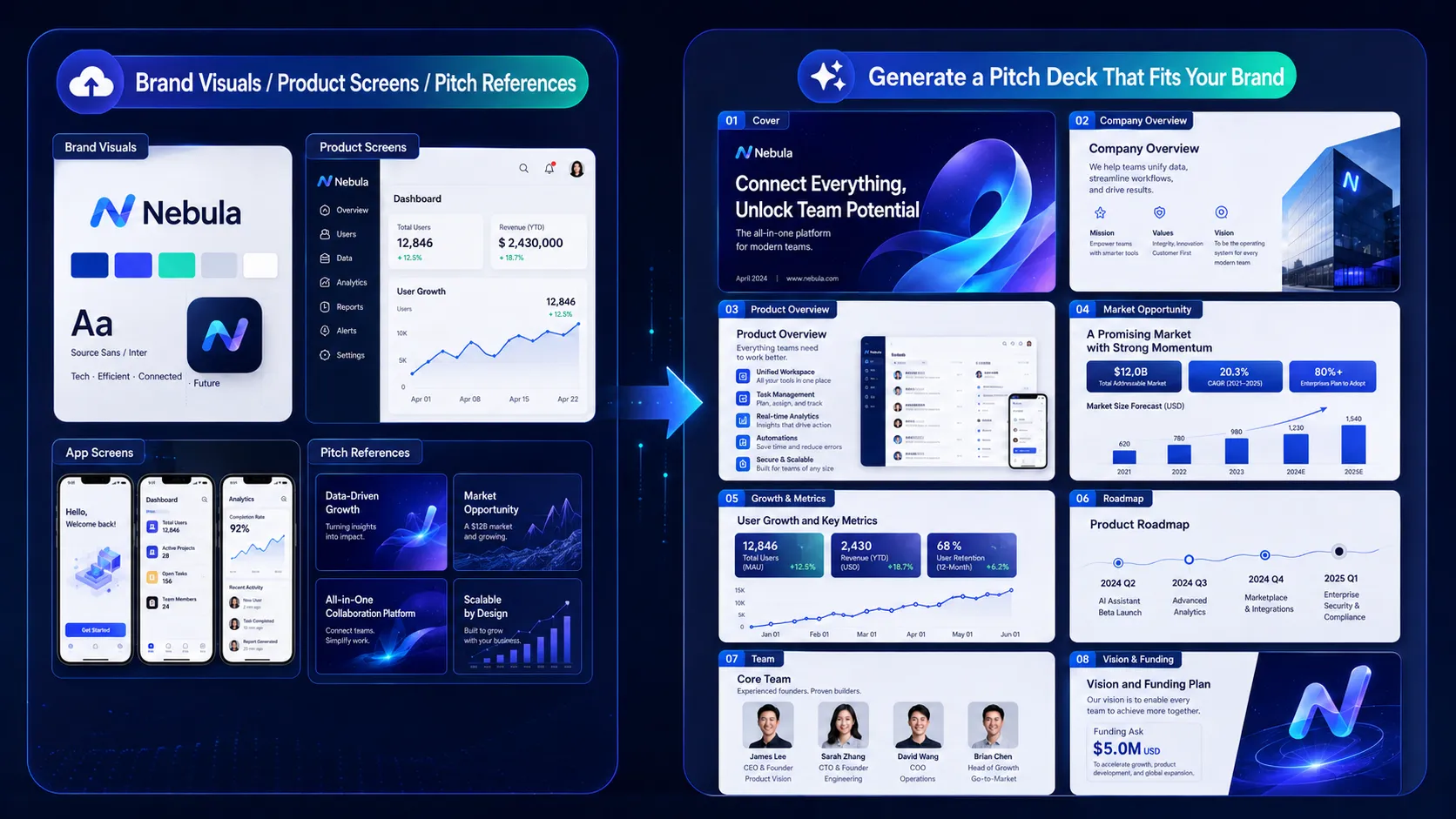
Upload your brand visuals, product screenshots, and pitch deck references to generate presentations that feel more aligned with your company’s identity.
Marketing Campaigns and Events
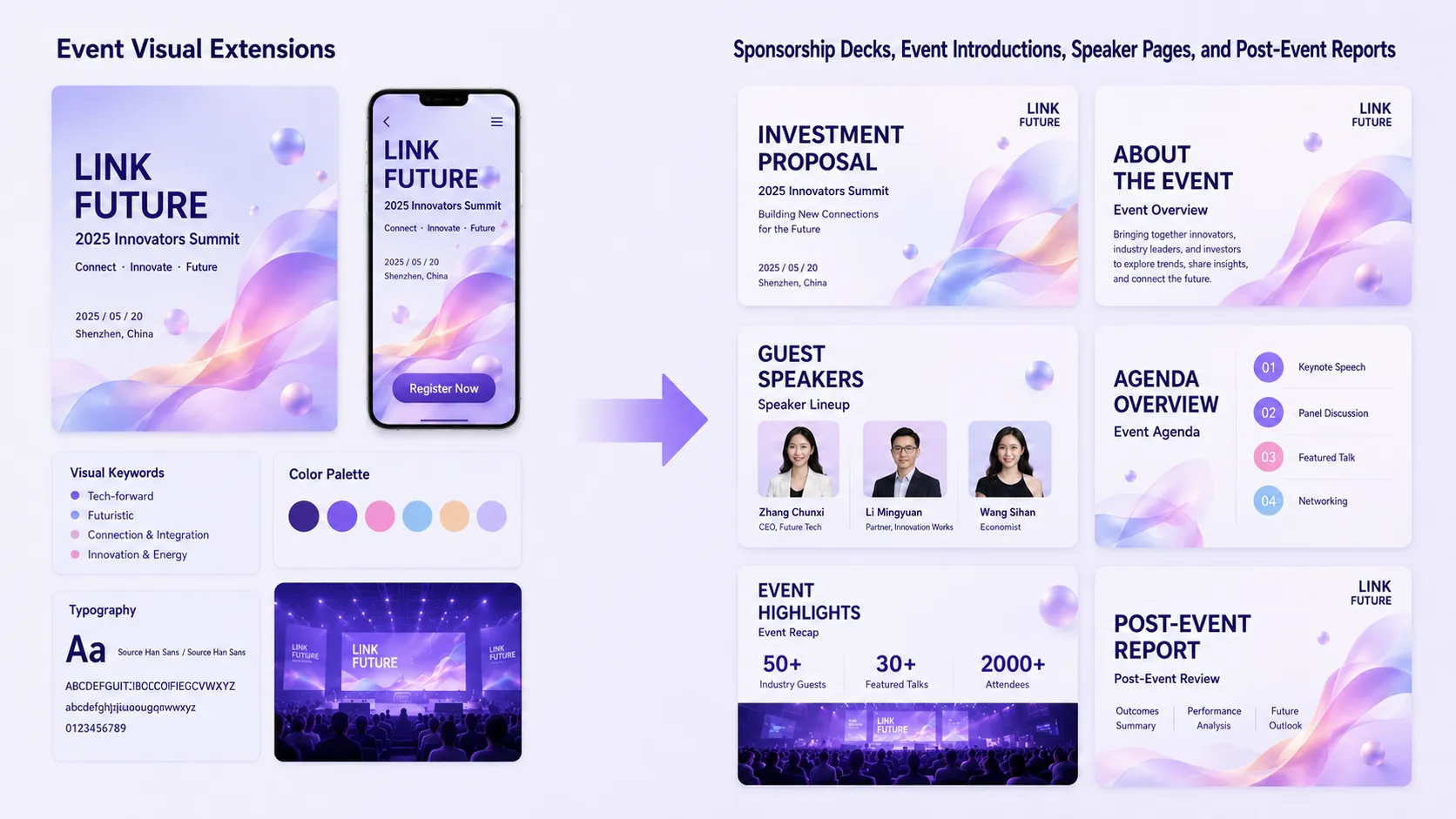
Extend a campaign’s key visual into sponsorship proposals, event introductions, speaker pages, promotional materials, and post-event reports.
Education and Training
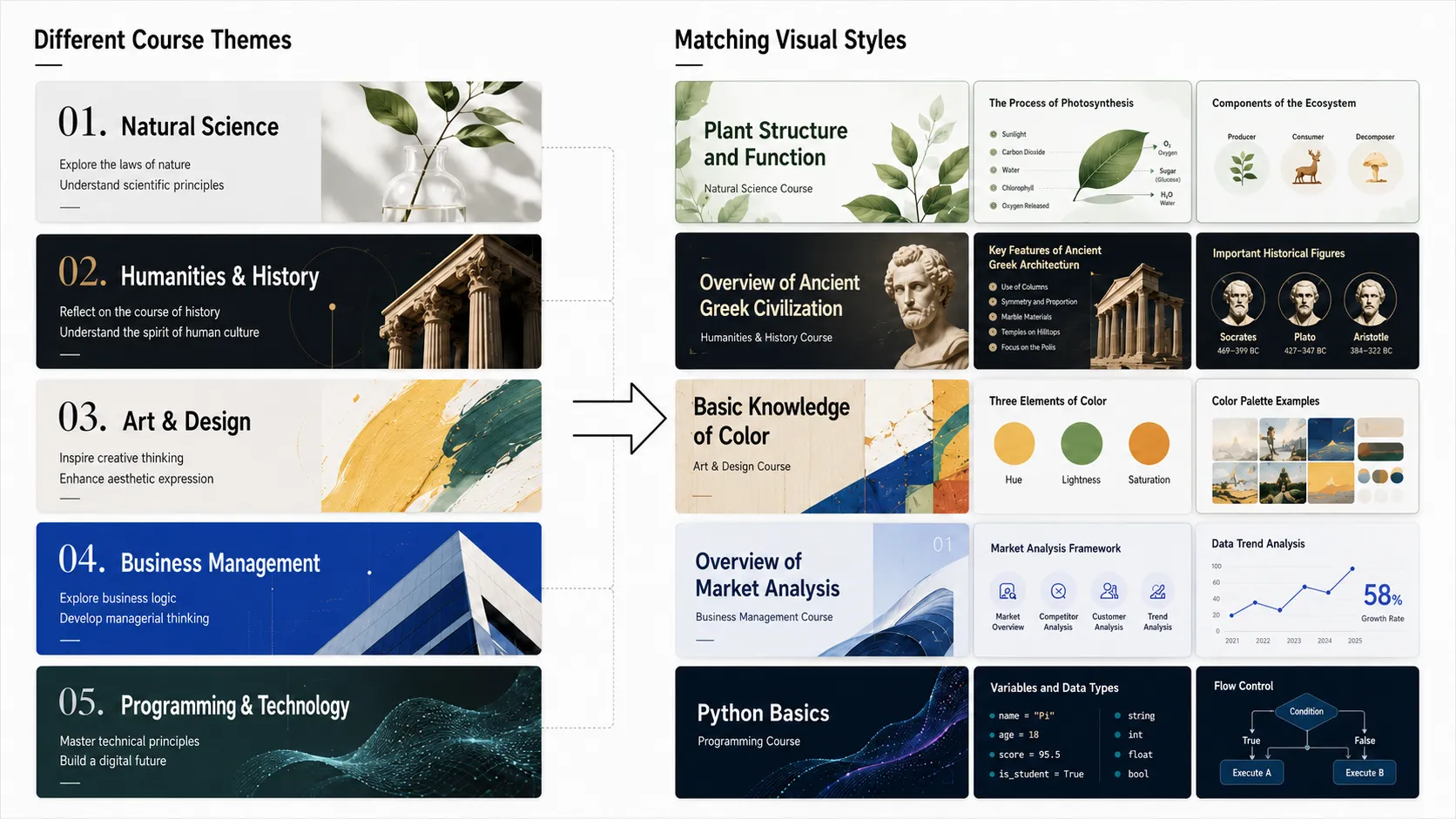
Create different presentation styles for different subjects and courses so that the visual atmosphere better supports the learning content.
Consulting and Sales
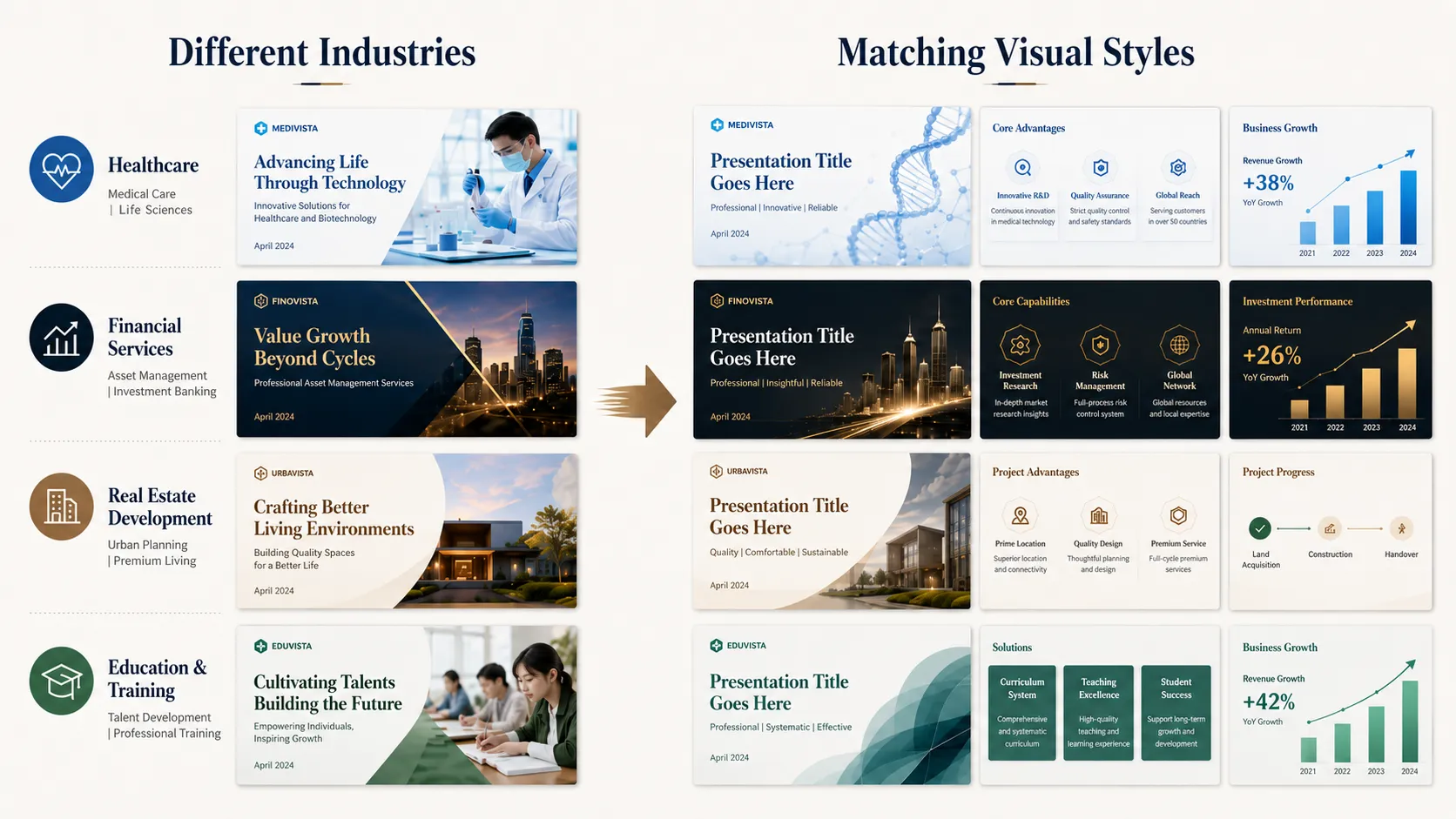
Save standardized delivery templates and quickly adapt them for different clients and industries while maintaining a consistent and professional visual identity.
From Finding Templates to Creating Your Own
In the past, creating a PowerPoint presentation usually began with searching for the template that came closest to what you needed.
Now, you can begin with the design you genuinely love.
A café menu can become the visual direction for a brand proposal.
A magazine can inspire the layout system for a product launch presentation.
An existing corporate deck can become a reusable template system for an entire team.
An event poster can be expanded into a complete set of campaign materials.
What Pi Custom Templates changes is not simply the appearance of a presentation.
It changes where the presentation begins.
The next time you create a PowerPoint presentation, you no longer have to ask:
“Which template is the closest match?”
Instead, ask:
“What do I want this presentation to look and feel like?”


