How to Make a PPT Presentation: Step-by-Step Guide for Beginners
Learning how to make a PPT presentation can feel overwhelming when you start with a blank slide. You may be unsure how many slides to create, what belongs on each one, or how to make the deck look professional without spending hours adjusting fonts and layouts.
The good news is that a strong presentation does not begin with animations, stock photos, or a complicated template. It begins with a clear purpose. Before you create a PowerPoint presentation, decide what your audience needs to understand, believe, or do after they see it.
This beginner-friendly guide explains a practical workflow for planning, designing, building, and rehearsing slides. Whether you are preparing a school project, sales proposal, team update, or business pitch, the same principles apply: organize the message first, make each slide easy to follow, and review the deck before presenting.
What Makes a PPT Presentation Effective?
An effective PPT presentation communicates one clear message through a logical sequence of readable, visually consistent slides. It supports the speaker instead of repeating everything they say.
Strong presentations usually share these qualities:
- A clear goal and a specific audience
- A logical beginning, middle, and end
- One main idea on each slide
- Concise text that is easy to scan
- Relevant visuals, charts, or examples
- Consistent fonts, colors, and layouts
- A rehearsed delivery with realistic timing
The most common beginner mistake is designing before planning. A deck may look colorful, but it will still feel confusing if the audience cannot understand why the information matters. Start with the story, then use presentation design tips to make that story easier to absorb.
Step 1: Outline and Plan Your Content Structure
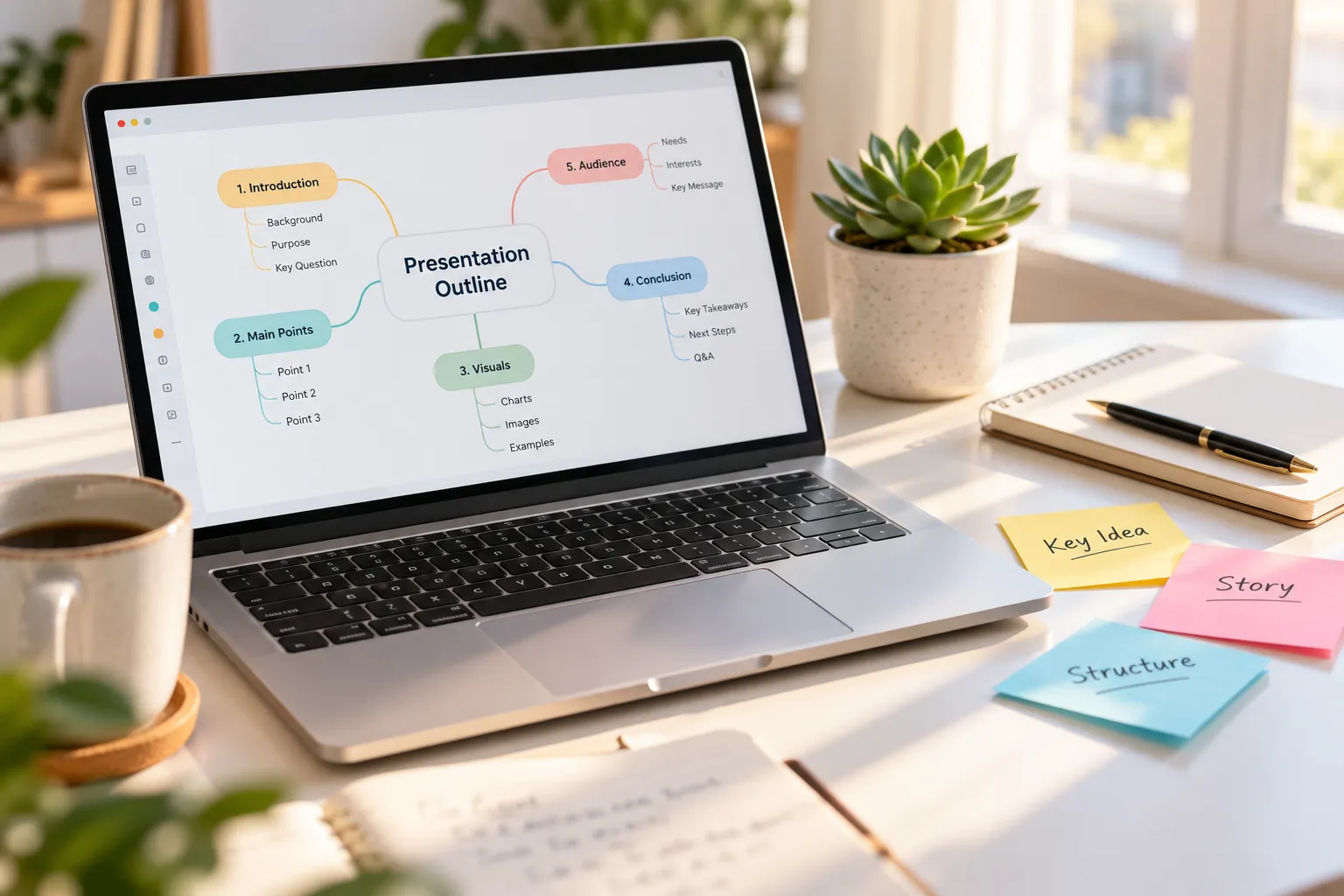
Before opening PowerPoint, write a short presentation structure. This does not need to be a detailed script. It is simply a map of what your audience needs to know in what order.
Start by answering four questions:
1. Who is the audience? 2. What do they already know about the topic? 3. What should they learn, decide, or do? 4. What is the single main message they should remember?
For example, if you are presenting a new marketing idea to leadership, your message may be: “This campaign can reach a new customer segment and deliver measurable growth.” Every slide should help support that message.
A simple presentation often follows this narrative:
| Presentation Section | Purpose |
|---|---|
| Opening | Introduce the topic, objective, and relevance |
| Problem or context | Explain the current situation or challenge |
| Key insight or solution | Present your main idea, recommendation, or finding |
| Evidence | Use examples, data, research, or results |
| Next steps | Clarify the action, decision, or takeaway |
For a school presentation, the middle section may explain research findings. For a business presentation, it may explain a recommendation, market opportunity, or project plan. The details can change, but the audience should always feel that each slide naturally leads to the next.
When planning slide count, focus on time rather than a fixed number. A five-minute presentation may need five to eight slides. A 20-minute presentation may require 12 to 18 slides, depending on how much discussion and detail are needed. Do not add slides only to make the deck look more substantial.
Step 2: Choose the Right Slide Layout and Theme
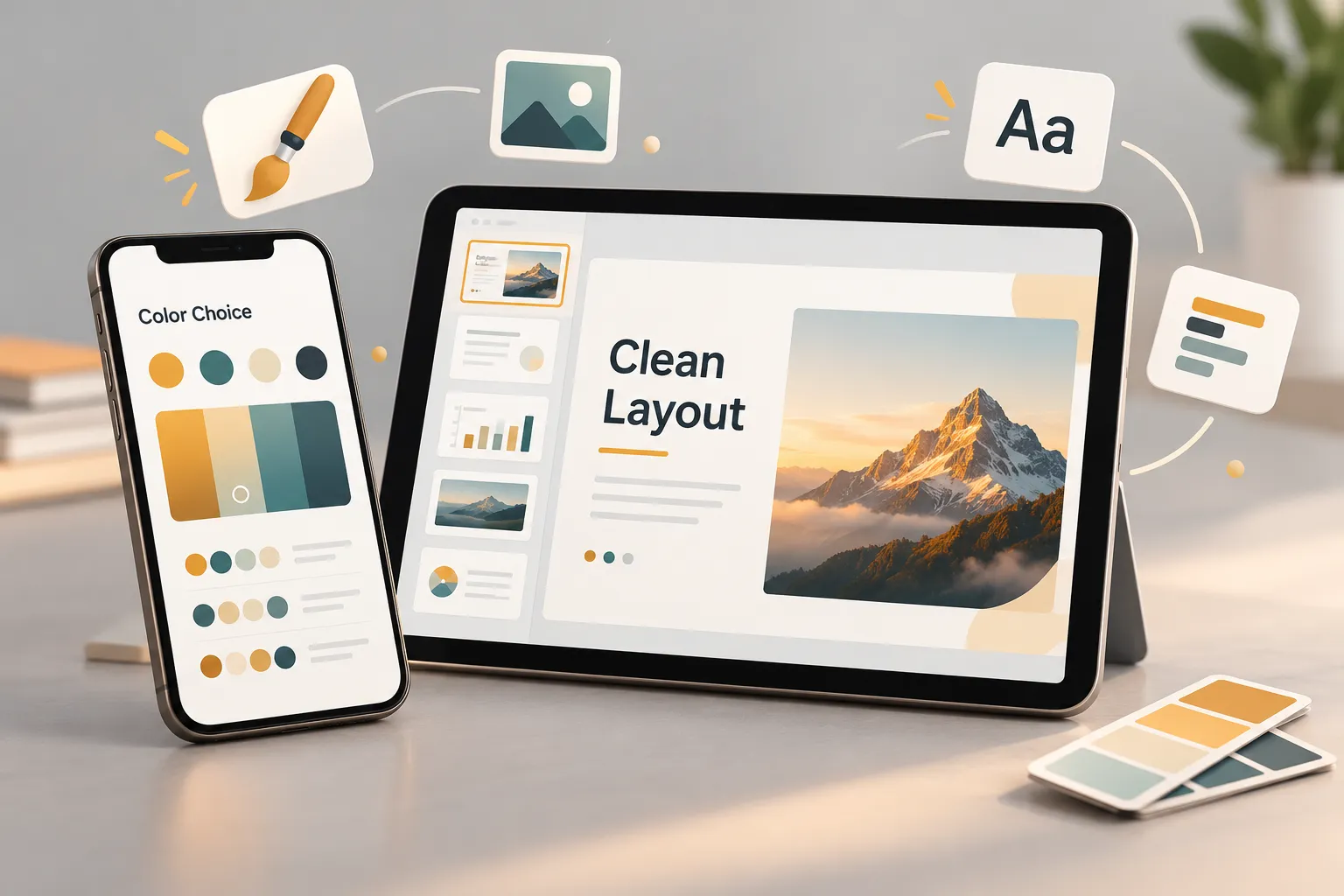
Once your content structure is clear, choose a visual system that supports it. This is where many PowerPoint for beginners projects become inconsistent: each slide is designed separately, with different fonts, colors, and text placements.
A theme is a coordinated set of colors, fonts, and visual effects. A template is a prebuilt presentation file that may include example slides and content. A slide layout is the arrangement of placeholders for titles, text, images, or charts on an individual slide.
For most presentations, use one simple theme and a small set of layouts. A title slide, section divider, title-and-content slide, comparison slide, and chart slide are often enough.
Choose a theme based on the setting:
- Use restrained colors and clean layouts for executive updates, reports, and client meetings.
- Use brand colors when creating sales decks, proposals, or company presentations.
- Use larger type and stronger visual cues for training, education, or workshop slides.
- Use minimal decoration when the content includes complex data or detailed charts.
Avoid choosing a theme because it has dramatic effects. Heavy gradients, decorative borders, and overly stylized fonts can make information harder to read. The theme should frame the message, not compete with it.
Keep titles in the same position across slides. Use the same font pair throughout the deck. If you need a new kind of slide, duplicate a successful layout rather than rebuilding it from scratch. This small habit creates visual consistency quickly.
Step 3: Design Visually Engaging Slides
Good slide design is not about filling every empty space. It is about helping the audience see what matters first.
Treat each slide as a visual headline, not a document page. Your slide title should communicate a takeaway whenever possible. Instead of writing “Customer Survey Results,” write “Customers Value Faster Setup More Than Additional Features.” The second title tells the audience what the data means before they study the chart.
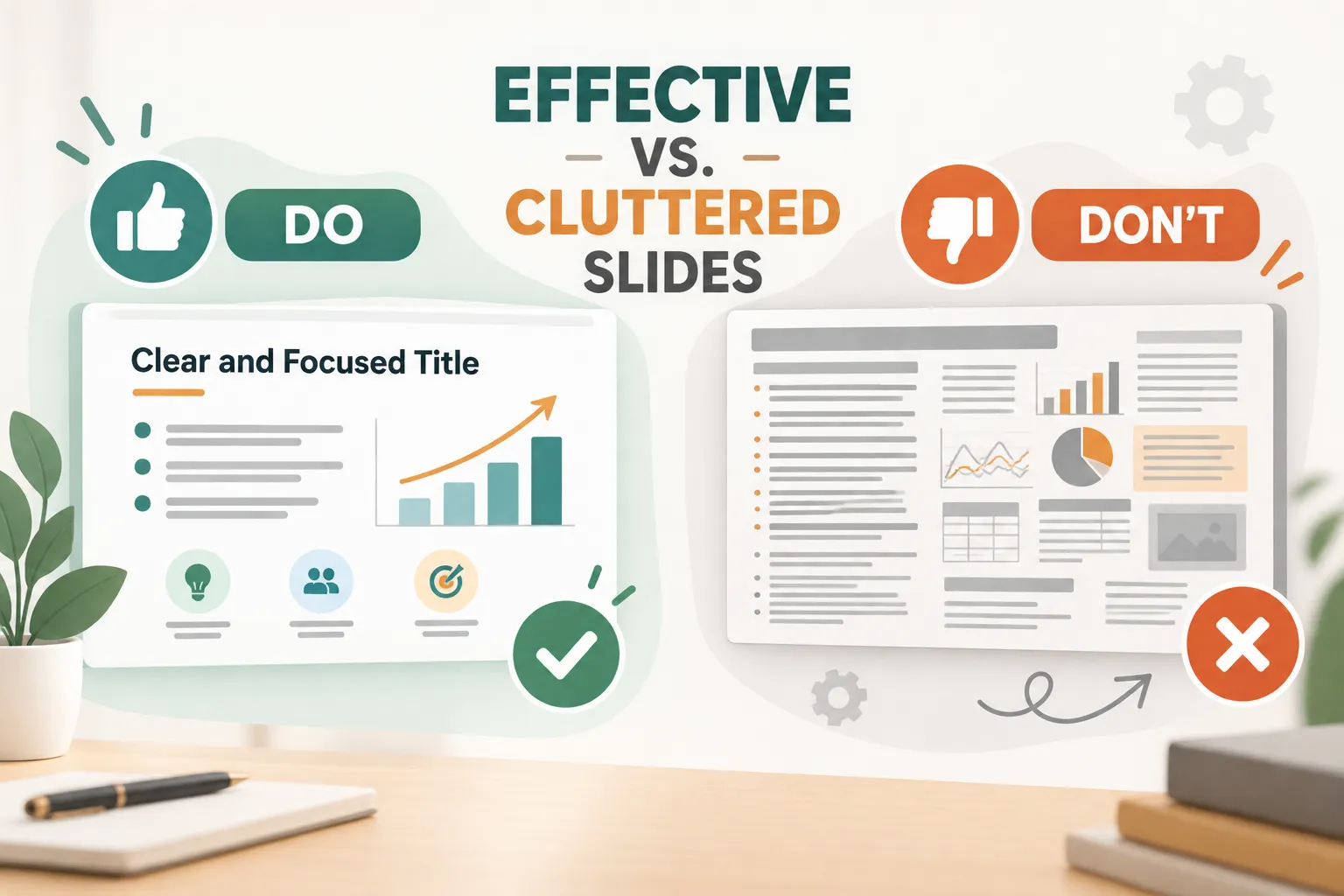
Keep body text short. If a paragraph is important enough to read word for word, it may belong in speaker notes, a handout, or an appendix rather than on the slide. Use short phrases, key numbers, and labels that support your spoken explanation.
Visual hierarchy is the order in which people notice elements on a slide. Create it with size, contrast, position, and whitespace. Make the most important idea largest or most visible. Give charts and images room to breathe rather than surrounding them with small text.
Use visuals only when they clarify the point. A relevant product screenshot, process diagram, customer quote, or simple chart can make an idea more memorable. A decorative image that does not add meaning can distract from the message.
For charts, remove unnecessary detail. Highlight the one data point that matters most, use readable labels, and avoid using too many colors. If your audience has to decode the chart for several seconds, simplify it.
A useful design test is to view the slide at a smaller size or stand several steps away from the screen. If you cannot identify the title, main visual, and key takeaway quickly, the slide needs refinement.
Step 4: Speed Up Creation With Modern AI Presentation Tools
Creating slides manually gives you detailed control, but it can take considerable time to turn rough notes into a well-structured deck. Modern AI presentation tools can help speed up the first draft by transforming an outline, document, meeting notes, or business idea into organized slides.
An AI presentation generator is most useful early in the workflow, when you need help moving from a blank page to a workable narrative. It can suggest a slide sequence, generate concise starting copy, apply a consistent visual direction, and create layouts that are easier to refine than an empty deck.
Pi is an AI-native presentation maker designed for professional business presentation workflows. It can help turn rough input into a structured deck with business-ready logic and visually consistent slides. This is particularly useful for sales decks, consulting reports, executive presentations, brand proposals, product launches, and pitch-style presentations where speed matters but clarity still matters more.
1. Business Logic Comes Before Slide Styling
A polished layout cannot repair a weak argument. Pi’s Multi-Agent AI approach is useful when you need support shaping scattered ideas into a clearer business narrative. Rather than beginning with random slide designs, start with the objective, audience, key evidence, and desired decision.
For example, a proposal deck should not simply list services. It should establish the client’s challenge, explain the recommended approach, demonstrate expected value, and make the next step clear. AI can help organize that flow, but the presenter must provide the real context and priorities.
2. Premium Visual Quality Supports Faster Drafting
AI-native presentation creation can reduce repetitive layout work. Pi can help generate cohesive slide structures and premium visual direction so you spend less time aligning boxes, selecting placeholder graphics, or rebuilding similar pages.
This does not mean accepting the first version without review. Check every generated statement, number, image, and recommendation. Replace generic language with your own expertise, add current data, and ensure that the visual style fits your organization or client.
3. Human Review Creates the Final Presentation
AI can make slides fast, but it cannot fully understand meeting dynamics, internal politics, audience concerns, or the nuance behind your evidence. The final deck still needs human judgment.
Review AI-generated slides for factual accuracy, brand alignment, confidentiality, and speaking flow. Remove anything you cannot explain confidently. The goal is not to show that AI made the presentation; it is to make the audience feel that the presentation was made for them.
Manual PowerPoint Workflow vs. AI-Assisted Presentation Workflow
Both workflows can produce effective slides. The right choice depends on your deadline, starting materials, and need for customization.
| Capability | Manual PowerPoint Workflow | AI-Assisted Presentation Workflow |
|---|---|---|
| Initial planning | Created from scratch by the presenter | Can start from notes, prompts, or an outline |
| Slide structure | Built slide by slide | Suggested and organized into a first draft |
| Layout creation | Requires manual formatting | Generates consistent layouts more quickly |
| Visual consistency | Depends on template discipline | Can provide a cohesive visual starting point |
| Final editing | Fully owned by the presenter | Still requires human review and revision |
| Best fit | Highly specific or established decks | Fast drafts, new ideas, and business-ready starting points |
AI is not a replacement for PowerPoint skills or presentation thinking. It is a way to reduce repetitive production work so you can spend more time improving the message.
Step 5: Review and Rehearse Your Presentation
A presentation is not finished when the final slide looks polished. It is finished when the content is accurate, the story is clear, and you can deliver it with confidence.
First, review the deck silently from beginning to end. Check whether every slide supports the main message. Remove repeated ideas, unnecessary detail, and visuals that do not explain anything. Verify names, dates, figures, sources, and calculations carefully.
Next, review the deck as an audience member. Can someone understand the point of each slide in a few seconds? Are fonts readable from a distance? Are charts understandable without a long explanation? Does the presentation use consistent formatting?
Then rehearse aloud. This is the fastest way to find awkward transitions, wordy slides, and unclear reasoning. Time yourself at least once. If you have 10 minutes, aim to finish slightly early so you have room for audience questions.
Speaker notes can help you remember key details without putting too much text on the screen. Use them for examples, talking points, transitions, and reminders about what to emphasize. Do not use them as a script that you read word for word.
Finally, prepare for questions. Identify the assumptions behind your recommendation, the data people may challenge, and the details that did not fit on the main slides. If necessary, place supporting material in an appendix after the final slide.
A Simple PPT Creation Checklist
Before presenting, confirm that you have defined one clear objective and identified what the audience needs from the session. Make sure the deck has a logical opening, a focused middle, and a practical ending. Check that each slide has one main purpose, uses concise text, and follows the same visual system.
Confirm that images, charts, and icons add meaning rather than decoration. Review all facts and figures, especially if you used an AI presentation generator for early drafts. Rehearse aloud, test your timing, and make sure the file opens correctly on the device or platform you will use.
Following this process will help you create a PowerPoint presentation that looks professional because it communicates clearly—not because it uses the most effects.
Frequently Asked Questions (FAQ)
How many slides should a beginner use for a PPT presentation?
Use only as many slides as your message and time limit require. For a short five-minute presentation, five to eight slides is often enough. Focus on clear ideas and pacing rather than trying to reach a specific slide count.
What should be on the first slide of a PowerPoint presentation?
The first slide should include a clear presentation title, your name or team name, and relevant context such as the date, organization, or meeting name. It should help the audience immediately understand the topic and purpose.
How can I make my PowerPoint slides look more professional?
Use one simple theme, consistent fonts, readable text sizes, and a limited color palette. Give each slide one main message, use relevant visuals, leave enough whitespace, and remove unnecessary decorative elements.
Can AI create a PowerPoint presentation?
Yes, an AI presentation generator can turn prompts, notes, outlines, and documents into a structured slide deck. However, you should always review the output for factual accuracy, audience fit, brand consistency, and the final speaking flow.