Theme Office PowerPoint: Customization & Design Guide

A quarterly business review can look inconsistent even when every slide contains accurate information. Titles use different fonts, charts carry mismatched colors, and slides copied from other teams retain their original styling.
The quickest starting point is to apply a theme through PowerPoint’s Design tab, then customize its colors, fonts, and effects. Use Slide Master when you also need consistent layouts, title positions, and recurring branding.
If you searched for “theme office powerpoint,” the key distinction is this: a theme controls shared visual settings, but it does not automatically repair every slide. This guide explains how to apply PowerPoint Office themes, customize them for business presentations, and save reusable design assets.
What Is an Office Theme in PowerPoint?
A PowerPoint theme is a coordinated set of colors, fonts, and effects. These settings guide the appearance of theme-linked text, shapes, charts, and other elements.
The built-in Office Theme is one specific theme supplied with PowerPoint. The broader phrase “PowerPoint Office themes” can refer to other built-in themes or custom themes used in Office presentations. Default fonts and styling can vary by Office version.
Themes, templates, and Slide Master serve different purposes:
| Asset | Controls | Best Use |
|---|---|---|
| Theme (.thmx) | Colors, fonts, effects, background styles | Reusing a visual identity |
| Template (.potx) | Theme, masters, layouts, reusable content | Starting repeatable business decks |
| Slide Master | Shared formatting and layout inheritance | Standardizing slide structure |
For a quarterly review, the theme establishes the palette and typography. Master layouts establish where titles and content belong. A template packages those decisions with reusable slides.
How to Apply a Theme in PowerPoint
The following instructions use PowerPoint for Microsoft 365 on Windows desktop as the baseline. Mac offers similar capabilities, but menu locations can differ. PowerPoint for the web has more limited theme customization.
To apply a PPT theme to an existing presentation:
1. Save a copy before making deck-wide changes. 2. Open the Design tab. 3. Expand the Themes gallery using its More arrow. 4. Hover over a theme to preview it, where live preview is available. 5. Click the theme to apply it. 6. Review representative slides, especially charts, tables, and slides copied from other files.
To apply a theme only to selected slides, select their thumbnails first. In supported desktop versions, right-click the theme and choose Apply to Selected Slides. Multiple themes can be useful for distinct sections, but they also increase maintenance work.
For a saved theme, open the Themes gallery and choose Browse for Themes, then select the `.thmx` file.
Applying a theme changes theme-linked formatting. It does not rewrite content, guarantee readable layouts, or replace every manually assigned color and font.
How to Customize PowerPoint Office Themes
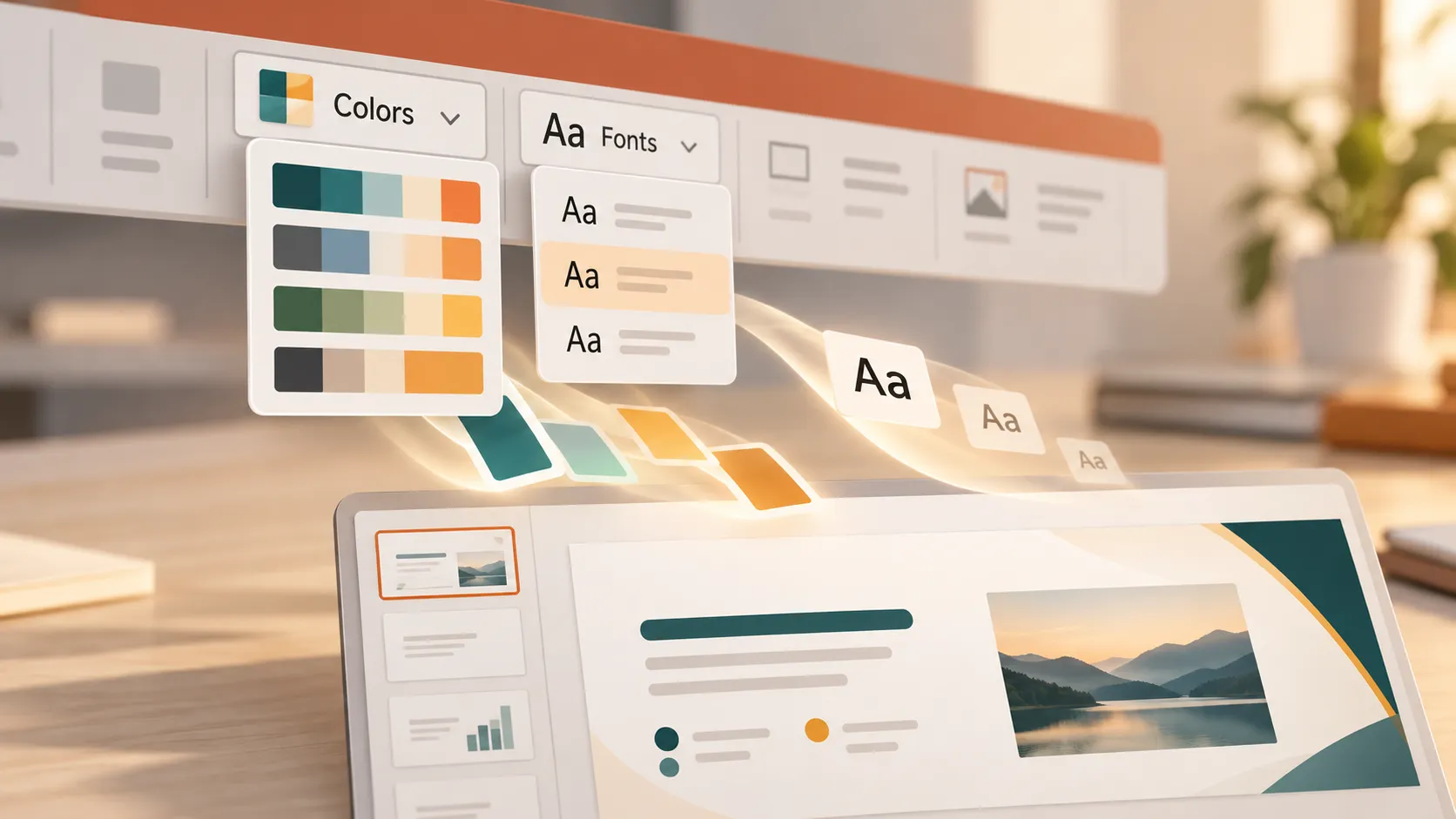
On the Windows desktop baseline, open Design, expand the Variants menu, and look for Colors, Fonts, Effects, and Background Styles. Ribbon arrangements vary by version and window size.
1. Set Theme Colors for Consistent Emphasis
Choose Colors > Customize Colors. Define the text/background colors, six accent colors, and hyperlink colors, then name and save the color set.
For a quarterly review, use dark navy for primary text, white for the main background, and restrained blue and teal accents. Keep secondary accents available for charts rather than filling every slide with different colors.
Choose colors from the Theme Colors area when formatting objects. Those selections can respond to later theme changes; fixed colors chosen elsewhere may not.
Preserve meaning across slides. If teal represents the current quarter in one chart, use it consistently elsewhere. Do not rely on color alone to distinguish performance categories—add labels or other cues.
2. Choose Readable Theme Fonts
Open Fonts > Customize Fonts and select the heading and body fonts.
A corporate deck rarely needs several typefaces. One readable family with different weights may be enough. Alternatively, pair a distinctive heading font with a restrained body font.
For the quarterly review, prioritize legible financial labels and clear headings over decorative typography. Check font availability on colleagues’ computers, because missing fonts can trigger substitution and alter line breaks.
Theme fonts affect text that uses theme-linked font settings. Text assigned a specific font directly may remain unchanged.
3. Refine Effects and Background Styles
Use Effects to select a coordinated effects set. This influences theme-aware treatments such as certain shadows, lines, and shape effects; it does not control slide transitions or animations.
Use Background Styles for theme-related background options. For more detailed slide background adjustments, open Format Background.
Keep business-report backgrounds quiet. A dark section divider can create hierarchy, while light content slides support dense charts and tables. Avoid shadows and gradients that make data harder to interpret.
Use Slide Master to Standardize Business Layouts
Open View > Slide Master to edit shared slide formatting and layouts.
Within each master group, the larger thumbnail is the master; the smaller thumbnails beneath it are associated layouts. Changes to the master can flow to its layouts, although layout-specific settings may override inherited formatting.
Place a recurring logo on the appropriate master or layouts. Standardize title positions, placeholder boundaries, and footer placement. Use title placeholders consistently so the heading hierarchy does not drift.
For a quarterly review, create distinct layouts for an executive summary, KPI dashboard, financial results, and next-quarter priorities. Give each layout a descriptive name.
After closing Slide Master view, select slides and use Home > Layout to assign the appropriate layout.
Manually inserted objects are not layout placeholders. A separate text box will not necessarily move when a placeholder moves. Direct formatting can also prevent inherited changes from appearing as expected.
Save a Custom Theme or an Office Presentation Template
Save a custom theme when you want to reuse the visual settings without packaging a complete deck.
On Windows desktop, open Design, expand the Themes gallery, and choose Save Current Theme. Enter a recognizable name, such as “Quarterly Review Brand,” and save the `.thmx` file.
A `.thmx` file is not the complete presentation and should not be treated as a slide-content or layout template. If you searched for “custom office theme PPT,” use `.thmx` for the reusable theme—not the older `.ppt` presentation format.
Save an office presentation template when colleagues need the theme, master layouts, and starter content together. Prepare the presentation, remove confidential material, then choose File > Save As and select PowerPoint Template (.potx).
Include useful starter slides, such as a summary, KPI overview, risks, and decisions required. Replace real figures with clearly identified sample content.
Colleagues can browse to a shared `.thmx` file to apply the theme or create a new presentation from the `.potx` template. Saving either file does not automatically deploy it across an organization. Share a controlled version and explain which asset to use.
Fix Common Theme and Formatting Problems
Before making broad corrections, test them on a copy of the presentation.
Fonts do not change: The text may use directly assigned fonts rather than theme fonts. Reapply the appropriate heading or body theme font. On Windows desktop, Replace Fonts can help replace specific fonts, but review the results for spacing changes.
Colors remain unexpected: An object may use a fixed color rather than a theme color. Select the object and choose the intended theme-linked color. Images and screenshots will not be recolored simply because the theme changes.
Pasted slides look inconsistent: Where available, Use Destination Theme helps pasted content adopt the receiving presentation’s styling. Keep Source Formatting preserves more of the original appearance. Neither option guarantees that every manually formatted element will match.
Titles or placeholders are misplaced: Choose the correct Layout, then try Home > Reset to restore placeholder positioning and formatting from that layout. Reset does not redesign arbitrary text boxes or remove all manual objects.
A custom theme is missing: Confirm that the `.thmx` file is accessible and use Browse for Themes. A theme saved on one computer does not automatically appear on another.
Choose the Right Workflow for a Business-Ready Deck
Use theme customization when your content is sound but the deck needs visual consistency. Use Slide Master when layout structure is inconsistent. Save a template when the same presentation format will be reused.
A different challenge arises when the quarterly review looks polished but does not explain what changed, why it matters, or what leadership should decide. Theme settings cannot fix that narrative.
Pi, short for Presentation Intelligence, is an optional AI-supported workflow for developing the presentation itself. Its Multi-Agent AI supports business logic, professional structure, and premium visual quality for executive presentations, sales decks, and consulting reports.
Consider Pi when the work starts with shaping a business argument rather than restyling finished slides. For PowerPoint theme customization, use the desktop controls described above.
Frequently Asked Questions (FAQ)
Can I apply a theme to an existing PowerPoint presentation?
Yes. In desktop PowerPoint, open Design and select a theme. Save a copy first, then inspect the results. Theme-linked elements should update, while direct formatting, images, and some pasted objects may remain unchanged.
What is the difference between .thmx and .potx?
A `.thmx` file stores reusable theme settings, including colors, fonts, and effects. A `.potx` file is a presentation template that can include those settings plus masters, layouts, placeholders, and reusable slide content.
Why do some slides not update when I change the theme?
Common causes include directly assigned fonts or colors, imported slide masters, and manually positioned objects. Check the slide’s layout and formatting. Layout and Reset can help with placeholders, but they do not automatically correct every object.
Can I customize Office themes in PowerPoint for the web?
PowerPoint for the web supports applying available themes and some design adjustments, but it does not provide the full desktop theme-authoring and Slide Master workflow. Use desktop PowerPoint for comprehensive customization, then check the saved presentation in the web app.