how to make a website into a presentation
Turning a website into a presentation does not have to mean copying paragraphs into blank slides. A website is made for scrolling and reading. A presentation needs a clearer path: a beginning, main sections, visual examples, and a takeaway.
The easiest way to do this with Pi is to start from the website URL. Pi can parse webpage content, use it as reference material, and help turn the page into a structured presentation. Then you can use Pi's theme, layout, component, icon, and image tools to shape the deck.
Start By Giving Pi The Website URL
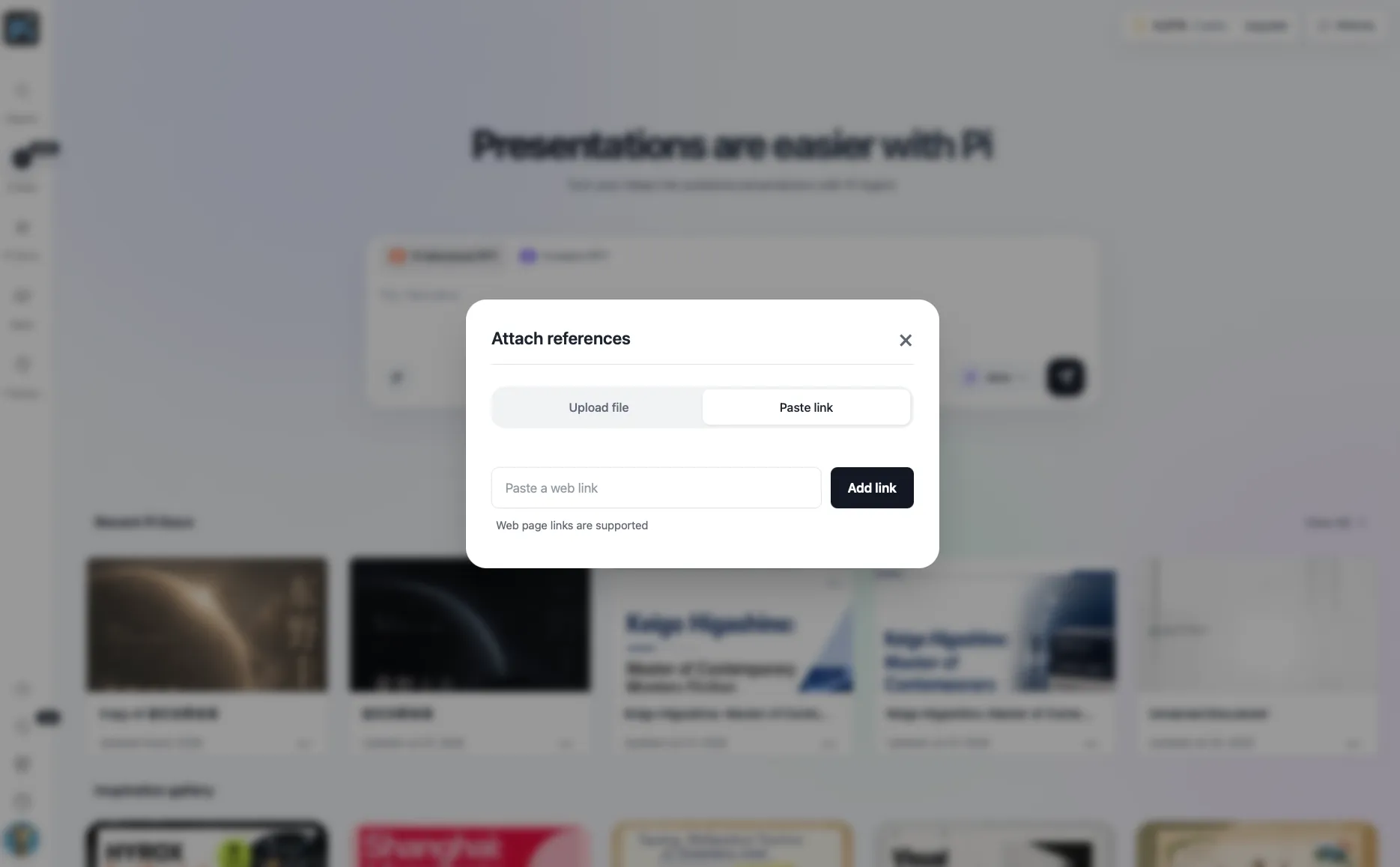
The first step is simple: paste the website link into Pi as reference material. This works for a homepage, landing page, product page, blog article, help page, or case study.
Once Pi has the URL, it can analyze the page and identify what it is really about. That matters because a website usually contains more material than a presentation needs. Menus, footers, repeated buttons, and long paragraphs do not all deserve a slide.
A good prompt can be direct:
"Turn this webpage into a presentation. Focus on the main message, audience, key sections, useful visuals, and final takeaway."
That gives Pi a clear job: not to copy the webpage, but to reshape it for slides.
Let Pi Find The Slide-Worthy Content
After parsing the URL, Pi can help pull out the parts that are worth presenting. These usually include the page headline, product or service explanation, key benefits, feature sections, data points, process steps, customer proof, screenshots, and calls to action.
The point is not to turn every webpage section into one slide. Some sections should be combined. Some should be skipped. Some should become a visual rather than text.
| Website content | How Pi can use it | Slide result |
|---|---|---|
| Homepage hero | Extract the main message | Opening slide |
| Feature cards | Group related benefits | Feature section |
| Product screenshots | Use as visual examples | Demo or walkthrough slide |
| Blog headings | Build a teaching outline | Lesson-style deck |
| Case study results | Highlight proof | Evidence slide |
| FAQ content | Turn into objections or answers | Q&A slide |
| CTA section | Clarify next step | Closing slide |
This is where Pi saves time. Let Pi create the first structure, then review it.
Turn The Website Into A Story
A good presentation should not feel like a webpage cut into pieces. It should feel like a guided story. For a company site, that may mean audience, problem, solution, proof, and next step. For a blog post, it may mean question, explanation, examples, and takeaway.
Pi can turn parsed website content into this kind of structure. You can ask it to make the deck more educational, sales-focused, executive-friendly, visual, or concise.
Use Pi To Build The Visual Direction
Once the structure is clear, the next step is design. This is where Pi should stay in the workflow, not disappear.
Pi can generate presentation themes freely, so the deck does not have to inherit the website's exact visual style. If you want the presentation to feel close to the website, you can customize colors, type direction, and overall style. If the website is messy or not presentation-friendly, you can create a cleaner visual direction while keeping the same content.
Pi can also use ready-made components and automatic layout. This matters because website content often comes in uneven chunks: one section has a long paragraph, another has three feature cards, another has a screenshot, and another has a quote. Pi can help arrange those pieces into slide layouts that feel balanced instead of crowded.
For example, a feature section might become a three-card slide. A pricing page might become a comparison table. A long article section might become a title, three bullets, and a visual. A product walkthrough might become a sequence of steps with icons.
Use Icons, Images, And Design Effects
A website presentation usually needs more than text. Pi's icon library can help mark repeated ideas such as features, steps, risks, benefits, audiences, or next actions. Icons are useful because they make a deck easier to scan without adding more words.
Pi can also help with image work. If a webpage screenshot is too busy, you can use cleaner image placement, crops, overlays, or design effects. If the deck needs visuals that are not available on the webpage, Pi can call AI-generated images during the design process. That is helpful for concept slides, section openers, abstract ideas, or visual metaphors.
Add Screenshots And Sources Carefully
Pi can help build the deck, but you still need to review sources. If the website is not yours, include the site name, URL, and source notes where needed. For academic or formal source formatting, Purdue OWL's research and citation resources are a useful reference.
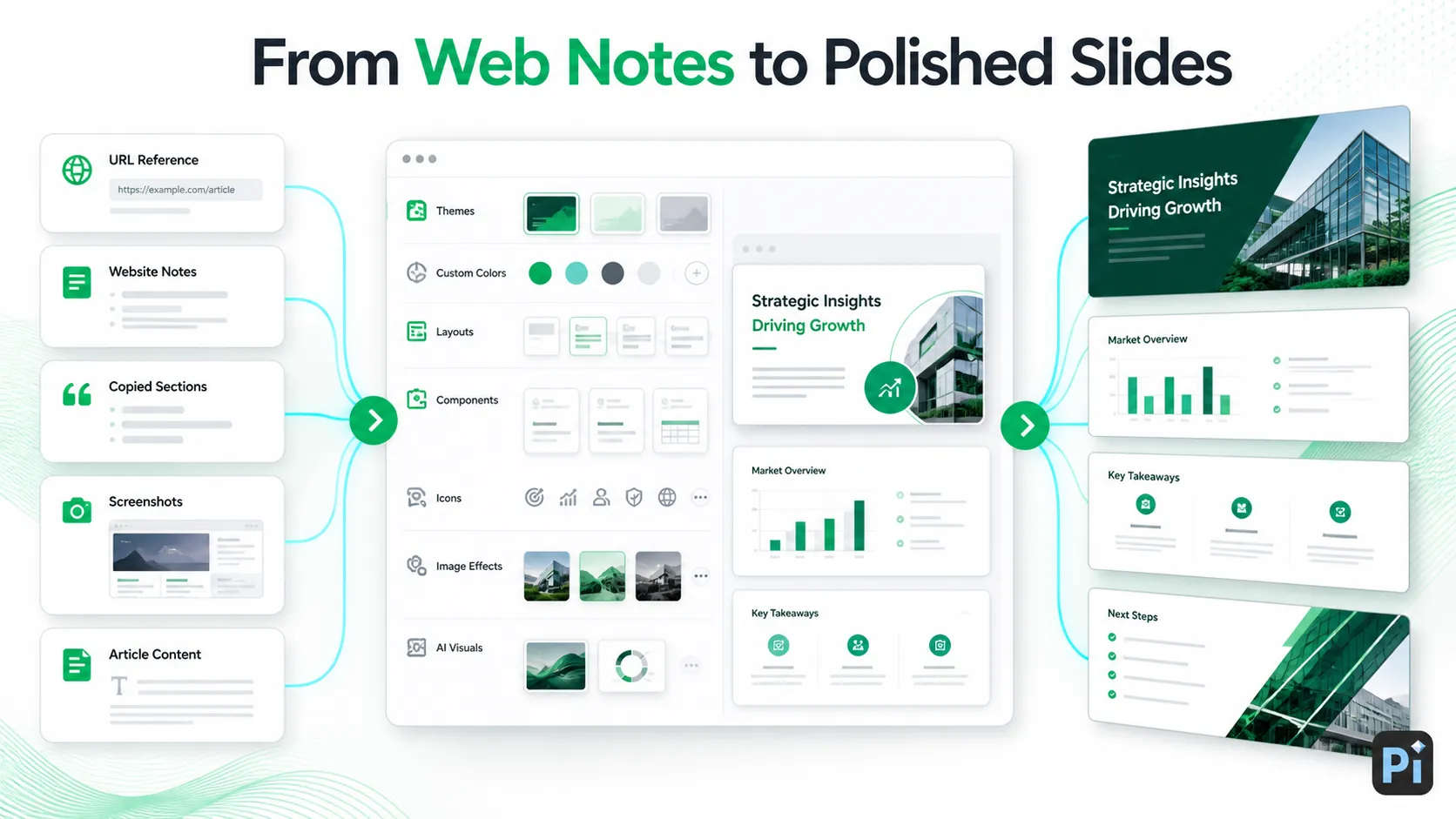
Screenshots should be focused. A full-page screenshot is often too small to read on a slide. Use one important section, crop it clearly, and add a takeaway. Microsoft explains how to insert a screenshot or screen clipping into Office files. If you finish in Google Slides, Google's help page on inserting images and videos covers common image sources.
Also review facts after Pi generates the deck. Webpages can change, and some pages include claims that need context. Treat Pi's draft as a strong starting point, then check names, numbers, product details, pricing, and source links before presenting.
A Pi-Based Website-To-Presentation Workflow
| Step | What happens in Pi | What you review |
|---|---|---|
| Paste URL | Pi parses the webpage content | Check that the right page was used |
| Extract key points | Pi identifies headings, claims, features, and takeaways | Remove anything irrelevant |
| Build outline | Pi groups content into slide sections | Make sure the story flows |
| Generate design | Pi creates themes, layouts, colors, and components | Adjust style for the audience |
| Add visuals | Pi uses icons, image treatments, and AI-generated visuals | Check accuracy and tone |
| Polish deck | Pi helps refine layout and structure | Final edit before presenting |
The Verdict
The best way to make a website into a presentation is to treat the website as source material, not as a slide deck. Start with the URL, let Pi parse the page, then use Pi to turn the content into a clear structure, visual theme, and polished slide layout.
You still need to review the final deck, check the facts, and cite the source. But with Pi, the process can move from webpage to structured presentation much faster than copying sections into slides one by one.
Frequently Asked Questions (FAQ)
Q: How do I make a website into a presentation?
A: Paste the website URL into Pi, let it parse the page, review the extracted content, then use Pi to generate a structured presentation with slides, visuals, and a clear theme.
Q: Can Pi turn a website URL into a presentation?
A: Yes. Pi can parse webpage content from a URL and use it as reference material to help create a presentation.
Q: Should I copy the full website into slides?
A: No. Use the website as source material. The presentation should summarize, organize, and explain the page, not duplicate it.
Q: What Pi features help with website presentations?
A: Pi can parse URLs, generate themes, customize colors and styles, use ready-made components, apply automatic layout, provide icons, support image effects, and call AI-generated visuals.