how to use powerpoint
Learning how to use PowerPoint means learning Microsoft PowerPoint, not just learning presentations in general. A presentation is the final deck or talk. PowerPoint is the Microsoft app many people use to build that deck, arrange visuals, present to an audience, and export the file as a PPTX or PDF.
This guide covers the beginner workflow: starting a deck, choosing a theme, adding slides, using layouts, adding content, presenting, saving, and knowing when Pi can help turn rough ideas into a polished presentation.
Start With The Basic Workflow
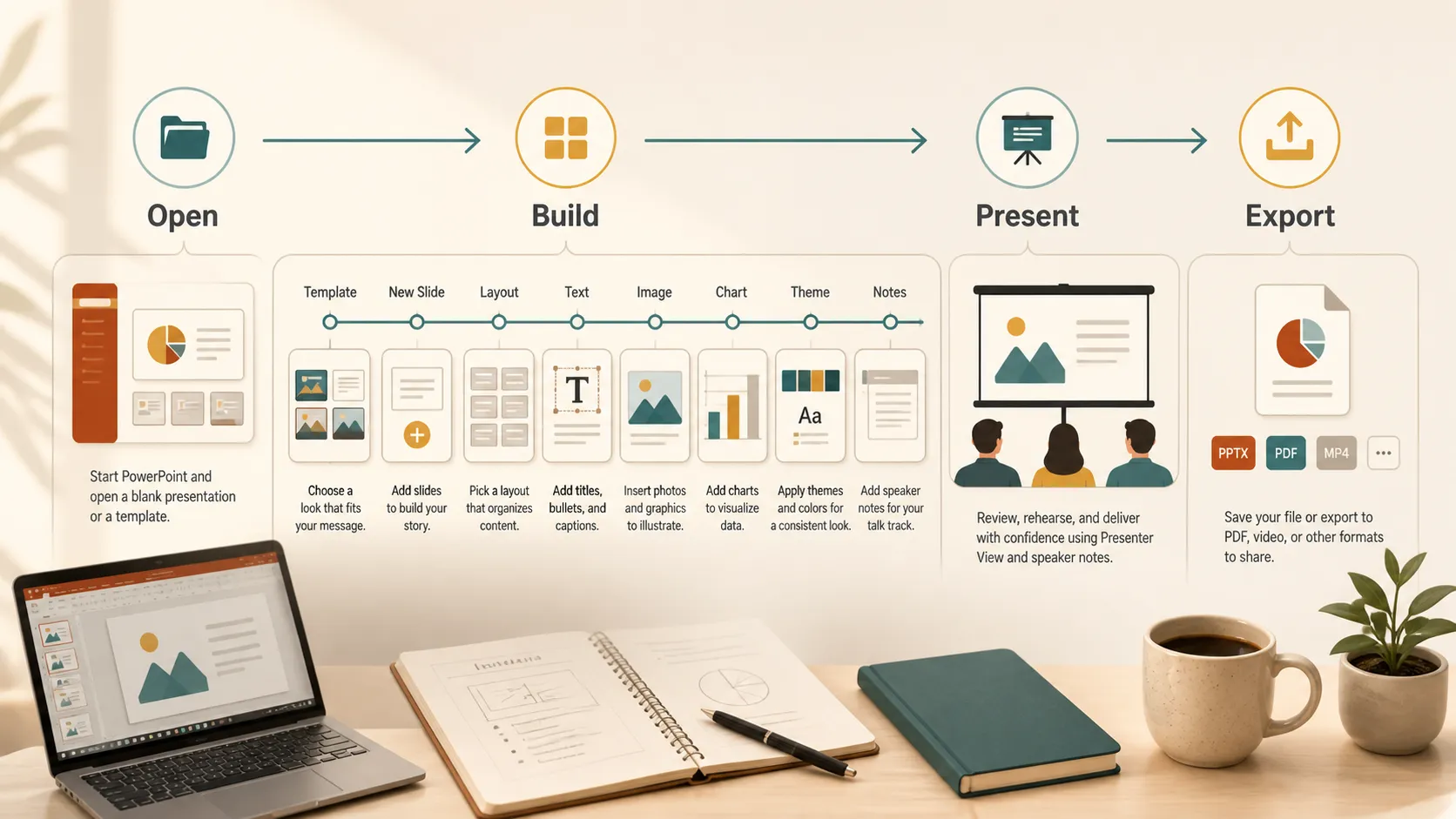
To use PowerPoint, open the app, choose a blank presentation or template, add slides from the Home tab, choose layouts, add text and visuals, apply a theme, rehearse with speaker notes, then present or export the deck.
Microsoft's official guide to creating a presentation in four simple steps explains the basic flow: choose a theme, add slides, choose layouts, and apply transitions. That is the foundation most beginners need.
Start A New PowerPoint Deck
Open PowerPoint and choose either a blank presentation or a template. A blank presentation gives you full control. A template gives you a designed starting point with preset colors, fonts, and layouts.
For most beginners, a simple template is easier. It keeps the deck from looking unfinished and gives you consistent title slides, section slides, and content slides.
After opening the deck, save it early. Use a clear file name so you can find it later. PowerPoint files usually save as PPTX files, which keep the slides editable.
Add Slides And Choose Layouts
Slides are the pages of your presentation. To add one, go to the Home tab and choose New Slide. PowerPoint lets you pick layouts such as Title Slide, Title and Content, Section Header, Two Content, Comparison, or Blank.
Layouts matter because they keep content aligned. A beginner mistake is adding blank slides and manually placing every text box. That can work, but it often leads to uneven spacing. Using built-in layouts is faster and cleaner.
Use a title slide for the opening, section slides when the topic changes, and content slides for main ideas, examples, charts, images, and conclusions. If a slide feels crowded, split it into two slides.
Add Text, Images, Charts, And Icons
PowerPoint slides should not be full pages of text. Use short titles, simple bullet points, and visuals that help explain the idea. To add text, click a placeholder or insert a text box. To add visuals, use the Insert tab for pictures, shapes, icons, charts, tables, screenshots, or media.
For a clean beginner deck, use one main idea per slide. A good slide title should tell the audience what the slide means, not just label the topic.
Charts are useful when numbers matter. Images add context. Icons work well for repeated ideas such as risks, goals, steps, features, or decisions.
Keep The Design Consistent
PowerPoint themes control the overall look of the deck, including colors, fonts, backgrounds, and layout styling. Microsoft's guide on PowerPoint themes is useful because consistent themes help a presentation feel organized.
Choose one theme and stay close to it. Avoid changing fonts, colors, and background styles on every slide. If you need emphasis, use contrast, bold text, or one accent color.
Use transitions and animations lightly. The audience should notice the message, not the decoration.
PowerPoint Basics At A Glance
| Task | Where to start | Beginner tip |
|---|---|---|
| Create a deck | Blank presentation or template | Use a template if you want a faster start |
| Add a slide | Home > New Slide | Pick a layout instead of drawing everything manually |
| Add visuals | Insert tab | Use images, icons, charts, and shapes only when they support the message |
| Keep design consistent | Design tab | Use one theme and a small color set |
| Present the deck | Slide Show tab | Rehearse before presenting live |
| Export the file | File > Export or Save As | Use PDF when the deck should not be edited |
Use Speaker Notes And Presenter View
Speaker notes help you remember what to say without putting every word on the slide. Add notes below each slide, then use Presenter View while presenting. Microsoft's guide to Presenter View explains that it can show the current slide, next slide, notes, and timer while the audience sees only the presentation.
Keep notes short. They should remind you what to say, not force you to read a script.
Save, Share, Or Export
Save your working file as PPTX when you need to keep editing. Export as PDF when you want to share a fixed version that preserves layout. Microsoft's official guide on saving PowerPoint presentations as PDF files explains that PDF keeps formatting and layout stable for viewers who may not have PowerPoint.
Before sending the file, check spelling, slide order, image quality, and whether videos or fonts might behave differently on another computer.
Common Beginner Mistakes
The most common PowerPoint mistake is putting too much text on each slide. A slide should support what you say, not replace you.
Another mistake is mixing too many styles. If every slide uses different colors, fonts, image treatments, and layouts, the deck feels unfinished. Keep the structure simple.
Avoid tiny text. If people in the back of a room or on a shared screen cannot read the slide, use fewer words, bigger type, and clearer spacing.
Where Pi Can Help
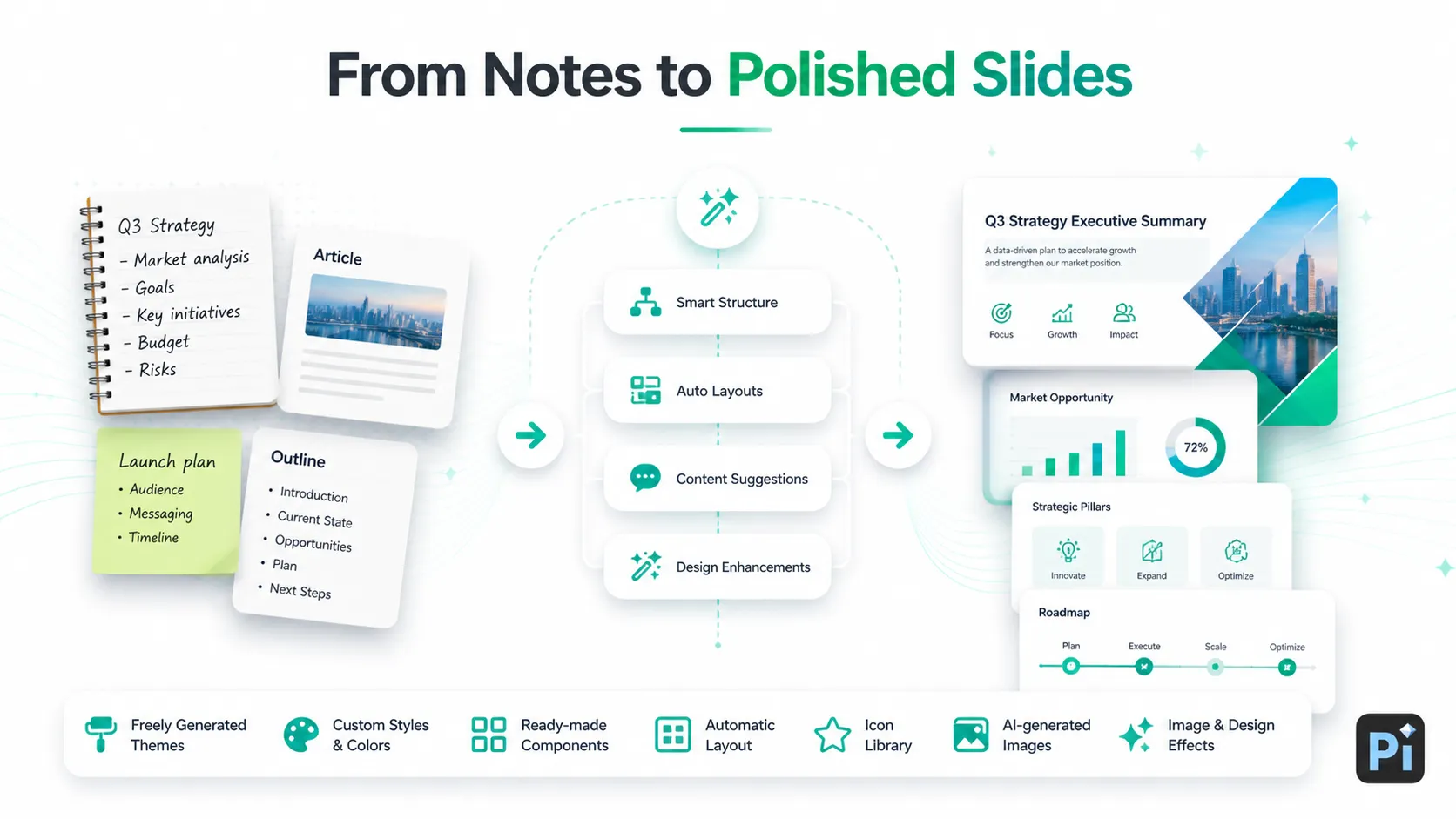
PowerPoint is useful when you already know what you want to build and need a familiar editing tool. But if you are starting with rough notes, an article, a report, or scattered ideas, building every slide manually can take time.
That is where Pi can fit naturally. Pi can turn raw content into a structured presentation, generate themes freely, customize styles and colors, use ready-made components, and apply automatic layout. It also includes an icon library and can call AI-generated images when a slide needs stronger visuals.
Pi is especially helpful when you want a polished first draft instead of a blank file. You can use Pi to shape the deck, then finish details in PowerPoint if you need PPTX editing, presenting, or exporting.
Use PowerPoint when you want direct control over an existing deck. Use Pi when you want to turn notes, outlines, articles, or ideas into a clean presentation faster.
The Verdict
Learning how to use PowerPoint starts with the basics: choose a theme, add slides, use layouts, add clear text and visuals, rehearse with speaker notes, and save or export the final deck. Once you understand those steps, PowerPoint becomes much less intimidating.
The bigger skill is knowing what belongs on a slide. Keep one main idea per slide, use visuals with purpose, and avoid crowding the deck. For simple editing, PowerPoint is enough. For turning rough content into a polished presentation faster, Pi can help create the structure and design direction before final editing.
Frequently Asked Questions (FAQ)
Q: Is PowerPoint the same as a presentation?
A: No. PowerPoint is Microsoft's presentation software. A presentation is the deck or talk created with PowerPoint or another tool.
Q: How do I start using PowerPoint as a beginner?
A: Open PowerPoint, choose a blank presentation or template, add slides, use layouts, add text and visuals, then present or export the file.
Q: What is the best slide layout for beginners?
A: Title and Content is usually the easiest layout. It gives you a clear title area and space for bullets, images, charts, or other content.
Q: How much text should I put on a PowerPoint slide?
A: Keep text short. Use the slide for main points and use speaker notes or your voice for extra explanation.
Q: Can I export PowerPoint as a PDF?
A: Yes. Use File > Export or Save As, then choose PDF. This is useful when you want the layout to stay fixed.
Q: Can Pi help me make a PowerPoint presentation?
A: Yes. Pi can turn notes, articles, reports, or rough ideas into a structured presentation with themes, custom colors, components, automatic layout, icons, and AI-generated visuals.