PDF to PPT with AI: Convert Reports into Editable Presentations
PDFs are great for sharing finished documents. They are not great for making presentations.
A PDF report is usually static. The text is locked into pages, charts are hard to edit, and important insights are buried inside long sections. When a team needs to present that information, copying screenshots from the PDF into PowerPoint often creates a deck that looks flat, crowded, and difficult to update.
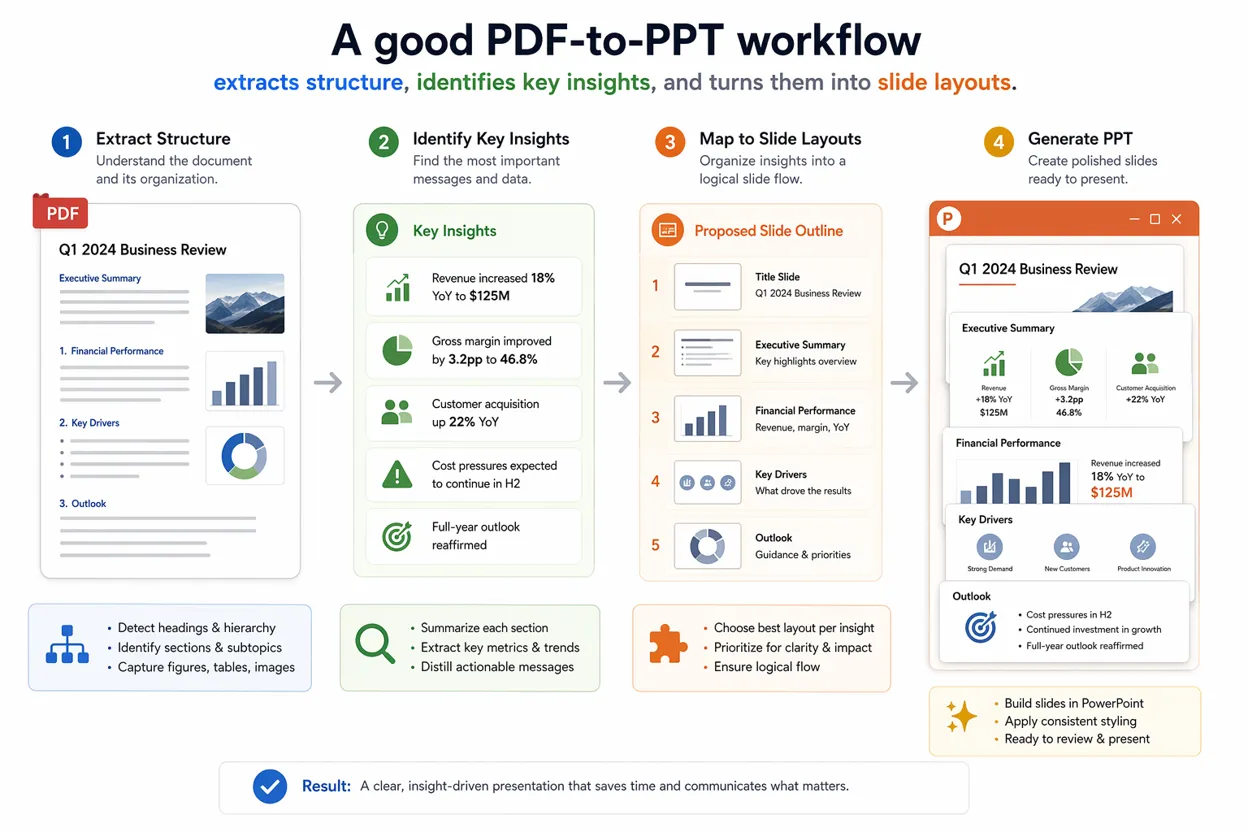
That is why more teams are looking for a better way to convert PDF to PPT with AI. Instead of treating a PDF as a set of images, AI can help understand the structure of the document, extract the key points, organize the message, and turn the content into editable presentation slides.
For business teams, consultants, researchers, students, and product managers, this can save hours of manual work.
Why Converting a PDF to PPT Is Hard
A PDF is designed to preserve layout. That is useful when you want a document to look the same on every device. But presentations need a different structure.
A report may contain long paragraphs, detailed tables, footnotes, charts, screenshots, and appendices. A good slide deck needs clear headlines, visual hierarchy, short explanations, and a flow that supports live communication.
The challenge is not only file conversion. The real challenge is communication conversion.
A simple PDF-to-PPT converter may move pages into PowerPoint, but the output often feels like a PDF pasted onto slides. Text may be too small. Charts may not be editable. Tables may be cramped. The audience still has to read dense document pages instead of following a clear presentation story.
AI changes the workflow because it can help decide what should become a slide, what should become supporting detail, and what can be left out.
What “PDF to PPT with AI” Should Actually Do
A strong AI PDF-to-PPT workflow should do more than export pages.
It should help with five things:
1. Understand the document structure
2. Identify the key takeaways
3. Turn long sections into slide-level messages
4. Create layouts that fit presentation format
5. Keep the result editable so teams can revise it
For example, a 20-page market research PDF might become a 10-slide presentation with an executive summary, market context, customer insights, competitive landscape, key findings, recommendations, and appendix slides.
A financial report might become a board update deck with performance highlights, charts, risks, decisions needed, and next steps.
A product research document might become a roadmap presentation with user problems, evidence, opportunities, priorities, and proposed initiatives.
The point is not to reproduce every PDF page. The point is to turn the document into a useful presentation.
When You Should Convert a PDF into a Presentation
PDF-to-PPT workflows are especially useful when the PDF already contains valuable thinking but is not ready for a meeting.
- Turning research reports into executive presentations
- Converting white papers into sales enablement decks
- Transforming financial reports into board updates
- Creating classroom slides from lecture PDFs
- Turning consulting reports into client presentations
- Summarizing product requirement documents into roadmap decks
- Converting event briefs or campaign reports into stakeholder updates
In each case, the PDF is the source material. The presentation is the communication format.
That distinction matters. A PDF is usually built for reading. A presentation is built for guiding attention.
How AI Helps Convert a PDF Report into Slides
A useful AI presentation maker can analyze the PDF and help create a clearer slide narrative.
First, it can read the structure of the document. It can detect headings, sections, tables, charts, and repeated patterns. This makes it easier to understand the document as a whole instead of processing it page by page.
Second, it can summarize dense sections into presentation-friendly points. A long paragraph may become a slide headline, three supporting bullets, and a visual suggestion.
Third, it can help design the deck around the audience. A leadership presentation may need fewer details and more decisions. A training presentation may need examples and step-by-step explanations. A sales presentation may need stronger storytelling and clearer value points.
Fourth, it can help create editable slide layouts. This is where AI-powered presentation workflows are different from basic file converters. The best output should let you adjust text, move objects, edit charts, replace images, and refine the message.
PDF to PPT vs PDF Screenshots in PowerPoint
Many teams still convert PDFs into presentations by taking screenshots. This works quickly, but it creates problems later.
Screenshots are not editable. If a number changes, the team has to recreate the image. If the slide is too crowded, the content cannot be easily restructured. If the brand style changes, every screenshot feels disconnected from the rest of the deck.
Editable slides are much more flexible.
With editable slides, teams can shorten text, adjust chart placement, add commentary, highlight important findings, and adapt the deck for different audiences. The presentation becomes a working document, not a frozen copy of the PDF.
This is especially important for business teams. Reports often go through several review cycles. A static slide deck slows down feedback. An editable deck makes iteration easier.
A Practical Workflow for Converting PDF to PPT
Here is a simple workflow you can use.
1. Start with the goal of the presentation
Before converting the PDF, decide what the deck needs to accomplish.
Is it for a client meeting? A board update? A sales conversation? A class lecture? A product review? The same PDF can produce very different presentations depending on the audience.
2. Identify the key sections
Review the PDF and mark the parts that matter most. Look for executive summaries, findings, charts, recommendations, comparisons, and conclusions.
Not every section deserves a slide. Some details may belong in the appendix.
3. Convert ideas, not pages
Avoid turning each PDF page into one slide. That usually creates a weak presentation.
Instead, convert each major idea into a slide. A single PDF page may become three slides. Or five PDF pages may become one summary slide.
4. Make the output editable
Check whether the converted deck has editable text and objects. If everything is flattened into images, the deck will be harder to use.
Editable content matters because presentations are rarely final on the first draft.
5. Review the slide story
After conversion, read the deck from beginning to end. Does it have a clear flow? Does each slide make one point? Are charts readable? Are conclusions easy to find?
AI can accelerate the draft, but human review is still important.
6. Where Pi Fits in the PDF-to-PPT Workflow
Pi, short for Presentation Intelligence, is designed for AI-native presentation creation. Instead of treating presentations as a simple file format, Pi helps teams work from source materials such as documents, notes, PDFs, images, and ideas.
For PDF-to-PPT workflows, Pi is useful because the job is not just conversion. The job is turning static information into a clear, editable, polished presentation.
A business report may contain useful content, but it still needs structure. Pi helps teams move from raw material to presentation logic: what the audience needs to know, what the slide should say, and how the content should be arranged visually.
This is especially valuable when the PDF contains business reasoning, research findings, charts, or dense written analysis. Instead of manually copying content into PowerPoint, teams can use AI to create a stronger first draft and then refine it.
What to Check Before Publishing the Final Deck
After converting a PDF into PPT, review these areas:
- Is each slide focused on one main idea?
- Are the headlines written as takeaways, not labels?
- Is the text readable on a projector or video call?
- Are charts and tables simplified enough for presentation use?
- Can the content be edited directly?
- Does the deck follow a consistent visual style?
- Is the appendix separated from the main story?
- Does the final slide make the next step clear?
A good presentation should not feel like a report split into slides. It should feel like a guided explanation.
Common Mistakes to Avoid
The biggest mistake is trying to keep too much content. PDFs often contain more detail than a presentation needs. If every paragraph becomes slide text, the deck will feel overloaded.
Another mistake is keeping the original PDF structure even when it does not fit the meeting. A report may start with methodology, but a presentation may need to start with the conclusion.
A third mistake is using static images instead of editable slide objects. This may look acceptable at first, but it creates problems when the team needs to revise the deck.
Finally, do not forget the audience. A technical audience may want evidence and methodology. An executive audience may want implications and decisions. The same source PDF should be adapted differently for each situation.
Final Thoughts
Converting PDF to PPT with AI is not just about changing one file type into another. It is about transforming a static document into a presentation that people can understand, discuss, and act on.
Basic converters can move content from PDF into PowerPoint. But AI-powered workflows can help summarize, structure, redesign, and clarify that content.
For teams that regularly work with reports, research documents, proposals, and business reviews, this can turn a slow manual process into a faster presentation workflow.
If you want to turn PDFs, notes, documents, or images into polished presentation drafts, Pi helps you move from source material to editable slides with less manual formatting and more focus on the message.
Create a Presentation with Pi
FAQ
Q:Can I convert a PDF to PowerPoint with AI?
A:Yes. AI can help convert a PDF into a PowerPoint-style presentation by extracting key points, summarizing sections, and creating slide layouts. The best workflow should produce editable slides, not just screenshots of PDF pages.
Q:What is the difference between PDF to PPT and PDF to presentation?
A:PDF to PPT usually refers to converting a PDF file into a PowerPoint file. PDF to presentation is broader. It means turning the PDF content into a slide-based story that is easier to present, explain, and edit.
Q: Should every PDF page become one slide?
A:Usually, no. A good presentation should be organized around ideas, not pages. Some PDF pages may become multiple slides, while some sections may be summarized into one slide or moved to an appendix.
Q:Why are editable slides better than screenshots?
A:Editable slides let you revise text, adjust layout, update charts, and adapt the deck for different audiences. Screenshots are static and harder to update.
Q:Who should use AI PDF-to-PPT workflows?
A:Consultants, business teams, researchers, students, educators, product managers, marketers, and founders can all benefit when they need to turn documents into clear presentation decks.


