Best Backgrounds for Slides: 2026 Design Trends & Ideas
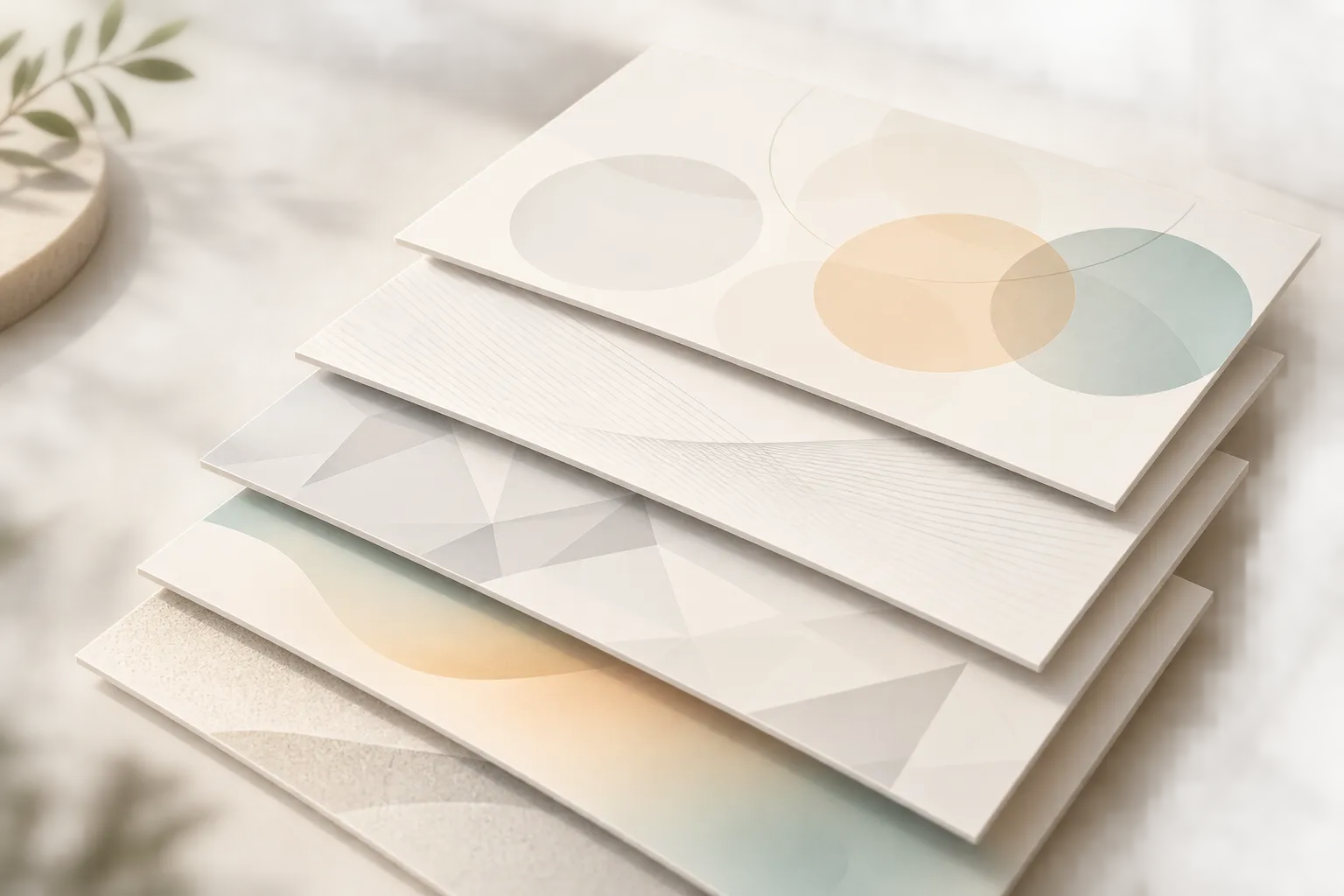
The best backgrounds for slides do more than make a deck look polished. They establish hierarchy, protect readability, support brand recognition, and help an audience focus on the idea that matters most.
That balance is easy to miss. A plain white slide can feel unfinished, while a decorative image, intense pattern, or high-contrast gradient can overpower the content. In 2026, effective presentation backgrounds are more restrained: they use color, texture, and whitespace with a clear purpose.
For professionals, marketers, educators, and startup founders, the goal is not simply to find aesthetic slide backgrounds. It is to create a visual system that makes a pitch, report, lesson, or campaign easier to understand. The most successful slide background design works quietly in the background while the message stays in front.
Why Slide Backgrounds Matter
A background sets the visual conditions for everything placed above it. It influences whether headlines feel important, whether charts can be scanned quickly, and whether a presentation feels cohesive from the opening slide to the final recommendation.
A considered minimalist presentation background can also create a stronger sense of professionalism. Consistent color treatment, margins, and visual rhythm tell the audience that the presenter has made deliberate decisions. This matters in high-stakes settings such as executive updates, sales presentations, investor pitches, and consulting reports.
Strong presentation backgrounds contribute to four practical outcomes:
- Visual hierarchy: They help titles, key numbers, and calls to action stand out.
- Readability: They provide reliable contrast for text, charts, and screenshots.
- Brand expression: They carry a brand’s tone without repeating logos or slogans on every slide.
- Narrative consistency: They make a collection of slides feel like one coherent story.
Swiss minimalist design offers a useful standard: use a clear grid, a restrained palette, generous whitespace, and typography that can be read from a distance. Backgrounds should support those principles rather than compete with them.
A simple test is to hide all text and objects on a slide. If the background alone feels busy, dramatic, or difficult to look at for more than a few seconds, it will probably distract from the presentation content. Keep the strongest decorative treatment for title slides, section dividers, and moments with very little copy.
Top 5 Background Trends for Slides
The 2026 direction is not maximalism. It is controlled atmosphere: subtle visual depth, stronger contrast choices, and repeatable systems that adapt to different slide types. The following five trends include the four core styles most requested for modern decks, plus a fifth approach that adds personality without sacrificing clarity.
1. Minimalist gradients Minimalist gradients use two closely related colors or a slow shift from a saturated edge into a neutral center. They add dimension without requiring an image or pattern.
They work especially well for title slides, product launch decks, creative strategy presentations, and brand proposals. A blue-to-indigo gradient can feel focused and modern; a warm neutral gradient can add softness to an education or lifestyle deck.
Use gradients with restraint. Keep the color transition broad and low-contrast, and reserve a plain or quieter variation for data-heavy slides. Avoid placing small body text across the point where colors shift most sharply.
2. Dark mode slide backgrounds Dark mode slide backgrounds remain a strong choice for technology, finance, product, and innovation presentations. Deep navy, charcoal, black, and dark forest green can create a premium, focused setting for bright typography and simple visuals.
These backgrounds work best when the content is limited and high contrast. Use off-white text instead of pure white to reduce visual harshness, then introduce one accent color—such as cyan, lime, or muted coral—for key data points.
The caution is projection quality. A dark deck that looks refined on a laptop can lose detail in a bright meeting room. Keep charts simple, avoid thin gray lines, and test the deck on the actual screen whenever possible.
3. Soft geometric shapes Soft geometric backgrounds use oversized circles, curves, rounded rectangles, or blurred color fields placed at the edge of the slide. They create structure while preserving a clear text-safe area.
This style suits marketing plans, education decks, internal communications, and startup presentations that need to feel approachable. Shapes can also guide the eye toward a headline, a product visual, or a key metric.
The best practice is to use one or two shapes, not a full pattern. Place them partially off-canvas and keep their opacity low. If every slide uses different shapes, sizes, and colors, the system will feel inconsistent rather than expressive.
4. Subtle textures Subtle textures bring tactile character to a deck without relying on photographic imagery. Fine paper grain, faint noise, gentle fabric-like depth, or barely visible grid lines can prevent large empty areas from feeling sterile.
Textures are useful for editorial presentations, brand storytelling, nonprofit reports, and creative workshops. They can make a neutral palette feel more intentional, particularly when the deck has large photographic or typographic moments.
Texture should be almost imperceptible behind content. If viewers can immediately identify the pattern from across the room, it is likely too strong. Never place a dense texture behind a table, a complex chart, or a screenshot.
5. Editorial image fields The fifth trend uses a carefully cropped, low-detail image field rather than a full-slide stock photograph. Think of a blurred cityscape, an architectural surface, a quiet workspace, or a close-up material texture with an overlay that creates room for text.
Editorial image fields are effective for opening slides, customer stories, annual reports, and narrative transitions. They add emotion and context while keeping the composition disciplined.
Choose images with a calm focal area, preferably on one side of the frame. Add a translucent color overlay when text must sit over the image. Avoid generic handshake photos, crowded scenes, or images whose subject conflicts with the slide headline.
| Background Style | Appropriate Content Types | Primary Strength | Readability Consideration |
|---|---|---|---|
| Minimalist gradients | Titles, product launches, brand decks | Modern visual depth | Keep color shifts away from body text |
| Dark mode | Technology, finance, innovation decks | High-impact contrast | Test on projected displays |
| Soft geometric shapes | Marketing, education, internal updates | Flexible structure | Maintain a clear text-safe area |
| Subtle textures | Editorial, nonprofit, brand stories | Tactile sophistication | Use very low opacity |
| Editorial image fields | Openers, case studies, transitions | Emotional context | Apply overlays behind text |
Want to apply these 2026 design trends without starting from scratch?
Generate Trending Slides with Pi
How to Choose the Right Background for Your Content
The right slide background design begins with the slide’s job. A background that suits an opening statement may be unsuitable for a financial table. Instead of choosing one visually impressive treatment for every page, build a small family of coordinated background variations.
Start with content density. Slides with detailed charts, tables, screenshots, or process diagrams need the quietest possible surface. A solid neutral, a pale tint, or a nearly invisible texture usually works better than a gradient or image. Slides with a single statement or product visual can carry more atmosphere.
Then consider the audience and presentation context. A board presentation may call for conservative neutral backgrounds and precise spacing. A campaign proposal can support warmer color, bolder type, and soft geometric elements. For an educational presentation, prioritize predictable contrast and visual cues that help learners follow the sequence.
Use these distinctions as a practical framework:
- Title slides: Use the most expressive background treatment, with minimal text and one clear focal point.
- Narrative slides: Use light gradients, shapes, or editorial imagery to reinforce a theme or transition.
- Data slides: Use quiet solid backgrounds with strong contrast and generous spacing around visuals.
- Closing slides: Return to a confident, simple brand color or a refined version of the opening background.
Brand color should guide, not dominate, the choice. If a company’s primary color is vivid red or electric blue, it may work better as an accent than as a full background. A softer tint, darker variation, or neutral companion color will often improve comfort and readability.
Accessibility is equally important. Ensure meaningful text and chart elements have clear contrast against the background. Do not use color alone to distinguish categories in a chart, and avoid placing text over unpredictable image areas. If a slide only works under ideal lighting on a high-resolution display, it is not presentation-ready.

Common Slide Background Mistakes That Reduce Readability
The most common mistake is treating every slide as a poster. A presentation is experienced in sequence and often viewed from a distance, so clarity must win over decoration.
Low contrast is a frequent issue. Pale gray text on a light gradient, or dark text on a dark photo, may look acceptable during editing but become unreadable in a conference room. The direct fix is simple: increase contrast, simplify the background, or place copy inside a solid text panel.
Another problem is excessive background variety. Switching from a photo to a pattern, then to a gradient, then to an abstract illustration can make the deck feel assembled rather than designed. Create two to four coordinated background templates and repeat them according to slide purpose.
Overused stock imagery also weakens credibility. A generic image may fill empty space, but it rarely advances the argument. Use imagery only when it provides context, demonstrates a product, represents a customer, or establishes a meaningful tone.
Finally, protect data. Background decoration should never interfere with a chart’s legend, a screenshot’s interface elements, or the boundaries of a table. When in doubt, make the data slide calmer than the rest of the deck.
Tools to Automate Slide Creation
Modern presentation tools can reduce the repetitive work behind a consistent background system. Instead of manually adjusting every title position, color overlay, margin, and visual treatment, teams can begin with an organized story and apply design decisions more consistently.
Pi is an AI presentation maker designed for professionals who need more than isolated attractive slides. It helps turn a business message, outline, or source material into a structured presentation with premium visual quality. That makes it useful when the background must align with the narrative, content density, and professional context of the full deck.
Turn your message into structured, beautifully designed slides in seconds.
1. Business Logic Comes Before Slide Styling
A background should follow the presentation’s purpose. Pi helps shape the business-ready structure first, whether the deck is a pitch, sales proposal, market research report, executive update, or product launch presentation.
When the story has a clear sequence, it becomes easier to assign the right visual intensity to each slide: stronger for the opening, quieter for analysis, and focused for the recommendation.
2. A Coherent Visual System Reduces Rework
Manually maintaining a consistent set of presentation backgrounds can be time-consuming, particularly when several people contribute to one deck. Pi’s AI-native workflow helps connect layouts, visuals, and slide hierarchy into a more coherent system.
Rather than treating design as a final cosmetic layer, teams can develop slides whose backgrounds, typography, and visual emphasis fit the message from the start. The result is a more unified deck and less late-stage formatting work.
3. Professional Quality Supports High-Stakes Presentations
For business presentations, visual polish is part of credibility. Pi is built for workflows where the audience may be evaluating a strategy, investment case, market opportunity, or decision recommendation.
Its Multi-Agent AI approach supports the move from raw information to a presentation that is structured, readable, and visually considered. The objective is not decorative complexity. It is a deck that looks prepared for the room in which it will be presented.

A Practical Background Checklist Before You Present
Before sharing or presenting your deck, review the background system as carefully as the copy and data.
Check that every slide has sufficient contrast between the background and its text. View the deck at full-screen size, not only in edit mode. Confirm that charts, screenshots, and tables remain visible without zooming in.
Also verify that backgrounds follow a consistent palette and that decorative elements stay outside text-safe areas. Check image crops on different screen sizes, especially when exporting to PDF or presenting from another device.
Finally, test the deck in realistic conditions. A bright office, a projector, and a video call can all change how colors and contrast appear. A background that supports the message in the real viewing environment is the one worth keeping.
Frequently Asked Questions (FAQ)
What background color is best for presentations?
The best background color depends on the content and viewing environment. White, warm gray, and soft neutral tones are reliable for data-heavy slides because they keep text and charts clear. Deep navy or charcoal can work well for short, high-impact slides when paired with bright, high-contrast text.
Are dark mode slide backgrounds professional?
Yes. Dark mode slide backgrounds can look highly professional in technology, product, finance, and innovation presentations. Use them with restrained accent colors, large typography, and simple charts. Always test dark slides on the screen or projector you will use, since poor lighting can reduce visibility.
How do I make PowerPoint backgrounds look aesthetic?
Use a limited color palette, consistent margins, and a repeatable background system. Start with a solid tone, subtle gradient, soft geometric shape, or low-opacity texture. Keep the background calmer than the content, and reserve more expressive treatments for title slides and section dividers.
How can I keep text readable over an image background?
Choose an image with a quiet area for text, then add a solid or translucent overlay behind the copy. Use large type, strong contrast, and short lines of text. If the image still competes with the message, move the text to a clean panel or replace the image with a simpler background.