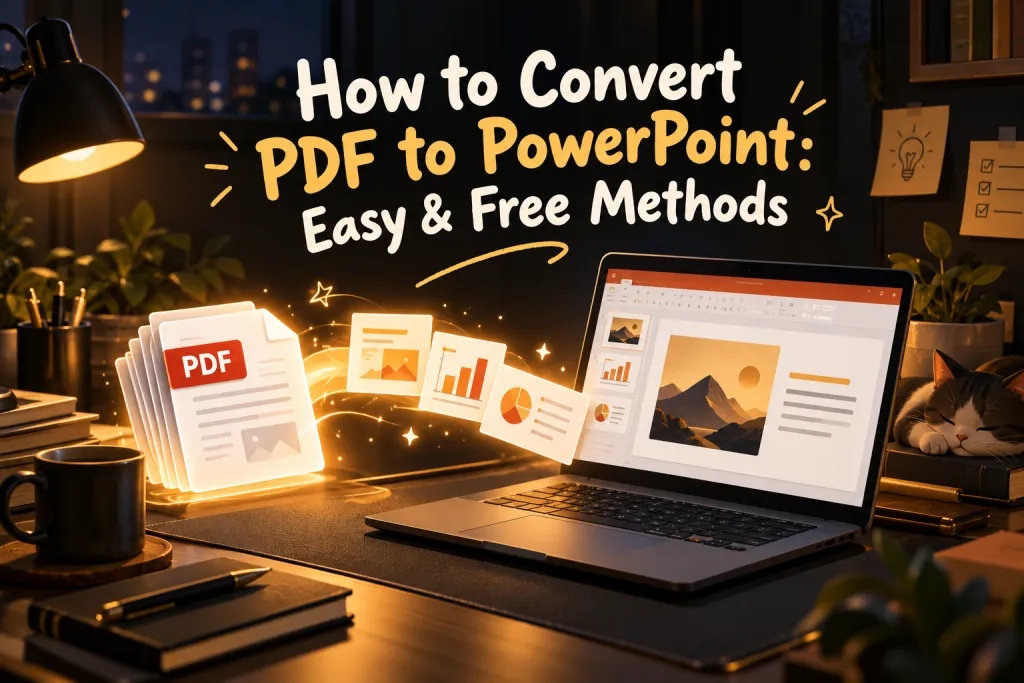
How to Convert PDF to PowerPoint: Easy & Free Methods
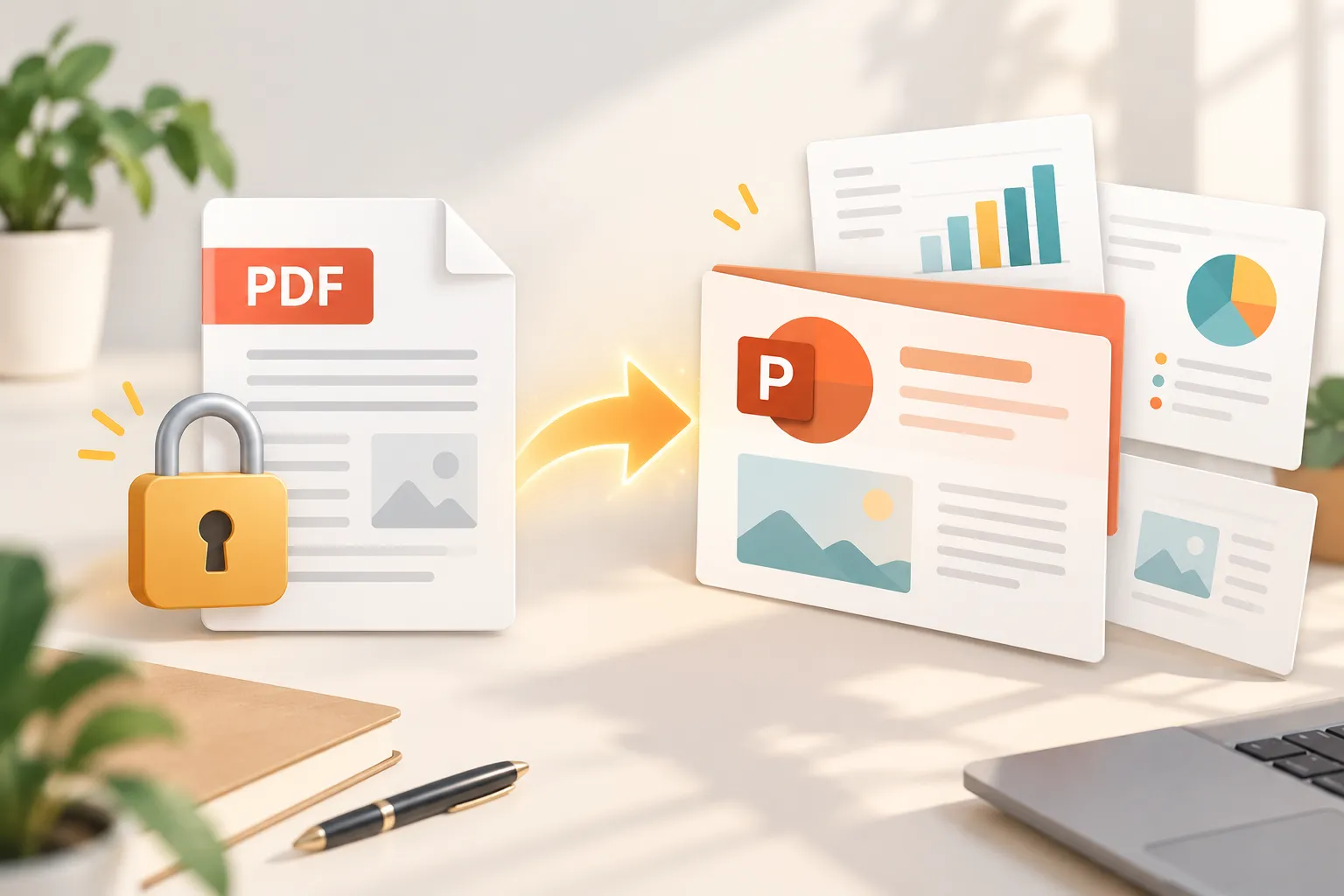
If you only have a PDF version of a presentation, report, or set of lecture notes, making edits can be frustrating. PDFs are designed to preserve a finished layout, while PowerPoint files are designed for editing, presenting, and reusing content.
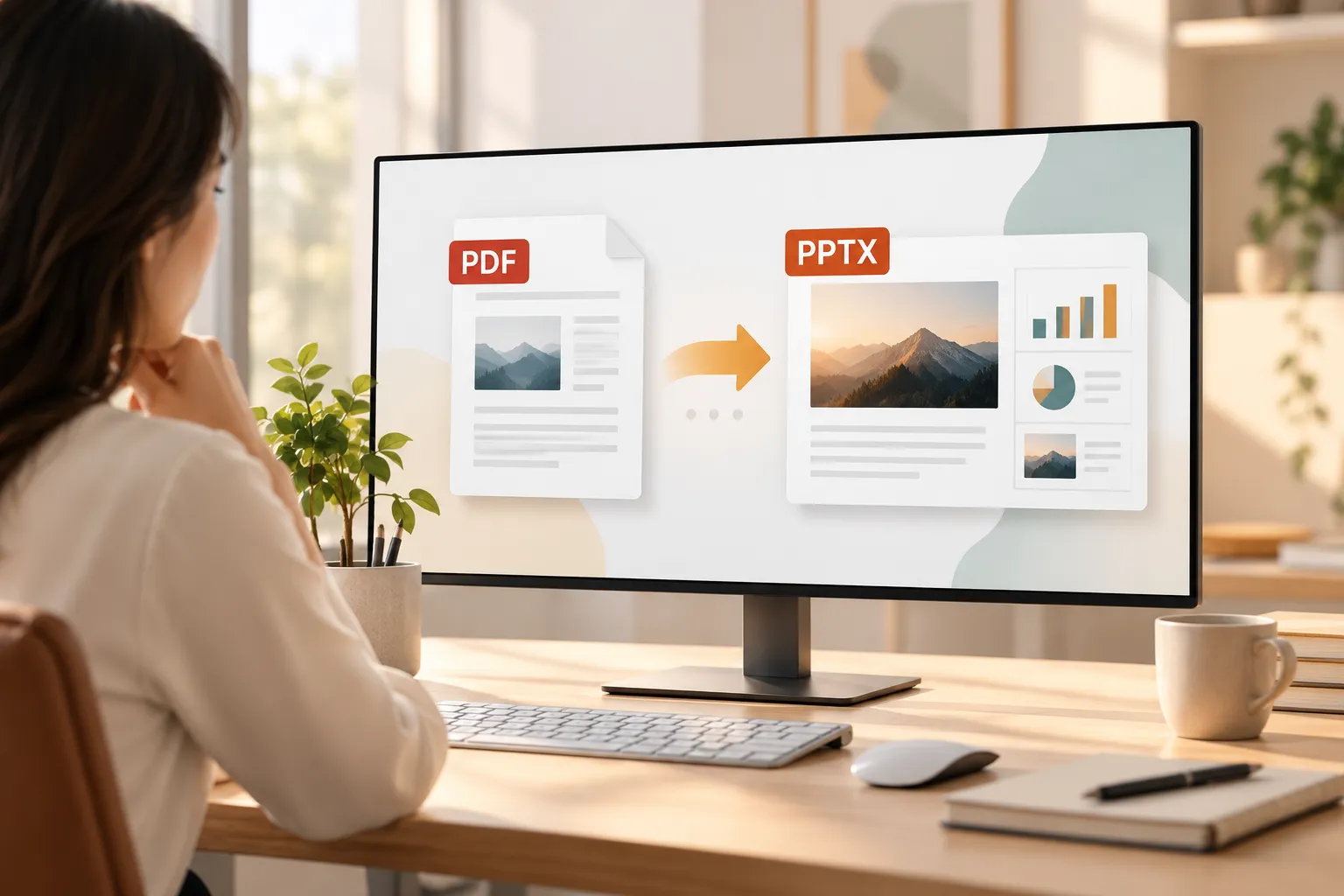
Learning how to convert PDF to PowerPoint can help you recover text, images, and basic layouts in an editable PPTX file. However, results depend heavily on the original PDF. A simple slide deck exported from PowerPoint may convert well, while a scanned document or design-heavy report may require substantial cleanup afterward.
The best approach depends on whether you need a quick editable copy, stronger file privacy, or a completely rebuilt presentation.
When Can You Convert a PDF to PowerPoint Successfully?
A PDF to PowerPoint converter works best when the original file contains selectable text, clear images, and relatively simple slide layouts. In these cases, the converter can identify text blocks, pictures, and visual regions, then recreate them on PowerPoint slides.
Before you change PDF to PowerPoint, check what kind of PDF you have:
- Digitally generated PDFs usually contain selectable text and produce better editable results.
- PDFs exported from PowerPoint often retain a slide-like structure, although fonts and spacing can still shift.
- Scanned PDFs are page images, so they need optical character recognition (OCR) to detect text.
- Image-heavy reports and brochures may convert as full-page images rather than editable objects.
- Complex layouts with overlapping shapes, custom fonts, charts, or layered graphics may need manual rebuilding.
A converted PPTX should be treated as a working draft, not an exact recreation. Review every slide before sharing it with an audience.
Method 1: Use an Online PDF to PowerPoint Converter
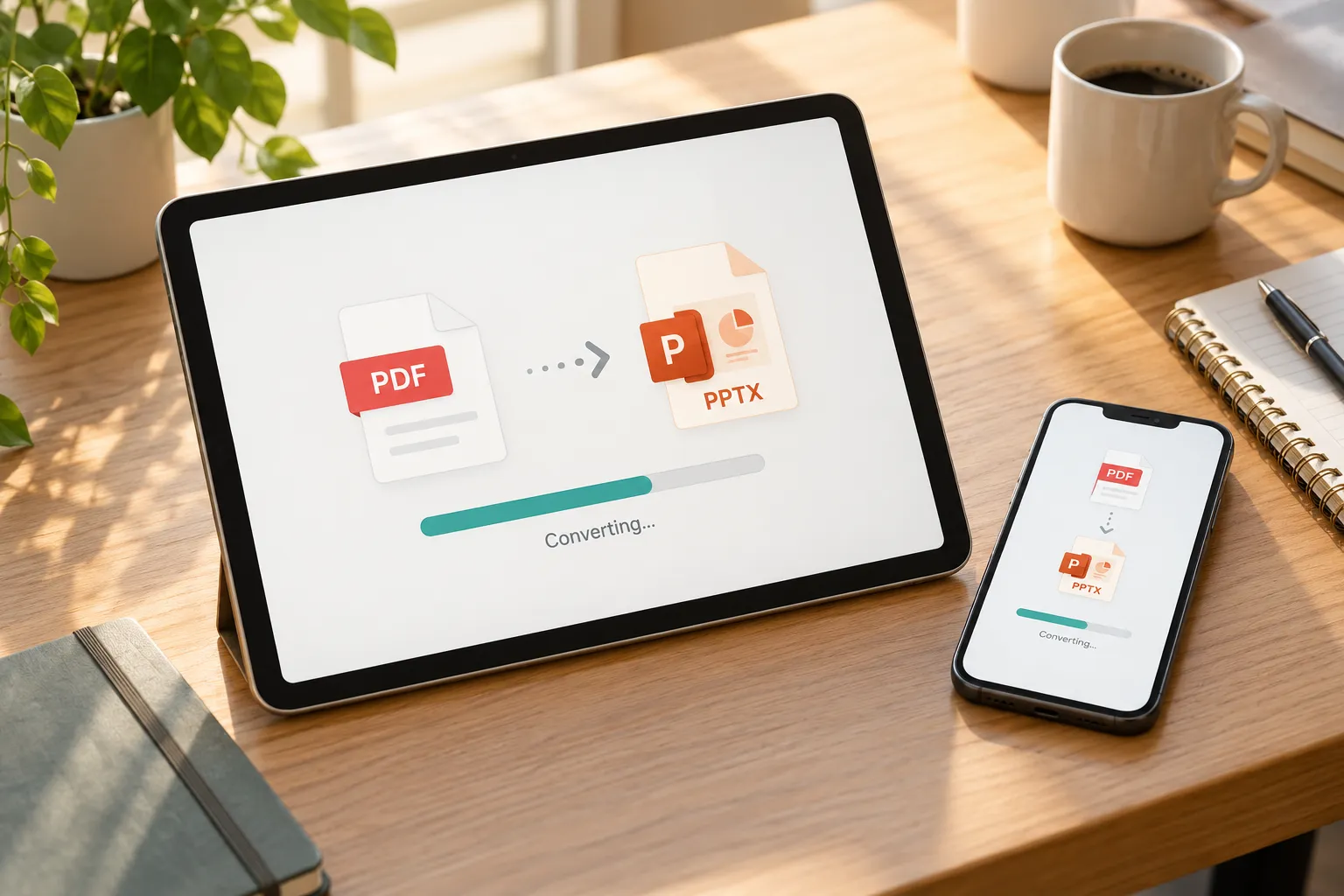
An online PDF to PowerPoint converter is often the fastest option when you need a quick result and the file is not confidential. Many web-based tools let you upload a PDF, process it in a browser, and download a PPTX file within a few minutes.
Start by choosing a reputable conversion service. Upload your PDF, select the PDF-to-PPT or PDF-to-PPTX option, and wait for the conversion to finish. Download the PowerPoint file, then open it in Microsoft PowerPoint to inspect the slides.
This method is especially useful for short, non-sensitive files such as class notes, public reports, simple handouts, or older presentation exports. It can also be a practical free PDF to PPT solution when you only need occasional conversions.
However, use caution with client files, financial documents, medical records, legal materials, or internal business presentations. Uploading a file to an online service may create privacy, retention, or compliance concerns. Review the provider’s data-handling policy before using it for sensitive content.
Online conversion is convenient, but it may not preserve custom fonts, editable charts, animations, or precise alignment.
Method 2: Convert PDF to PPTX With Adobe Acrobat Pro
Adobe Acrobat Pro is a more professional route when you regularly work with PDFs, need dependable export options, or prefer a controlled desktop workflow. It is particularly useful for business users who receive PDFs from clients or need to recover content from archived presentation files.
Open the PDF in Adobe Acrobat Pro and choose the export function. Select Microsoft PowerPoint as the export format, choose PPTX when prompted, and save the converted file. Then open the result in PowerPoint and check each slide for layout changes.
Acrobat Pro can produce strong results with text-based PDFs, especially when the original document has a clean structure. It may also offer OCR support for scanned files, helping turn recognized text into editable content.
Even with professional software, conversion has limits. A PDF does not always retain the underlying structure of a slide. For example, a chart may become a static image, a decorative shape may split into several objects, and a missing font may be replaced automatically. Acrobat Pro is best for users who value repeatability and privacy controls, but it cannot guarantee perfect slide reconstruction.
Method 3: Use Microsoft Word or Google Docs as a Workaround
If direct conversion produces an unusable deck, Microsoft Word or Google Docs can help you extract the content and rebuild the slides manually. This is not a true PDF-to-PPTX conversion method, but it is useful when the message matters more than preserving the original design.
Open the PDF in Word or upload it to Google Drive and open it with Google Docs. The document application may recognize headings, paragraphs, and basic images. Copy the cleaned text into PowerPoint, then organize it into a new slide structure.
This workaround is most effective for text-heavy reports, lecture notes, research summaries, and simple business documents. It gives you more control over the final deck because you decide what belongs on each slide.
Do not expect Word or Google Docs to preserve slide-level formatting. Their value is content extraction and reorganization, not design fidelity. You may still need OCR for scanned pages, and recognition errors should always be checked against the original PDF.
Tired of fixing messy formatting line by line after conversion? Try a smarter way to rebuild your slides.
Try Pi for Free – Turn Notes into Slides
PDF to PowerPoint Conversion Methods Compared
| Method | Speed | Cost | Editability | Privacy Considerations | Best-Fit Files |
|---|---|---|---|---|---|
| Online converter | Fast | Often free | Moderate | Uploading may pose risks | Simple, non-sensitive PDFs |
| Adobe Acrobat Pro | Moderate | Paid | Good | Suitable for controlled workflows | Business PDFs and recurring work |
| Word or Google Docs workaround | Moderate | Often available | High for rewritten content | Depends on storage settings | Text-heavy reports and notes |
How to Fix Formatting Problems After Converting a PDF
Formatting issues are normal after you convert PDF to PPTX. Start by setting the correct slide size. A mismatch between standard and widescreen dimensions can make all elements appear stretched, cropped, or misplaced.
Next, check fonts. If PowerPoint cannot find the original typeface, it may substitute another font and alter line breaks. Replace missing fonts with an approved alternative, then adjust text box sizes and line spacing. Shortening overly long sentences can also prevent awkward wrapping.
Review alignment slide by slide. Use PowerPoint’s alignment and distribution tools to straighten titles, icons, images, and labels. Keep consistent margins so the deck looks intentional rather than mechanically converted.
Charts usually deserve special attention. If a chart becomes an image, recreate it using editable PowerPoint charts when the numbers matter. Rebuilding a simple bar chart or timeline often produces a clearer result than trying to repair a distorted graphic.
For scanned PDFs, proofread every OCR-generated text block. OCR may confuse letters, numbers, punctuation, and table cells. Finally, simplify overcrowded slides. A PDF page may contain more detail than a presentation slide needs, so remove small print and move supporting information into speaker notes or an appendix.
When It Is Better to Rebuild the Presentation Instead of Converting It
A converter is the right tool when you need an editable version of the same document. But if the PDF is a report, proposal, research file, or collection of notes, recreating every page may not produce an effective presentation.
A stronger approach may be to use the PDF as source material and build a new deck around the audience, decision, and key message. This is where Pi can be useful as a presentation-building workflow rather than a direct file conversion utility.
1. Business Logic Comes Before Slide Styling
Pi helps turn source material into a presentation with a clearer narrative flow. Instead of copying every paragraph from a PDF, you can organize the deck around context, findings, recommendations, and next steps.
2. Multi-Agent AI Supports Professional Structure
For business-ready work such as pitch decks, sales presentations, consulting reports, and executive updates, Pi uses Multi-Agent AI to help shape content into a more coherent presentation structure. This can be more valuable than recovering a static layout when the original PDF was never designed for live presentation.
3. Premium Visual Quality Supports the Final Message
Once the story is clear, Pi can help create polished slides with a professional visual hierarchy. The goal is not simply to make a PDF editable; it is to create a deck that is easier to understand, present, and revise.
Don't spend hours tweaking distorted shapes and font sizes. Let AI structure your source material into a polished, executive-ready deck in minutes.
Start Building Your Presentation with Pi
Frequently Asked Questions (FAQ)
Can I convert PDF to PowerPoint for free?
Yes. Many online tools offer a free PDF to PPT option for occasional conversions. Free services may limit file size, daily usage, or advanced export features, and they may not be appropriate for confidential files.
Will a converted PDF become fully editable in PowerPoint?
Usually, some text and visual elements become editable, but not always perfectly. Fonts, charts, layered graphics, tables, and complex layouts may change during conversion or remain as images.
How do I convert a scanned PDF to PowerPoint?
Use a converter or desktop application with OCR support. OCR detects text within page images, but it can introduce spelling, number, and formatting errors, so proofread the converted slides carefully.
Is it safe to use an online PDF to PowerPoint converter?
It can be safe for public or low-risk files, but avoid uploading confidential, regulated, client-sensitive, or proprietary documents unless you have reviewed the provider’s privacy, retention, and security practices.