How to Remove a Background in PowerPoint (Picture or Slide)
To remove a picture background in PowerPoint, select the picture and choose Picture Format → Remove Background. Adjust the selection, then choose Keep Changes. If you want to remove the color or design behind the entire slide, use Design → Format Background instead.
Start by clicking the area you want to remove. If a selection box appears around the picture, use the picture tools. If the background itself cannot be selected, check the slide’s background settings or layout.
Which PowerPoint Tool Should You Use?
| What you want to remove | Where to go | What changes |
|---|---|---|
| The area around the subject in a photo | Picture Format → Remove Background | The selected part of the picture becomes transparent. |
| A slide’s background color, texture, or image fill | Design → Format Background | The slide gets the fill you choose. |
| A decorative shape or logo inherited from the layout | Format Background → Hide background graphics, or View → Slide Master | Inherited artwork is hidden on a slide or edited at the layout level. |
How to Remove the Background From a Picture in PowerPoint
- Select the picture. Open the presentation in desktop PowerPoint and click the photo you want to edit.
- Choose Picture Format → Remove Background. PowerPoint previews the areas it intends to remove in magenta.
- Refine the selection. Use Mark Areas to Keep to restore any part of the subject covered by magenta. Use Mark Areas to Remove to clear unwanted areas that remain.
- Select Keep Changes. The removed areas become transparent, so the slide underneath shows through.
- Check the edges at presentation size. Try the picture on the intended background. Zoom in around narrow edges or details and adjust the selection if needed.
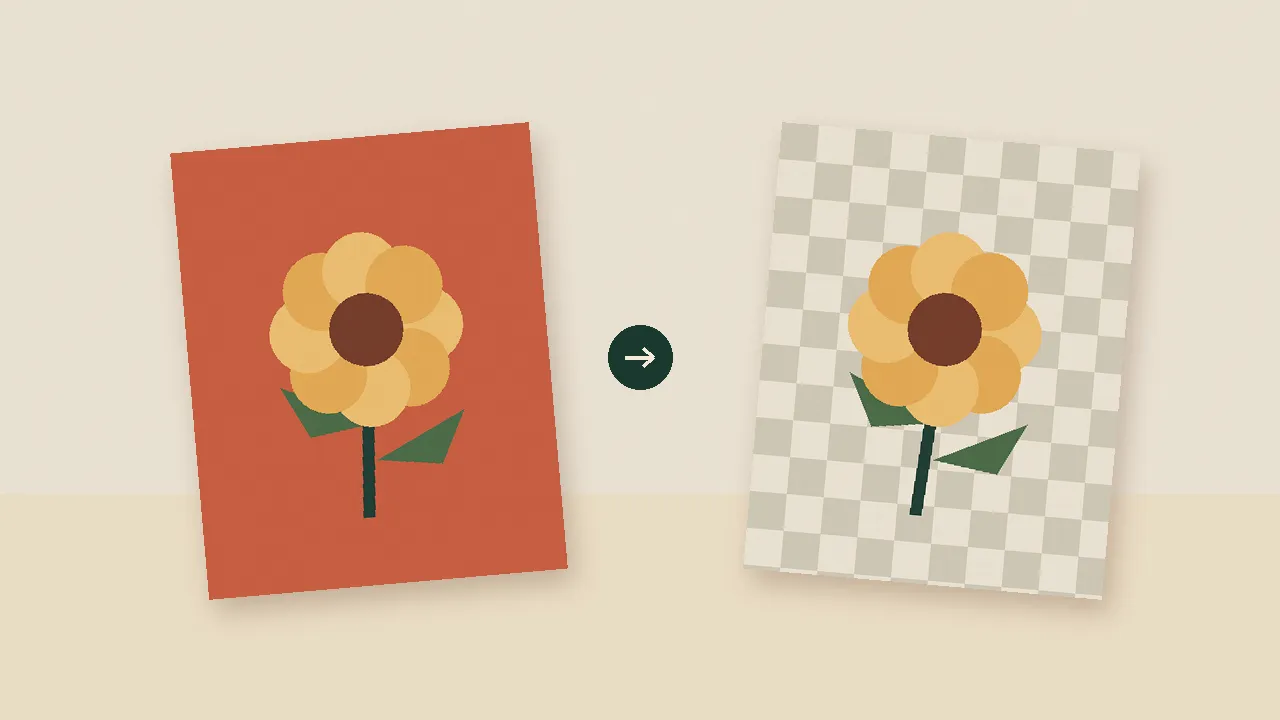
Removing the picture background lets the slide show through around the subject.
Worked example: Put a product photo on a dark slide
Suppose you are preparing a product demo and your photo has a beige studio backdrop. PowerPoint identifies most of the backdrop, but it also marks part of the handle for removal. Draw a short keep mark over the handle, then draw a remove mark in the gap inside it. After applying the change, place the photo on the dark slide. The dark fill makes any remaining light edge easier to spot.
How to Remove or Replace the Background of a Slide
Select the slide and choose Design → Format Background. To replace the current background with plain white, choose Solid fill and select white. Apply it to the selected slide first. Use Apply to All when you want the same fill across the deck.
If a logo, stripe, or decorative shape remains, try Hide background graphics in the background pane. To change the underlying layout, choose View → Slide Master and inspect the layout used by the slide. Edits there can affect multiple slides sharing that layout. If the object is selectable directly in Normal view, it may be a regular slide object that you can select and delete.

Slide background settings let you change the canvas behind your content.
When the Background Is Hard to Remove
- The edges look jagged. Make a few short marks around the affected edge and inspect the result at the size you will present it. A higher-resolution original gives you more detail to work with.
- The photo has a solid white backdrop. On supported desktop versions, Picture Format → Color → Set Transparent Color can work for a single flat color. Use Remove Background if matching white areas in the subject also disappear or the backdrop contains shadows.
- Remove Background is unavailable. Check that you selected a picture. If you are using PowerPoint for the web and do not see the command, open the deck in the desktop app. For an unsupported image type, try a PNG or JPG copy.
Build the Rest of the Slide Around the Image
Once the picture is isolated, give it room on the slide and place the takeaway where the audience can read it first. A single product photo, one short headline, and a contrasting background are often enough for a demo slide. See Pi’s guide to designing PowerPoint presentation slides for examples of visual hierarchy.
If you are building a deck from scratch, use Pi to draft the slide structure and layout, then add your edited visuals where they support the story.
Frequently Asked Questions (FAQ)
How do I make a picture background transparent in PowerPoint?
Select the picture, go to Picture Format → Remove Background, and use the keep and remove tools to refine the preview. Select Keep Changes when the magenta area covers only the pixels you want to remove.
How do I remove a white background from an image?
For a flat white background, try Picture Format → Color → Set Transparent Color where available. For a shaded background or a subject that also contains white, use Remove Background and mark the parts you want to keep.
Why can’t I select a slide’s background?
A slide fill is set through Format Background. Decorative graphics can also be inherited from the layout. Use Hide background graphics or inspect the layout in Slide Master.
Can I change the background on just one slide?
Yes. Select that slide before opening Format Background and choose the new fill. Use Apply to All only if you want the change across the deck.
How do I save a cutout with a transparent background?
After removing the background, right-click the picture and choose Save as Picture where available. Select PNG to preserve transparency, then open the exported image to verify the result.